MSS Clamping
MSS clamping ensures that TCP connections through your VPN IPsec tunnel only send packets that fit through the tunnel. Turn on MSS clamping when the connection is established but larger transfers stall or fail.
When MSS clamping is useful
Every packet that passes through the VPN IPsec tunnel is encrypted and receives additional IPsec headers of about 70 bytes. A packet that already has the maximum size of 1500 bytes is then too large for the internet path. Along the way, it is split or dropped.
Typical signs:
- The connection shows Connected. Small requests, such as loading a login screen, still work.
- Websites load only partially, file copies stall or fail, and Remote Desktop sessions freeze.
- Database queries with large results experience timeouts.
These problems often occur when the internet connection at your site has a lower packet size, for example DSL with PPPoE or a mobile connection.
How MSS clamping works
When a TCP connection is set up, both sides agree on the maximum segment size (MSS), which is the largest amount of data per packet. When MSS clamping is on, oneclick™ lowers this value for every TCP connection through the tunnel to MTU − 40. 40 bytes are reserved for the IP and TCP headers.
This way, the packets including the IPsec overhead fit through the internet path and are no longer split or dropped.

MSS clamping applies to TCP connections in both directions. You do not need to change anything on your VPN end device.
Turn on MSS clamping
MSS clamping is only available for connections with the connection type Manual. In automatic mode, oneclick™ does not adjust the TCP connections. If you switch the connection back to Automatic, oneclick™ turns off MSS clamping.
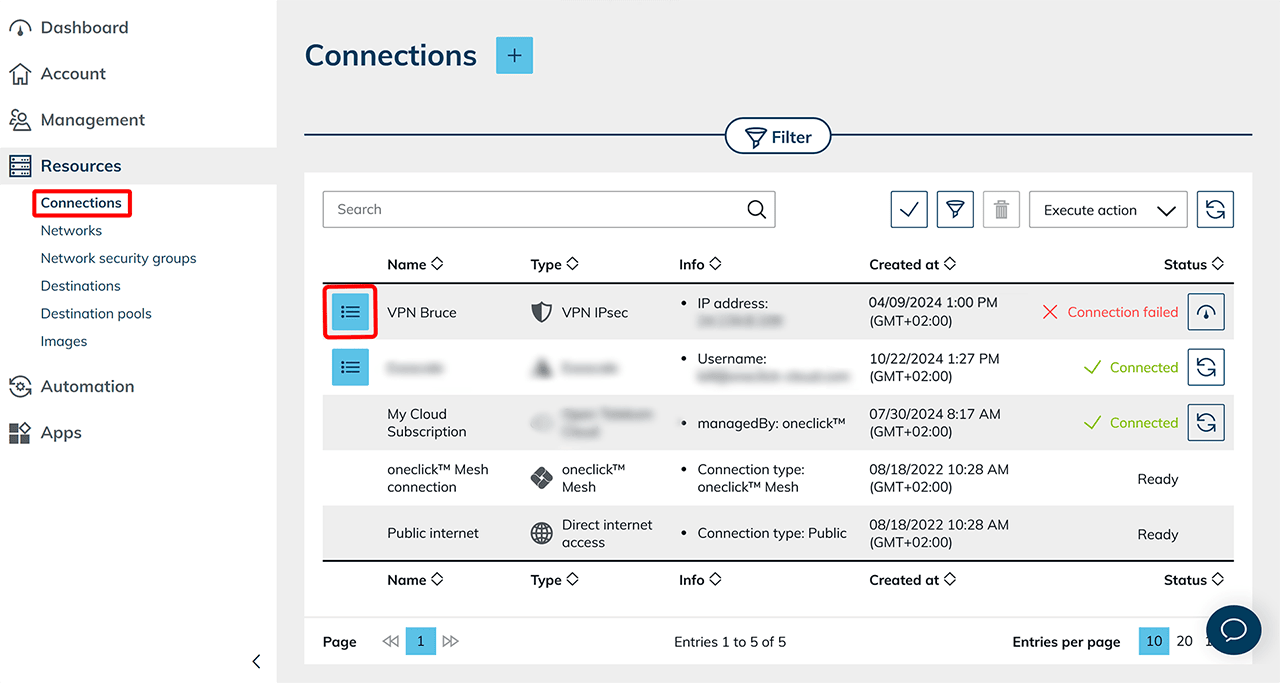
- Click Resources in the menu, and then click Connections.
- In the row of your VPN IPsec connection, click the List icon to open the detail view.
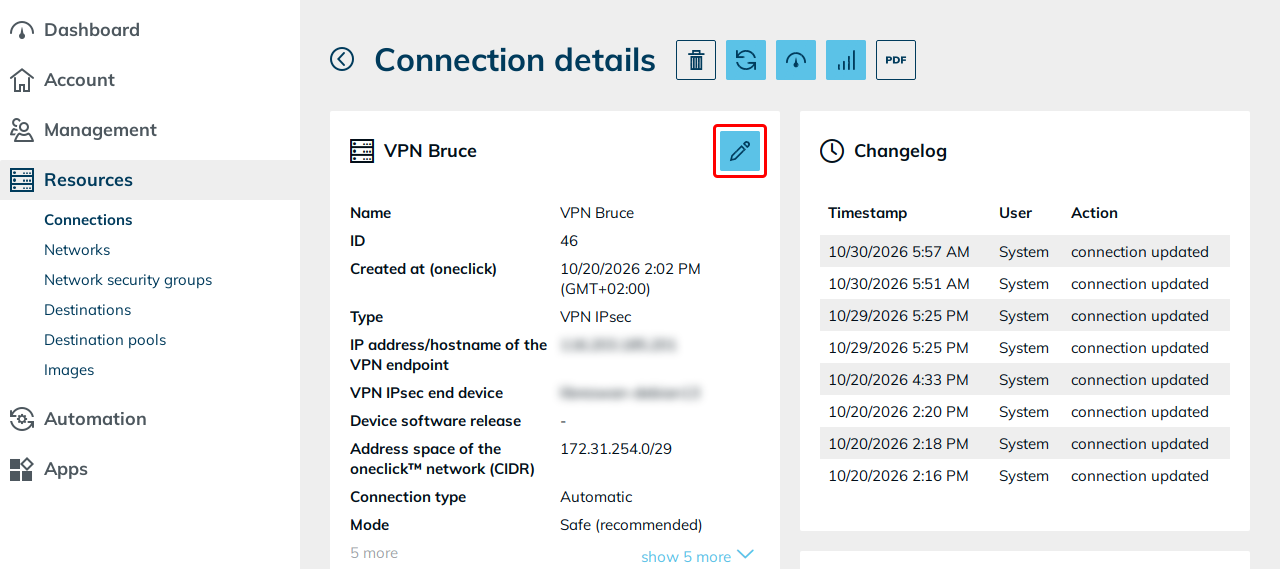
- Click the Pencil icon to edit the connection.
- Under Connection type, set the switch to Manual.
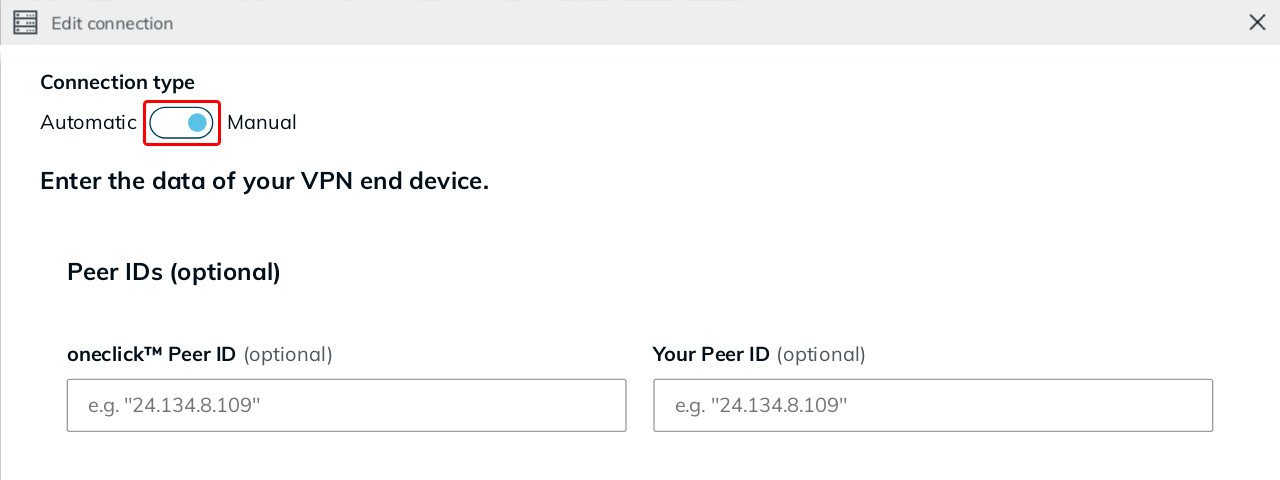 Switching from Automatic to Manual
If the connection was previously configured automatically, also enter the IKE data and the values for phase 1 and 2 of your VPN end device.
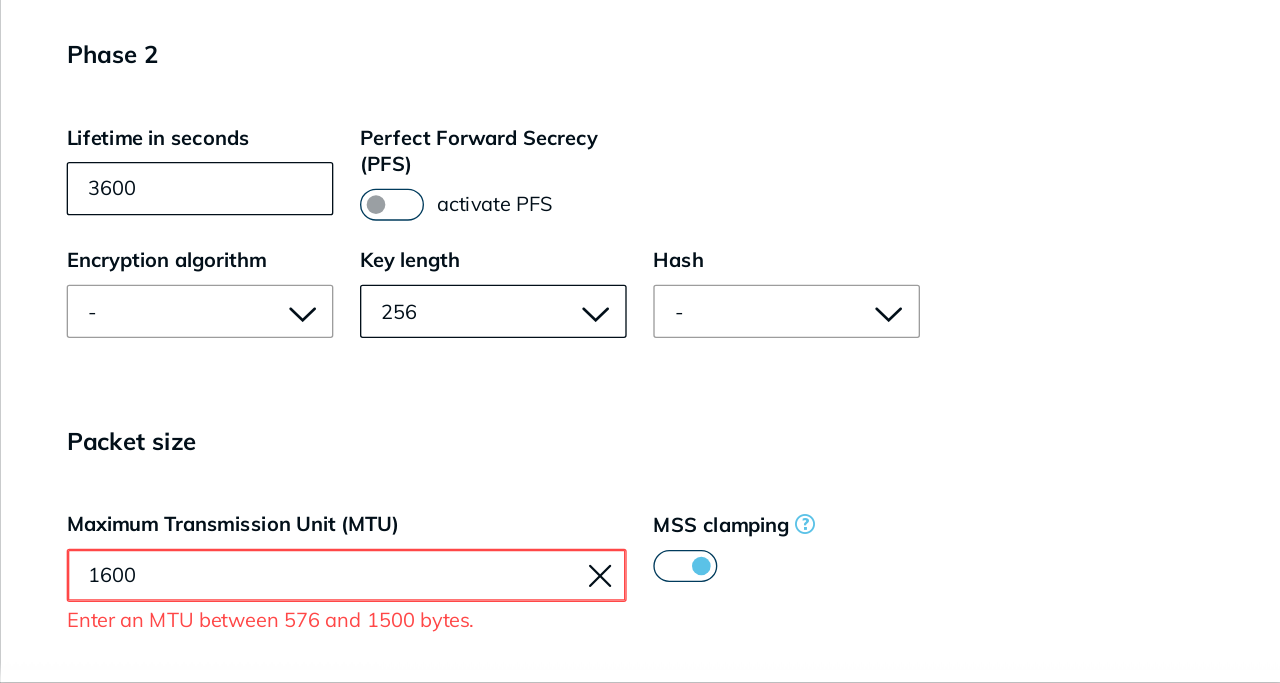
- Under Packet size, enter a lower value in the Maximum Transmission Unit (MTU) field, for example 1400.
- Turn on MSS clamping.
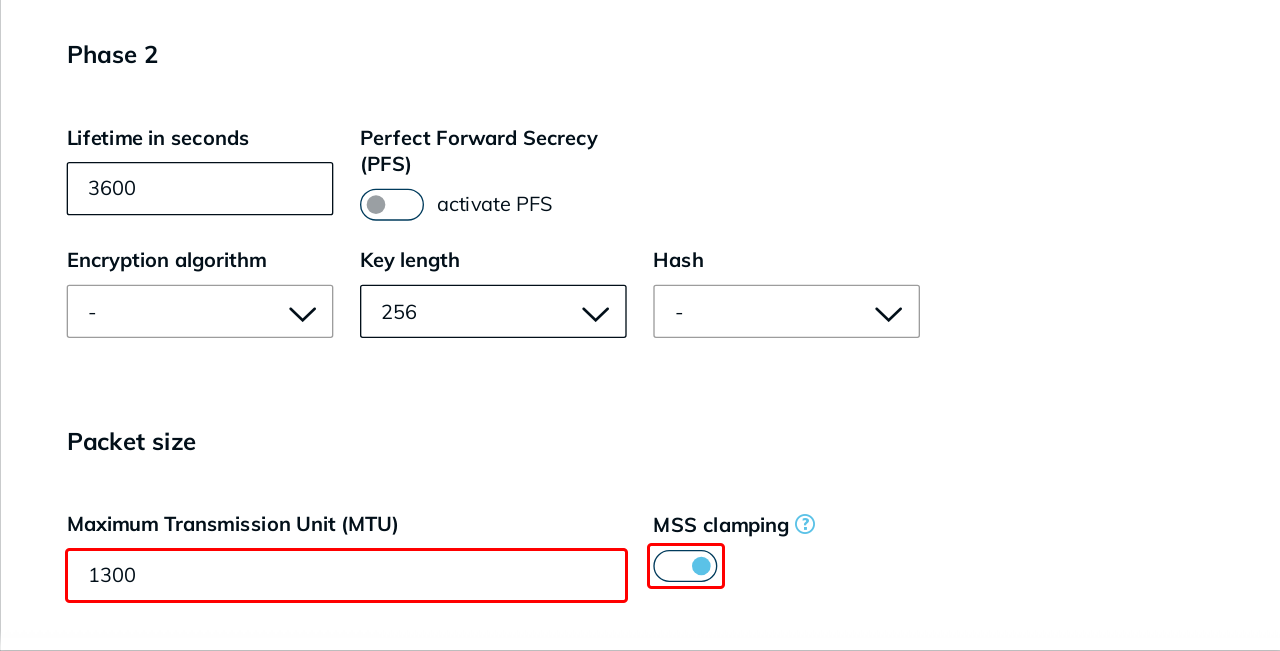
- Click Save.
oneclick™ applies the change and reinitializes the connection. During this process, oneclick™ briefly interrupts the tunnel.
You can also turn on MSS clamping when creating a new VPN IPsec connection. Under Connection type, set the switch to Manual. Then enter the desired MTU under Packet size and turn on MSS clamping.
Choose the right MTU
MSS clamping only works with an MTU below 1500. First, set the MTU to 1400. If transfers still stall, lower the value step by step.
| MTU | Resulting MSS |
|---|---|
| 1500 (default) | 1460, no effect |
| 1400 | 1360 |
| 1360 | 1320 |
| 1300 | 1260 |
A lower MTU reduces throughput only slightly. Do not lower the value more than necessary.
The MTU must be between 576 and 1500, whether MSS clamping is on or off. If the value is outside this range, an error message appears and you cannot save the connection.
Turn off MSS clamping
- Click Resources in the menu, and then click Connections.
- Click the List icon of the corresponding connection to open the detail view.
- Click the Pencil icon to edit the connection.
- Turn off MSS clamping.
- Click Save.
After saving, oneclick™ no longer adjusts the TCP connections through the tunnel.
If transfer issues still occur with MSS clamping turned on, see the article Connection Issues VPN IPsec.