Direct Internet access
Connecting on-premises resources with direct internet access is ideal for individual target systems with a public IP address or a publicly accessible hostname (e.g., DynDNS).
To increase security, we recommend that you optionally include the oneclick™ IP address in the whitelist of your firewall.
To set up a destination with direct internet access, proceed as follows:
-
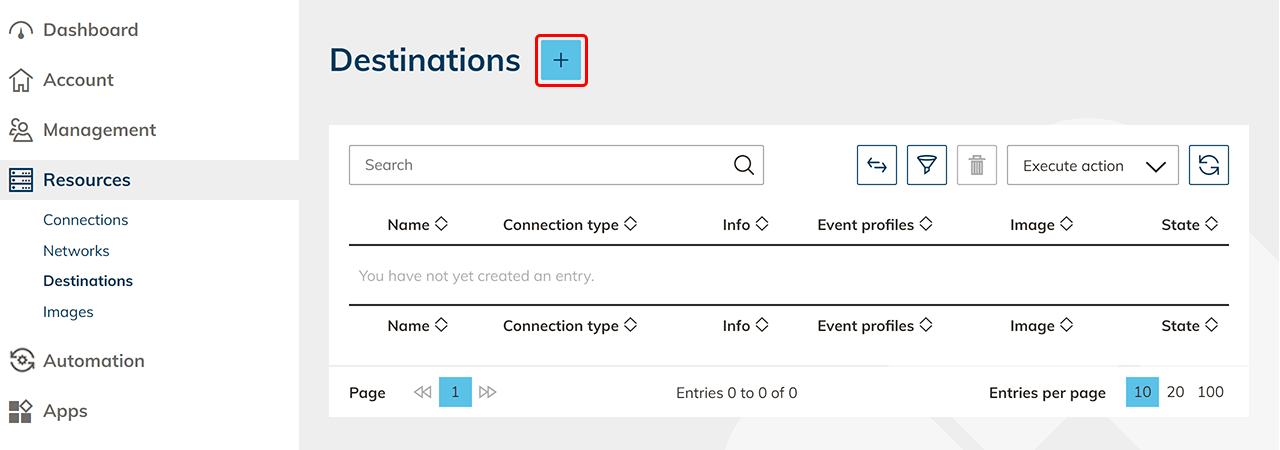
Start oneclick™ directly via the Resources tab in the Destinations item. Click on the Plus icon to create a new target system with direct internet access.
-
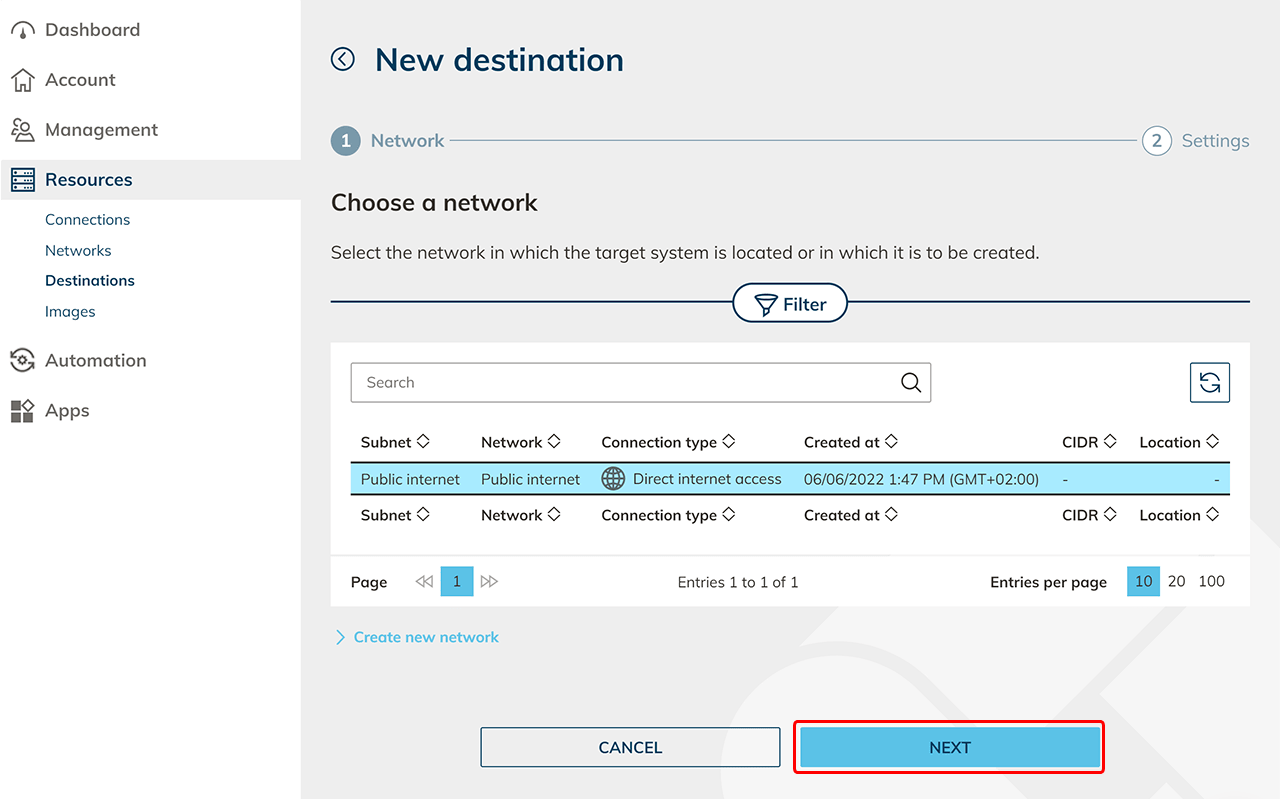
Select the network Public Internet and click Next. This network entry already exists by default.
-
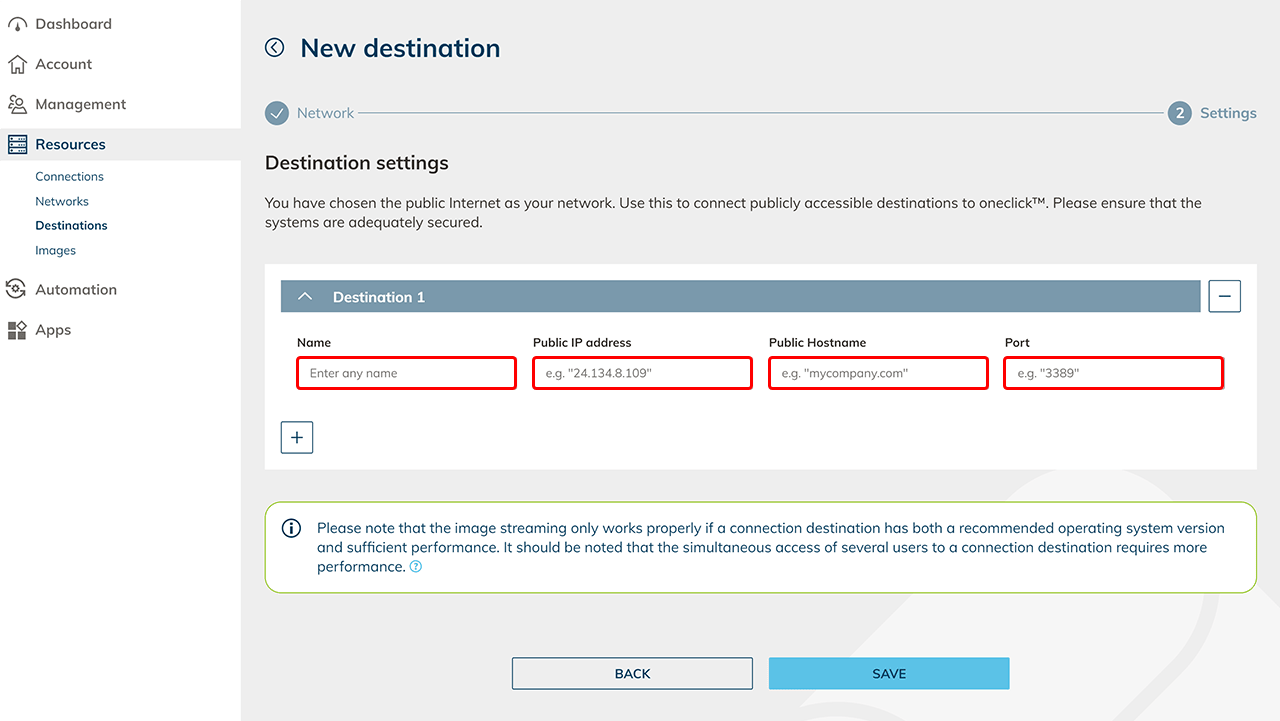
Give the Destination a descriptive name and enter the public IP address or Public Hostname and the port.
 Entering ports
You can enter several ports separated by commas, for example
3389, 636. Ports range from 1 to 65535. -
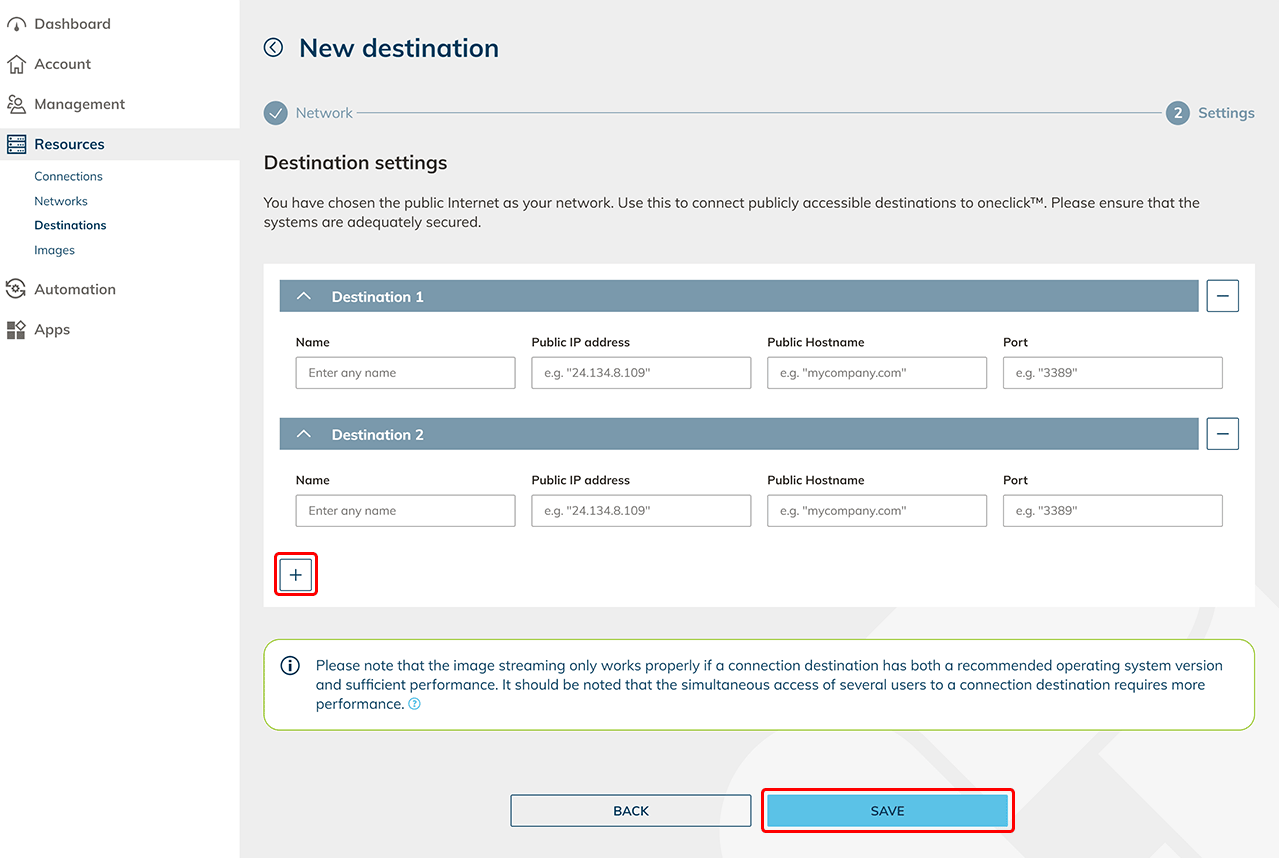
Click on the Plus icon to create additional Destinations. Then click on Save.
-
Create destination pools Next, create a destination pool in which you can include one or more destinations that belong together. This step is not necessary if you want to connect an internal website or a private Active Directory.
-
Check connectivity and assign apps in oneclick™ Click on the check status icon in the row to check the connectivity.

If you want to access the destination via oneclick™ streaming, then configure app access and create app instances for your oneclick™ users. 7. Send oneclick™ registration link Once you have completed all the steps above, you can give your users access to oneclick™ by sending the registration link.