Import users from private AD
Import users from your private Active Directory to use them in oneclick™.
Proceed as follows:
- Prepare your Active Directory.
- Connect your private Active Directory to oneclick™.
- Users then log in with their email address and AD password.
- Synchronize your Active Directory again after changes.
Preparations in your Active Directory
To import your existing AD users into oneclick™, an Active Directory must be set up on your Windows Server.
For all users to be imported (including the administrator), a publicly reachable e-mail address must be entered in the E-mail field. This e-mail address is used to create the user in oneclick™.
An email in the "User logon name (UPN)" field is not considered by oneclick™.
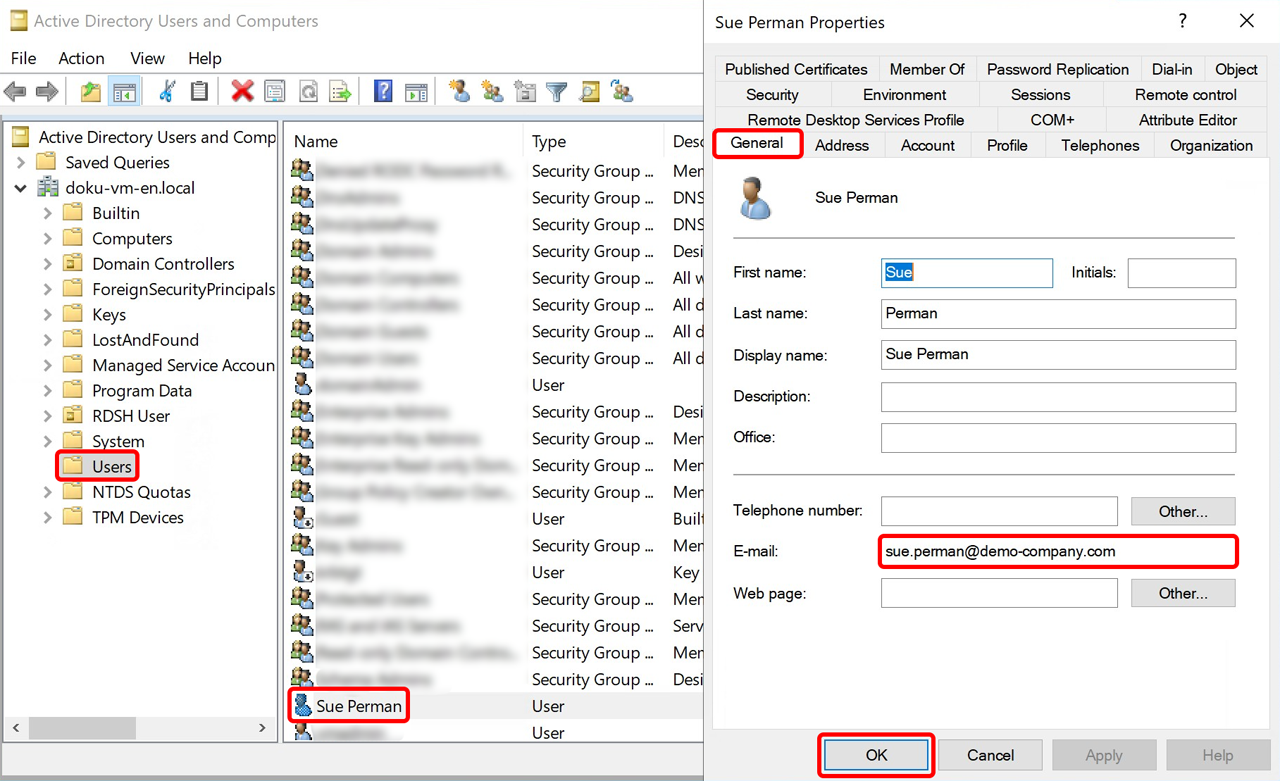
Add email address for users
- Open Active Directory Users and Computers.
- Navigate to your Organizational Unit (e.g. Users).
- Double-click a User.
- Open the General tab.
- Enter a publicly reachable email address in the E-mail field.
- Click OK.
Create a security group for import
Create a new group in your Active Directory that contains only the users to be imported into oneclick™.
Do not use Active Directory system groups. These are not considered in oneclick™.
- Open the desired Organizational Unit (e.g. Users) on the left.
- Right-click in the right area.
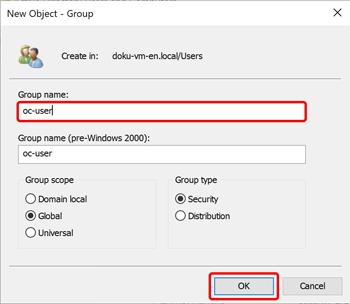
- Select New → Group.
- Enter the desired name in the Group name field (e.g. oc-users).
- Click OK.
Add users to the group
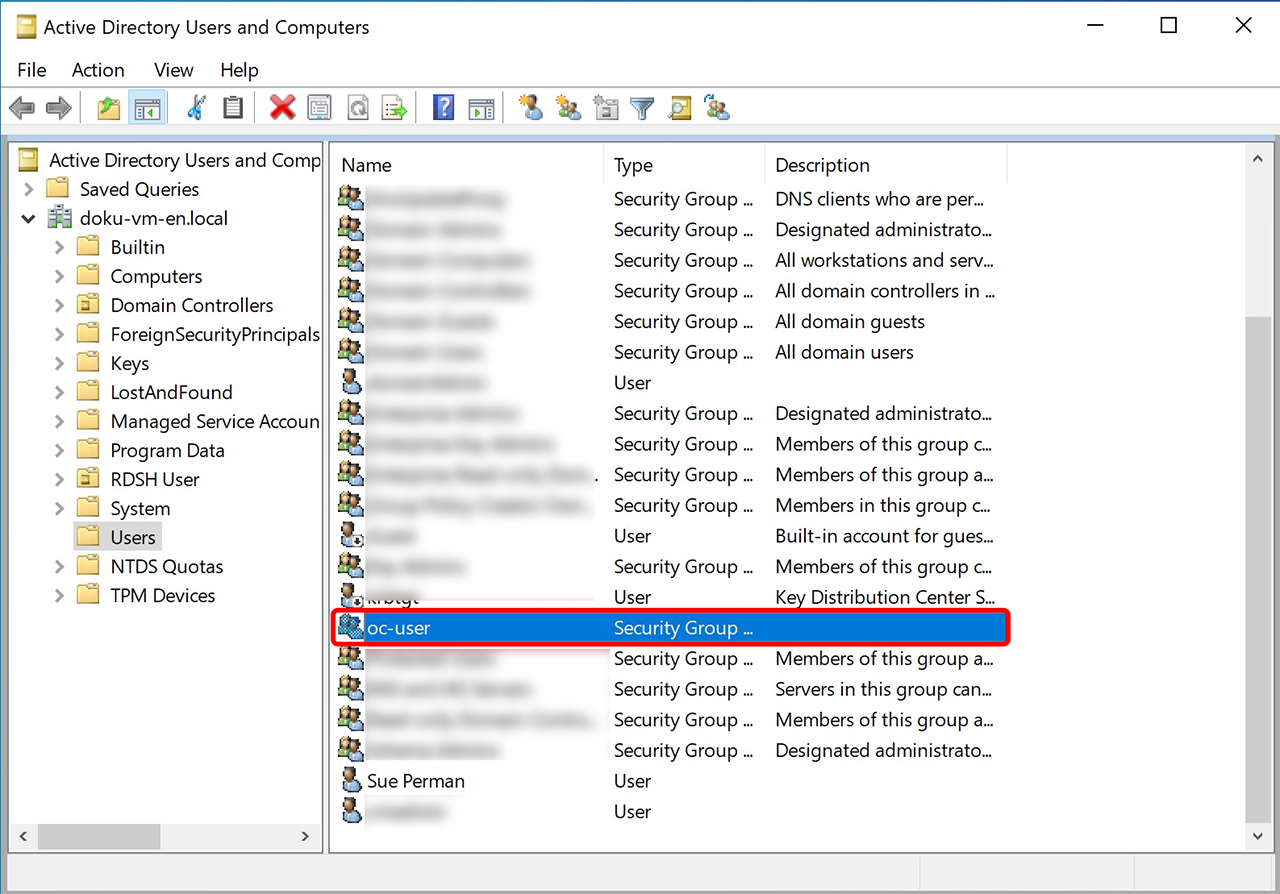
- Double-click the newly created group.
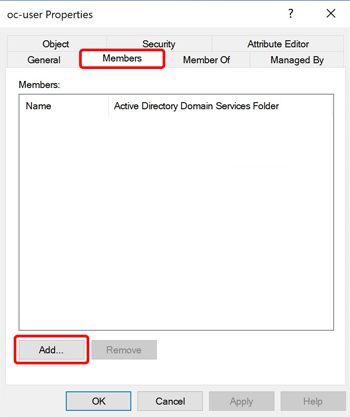
- Open the Members tab.
- Click Add.
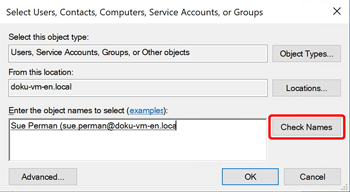
- Enter the desired users and click Check Names.
- Click OK.
Assign "Domain Users" group
Assign the AD group "Domain Users" and, if required, additional permission groups to the new AD group.
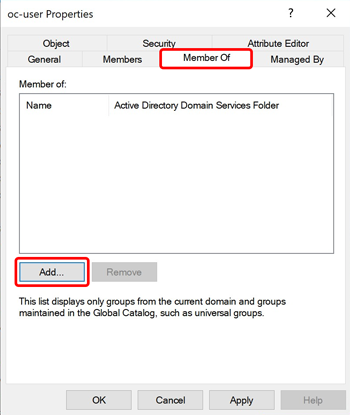
- Open the group and switch to the Member Of tab.
- Click Add.
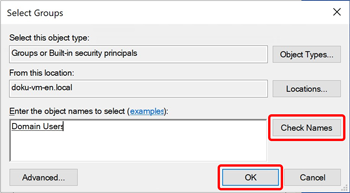
- Enter
Domain Usersand click Check Names. - Click OK.
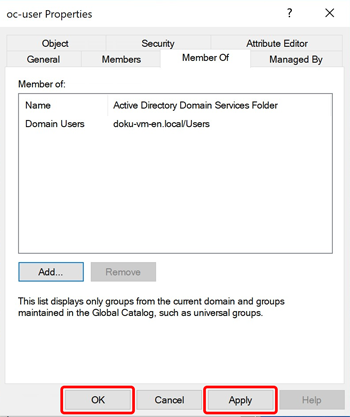
- Click Apply and then OK.
Connect Active Directory to oneclick™
- Check in advance how many user licenses are required and request them in the licenses section.
Alternatively, select a demo license in the final step of the import and assign the appropriate license later. - Optionally create groups in oneclick™ to which the users from the Active Directory should be assigned.
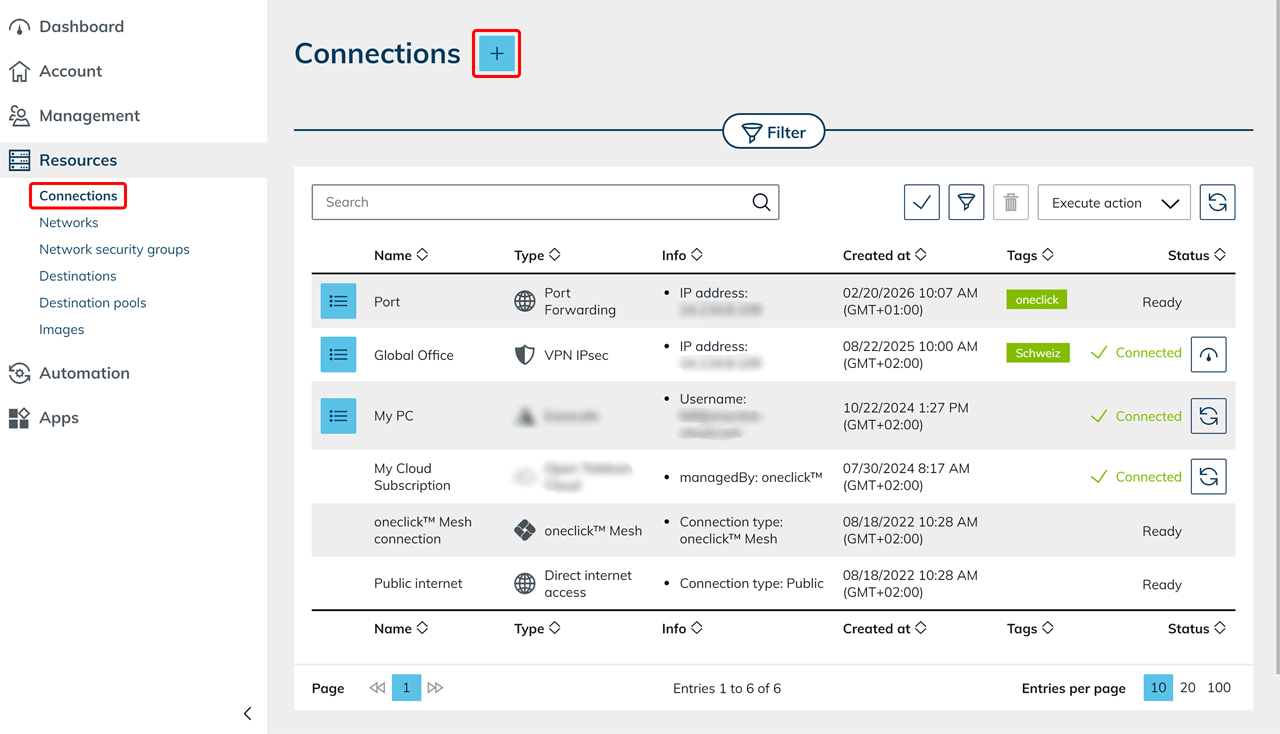
By default, you can select the oneclick™ group "Administrator". - Open the Resources menu and go to Connections, then click the Plus icon.
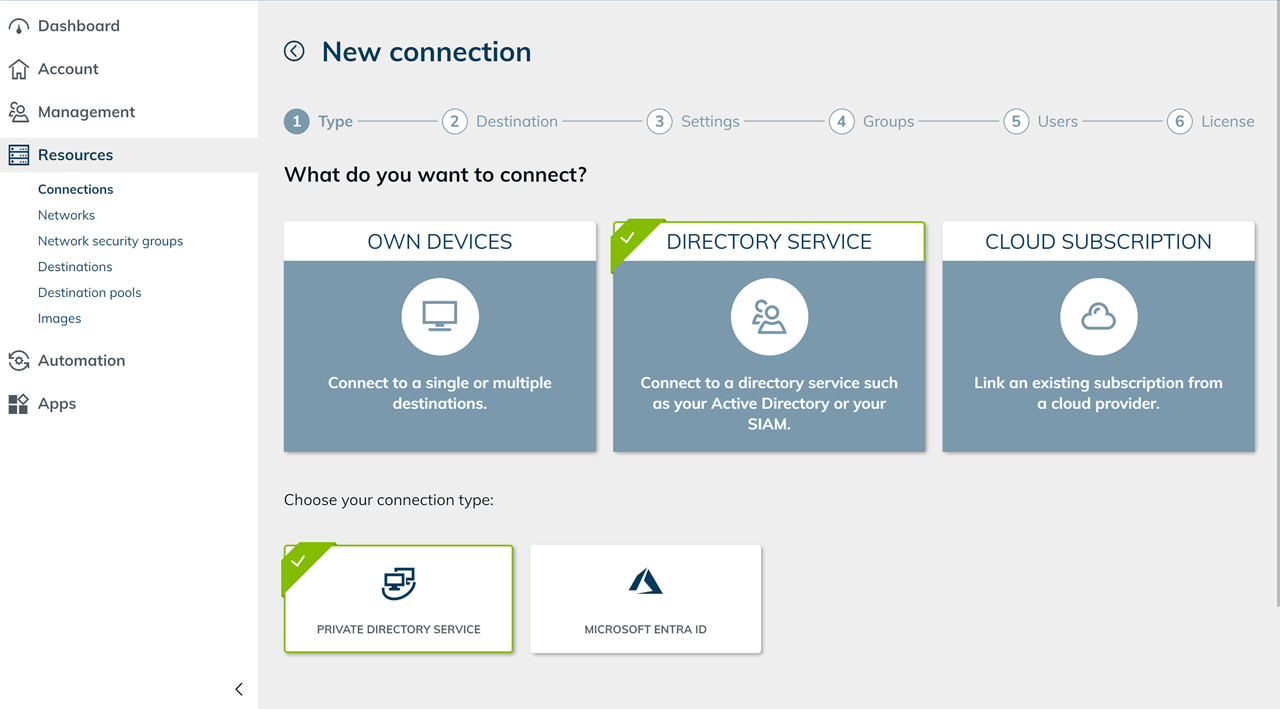
- Select Directory Service and then Private Directory Service.
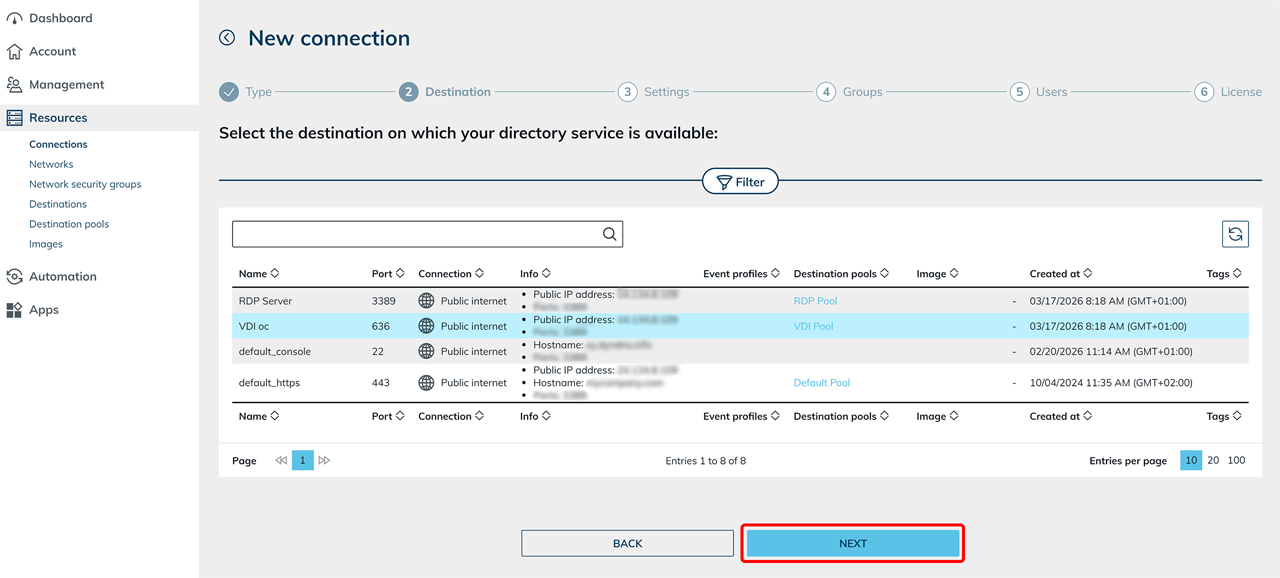
- Select an on-premises resource or a cloud resource where your Active Directory is located in oneclick™, then click Next.
Make sure to use the correct port:- LDAP: 389
- LDAPS: 636
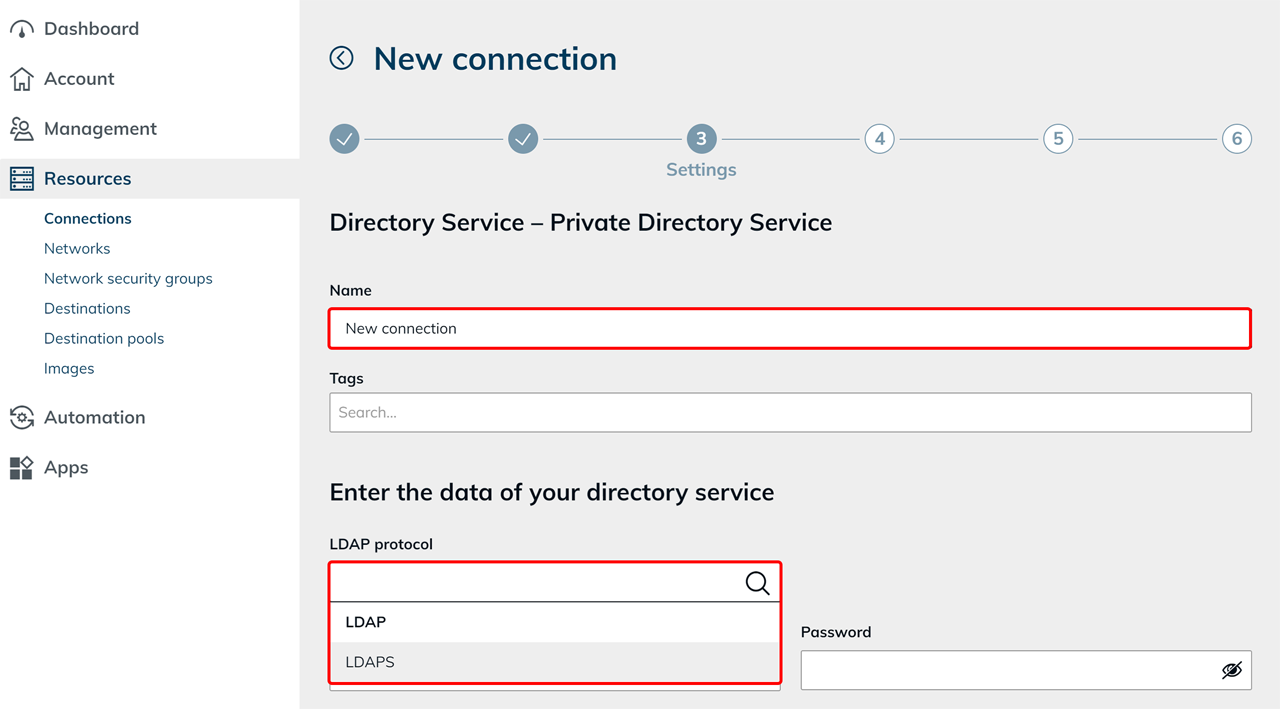
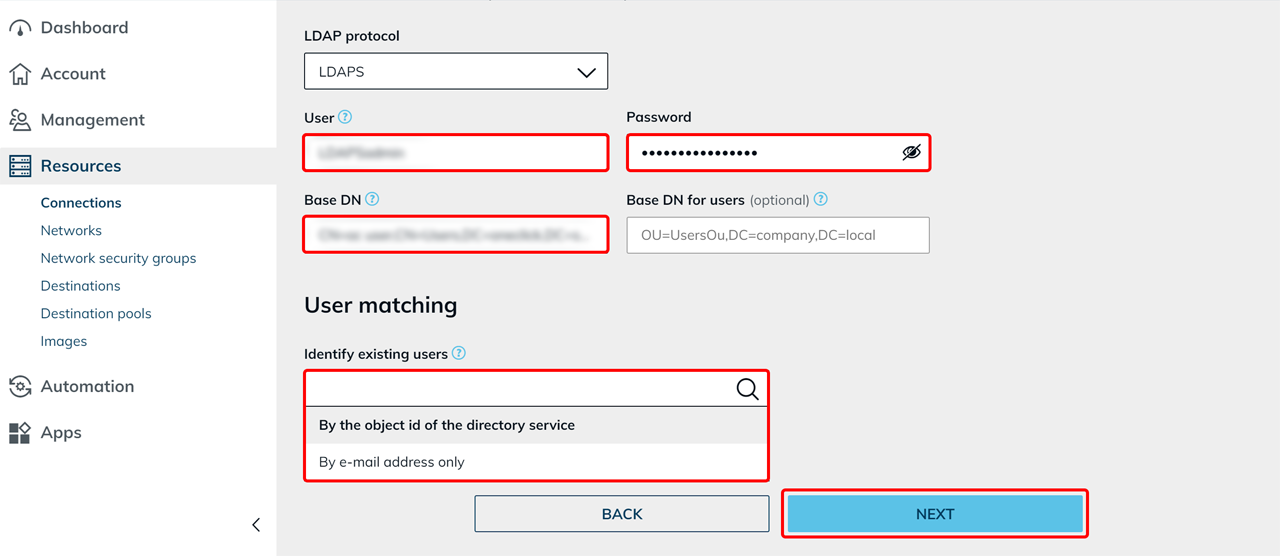
- Enter a Name and select the protocol LDAP or LDAPS.
- Enter the User. Use a service user.
A standard domain user without special permissions (role "Domain User") is sufficient.
For security reasons, do not use an administrator account.
Use either:- the User, or
- the Distinguished Name (DN)
- Enter the Password of the service user.
- Verify the Base DN and optionally the Base DN for users.
Enter the values according to your Active Directory structure, e.g.:OU=UsersOu,DC=company,DC=local(without spaces). - Under User matching, specify how oneclick™ identifies existing users.
Under Identify existing users, select one of the following options:- By the object id of the directory service: oneclick™ matches users based on the object ID. This is the default setting. The match remains in place even if the e-mail address changes in the directory service.
- By e-mail address only: oneclick™ matches users exclusively based on the e-mail address. For each unknown e-mail address, oneclick™ creates a separate user. This option is suitable, for example, if two directory services contain the same people and you want to manage them as separate users in oneclick™.
- Click Next.
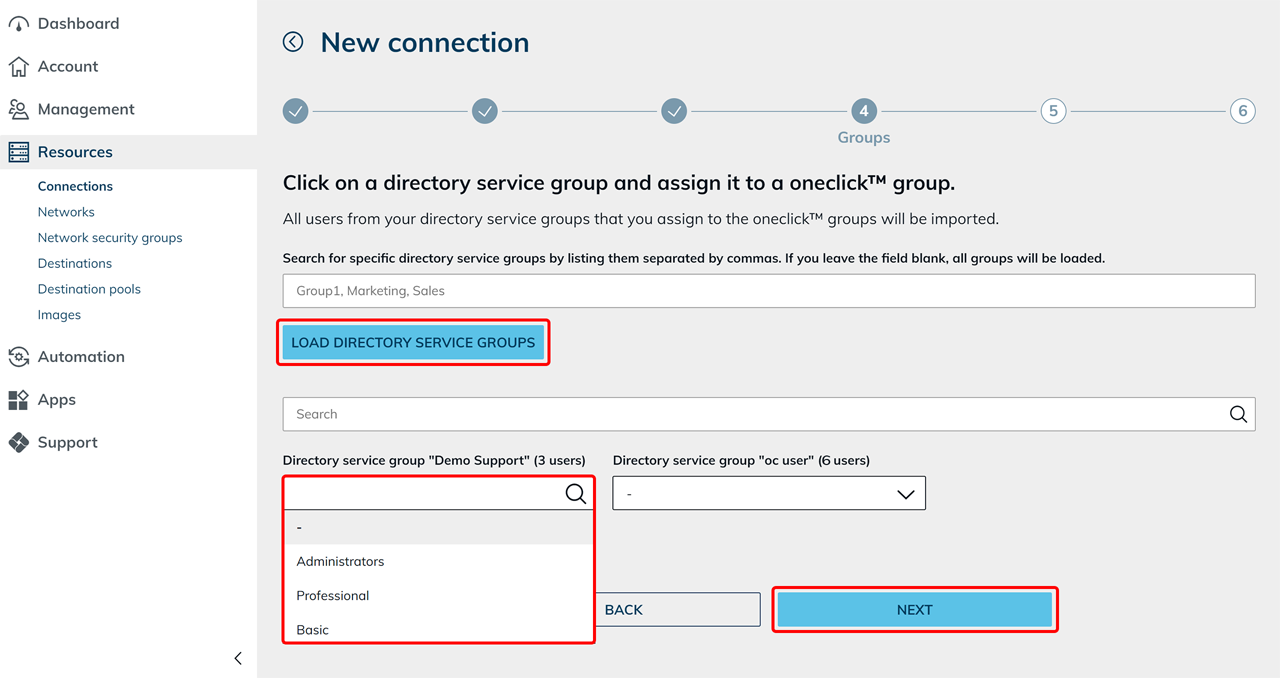
- In the next step, optionally enter specific directory service groups or leave the field empty and click Load directory service groups.
- Assign the directory service groups to the corresponding oneclick™ groups.
Click a Directory service group and select the appropriate oneclick™ group. - Click Next.
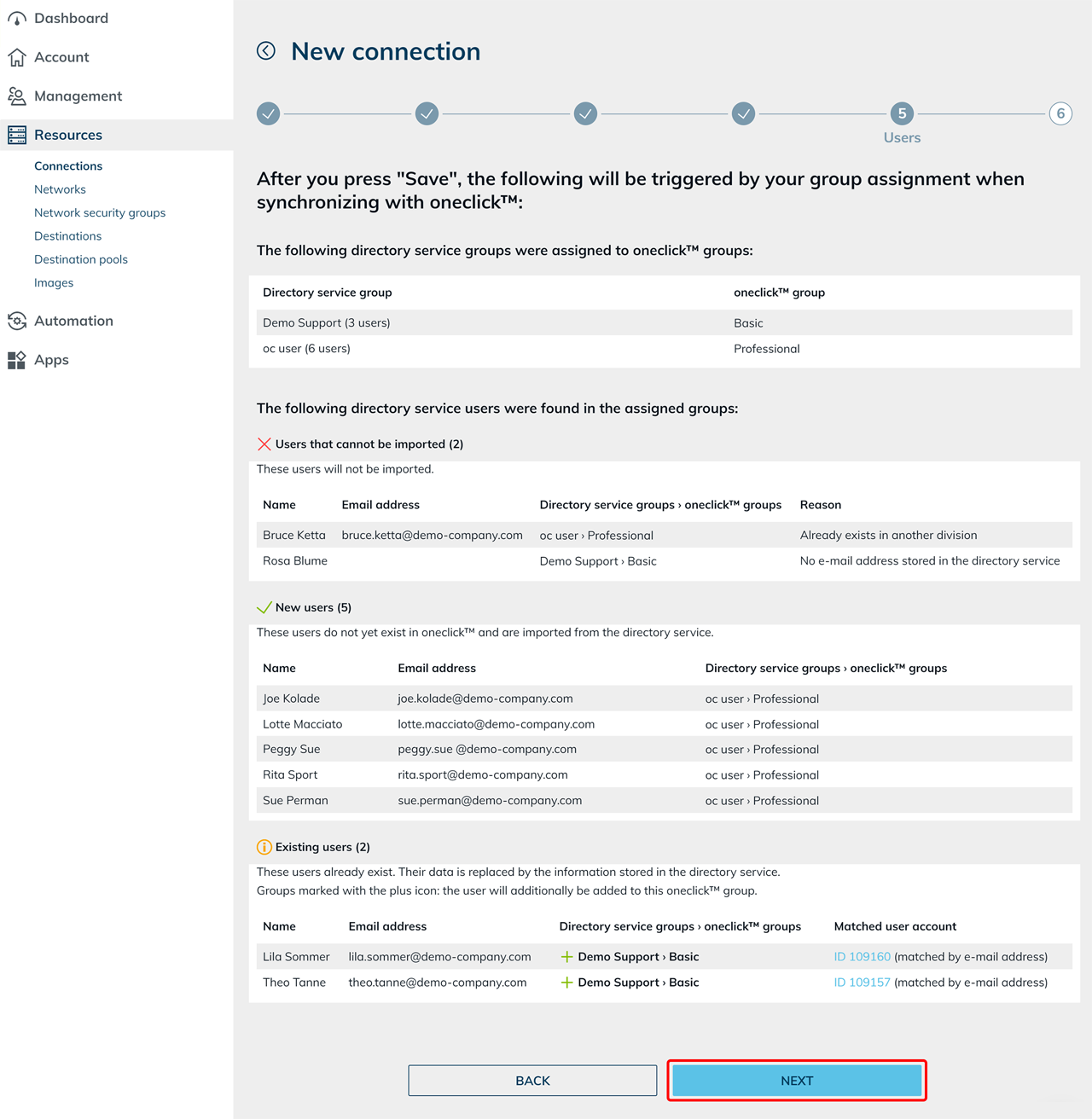
- Check the group assignment and the displayed user data.
The users are displayed in separate sections depending on their status. Each section shows the number of users it contains in the heading. Sections without users are not displayed.
- Users that cannot be imported: oneclick™ does not import these users. In the Reason column, you can see why the import is not possible, for example because no e-mail address is stored in the directory service or because the user already exists in another division.
- New users: These users do not yet exist in oneclick™. oneclick™ imports them from the directory service and creates them when you save.
- Existing users: These users already exist in oneclick™. Their data is replaced with the information stored in the directory service. In the Matched user account column, you can see the assigned oneclick™ user account and the basis for the match, for example the object ID or e-mail address. A Plus icon before a group assignment indicates a new group assignment. When you save, oneclick™ also adds the user to the assigned oneclick™ group.
If the e-mail address in the directory service differs from the e-mail address of the existing user account, oneclick™ also displays the previously stored address. If saving changes the e-mail address of the existing user account, oneclick™ displays a highlighted warning. Check this warning before you continue.
- Click Next.
- Select a user license with sufficient capacity.
- Click Save.
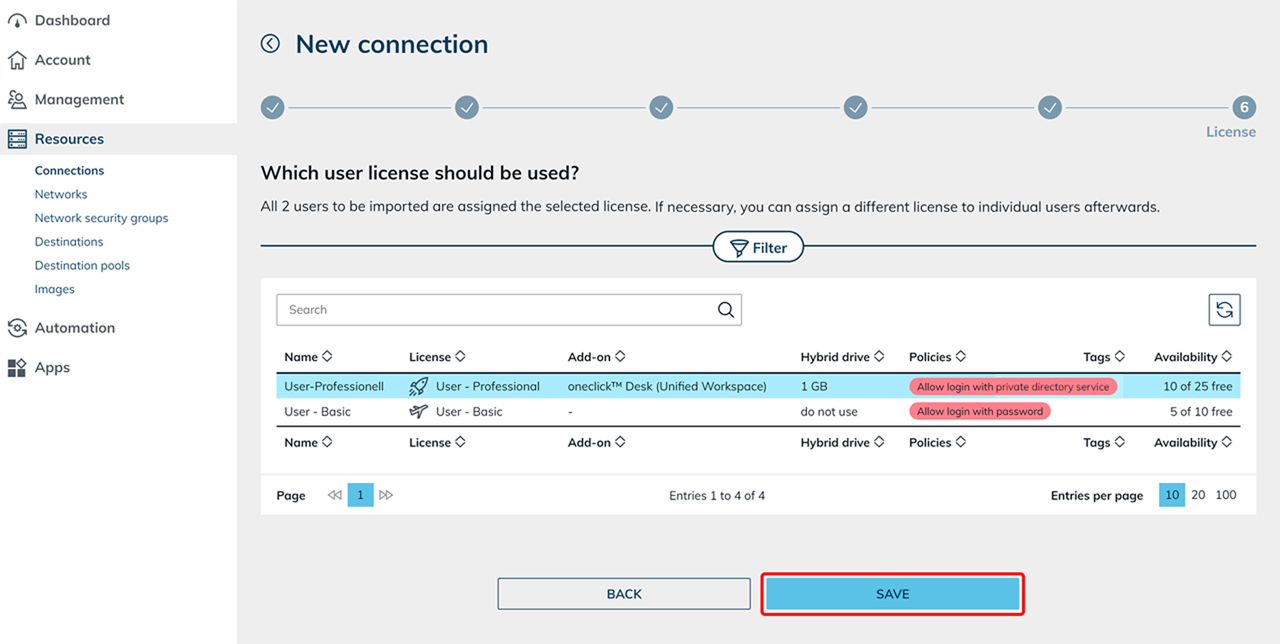
Your Active Directory is now connected and the users are available in oneclick™.
Log in to oneclick™
Your users are created in oneclick™ using the email address stored in Active Directory.
Users log in with this email address and their AD password.
Depending on the configuration, login with a oneclick™ password may also be possible.
For more information, see the article Login with AD credentials.
Changes in Active Directory
If you change data in your AD and want those changes to take effect in oneclick™, you must synchronize your connected AD.
See the article Synchronize connected Active Directory.