Synchronize connected directory service
If you change user data in the directory service or add new users to an already imported directory service group, synchronize the changes using the synchronization function.
During synchronization, oneclick™ transfers certain user attributes from the directory service, including the language setting.
Further information can be found in the section Note on language settings during directory service synchronization at the end of this article.
Synchronization works exclusively for users who are members of an already imported group.
If new users are added, check in advance whether enough user licenses are available or request them in the "Licenses" section.
Perform synchronization
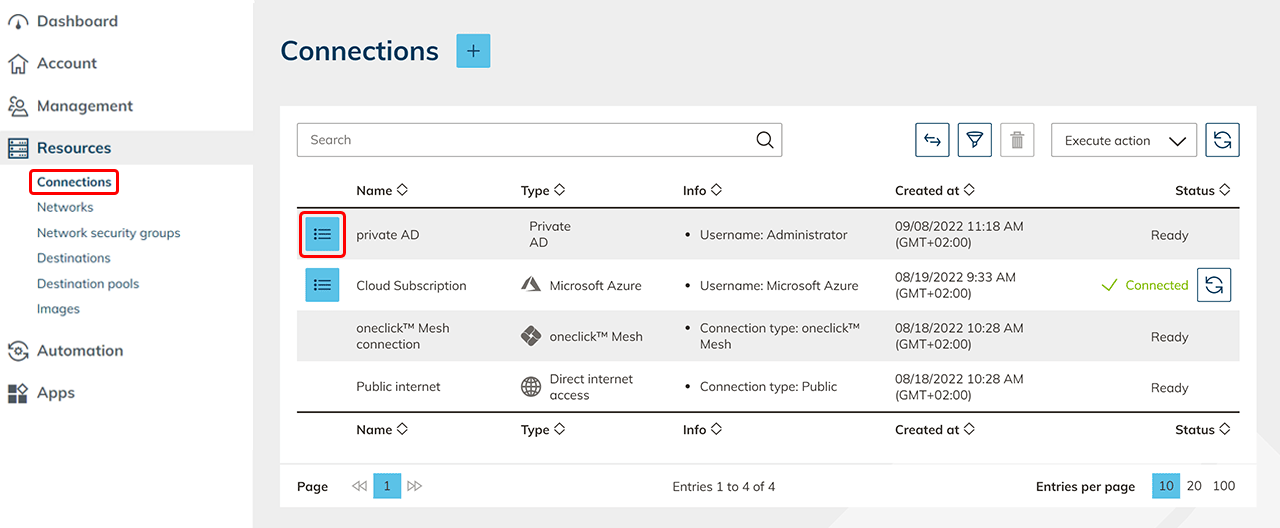
- Click Resources in the menu and open Connections.
- Open the detail view in the row of your directory service using the List icon.
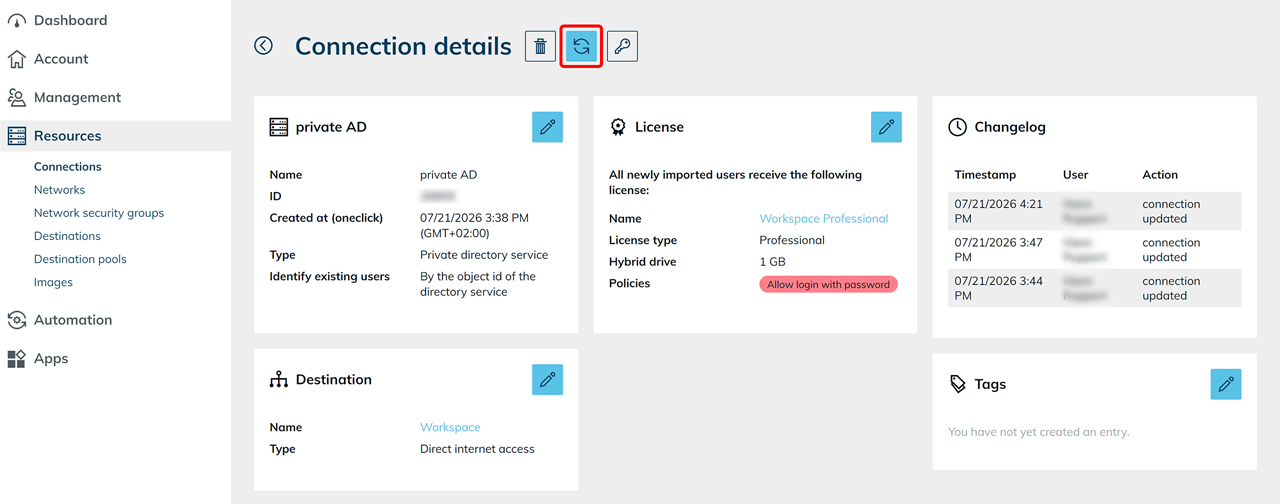
- Click the Synchronize icon at the top.
- Check the group assignment and the displayed user data.
The users are displayed in separate sections depending on their status. Each section shows the number of users it contains in the heading. Sections without users are not displayed.
- Users that cannot be imported: oneclick™ does not import these users. In the Reason column, you can see why the import is not possible, for example because no e-mail address is stored in the directory service or because the user already exists in another division.
- New users: These users do not yet exist in oneclick™. oneclick™ imports them from the directory service and creates them when you save.
- Existing users: These users already exist in oneclick™. Their data is replaced with the information stored in the directory service.
In the Matched user account column, you can see the assigned oneclick™ user account and the basis for the match, for example the object ID or e-mail address.
A Plus icon before a group assignment indicates a new group assignment. When you save, oneclick™ also adds the user to the assigned oneclick™ group.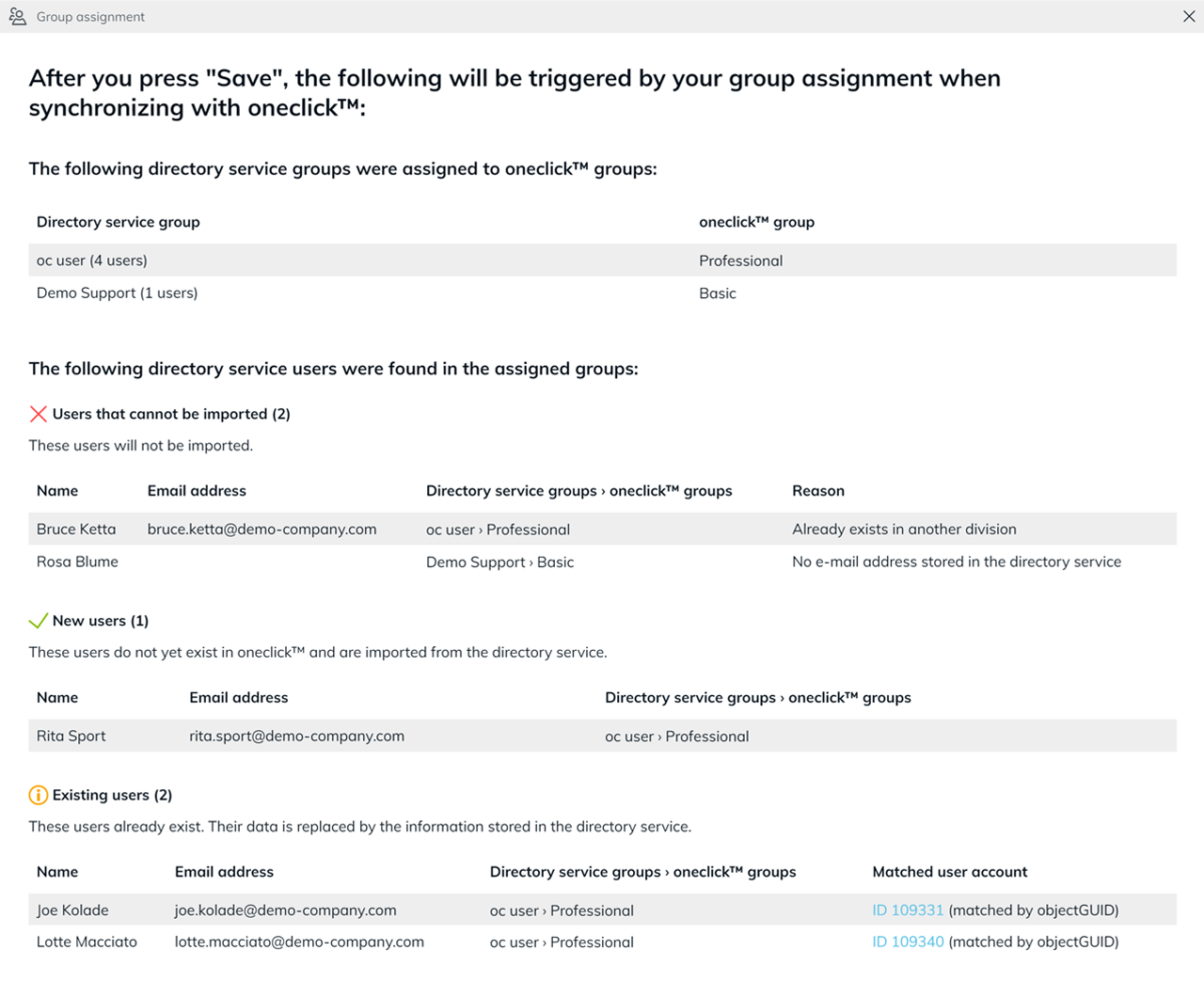
If the e-mail address in the directory service differs from the e-mail address of the existing user account, oneclick™ also displays the previously stored address. If saving changes the e-mail address of the existing user account, oneclick™ displays a highlighted warning. Check this warning before you continue.
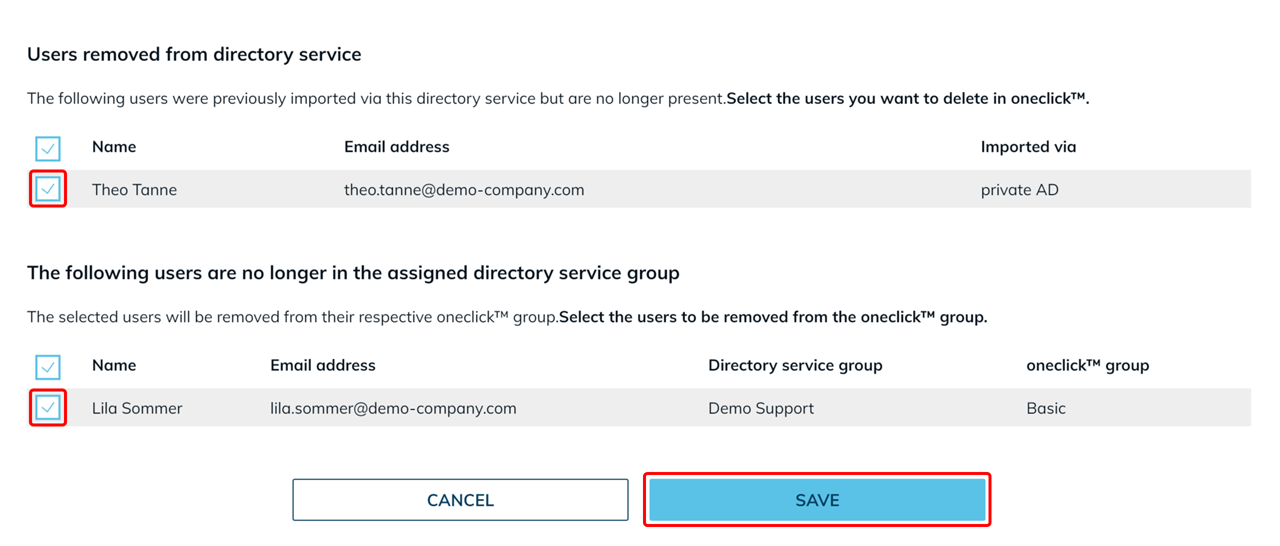
- Check the Users removed from directory service section.
- Select the users you want to delete in oneclick™.
- Check the section "The following users are no longer in the assigned directory service group".
- Select the users you want to remove from the respective oneclick™ group.
- Click Save.
If you want to import a new group from the directory service into oneclick™, repeat the import process as described in this article.
Synchronized user attributes
During each synchronization, oneclick™ transfers the following attributes from the directory service:
| Directory service | Attribute | oneclick™ attribute |
|---|---|---|
| Active Directory | mail | E-mail address (required field) |
| Microsoft Entra ID | userPrincipalName | E-mail address (required field) |
| Active Directory | givenName | First name |
| Microsoft Entra ID | givenName | First name |
| Active Directory | sn | Last name |
| Microsoft Entra ID | surname | Last name |
| Active Directory | telephoneNumber or mobile | Mobile phone number |
| Microsoft Entra ID | mobilePhone | Mobile phone number |
| Active Directory | preferredLanguage | Language |
| Microsoft Entra ID | preferredLanguage | Language |
Note on mobile phone numbers
If you synchronize mobile phone numbers, enter the value with the country code, for example +49, and without spaces or separators.
Example:
'+49123456789
The leading apostrophe ensures that the plus sign is interpreted correctly as part of the value.
Note on language settings during directory service synchronization
During each synchronization, oneclick™ applies the user’s language setting from the preferredLanguage attribute.
- If
preferredLanguageis not set, empty, or invalid, oneclick™ uses English (US). - If you change the language manually in oneclick™, the next synchronization applies the value from
preferredLanguageagain. - To define the language permanently, set the
preferredLanguageattribute accordingly in the directory service.
Allowed values for preferredLanguage:
en-US– English (US) (default)en-UK– English (UK)de-DE– German
Example: set preferredLanguage via PowerShell
Use the following PowerShell example to set the language to German for all users in an AD group:
$Users = Get-ADGroupMember -identity "AD-Group-XY"
$Users | Get-ADUser -Properties preferredLanguage |
    Set-ADUser -Replace @{ preferredLanguage = "de-DE" }