RDP access error
Are you receiving an error message when using the RDP connection? First, make sure you are logged in to oneclick™ and that the connection to your remote system is still active.
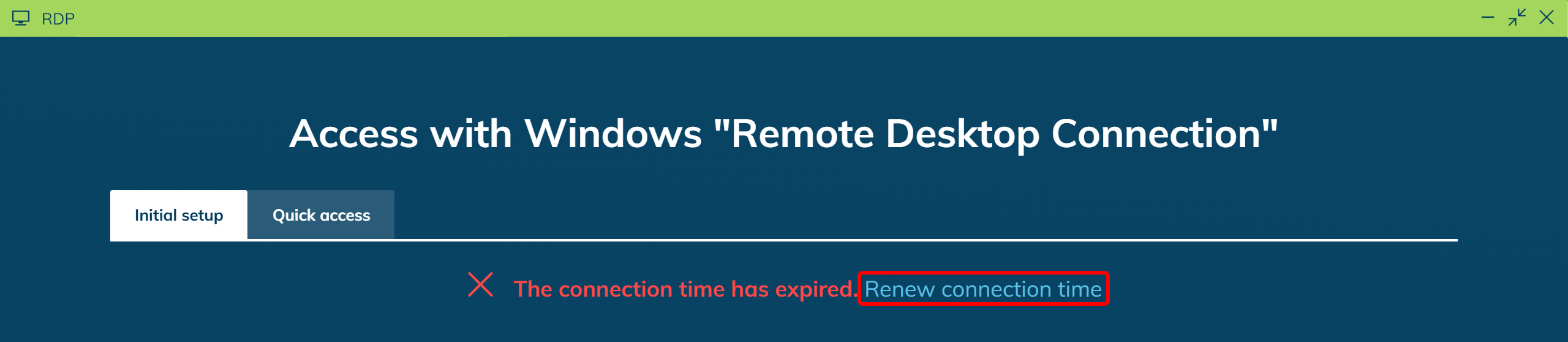
In particular, check whether the connection time displayed in the access window has expired. If the connection time has expired, click Renew connection time.
If the error persists, check which of the following scenarios applies:
RDP file is corrupted or “Connect” is grayed out
Windows reports that the RDP file is corrupted, or Connect is grayed out. If you modify and save signed settings in the RDP file, the digital signature becomes invalid.
- Download the RDP file again from oneclick™.
- Do not modify and save any signed settings in the RDP file afterward.
Connection fails even though the RDP file opens normally
If the RDP file opens normally but the connection cannot be established, follow these steps:
- Start the app in oneclick™. This renews the connection time, and the credentials are valid again for five minutes.
- Open the existing RDP file again. You do not need to download it again.
Reset connection settings
If the connection still fails, outdated credentials or a saved connection history in the “Remote Desktop Connection” app may be the cause. Follow these steps to reset the connection settings:
1. Delete saved credentials
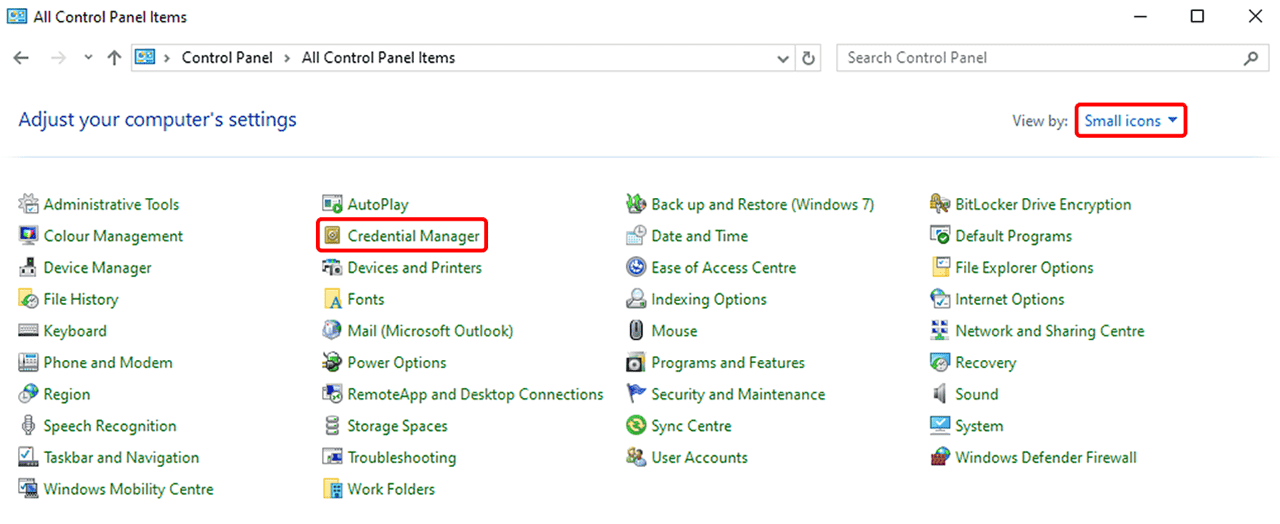
- Open the Control Panel (e.g. via the Start menu).
- Select Large icons or Small icons from the View by option in the top right corner.
By default, this setting is often set to “Category”, in which case the following option is not visible. - Now click on Credential Manager.
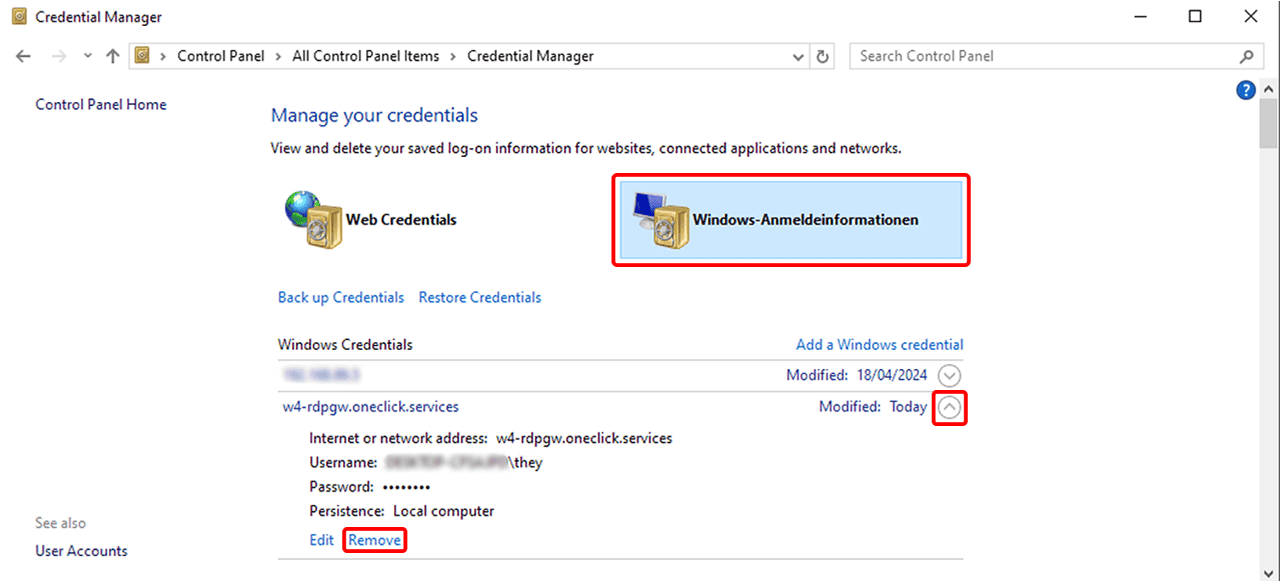
- Select Windows Credentials.
- Find the entry related to the RDP connection (e.g. IP address or server name).
- Click Remove and then test the connection
2. Delete the history of recently used RDP connections
If the error still occurs, delete the history as follows:
- Press Windows key + R, enter
regeditand press Enter.

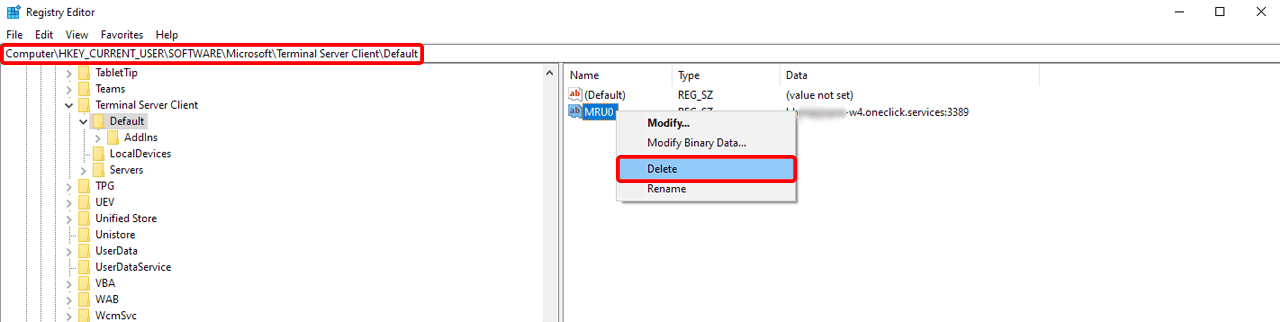
- Go to the following path:
HKEY_CURRENT_USER\Software\Microsoft\Terminal Server Client\Default
You can "copy and paste" this path directly into the address bar of the Registry Editor. - There you will find entries like MRU0, MRU1, etc.
- Right-click on each of these entries and select Delete.
- Then restart the “Remote Desktop Connection” app.
If the connection still fails even though the connection time for the credentials has not expired, contact your administrator.