Store remote system password in oneclick™
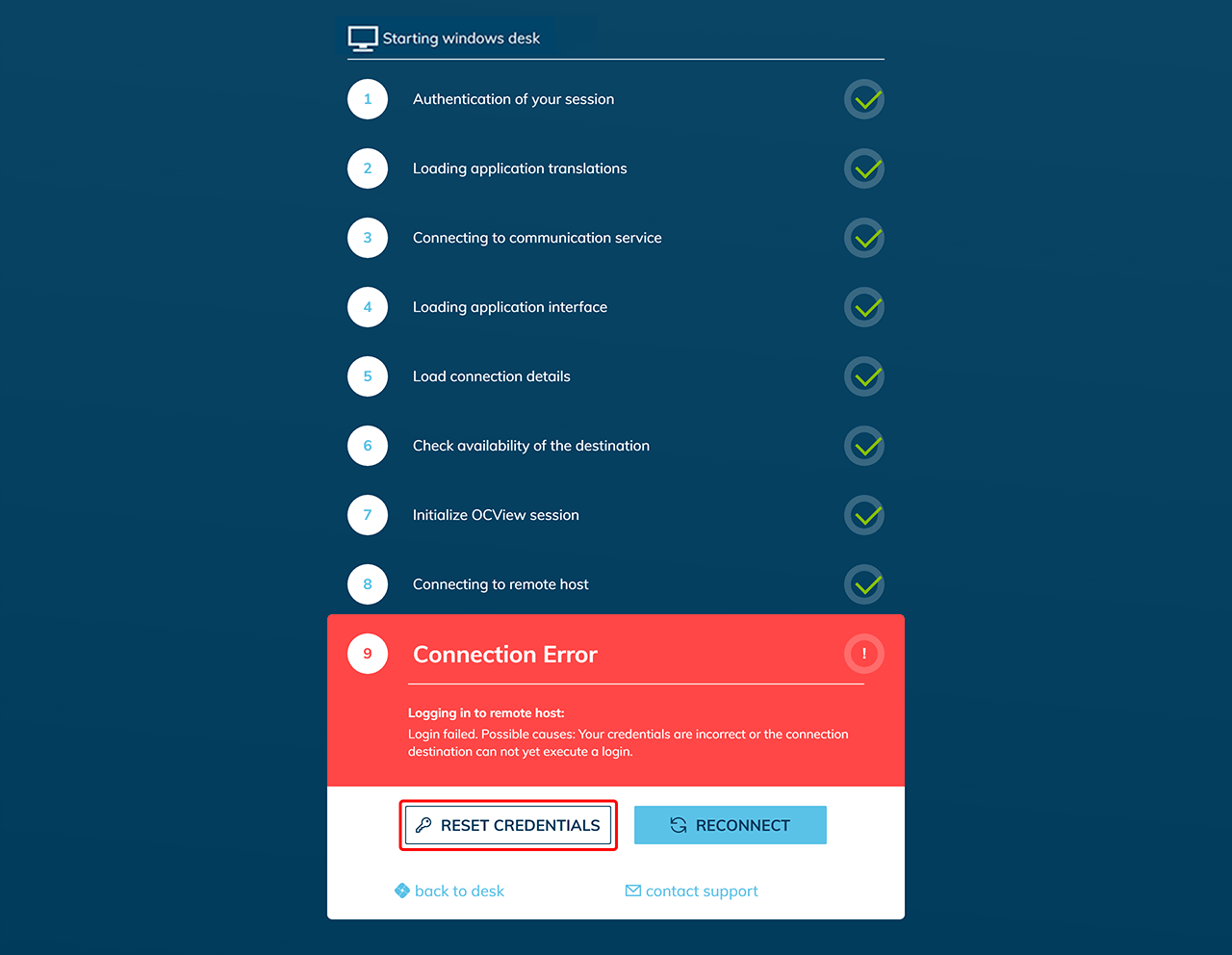
If you have changed your password in Windows or your administrator has required you to enter a new password upon your first login, you may encounter error message 9 "Connection Error" on your next login. In this case, follow these steps:
- Click on Reset Credentials.
If you do not see the "Reset Credentials" button, your credentials may be managed by the administrator, and you may not be allowed to set your password yourself. In this case, contact your administrator.
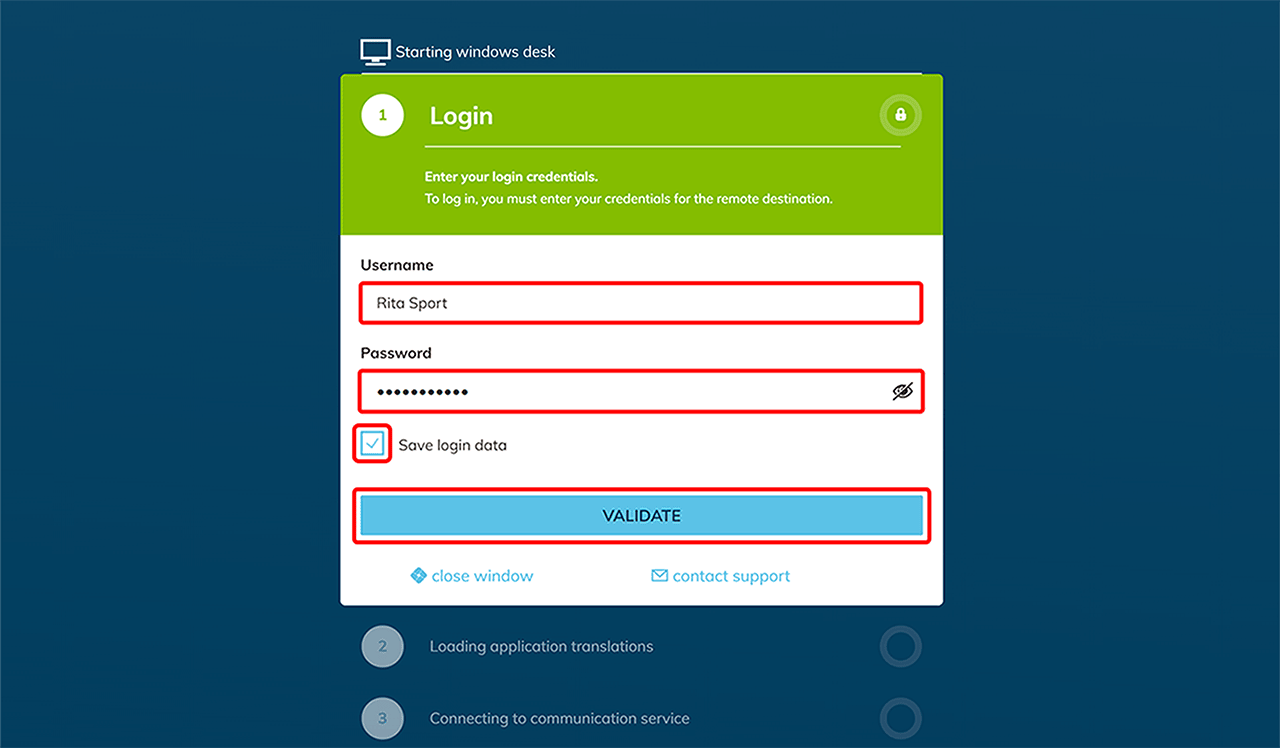
If your login data is not stored and you are entering your data again each time you log in, the following window will appear first under point 2. - Enter your Username and your new Windows Password. Optionally tick “Save login data” and click Validate.
- You will now be logged in on the target Windows system with your new password.
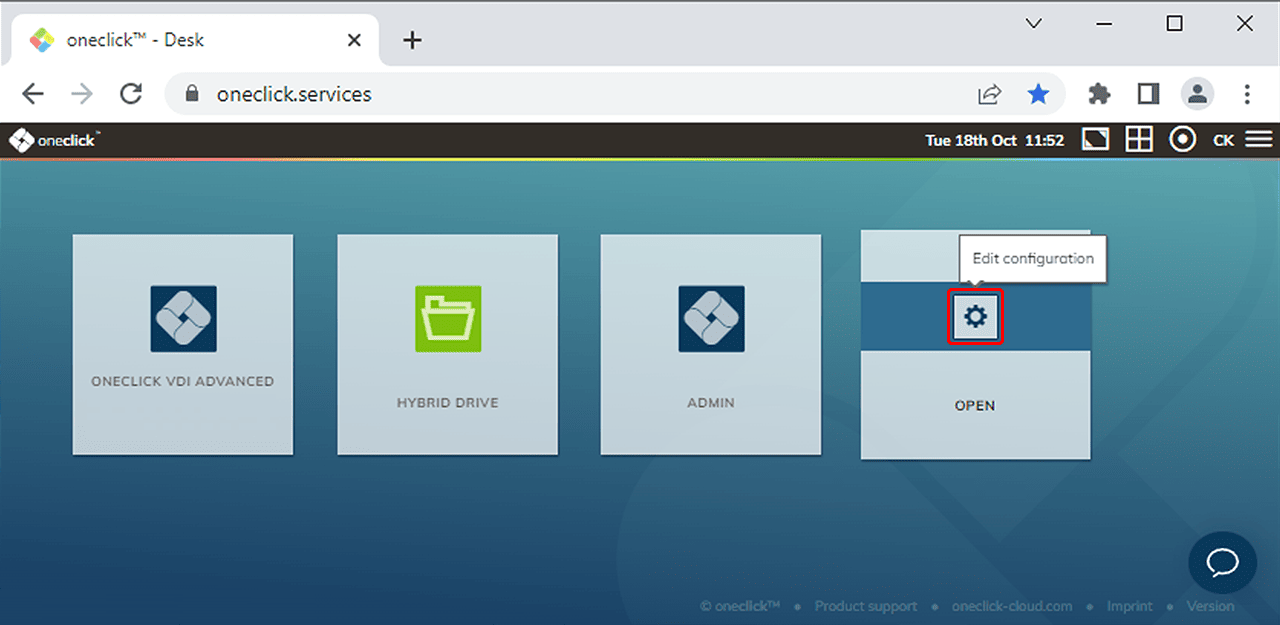
Professional users alternatively have the possibility to change their new password directly on the oneclick™ app tile.
- Move the mouse to the centre of the tile and click the small gear that appears.
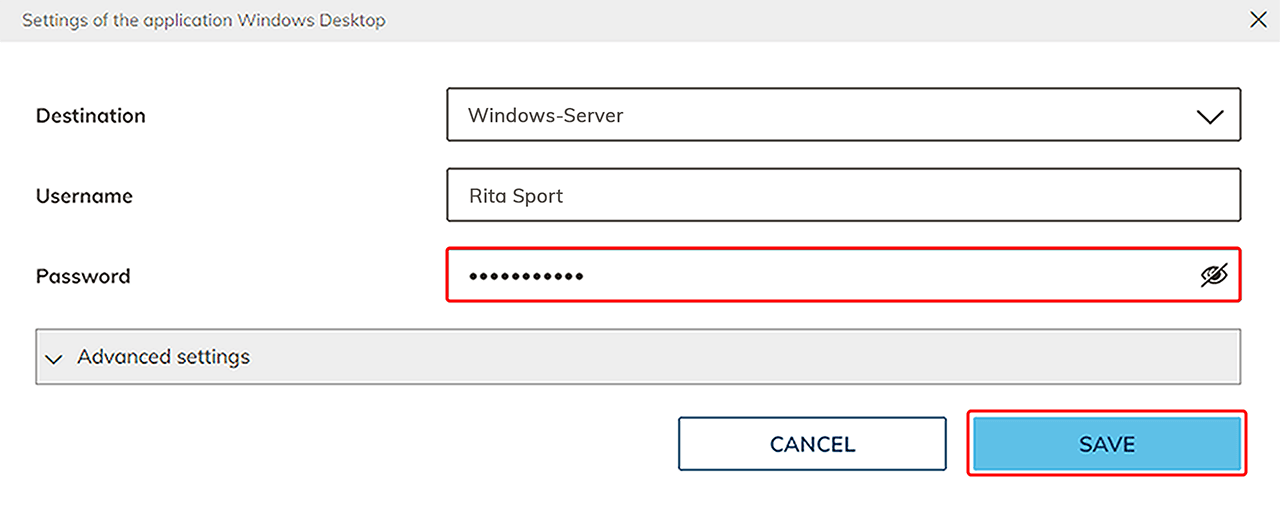
- Enter your new password and click on Save.
- Now open your Windows desktop tile and you will be logged in with your new password.