Change password of Windows remote system
If you know your current Windows password but want to change it, follow these steps. This is not the password you use to login to oneclick™. If you have any questions about this, contact your system administrator.
Beforehand, you should make sure that you have permission to change your credentials on the destination. If this is the case, open your Windows desktop.
Windows password management
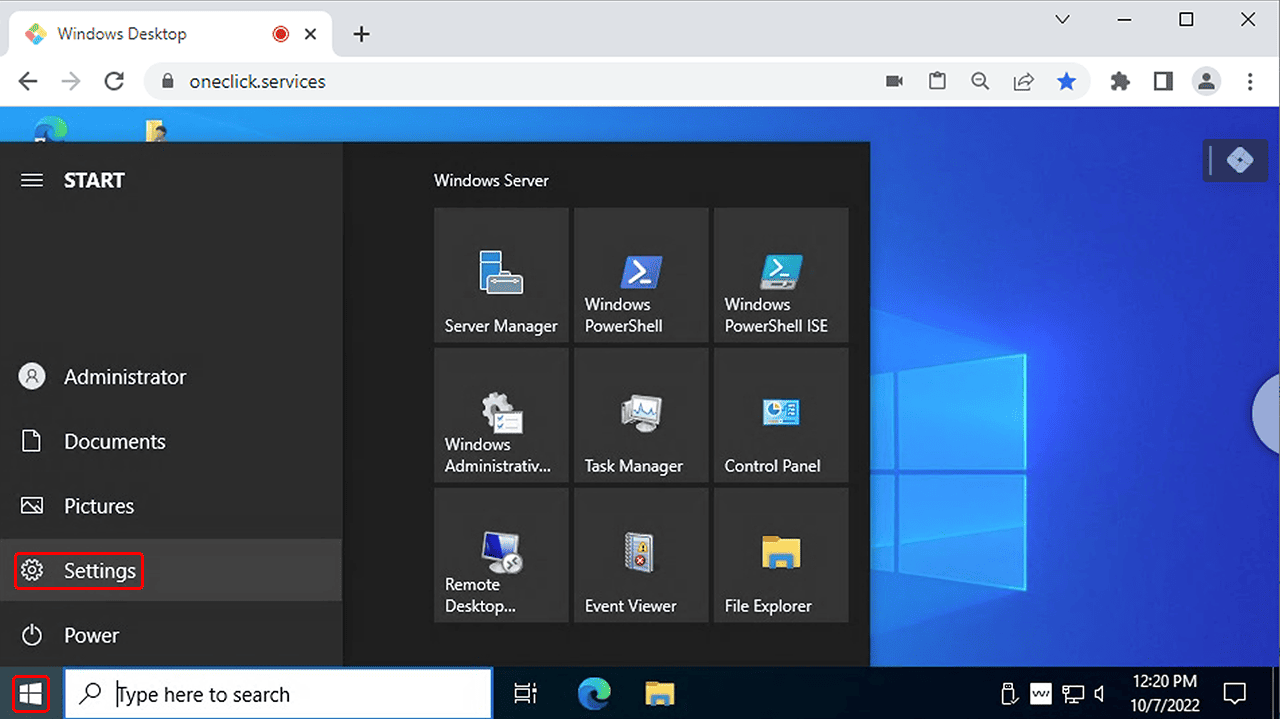
- On your Windows desktop, click on the Start menu and then on the Settings icon.
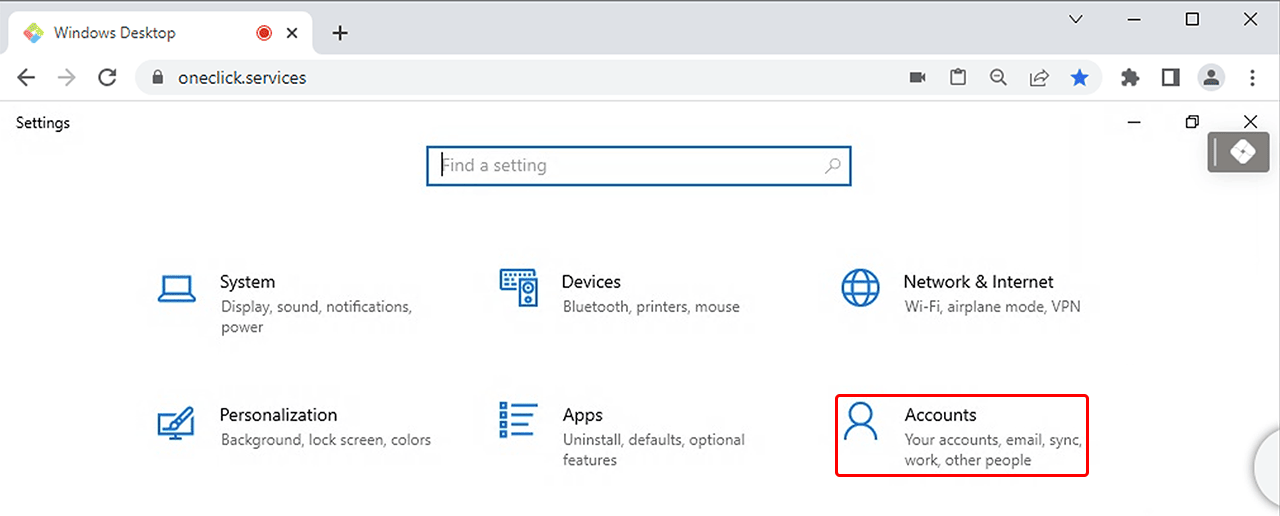
- Click on Accounts.
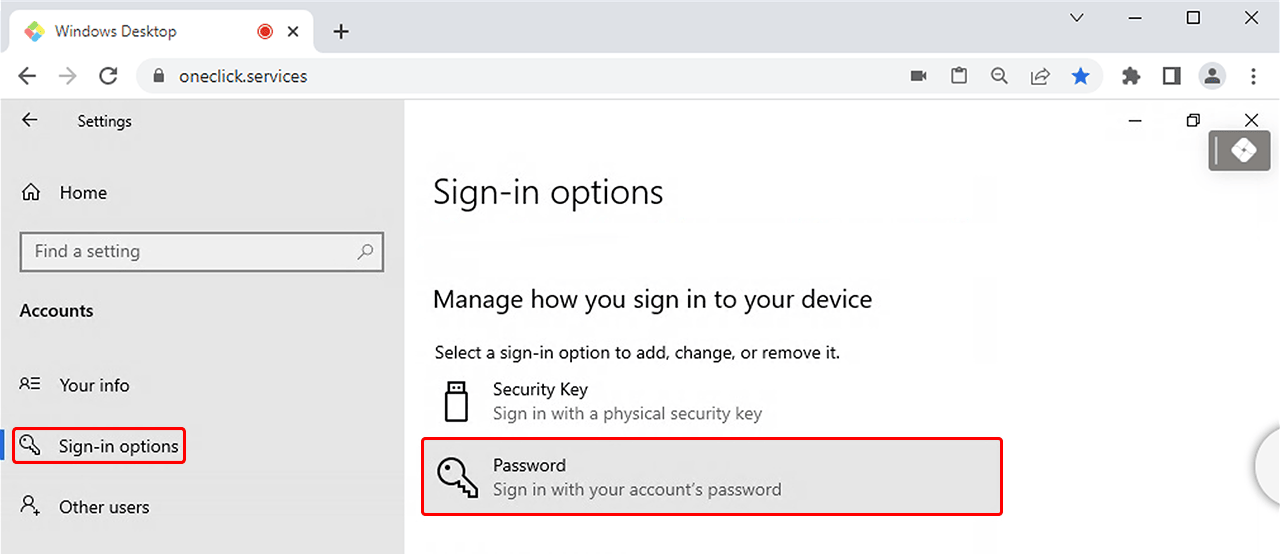
- On the left side, select Sign-in options and then click Password.
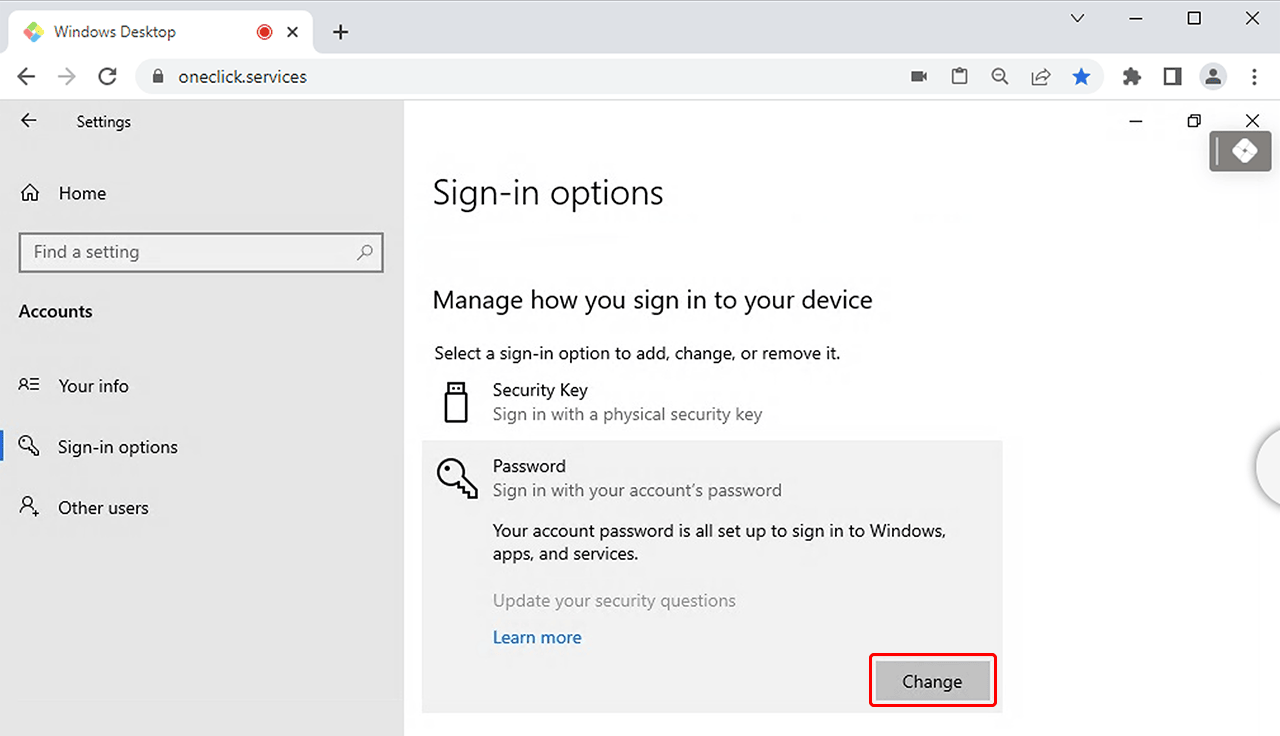
- Under Password, press the Change button.
- Perform the steps you are prompted to do.
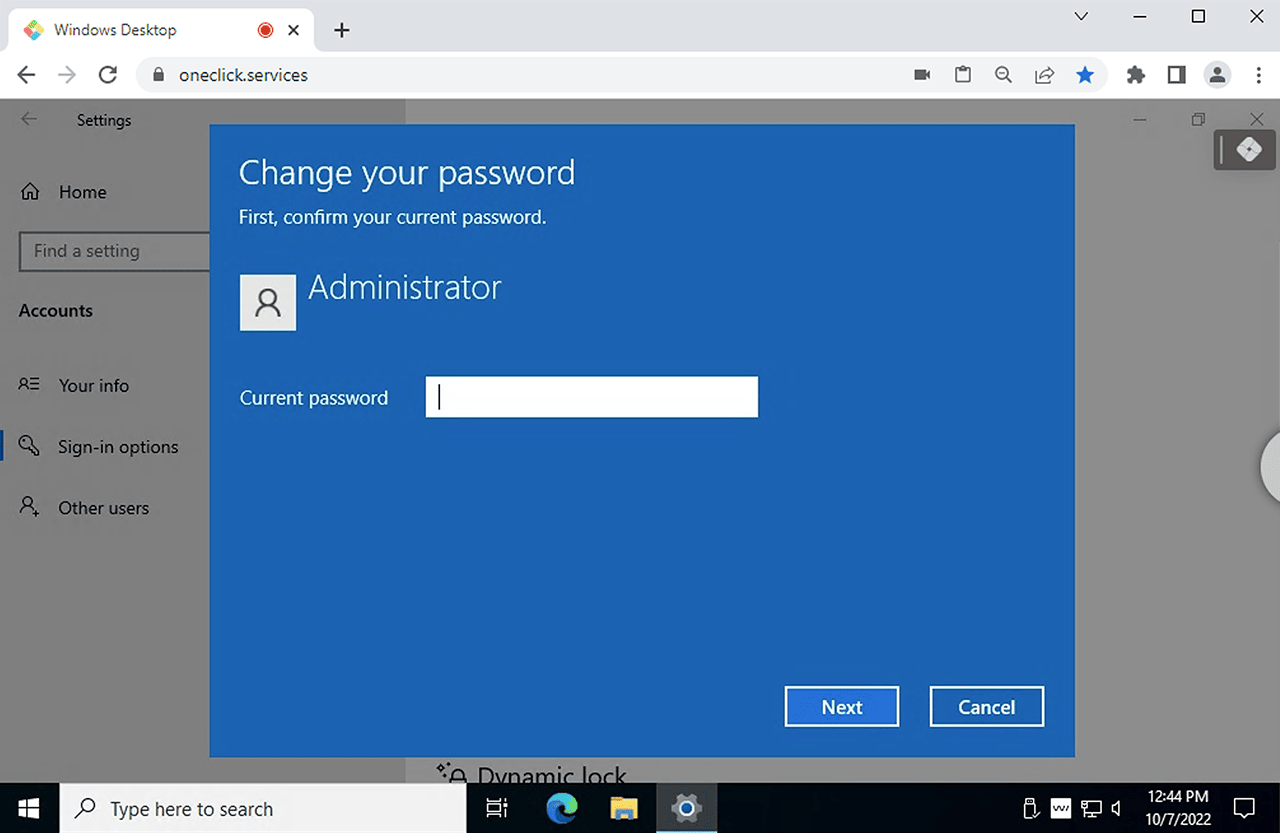
- After completing all the steps, Save your entries.
- In the next step, store your credentials in oneclick™.