Reset oneclick™ password
If you have forgotten your oneclick™ password, reset it on the login page. Depending on the configuration, this password may or may not match your remote system password.
If you log in with Single Sign-on (for example, Microsoft Entra ID) or via a private directory service, resetting via the Reset password button will not work because your login credentials are stored elsewhere. Contact your administrator in this case.
If you want to change the password for your Windows remote system, change it in Windows first and then store it in oneclick™.
Follow these steps to reset your oneclick™ password:
-
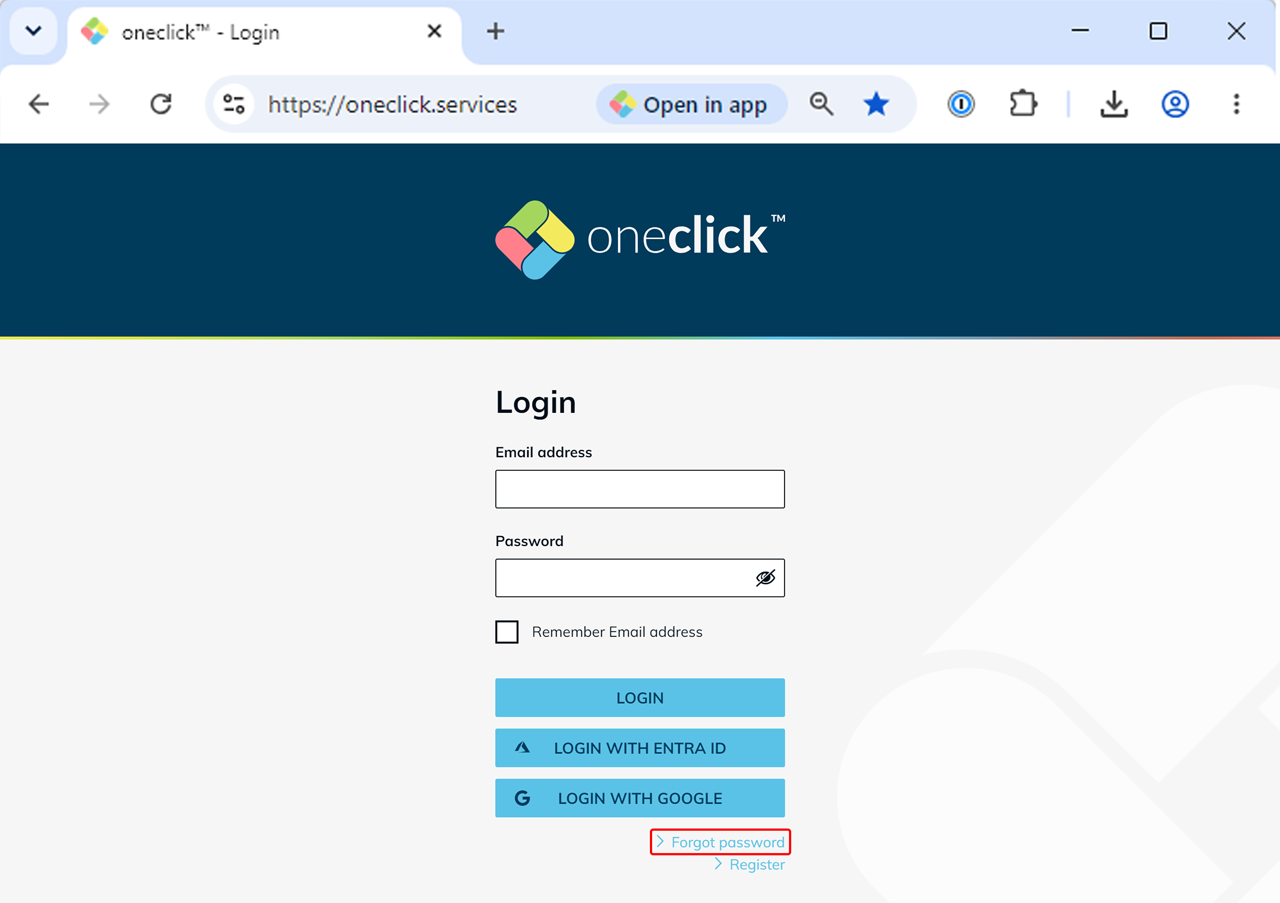
On the login page, click Forgot password / Passwort vergessen.
-
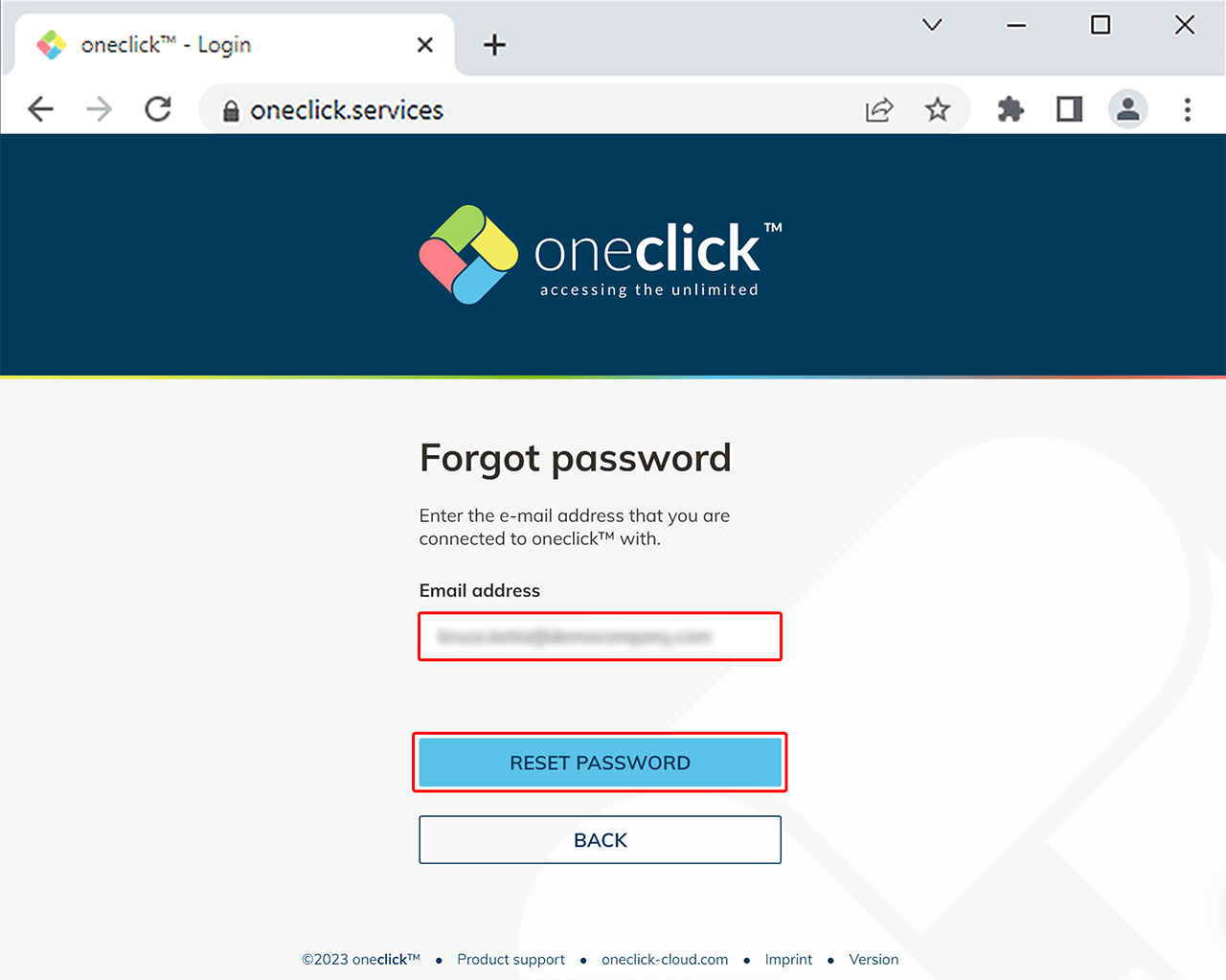
Enter your email address and click Reset password. You will shortly receive a link by mail that will lead you to the password recovery process. Follow the instructions.
If you have reset your password and still cannot sign in to oneclick™, the issue may not be related to your user account but to a central administrator setting.
In this case, contact your administrator.
The administrator should verify whether the policy “Allow login with password” is enabled for your user license. Without this setting, signing in with a username and password is not possible.