Remote system does not start
When starting a remote system, you first see the rotating oneclick™ logo.
If you see this logo, you have already successfully logged in to your oneclick™ account.
If oneclick™ then displays numbered startup steps and one of these steps gets stuck, an error occurred when logging in to the remote system.
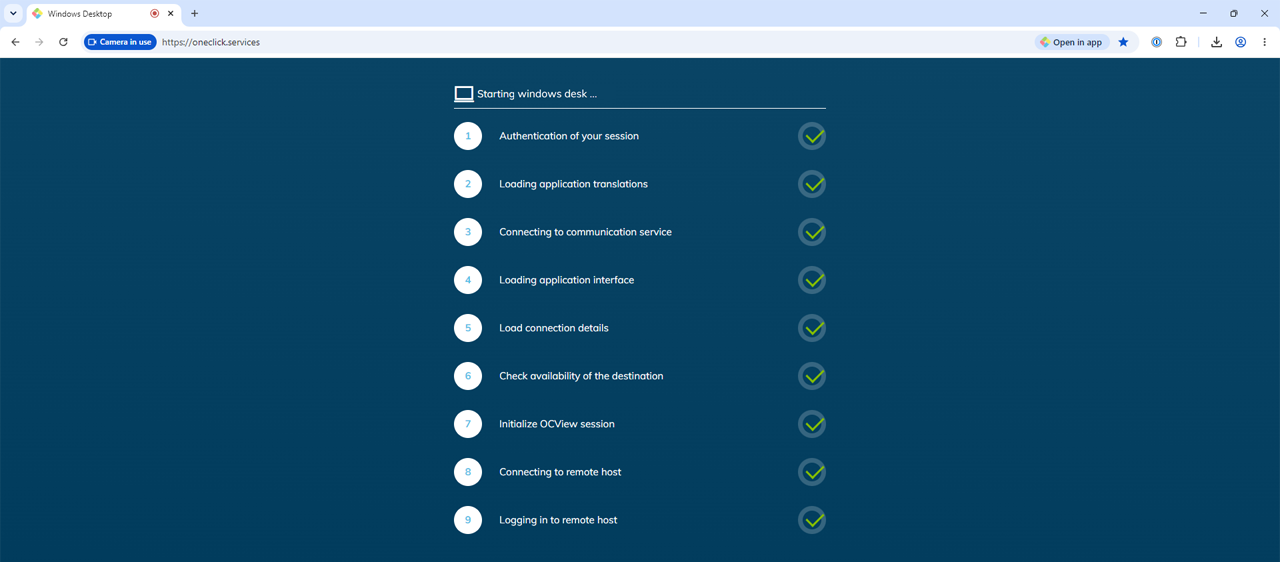
-
Step 1: Session limit reached
The app is already open in another browser tab or browser window. -
Step 6: Check the availability of the remote system
The system is temporarily unavailable, for example because updates are in progress. -
Step 9: Check credentials
oneclick™ could not log in to the remote system using the credentials.
Error at step 1: Session limit reached
The error message “Session limit reached” appears if a session is already open. This can happen, for example, if the application is still open in another browser tab or browser window.
oneclick™ does not open a second session while the app license is being used by the existing session. This keeps the current session open and prevents unsaved changes from being lost.
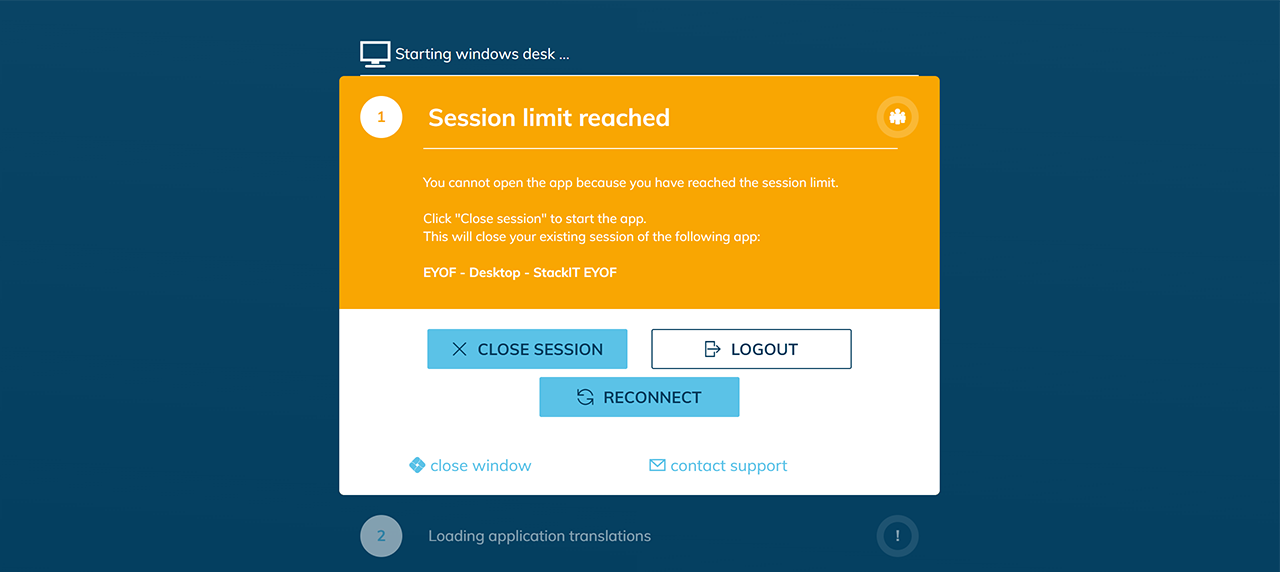
First, try to end your existing sessions normally before forcing them to close.
End the existing session normally
End the open session so that oneclick™ releases the app license:
- Switch to the app that is already open.
- At the top of the screen, click the oneclick™ icon.
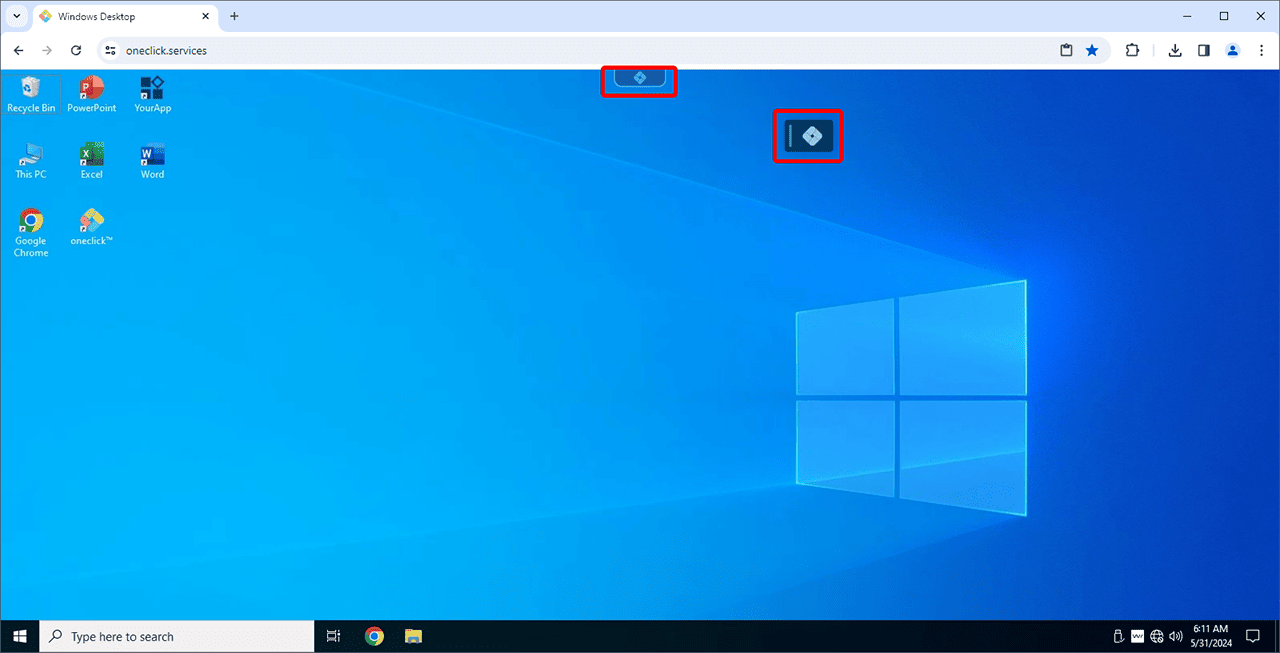
- In the oneclick™ menu, click the Logout icon.

You can also shut down Windows or close the oneclick™ app or browser window. Make sure that you close all browser windows in which oneclick™ is open.
Force the existing session to close
If you can no longer find the window containing the running app or the app is open on a device that is currently unavailable, you can force the existing session to close.
Only use Close session if you have saved all changes on the remote system. Unsaved changes may be lost.
- In the error message, click Close session.
- oneclick™ ends the existing session and establishes a new connection.
If the error message continues to appear, contact oneclick™ Support. Support can end the existing connection for you.
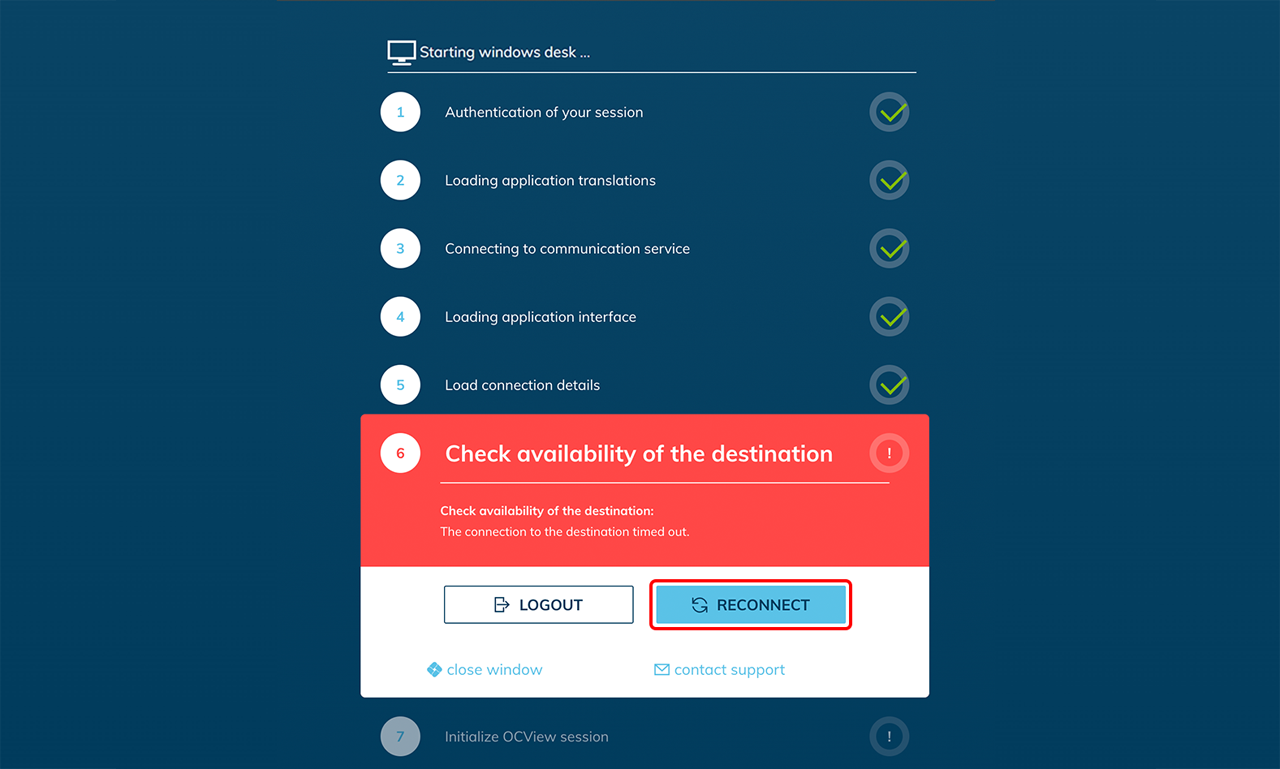
Step 6: Remote system cannot perform a login yet
The remote system started successfully, but logging in to the system is not yet possible. This can be caused, for example, by updates that are still running on the system.
Wait a moment and then click Reconnect. If it takes significantly longer than usual, contact your administrator.
Error at step 9: Check credentials
If steps 1 to 8 were completed successfully and the app startup stops at step 9, oneclick™ could not log in to the remote system. Store or update the remote system password in oneclick™. Click Reset Credentials, and enter your credentials.
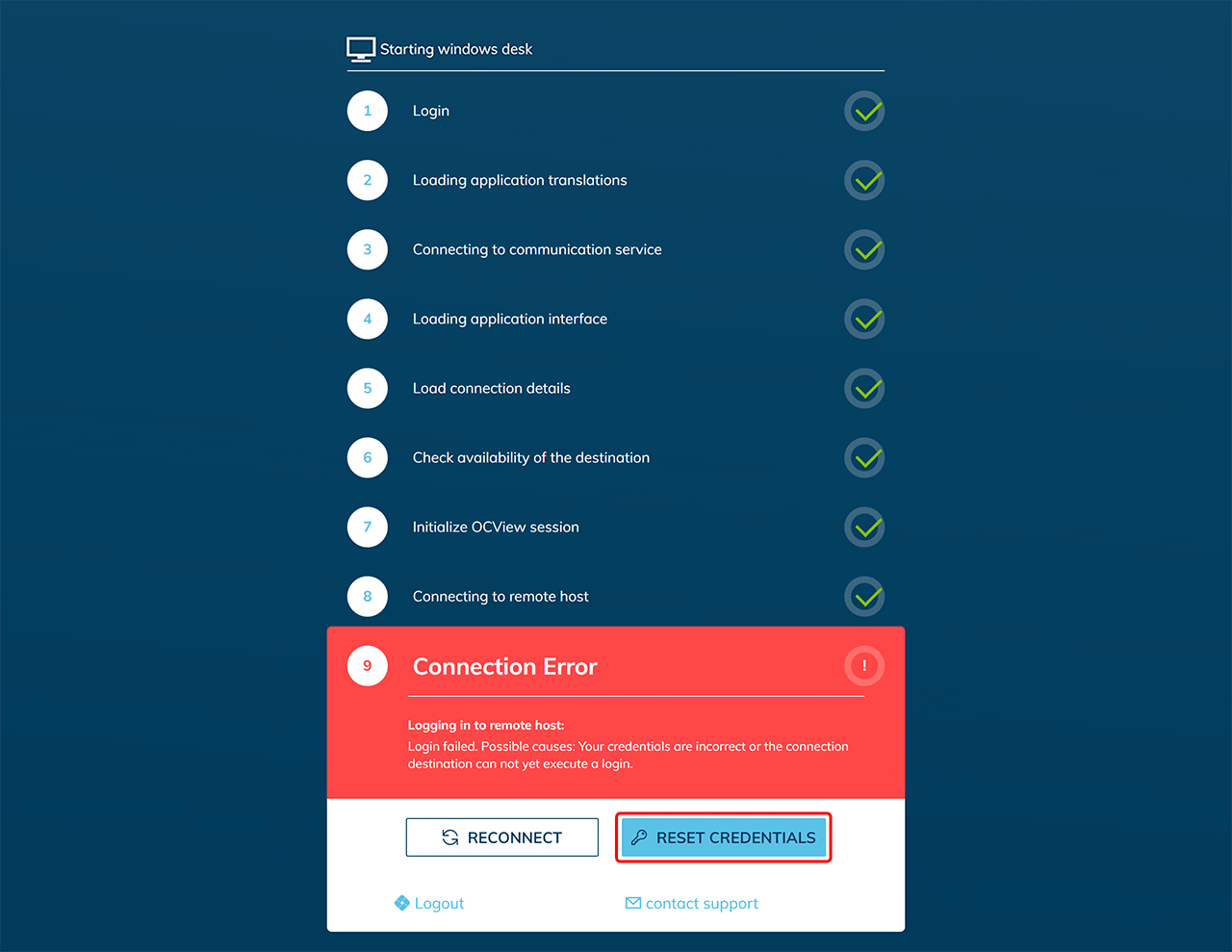
If you do not see the Reset Credentials button, your administrator may manage your credentials centrally. In this case, you cannot store or change the password yourself.
Forgot your password? Contact your administrator and send them a screenshot of the error message.