Access via Remote Desktop Manager on Mac/Linux
To access your remote system, you need the “Remote Desktop Manager” application. Download it if you are using a Mac or Linux device.
The following example shows the installation on a Mac.
The latest version of Remote Desktop Manager (2026.1.x) may not be able to connect to your remote system on macOS.
Use version 2025.3.10.2 until this issue is resolved.
1. Install Remote Desktop Manager
-
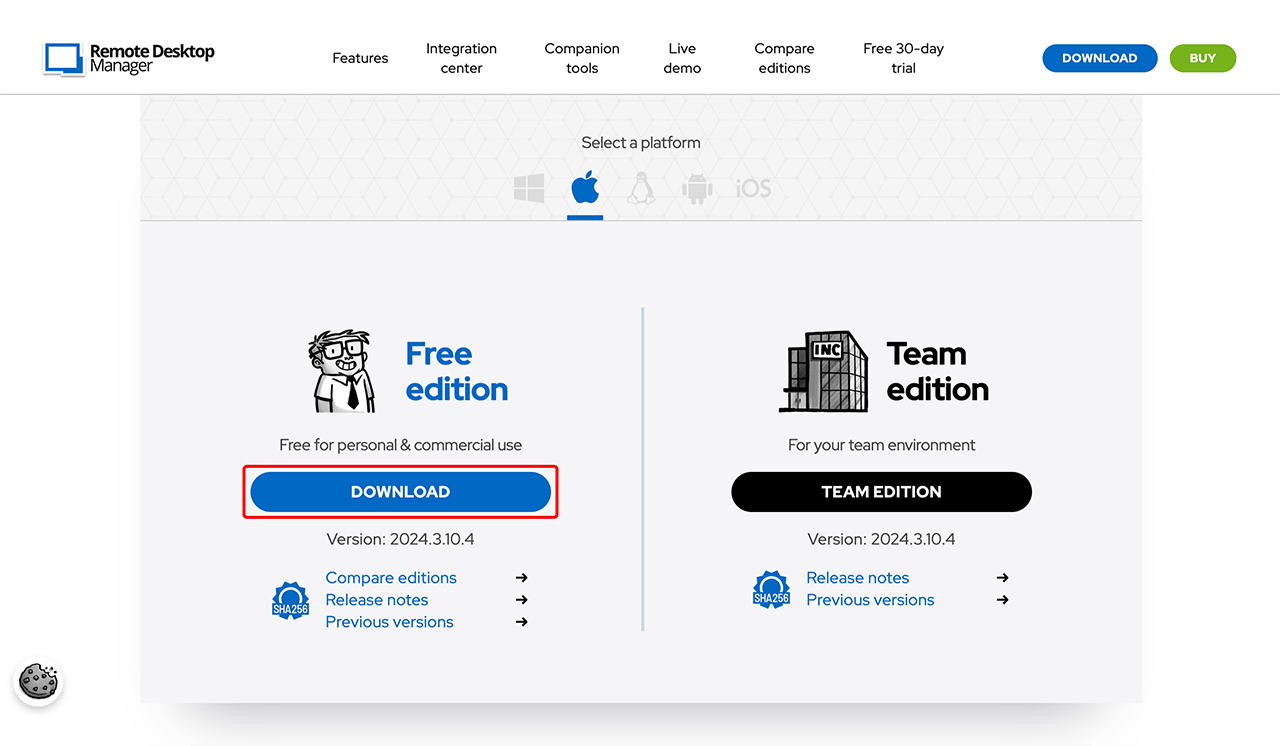
Open the official download page of Remote Desktop Manager.
-
Scroll down slightly until the download option is displayed. Click on Download and wait until the download is complete.
-
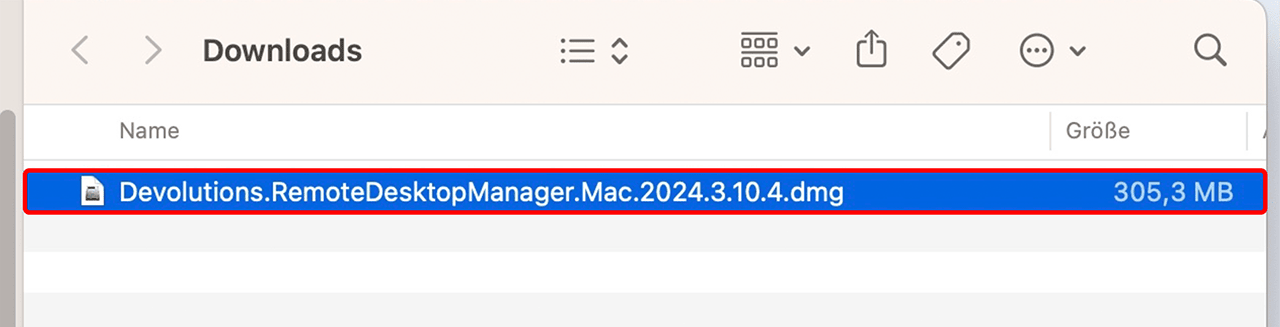
Navigate to the “Downloads folder”.
-
Double-click the file “Devolutions.RemoteDesktopManager.Mac.xxx.dmg”.
-
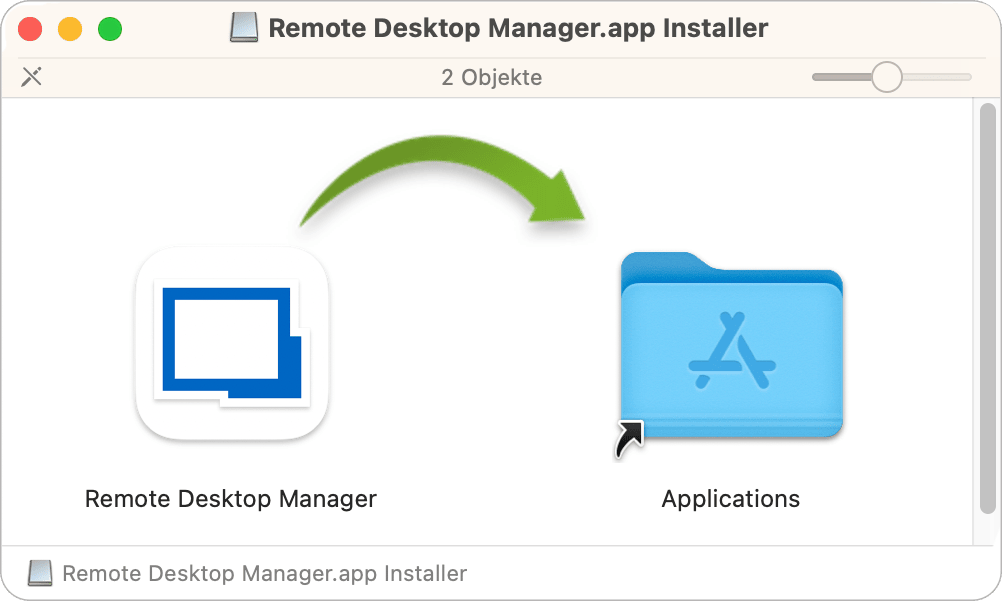
Drag the Remote Desktop Manager into the Applications folder and follow the installation instructions to install the software on your device.
2. Download installation files
When starting the oneclick™ connection, an "RDM file" is automatically downloaded. You will find this file in the "Downloads folder" by default. If the download does not start automatically, click on the Download link in the access window. 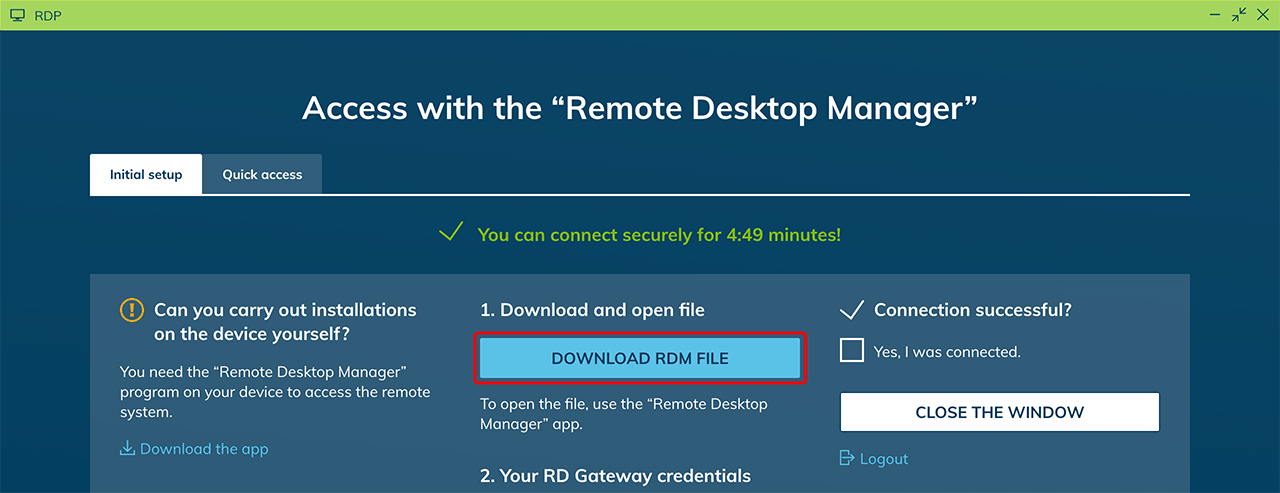
3. Open RDM file
- Navigate to the "Downloads folder" and double-click the downloaded .rdm file.
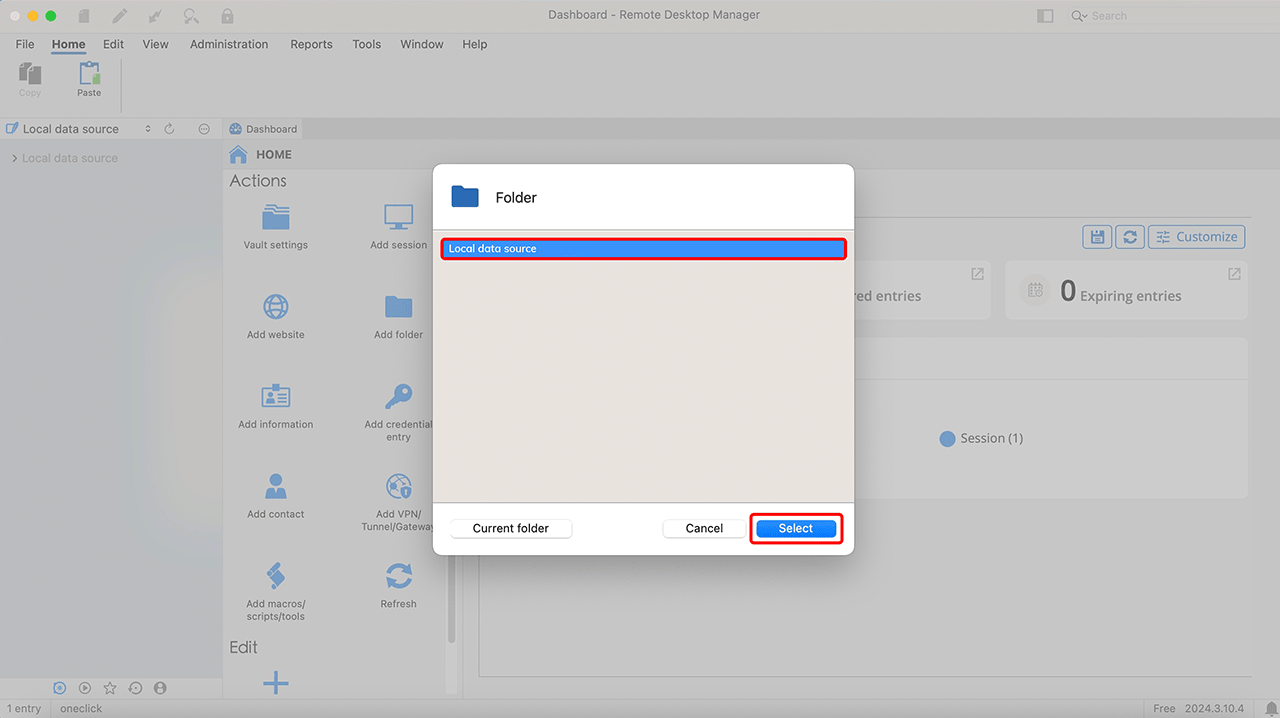
- A new window will open. Select "Local data source" and click Select.
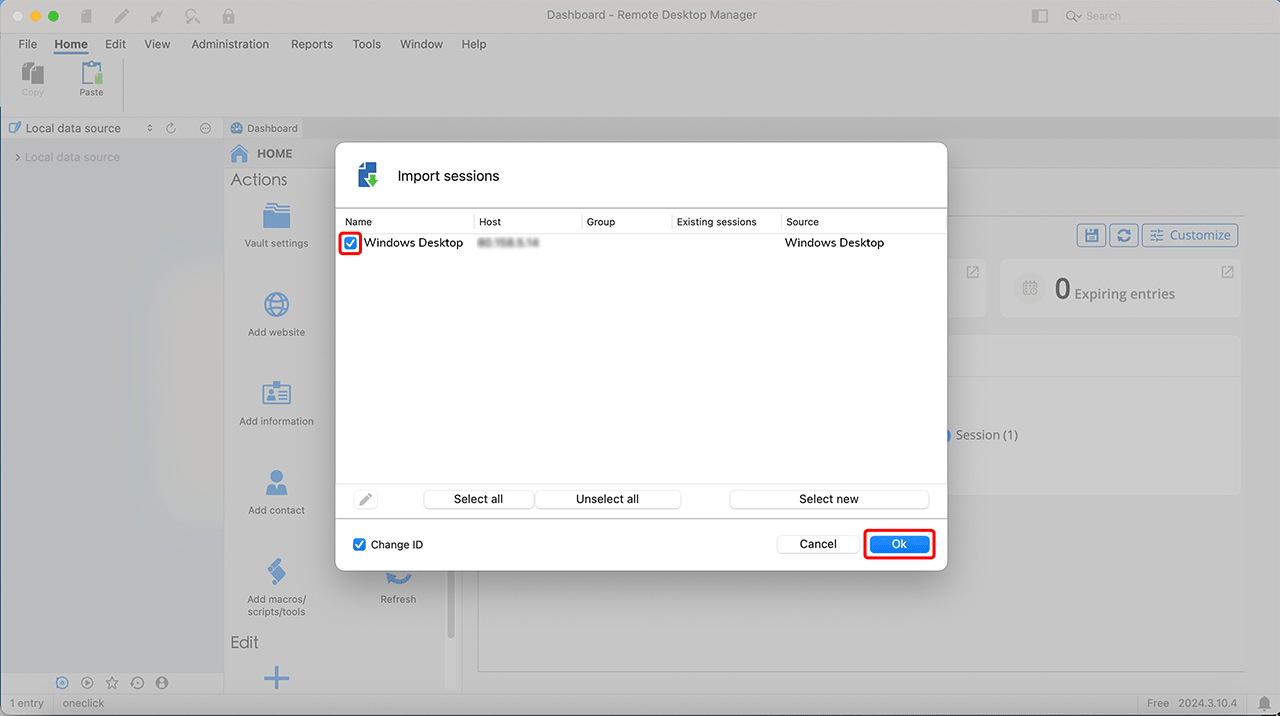
- In the window that opens, make sure that the "RDP connection" is selected. If it is not, select the connection manually and confirm by clicking OK.
4. Establish connection
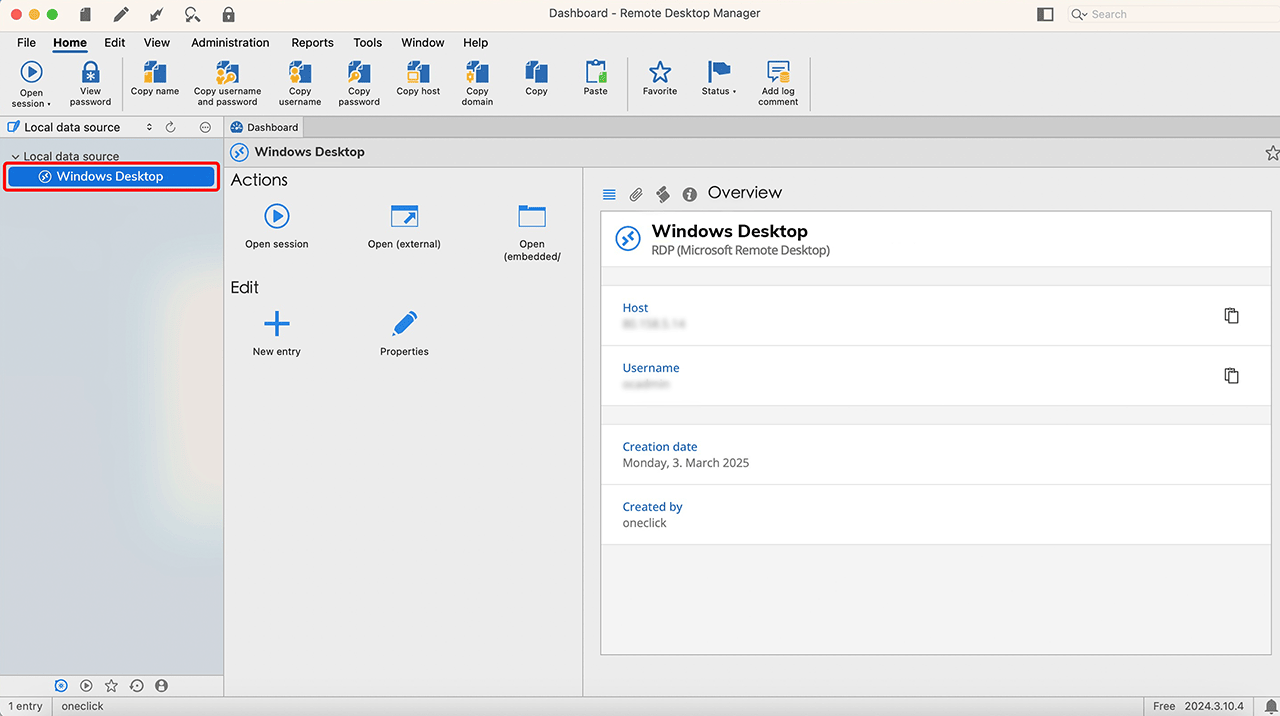
- In Remote Desktop Manager, you will see your saved connection under "Local Data Source" in the left sidebar.
The most recently created connection always appears at the bottom of the list. - Double-click the connection to start the session.
Alternatively, you can select the connection with a single click and then click Open Session.
5. Enter login credentials
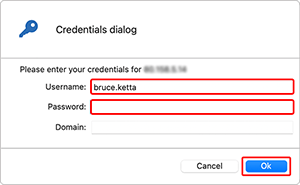
- A login window will appear. The Username is already pre-filled. Copy the Password from the access window and enter it into the appropriate field. Leave the "Domain" field empty and click OK.
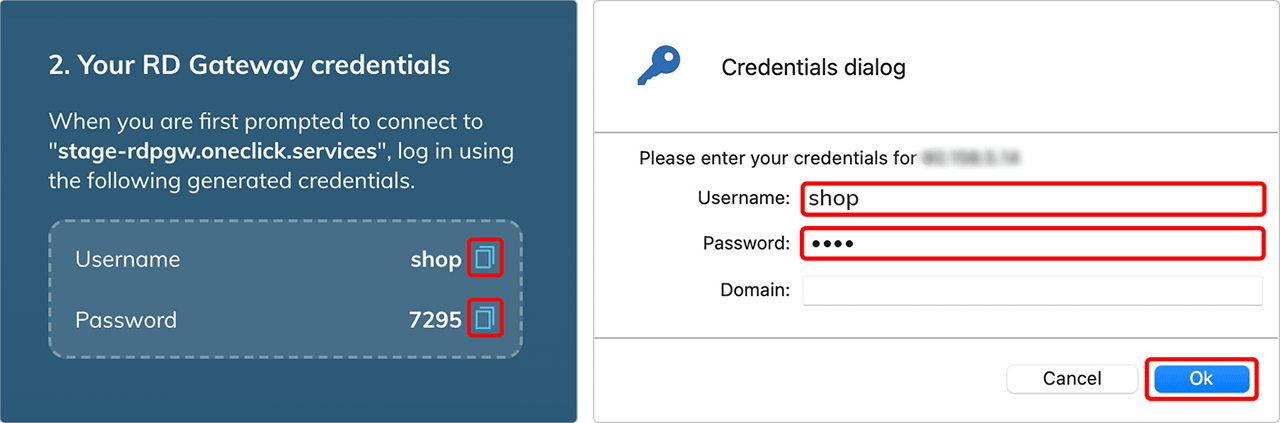
- Now you need to log in to the destination server with your credentials. Again, leave the "Domain" field empty.
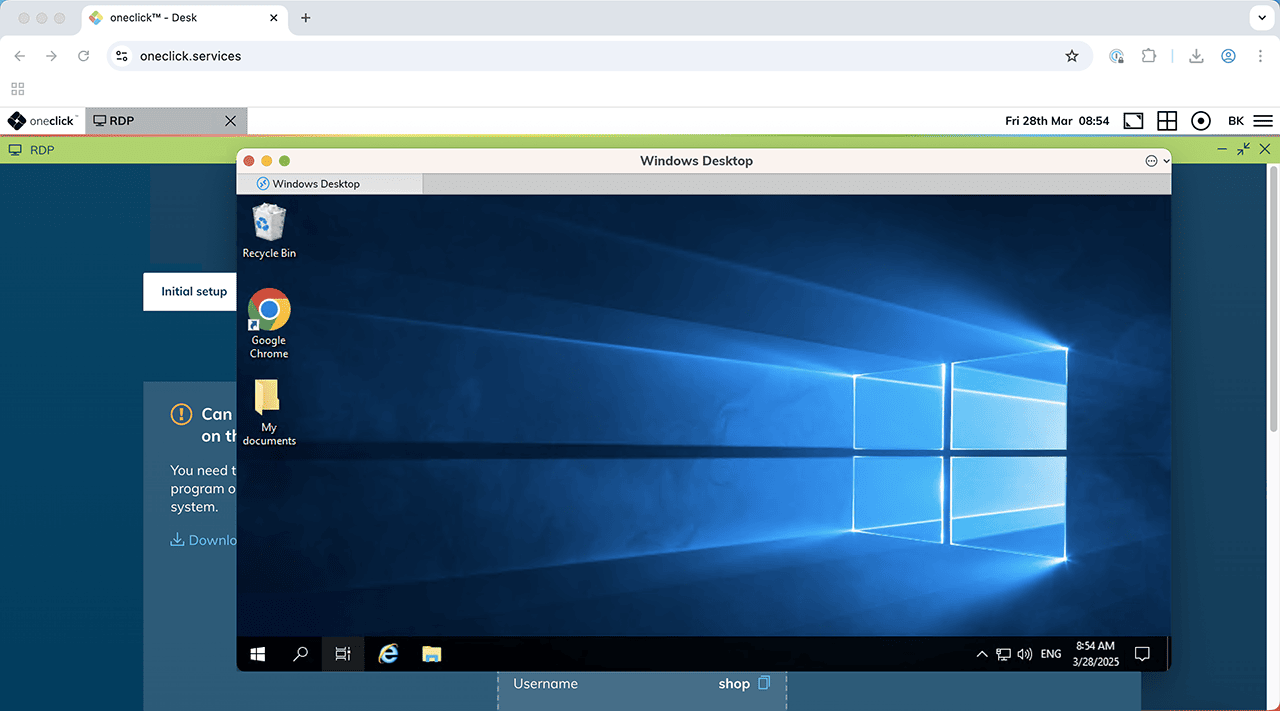
- You are now securely connected and can close the browser window.
Note for macOS users
When using the Remote Desktop Manager on macOS, you may experience instability – especially when resizing the window during an active session.
To avoid connection issues, we recommend:
- Do not resize the window after the connection is established.
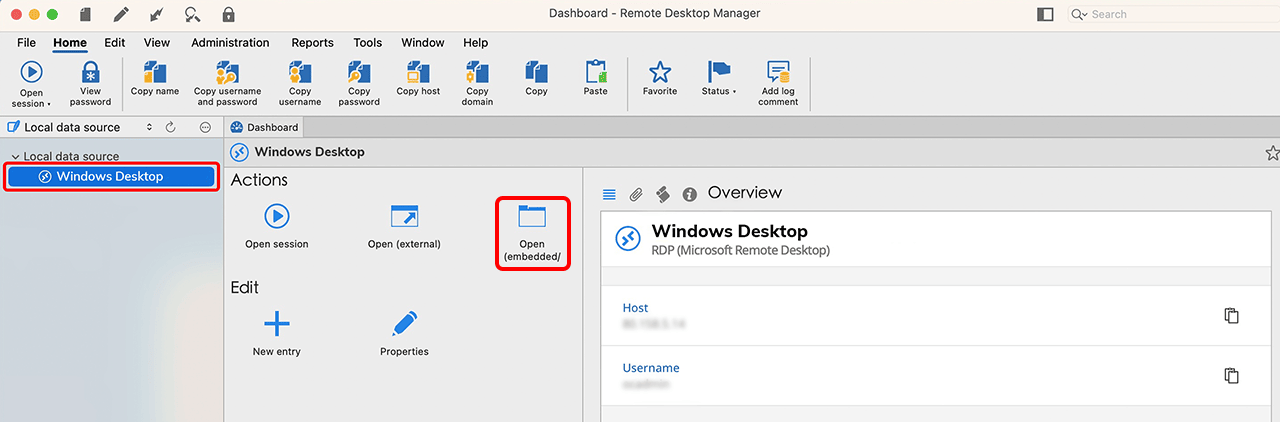
- Use Embedded instead of “Open Session” – this opens the session in the main window and provides better stability.
6. Were you successfully connected?
If you connected successfully, you can Check a box in the access window. This will ensure that the “Quick Access” tab is displayed instead of “Initial Setup” the next time you start.

Once the connection is established, you can close the access window.
Login failed?
If your login fails, this may be because your credentials have expired. They are only valid for 5 minutes.
In this case, you need to generate new one-time credentials and repeat the login process.
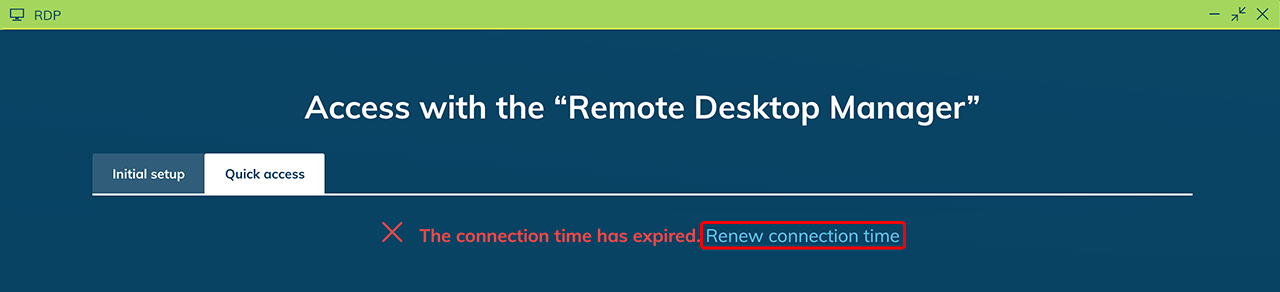
- Click on Renew connection time to generate new access credentials.
- Repeat the login from Step 5.
If login still fails, your antivirus software may be blocking the connection. Check the settings and contact your administrator if necessary.