Create shortcuts in macOS
Create shortcuts to the oneclick™ access window and the Remote Desktop Manager app. Optionally, you can use a custom oneclick™ icon to make your shortcut easily recognizable.

1. Access window
Drag and drop the oneclick™ access window tile from the oneclick™ desk to your desktop. This creates a shortcut that allows you to open the access window directly. 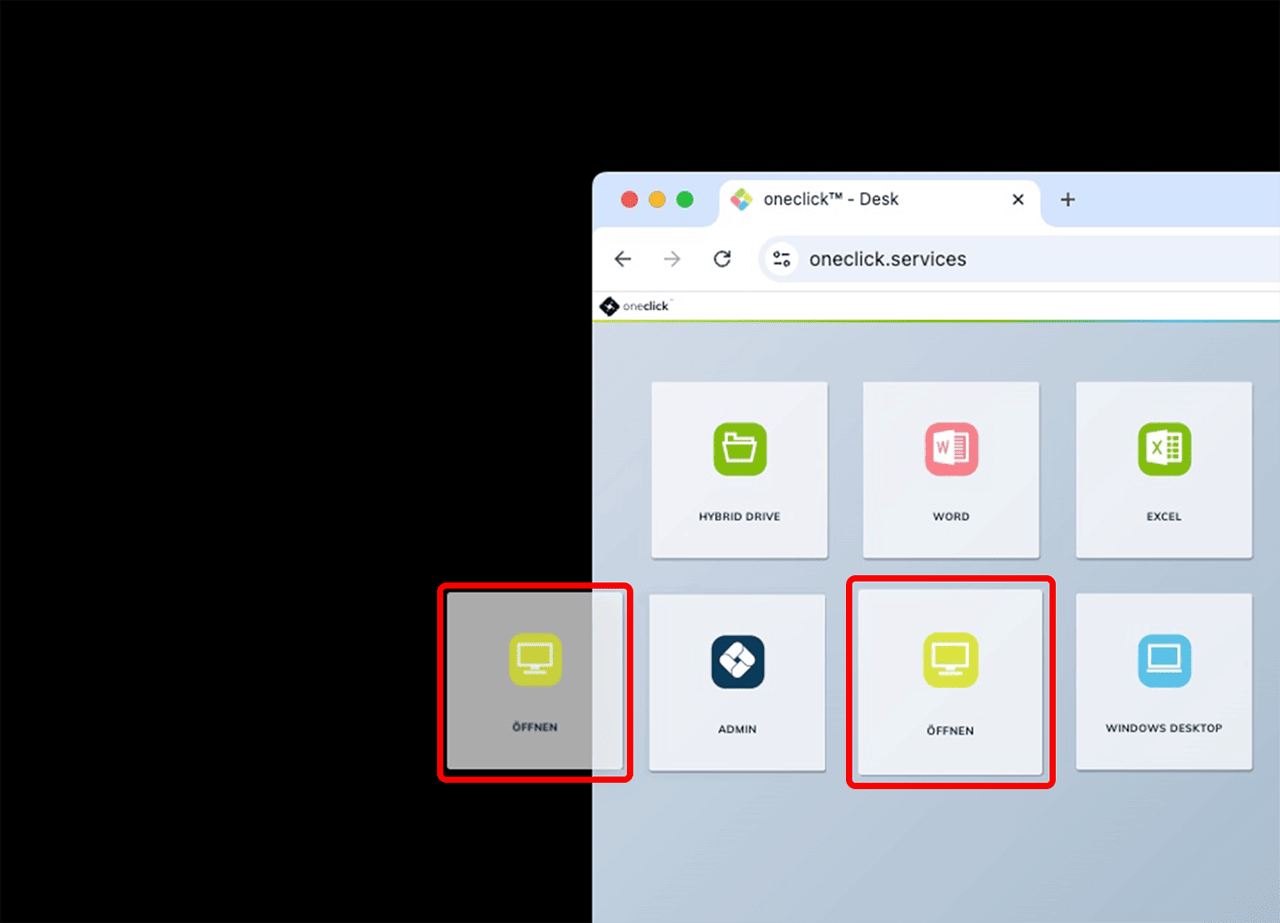
2. Remote Desktop Manager (RDM)
- Open the Applications folder.
- Drag the “Remote Desktop Manager” app to your desktop while holding the Cmd + Alt keys.
MacOS will automatically create an alias (shortcut) to launch the app.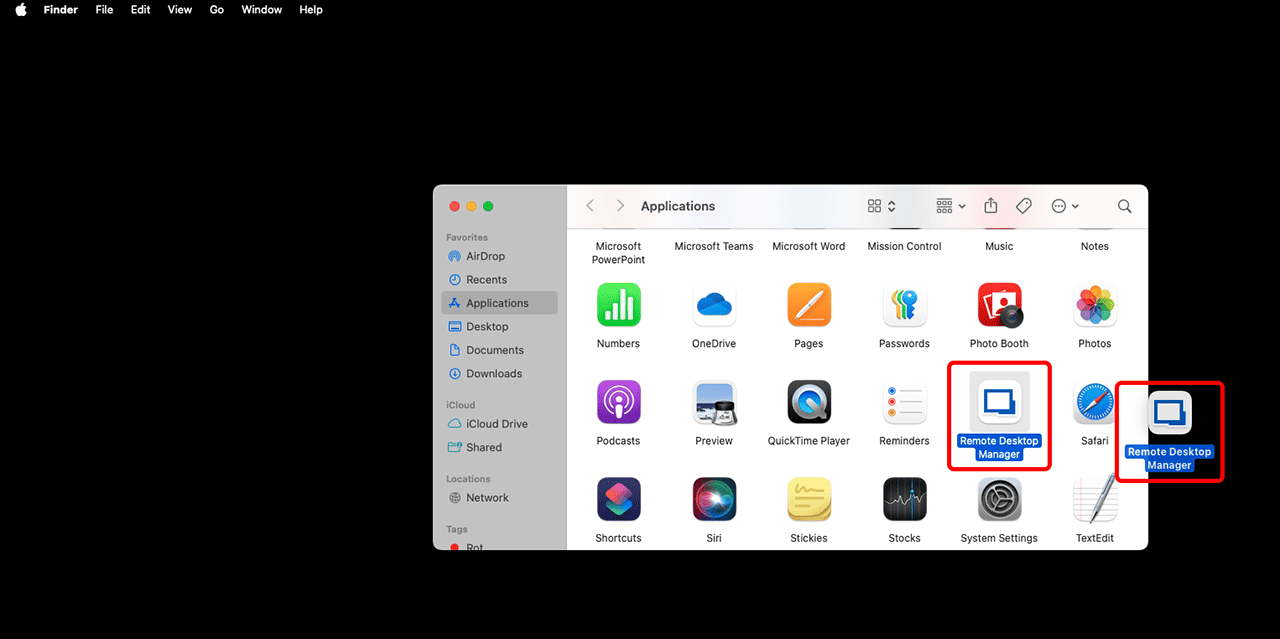
- Double-click the shortcut to open the Remote Desktop Manager. Your most recently opened session will be displayed and can be launched immediately.
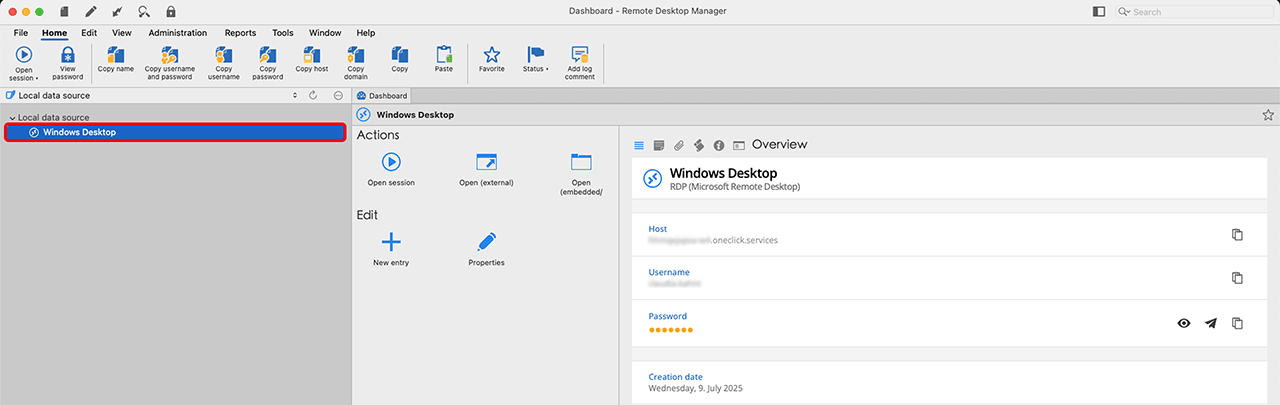 To display a session, the corresponding RDM file must have been opened once manually as described in step 3: Open RDM file.
3. oneclick™ icon for the access window (optional)
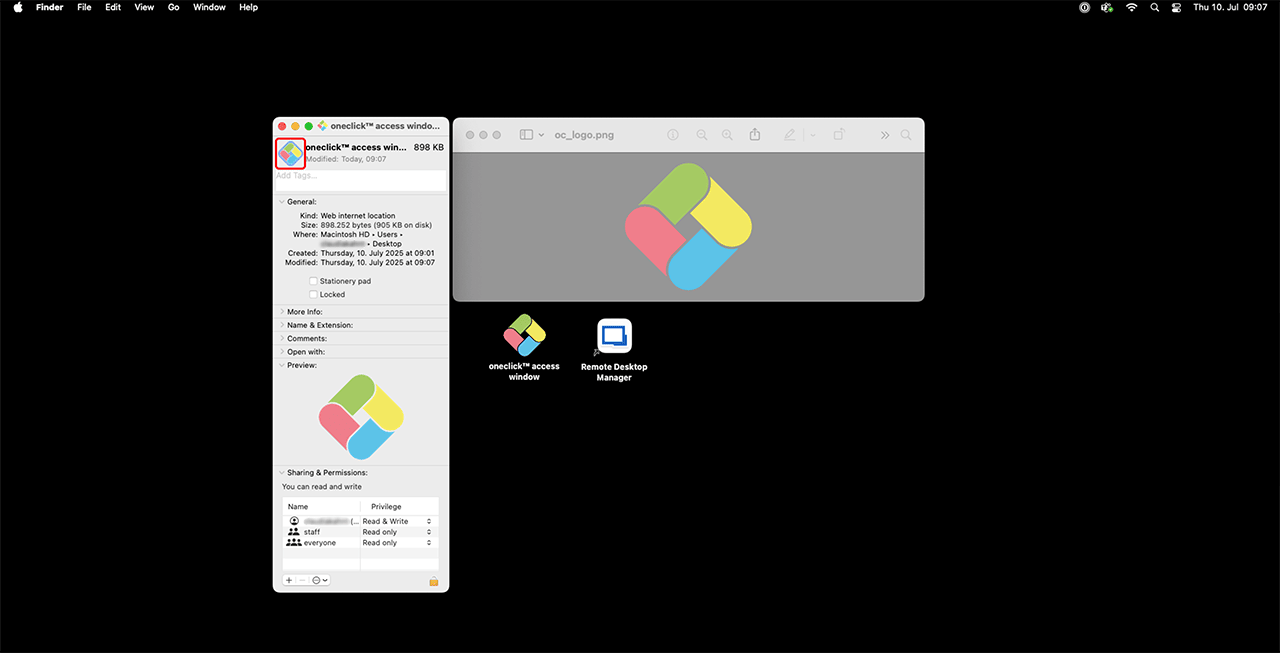
- Download the oneclick™ logo and open the image with the Preview app.
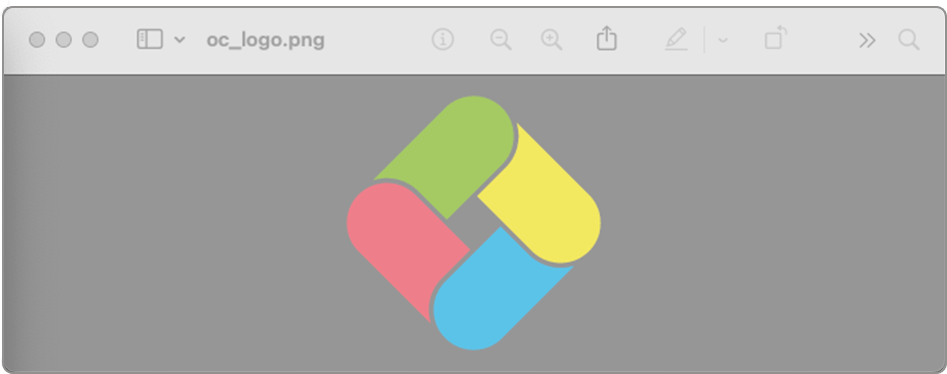
- Press Cmd + C to copy the image to the clipboard.
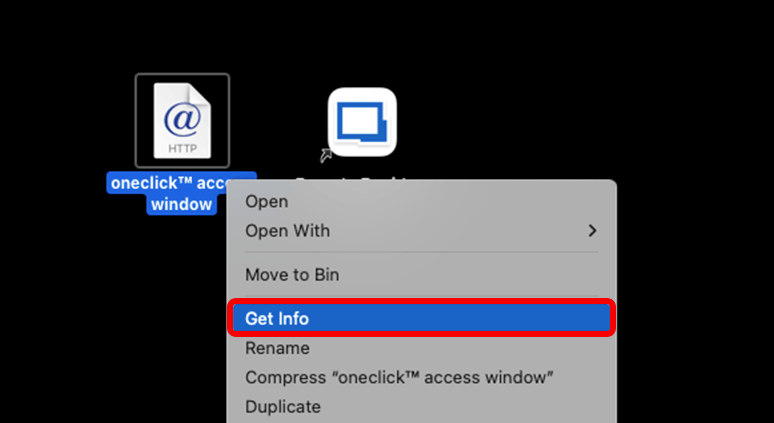
- Right-click the shortcut to the oneclick™ access window and select Get Info from the menu.
- In the info window that opens, click the small Icon in the top left corner so that it is highlighted in blue.
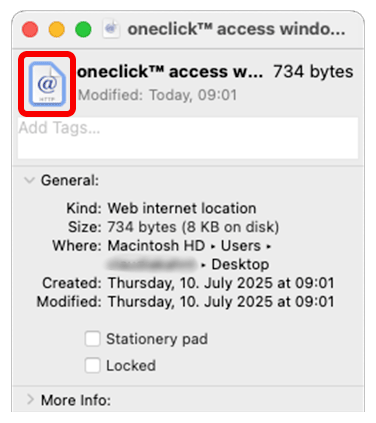
- Now press Cmd + V to paste the copied oneclick™ logo.