Preparing existing resource for processes
You want to execute processes on your resource or activate load balancing for it?
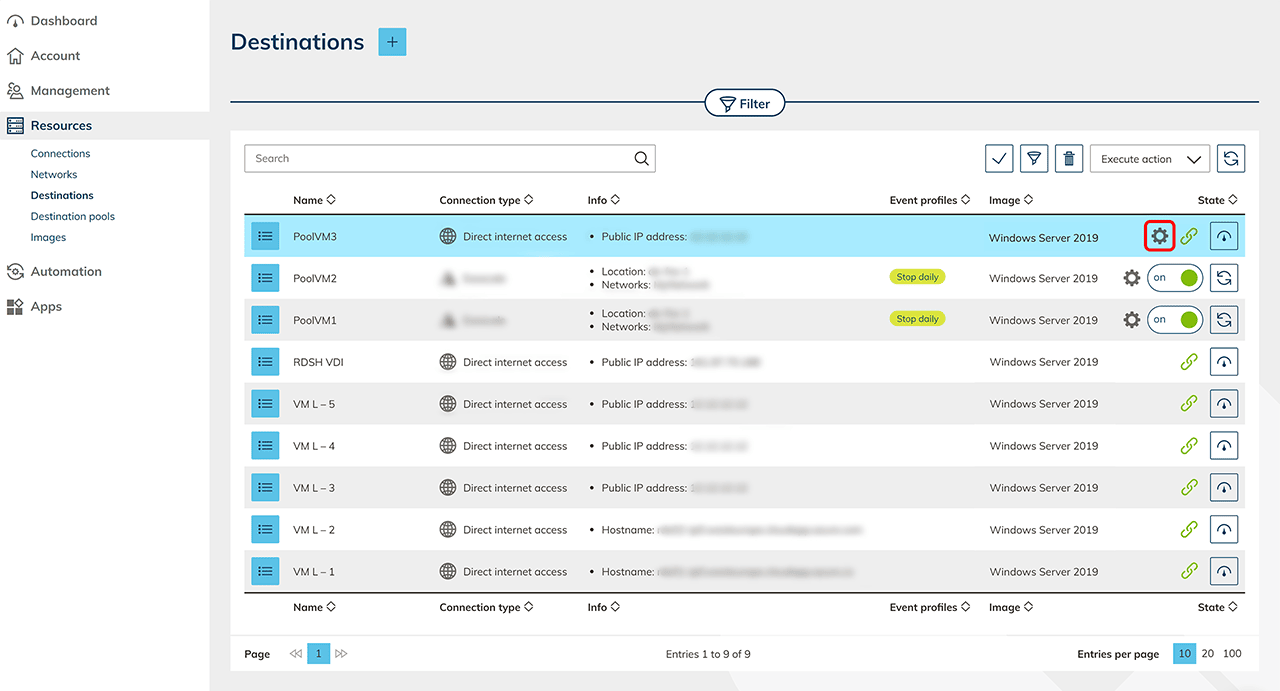
If there is no Gear-icon next to the name of your resource, it must first be prepared for process execution. To do this, follow the steps below.
For cloud resources preparing your resource for process execution usually happens during the creation process , unless you choose otherwise.
1. Install WinRM setup script on resource
For oneclick™ to be able to execute processes on your destination, Windows Remote Management (WinRM) must first be activated on the corresponding server. In addition, port 5986 in the Windows firewall (and all other firewalls used) should be enabled for the required IP addresses.
To simplify this process and thus make it more effective we have prepared a secure script to automate these tasks.
Proceed as follows to run the script:
-
Download the script SetupWinRM from our website.
-
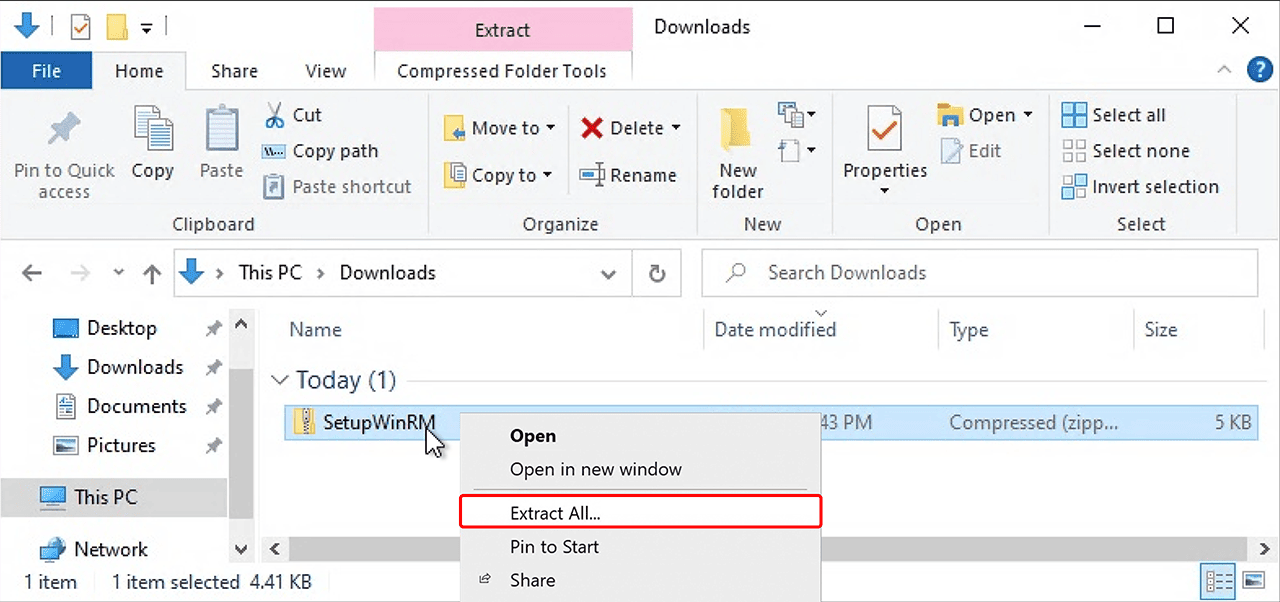
Extract the downloaded file to any location. To do so, right-click and select Extract All…
-
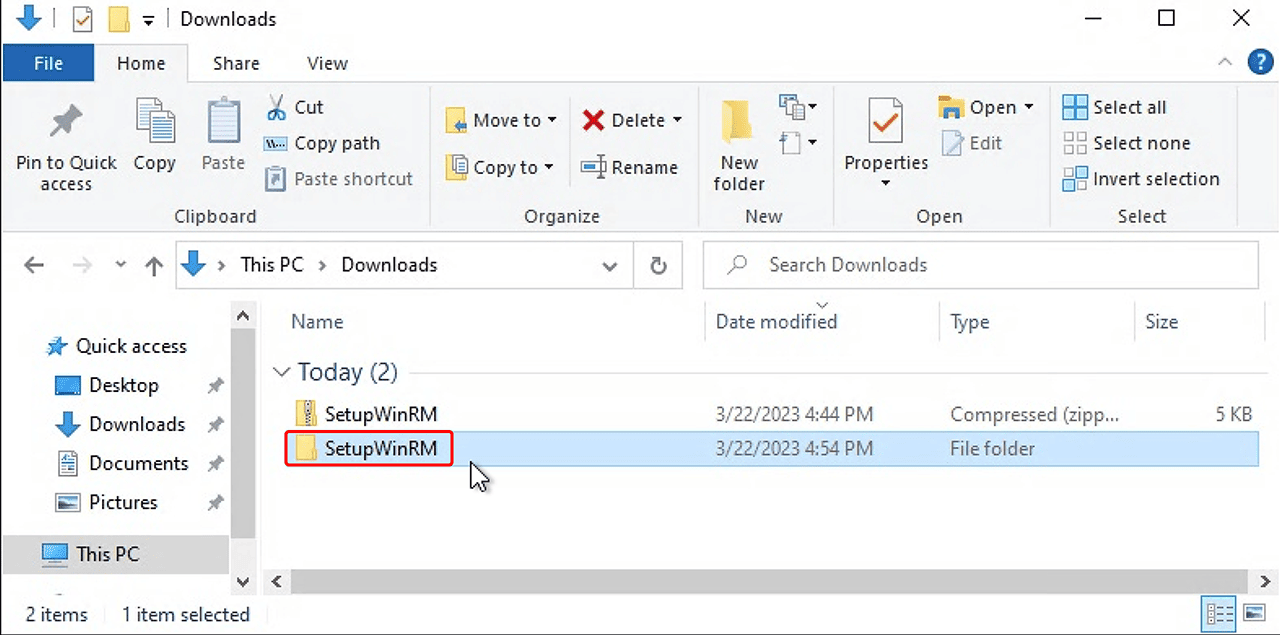
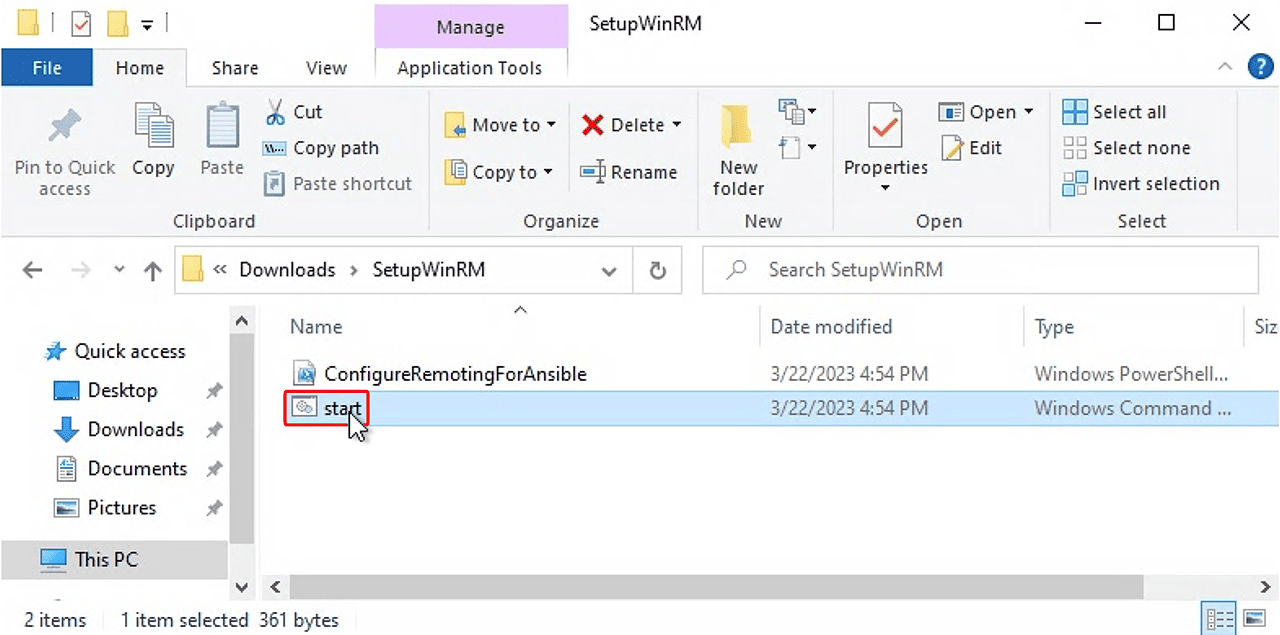
Open the unzipped folder and execute the “start” file by double-clicking on it.
-
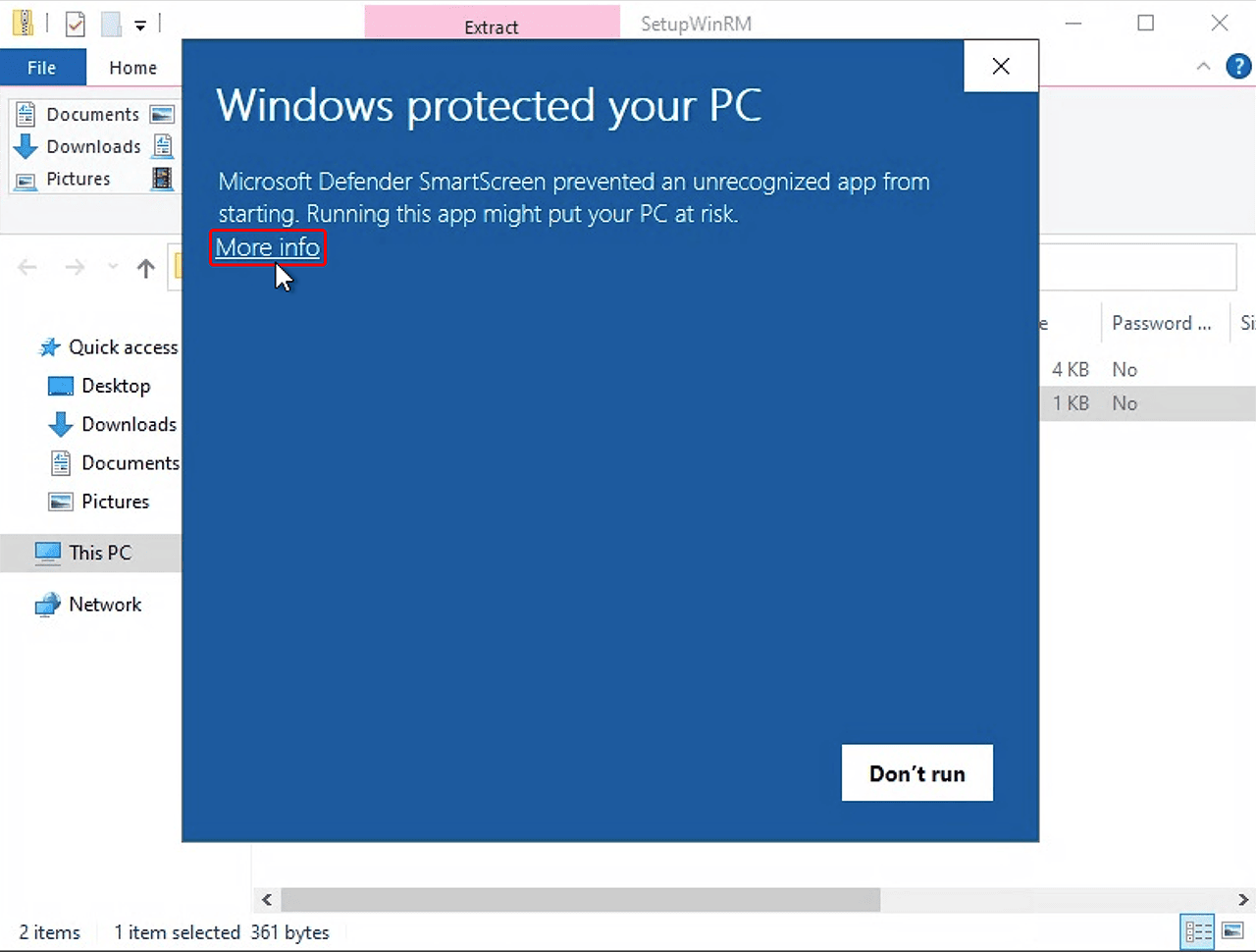
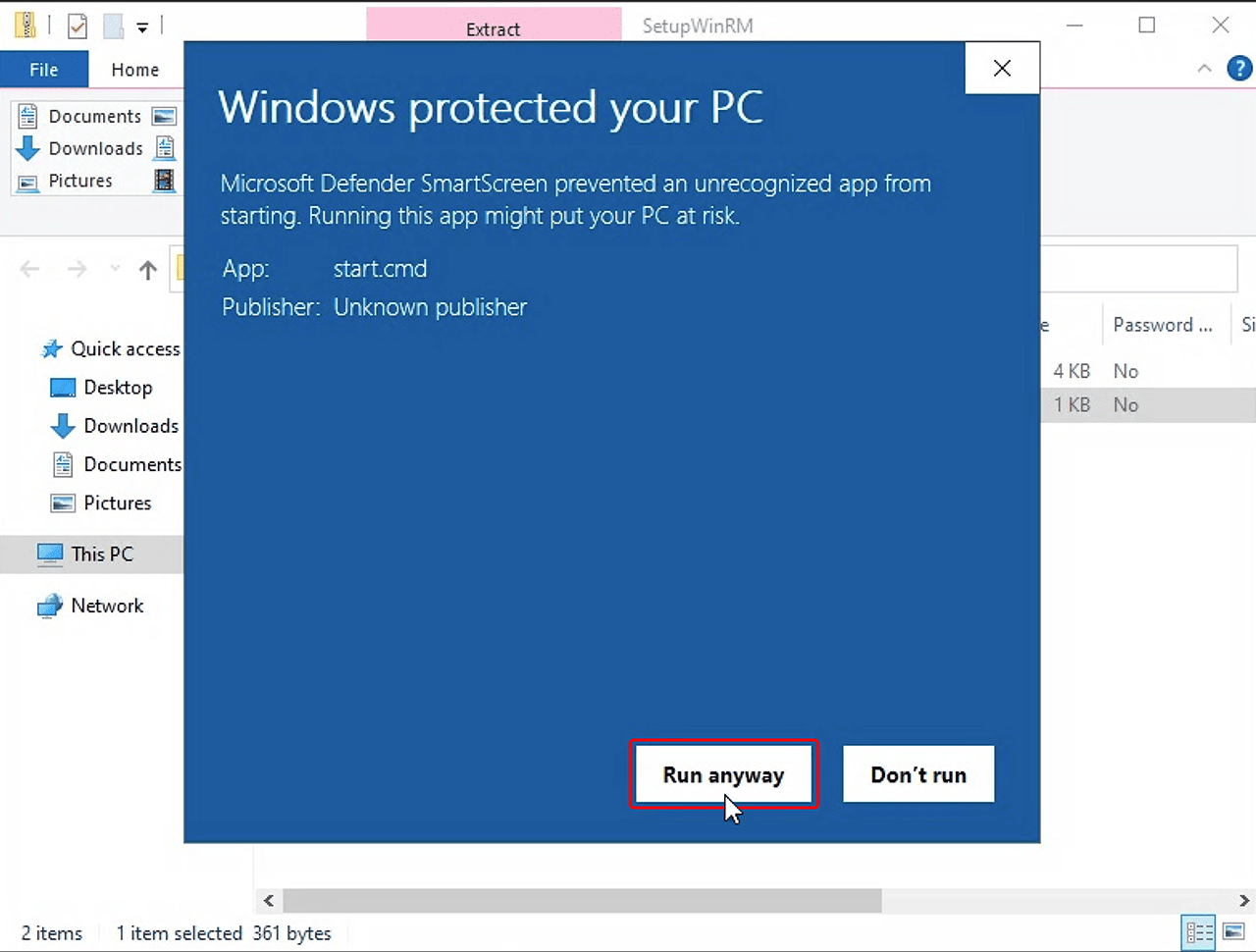
A warning message appears on your screen. In the window, click More info and then click Run anyway.
-
Confirm the following message with Yes.

-
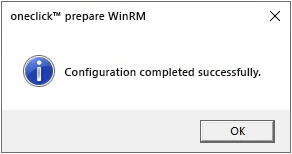
After completion, a message “Configuration completed successfully” appears, confirming that the process was successful.
If an error message appears, follow the instructions in the WinRM troubleshooting.
2. Required whitelisting in the firewall (optional)
If you have other firewalls in use, additionally to the Windows firewall, port 5986 must also be manually released for the oneclick™ core IP-addresses.
3. Prepare resource for processes in oneclick™
In the next step, enter your admin credentials. This authorizes oneclick™ to apply changes, such as updates you want to execute through processes, on your resource.
-
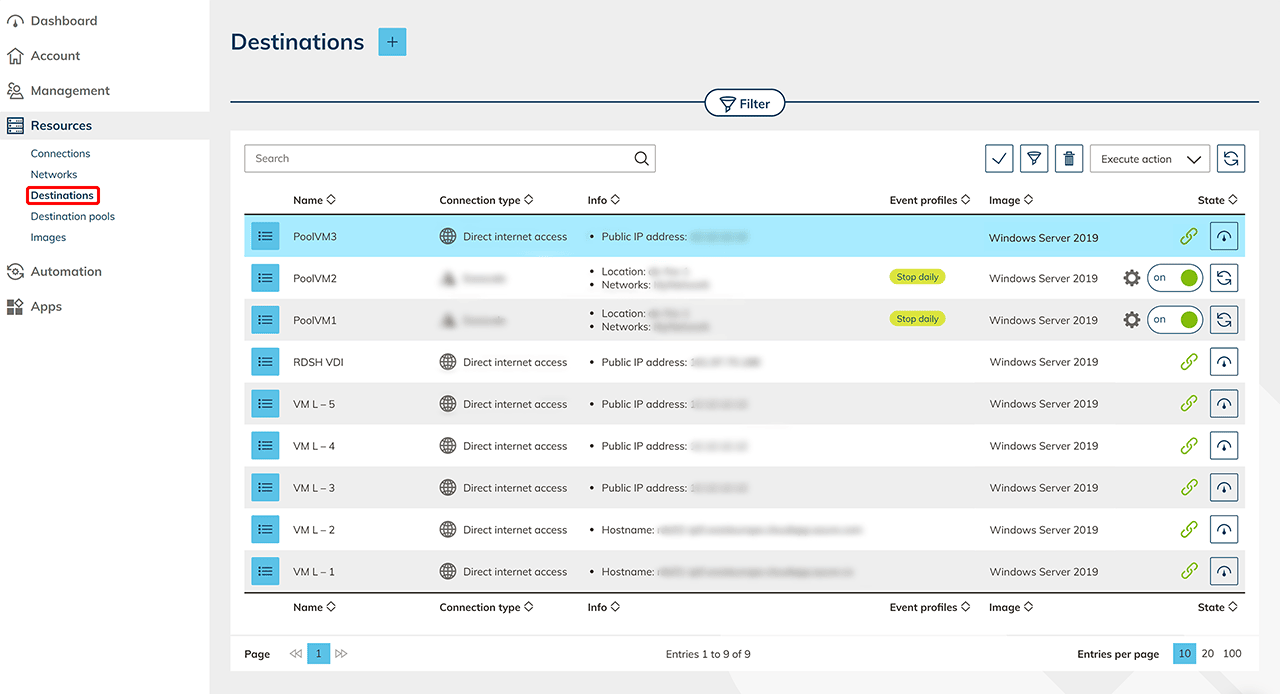
In the oneclick™ Admin, select the Resources tab and then subitem Destinations. Select a connected destination.
-
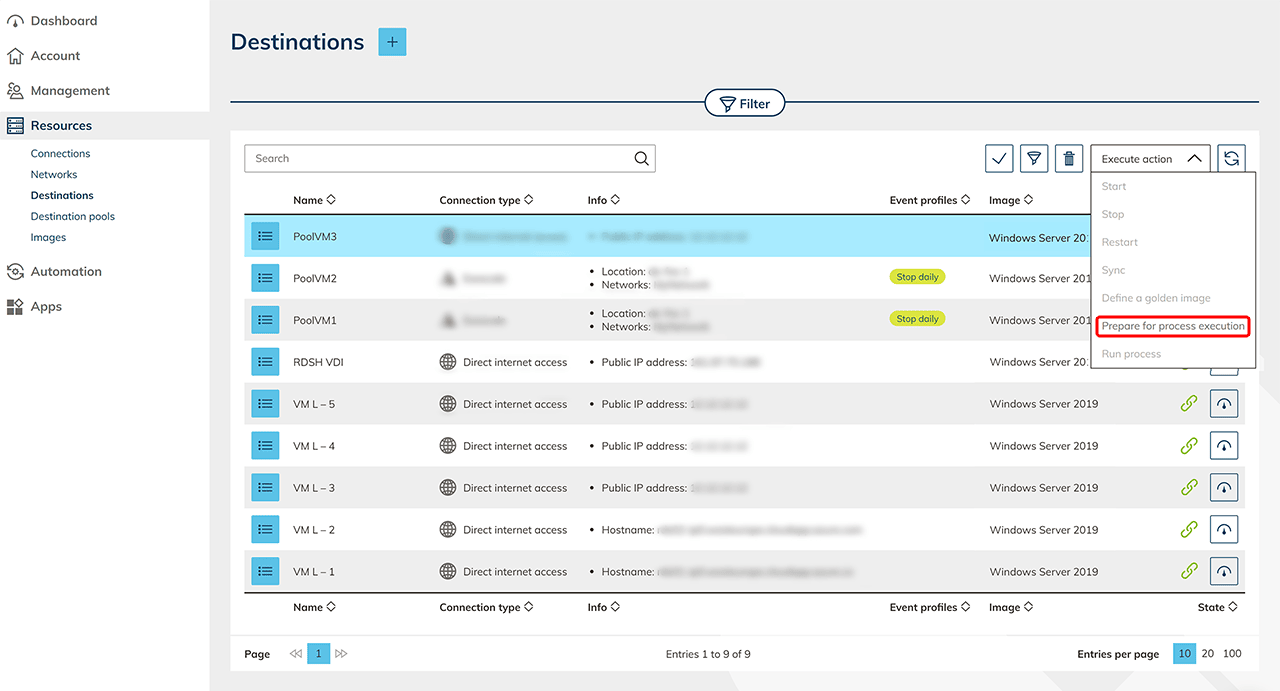
Go to Execute action in the upper right corner above the listing and select Prepare for process execution.
-
Follow the instructions displayed in the displayed pop-up and continue here afterwards.
-
Select your operating system and enter the administrator credentials here once. Click Save to complete the process.
Your data will not be saved.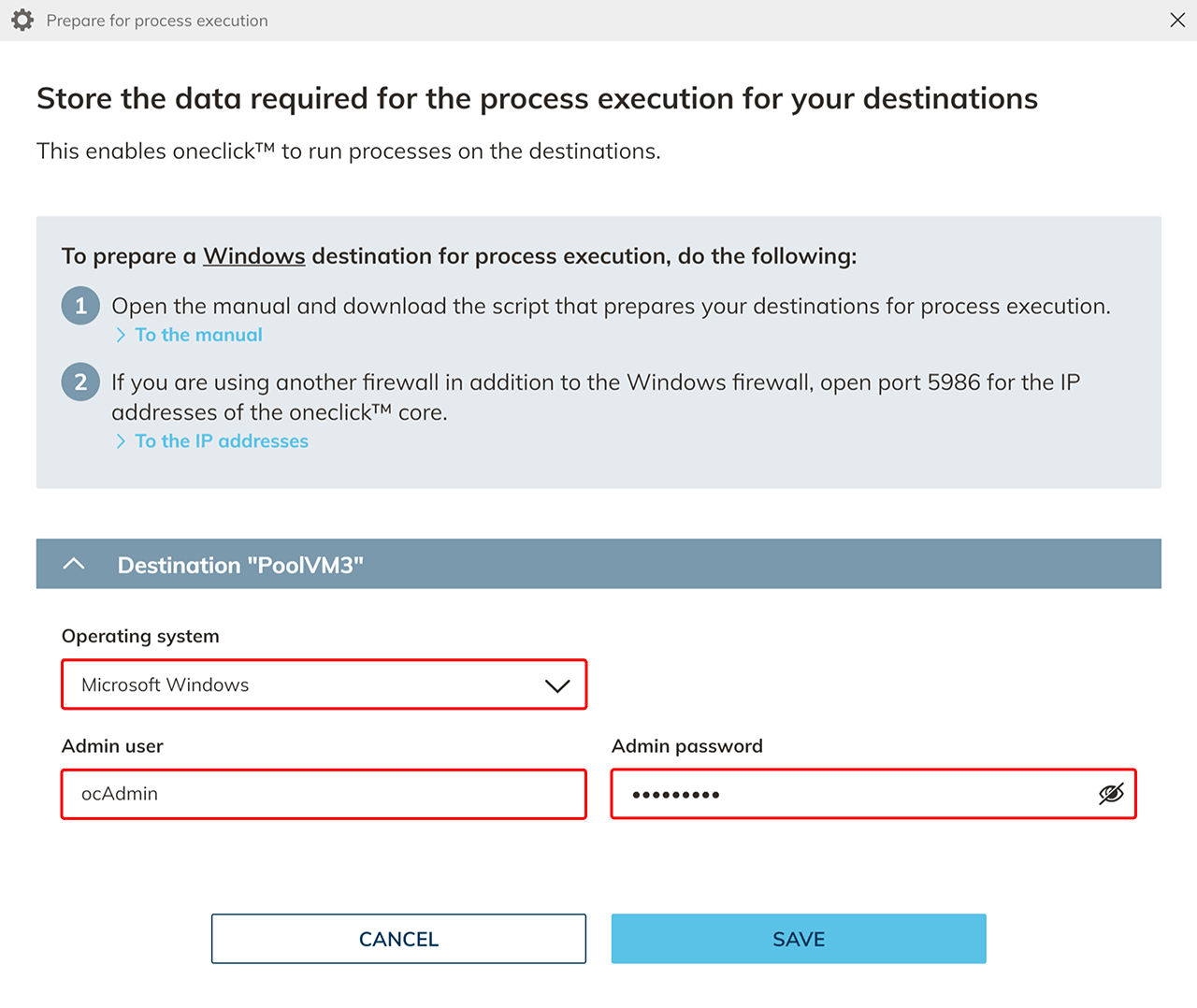
You will now see a Gear-icon on the right, in the line of the edited destination.
4. Execute processes on your ressource or activate load balancing
Your system is now prepared for process execution. Now you can execute processes on your prepared resource or use the option to set up dynamic load balancing in oneclick™. Follow our instructions for this.