Uninstalling software with Chocolatey
With Chocolatey, you can also uninstall software from your resources using a centrally executed process. We recommend creating a process template in which you can enter any software as required afterwards. To so, carry out the following steps:
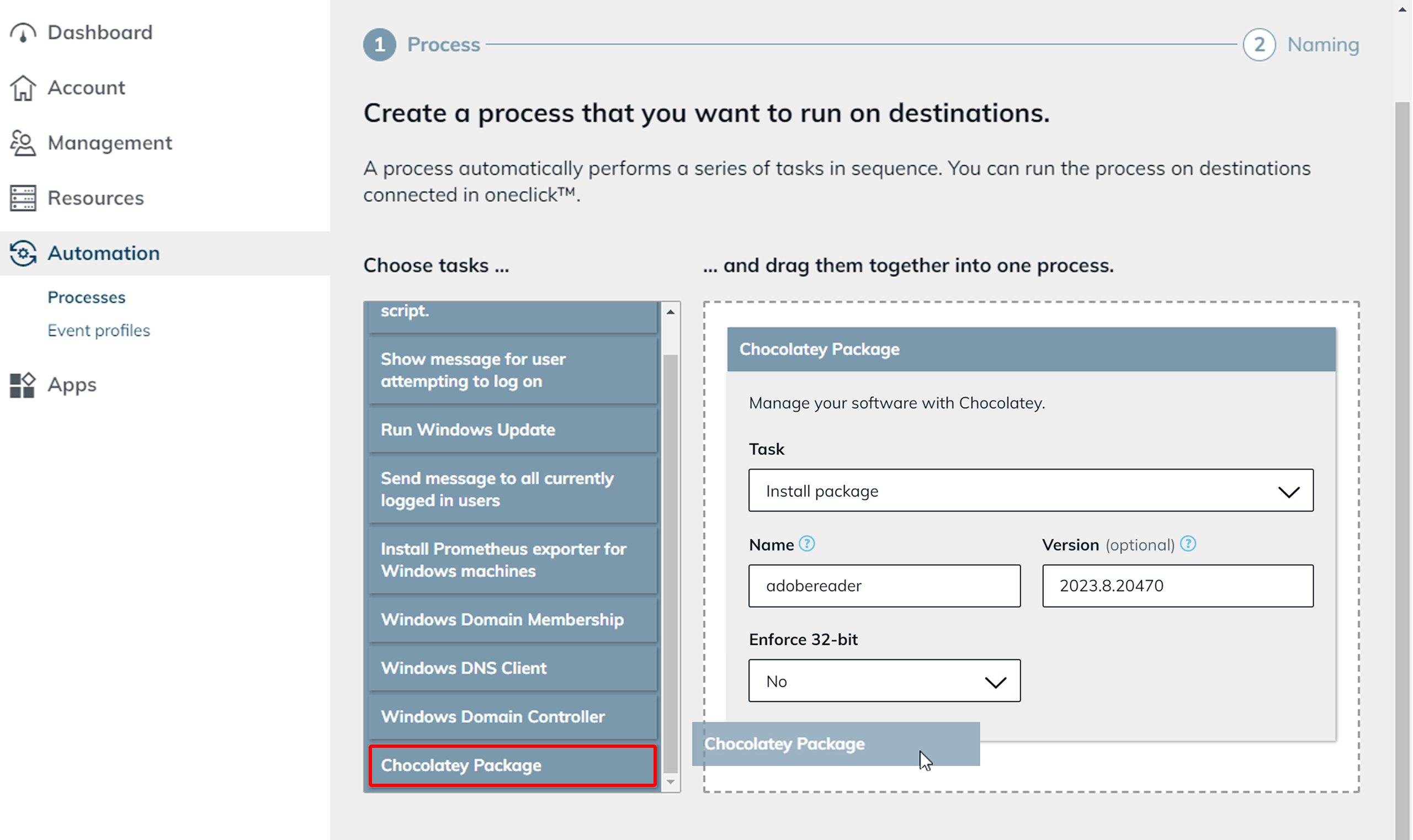
- Create a new process and drag the "Chocolatey Package" task into the right-hand area of the screen.
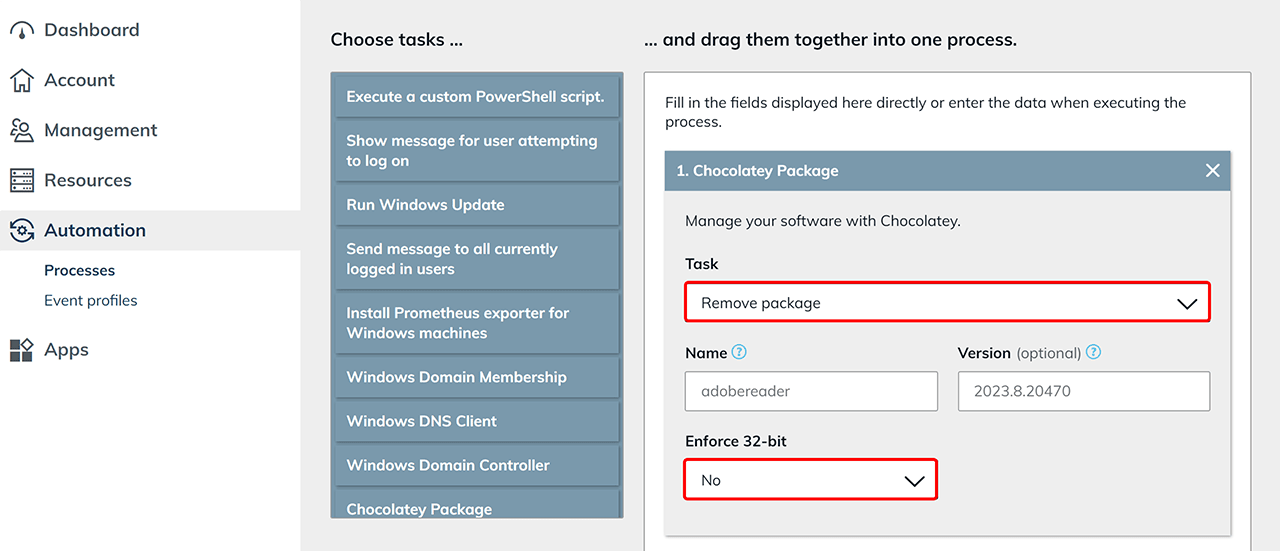
- Open the drop-down menu under the "Task" entry and select "Remove package".
- Leave the "Name" and "Version" fields empty at this point. This creates a "blank process" so that you can insert the name of a software as required when executing the process.
- Leave the entry under "Enforce 32-bit" set to "No".
- Then click Next.
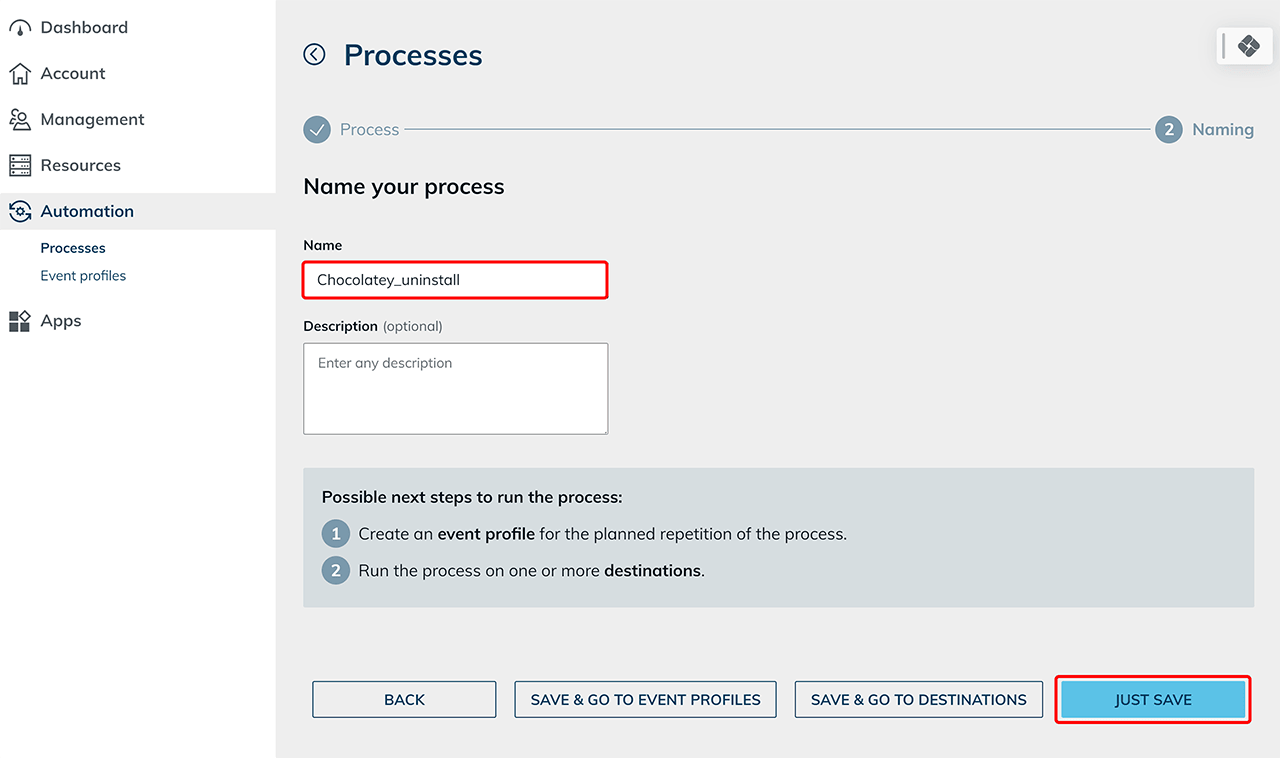
- Give the process a name and optionally add a description.
- Then finish the process creation by clicking on Just save.
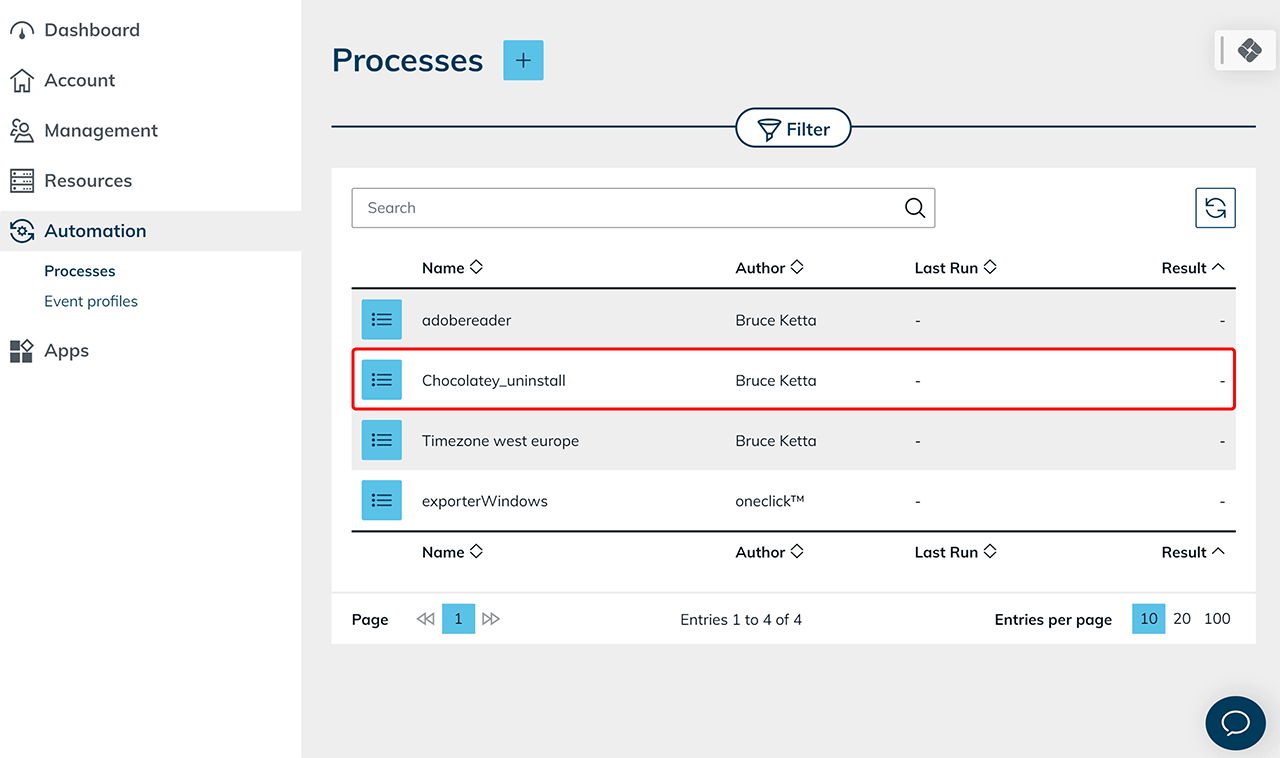
Then click on Processes in the Automation tab. Your template for removing software using Chocolatey is now displayed in the list of all created processes on the right-hand side.
Carry out the following steps to uninstall a program on your resources using Chocolatey:
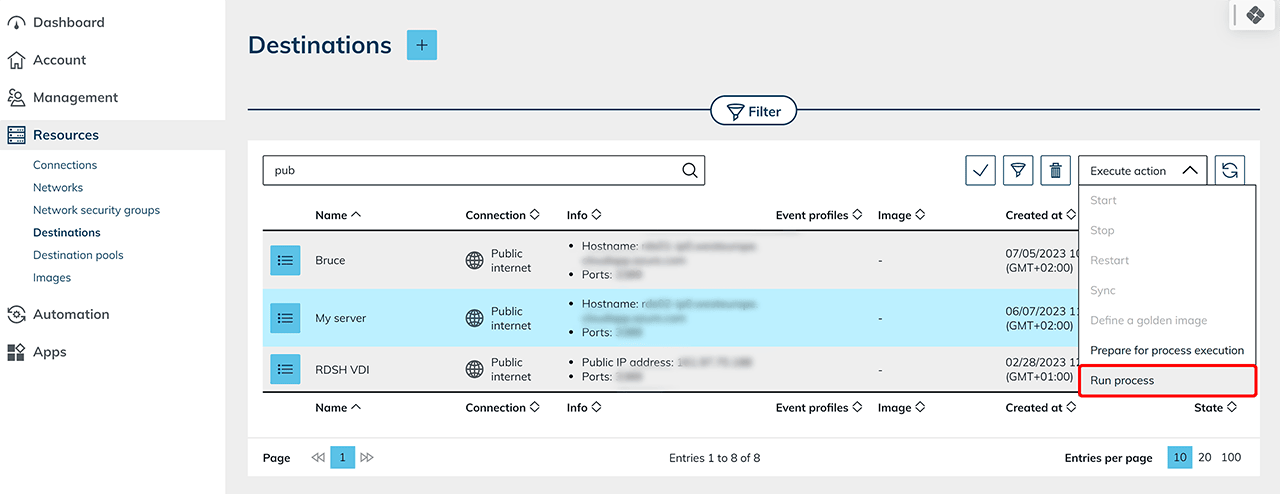
- Click on the Destinations entry in the Resources tab.
- Select the destination on which you want to execute the process from the list on the right-hand side. Attention: The resource selected here must first be prepared for process execution.
- Now open the drop-down menu at the top right and select the "Run process" entry.
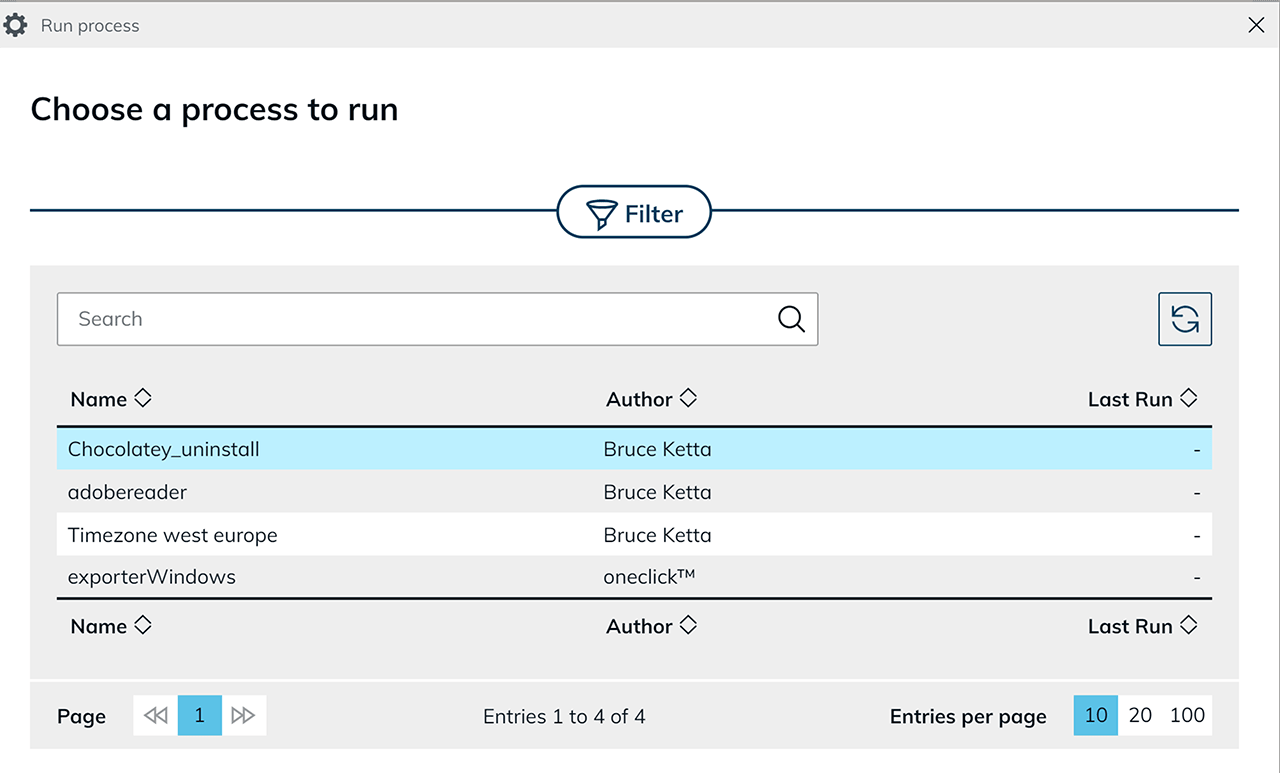
- In the newly opened window, select the process you have created to uninstall software from your resources.
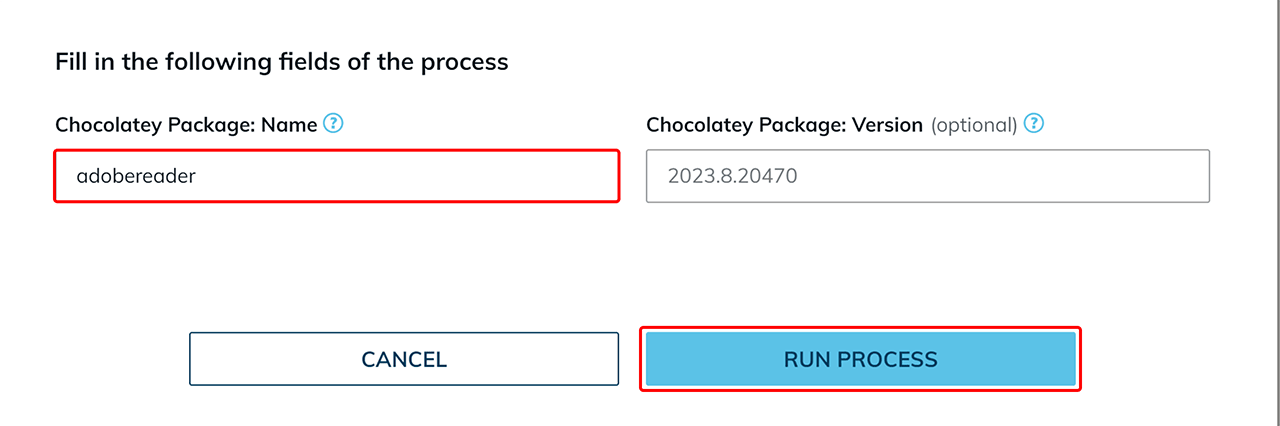
- Now enter the name of the program you wish to remove below under "Chocolatey Package: Name". Please note: The name of the program entered here must correspond exactly to the entry in the Chocolatey database.
Leave the "Chocolatey Package: Version" field empty. Any entry here will be ignored by the system. - Then click on Run process.
- Follow our instructions for Processes under 4. to check the progress of the process execution.