WinRM troubleshooting
If WinRM (Windows Remote Management) is not working properly, destination systems will not appear in the pool and load balancing will not work. WinRM is therefore a fundamental requirement for communication with destination systems.
How to restore WinRM connectivity:
1. Open the Local Group Policy Editor
-
Log in directly to the affected server. Then open the Local Group Policy Editor by pressing Windows + R, entering gpedit.msc, and confirming with Enter.
-
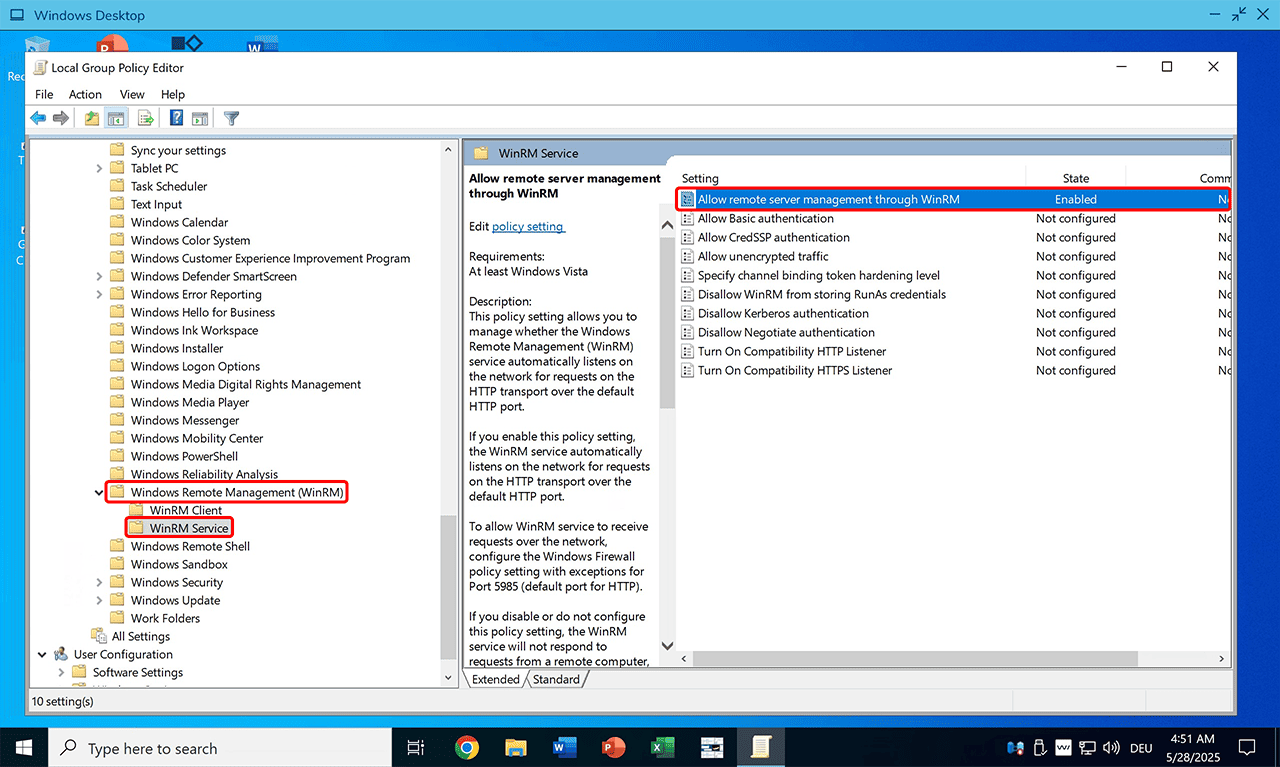
Navigate to the WinRM settings:
Computer Configuration└─ Administrative Templates└─ Windows Components└─ Windows Remote Management (WinRM)└─ WinRM Service -
Double-click Allow remote server management through WinRM.
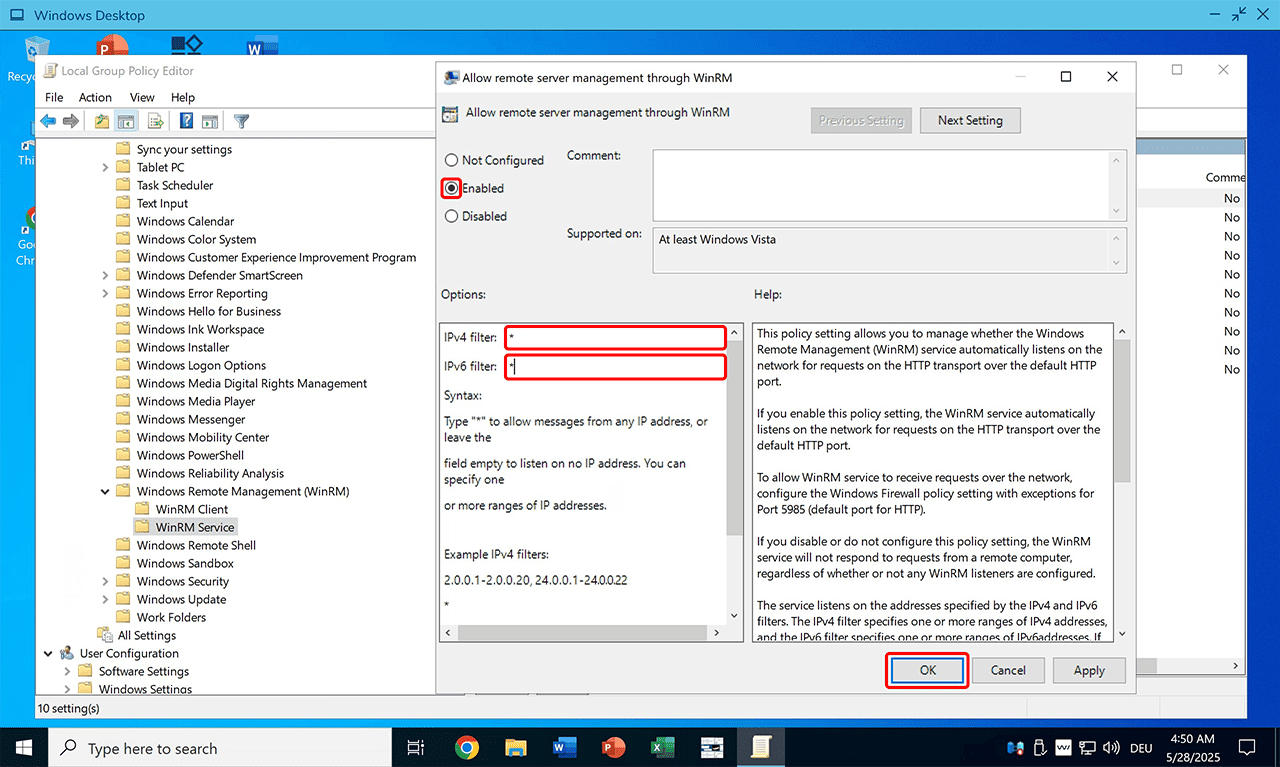
- Set the policy to "Enabled".
- In the "IP address filter" field, enter an asterisk
*so that connections are accepted on all IP addresses. - Click OK to save your settings.
2. Update Group Policies
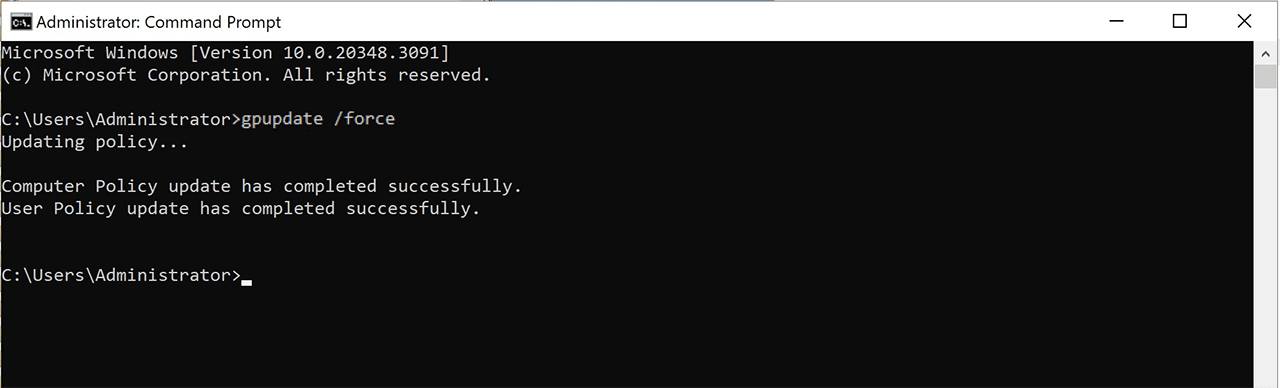
Open the Command Prompt (CMD), enter the following command, and press Enter:
gpupdate /force
3. Restart the WinRM Service
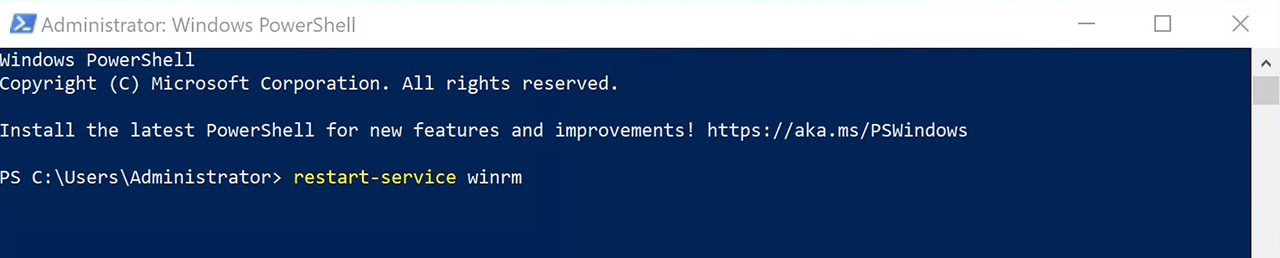
Open PowerShell as Administrator, enter the following command, and press Enter:
restart-service winrm
Once completed, the WinRM service will again accept connections, destination systems will be correctly displayed in the pool, and load balancing will work as expected.