Check & Restart oneclick™ Mesh
Is your Mesh Client no longer establishing a stable connection to the destination?
The oneclick™ Mesh Client must be installed and active on both your local device and the destination. A stable connection can only be established when both sides are running.
In many cases, it is sufficient to restart the oneclick™ Mesh Services and check the reachability of the relevant hosts. Additionally, the network adapter status can be verified and restarted if necessary to restore the connection.
1. Restart oneclick™ Mesh Services
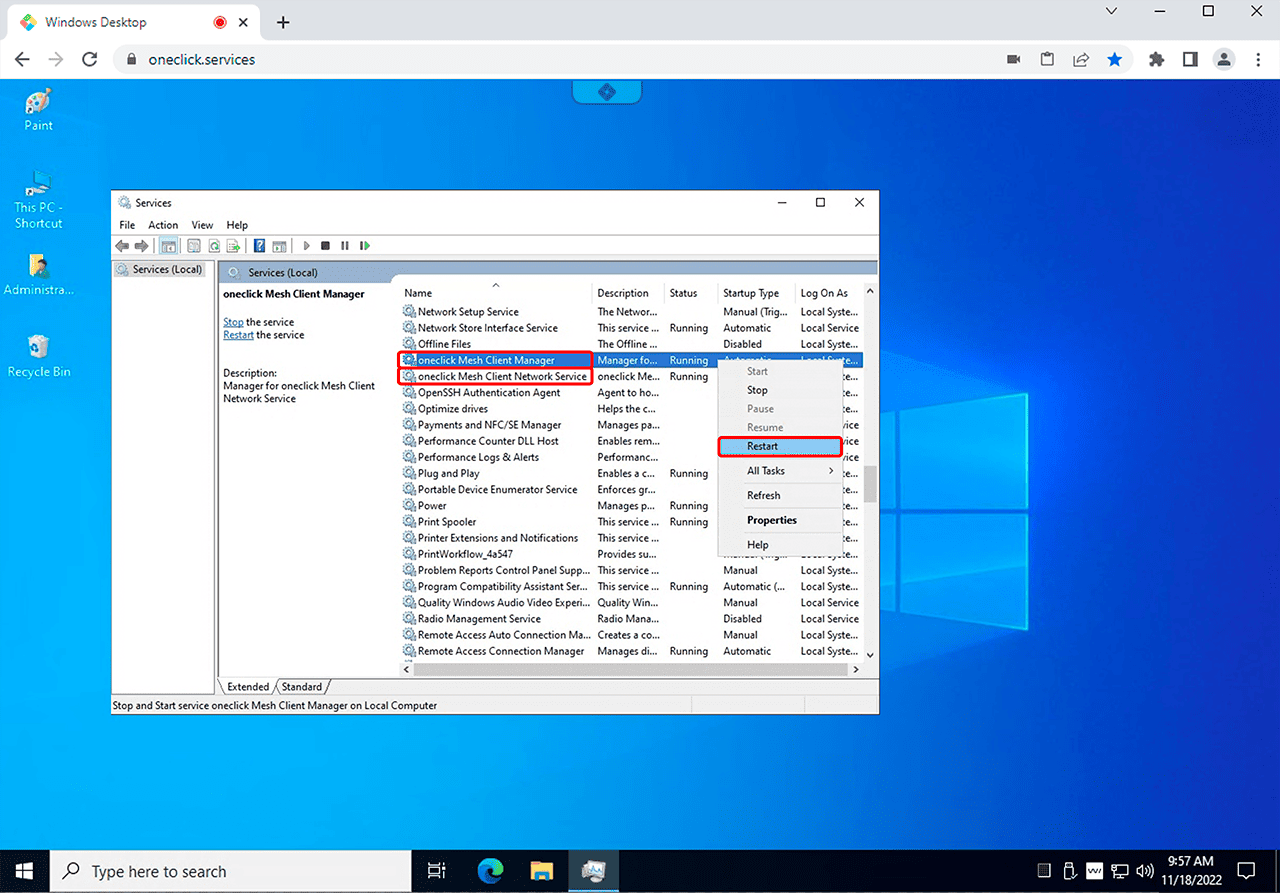
- On the destination, open the Windows Services console by pressing Windows key + R, entering
services.msc, and confirming with OK. - In the list, locate the following services:
- oneclick Mesh Client Manager
- oneclick Mesh Client Network Service
- Right-click the first service and select Restart.
- Repeat the procedure for the second service.
If the services do not run stably or fail to start, uninstall the Mesh Client and then reinstall the latest version. Refer to the following guide starting at Step 3: Download the Mesh Client for each device to be connected.
2. Ping the Mesh Lighthouses
- On your local device, open PowerShell or CMD by pressing the Windows key, typing “PowerShell” or “cmd”, and launching it.
- Run the following commands one after another:
ping oneclick-mesh-lighthouse-01ping oneclick-mesh-lighthouse-02
- If you receive the message “Reply from …”, the respective host is reachable.
- Messages such as “Request timed out” or “Destination host unreachable” indicate a connectivity issue.
3. Check IP addresses on the destination
- Log in to the destination and open PowerShell or CMD there.
- Run these commands:
ping 100.64.0.1ping 100.64.0.2
- Ensure that internal communication between the destination and the mesh is working:
- “Reply from 100.64.0.x” means the connection is fine.
- Messages such as “Request timed out” or “Destination host unreachable” indicate a connectivity issue.
4. Check the mesh network adapter and restart if necessary
On the destination, the mesh network adapter “oneclick” must be present and have an IP address.
- Check this in PowerShell with:
Get-NetIPConfiguration -InterfaceAlias 'oneclick'
- Verify that the InterfaceAlias is “oneclick” and that an IPv4Address in the range 100.64.XXX.XXX is present. Also ensure that DNS servers are configured.

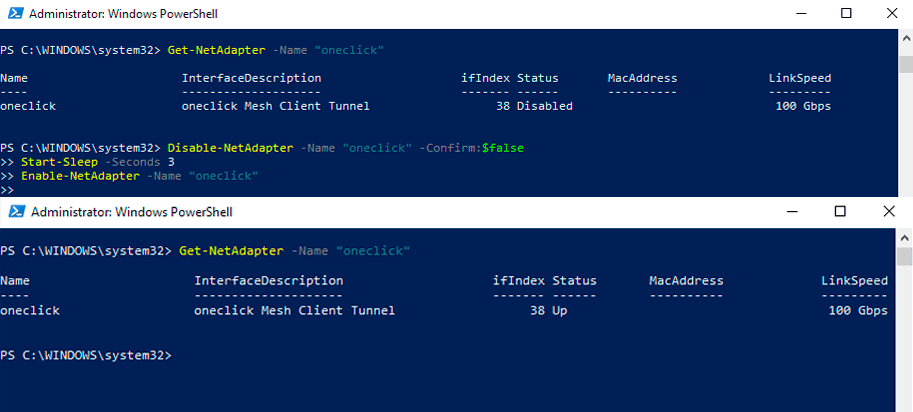
- If the adapter is not active, check the status with:
Get-NetAdapter -Name "oneclick"
- If the status is not “Up”, restart the adapter:
Disable-NetAdapter -Name "oneclick" -Confirm:$falseStart-Sleep -Seconds 3Enable-NetAdapter -Name "oneclick"
- Then repeat the ping tests from Step 2 and Step 3 to verify that the connection has been restored.