oneclick™ Write user to a connected AD (beta)
This function is useful if you want to write many users and more and more new users to a server.
- Connect your Active Directory. To do so, choose either Import users from a private AD or Import users from an Entra ID.
- To push users from oneclick™ to an private Active Directory, you must prepare your Windows server for this by installing the Active Directory Domain Services role and then the Active Directory Certificate Services role. Proceed according to this tutorial.
- For security reasons, we recommend connecting the private Active Directory via the LDAPS protocol.
- You do not need to activate any licenses or create any groups in advance.
- Do not select a group in the step where you can synchronize the groups from your Active Directory with the groups in oneclick™.
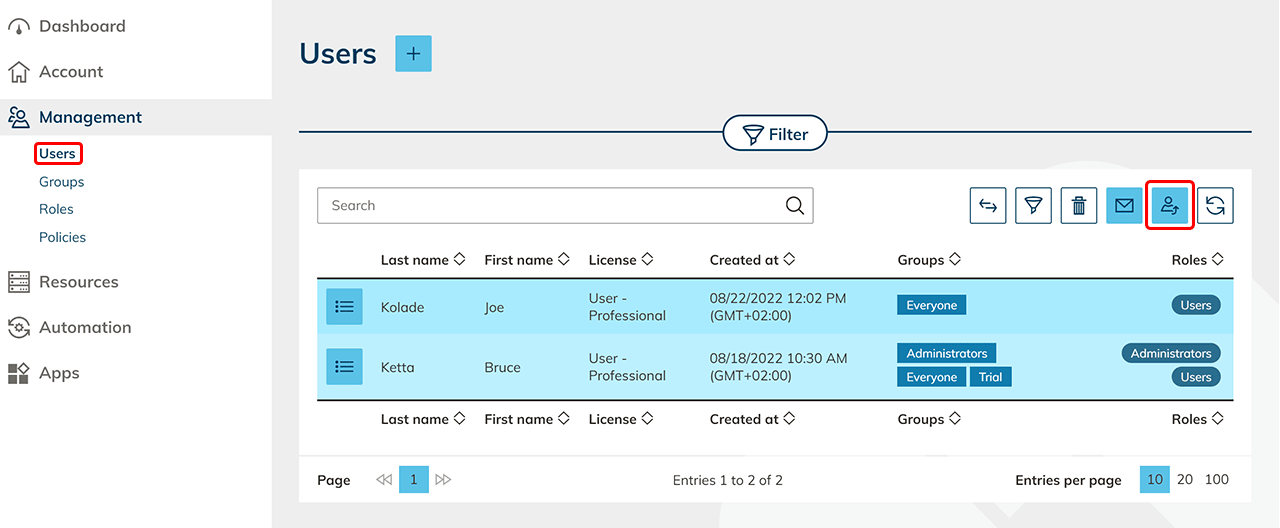
- Click on the Users tab via the Management menu.
- Select all users in the table you want to push into the AD.
If you want to write just one user to a connected AD you can click on the List icon in the row of the user to get to the detail page. - Click on the User icon .
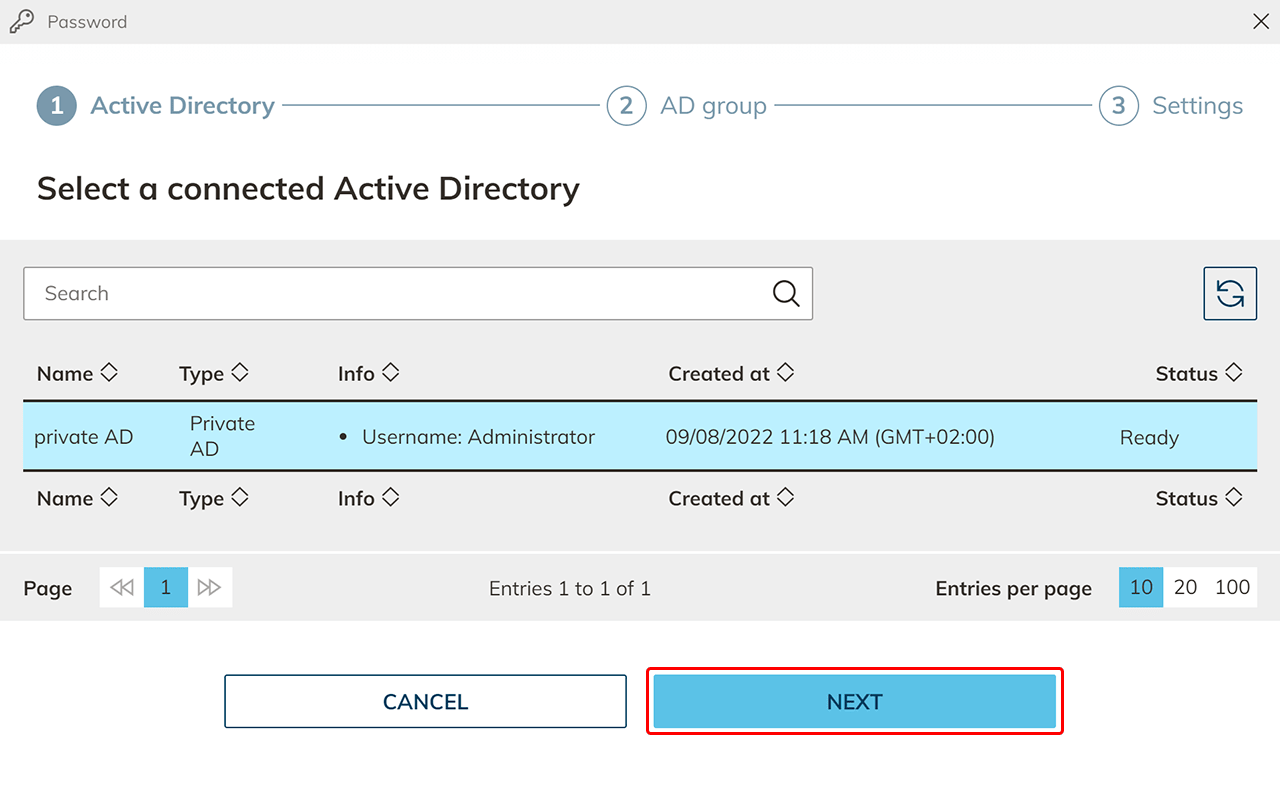
- Select your connected Active Directory and click Next.
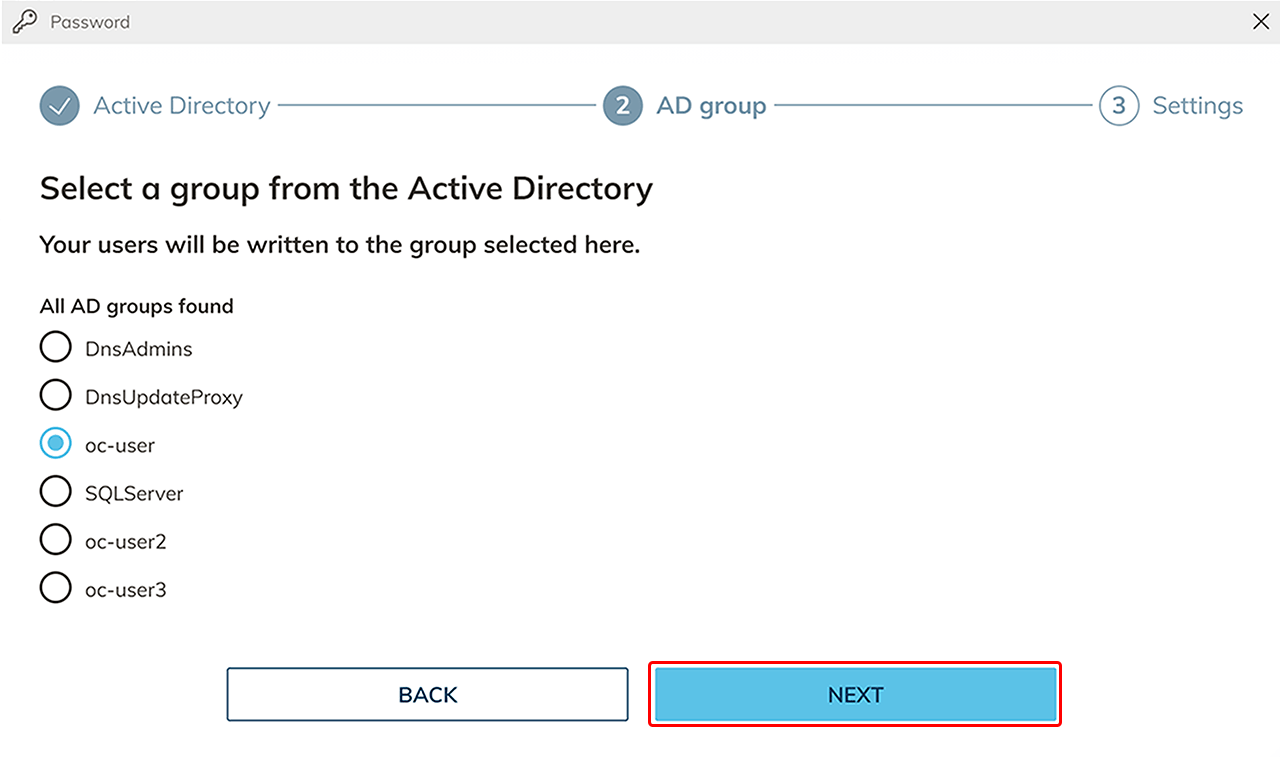
- All found groups are displayed. Select the group to which your users should be pushed and click Next.
- The AD user name and AD password of your users are generated automatically. Optionally, you can change it here. Click on Save.
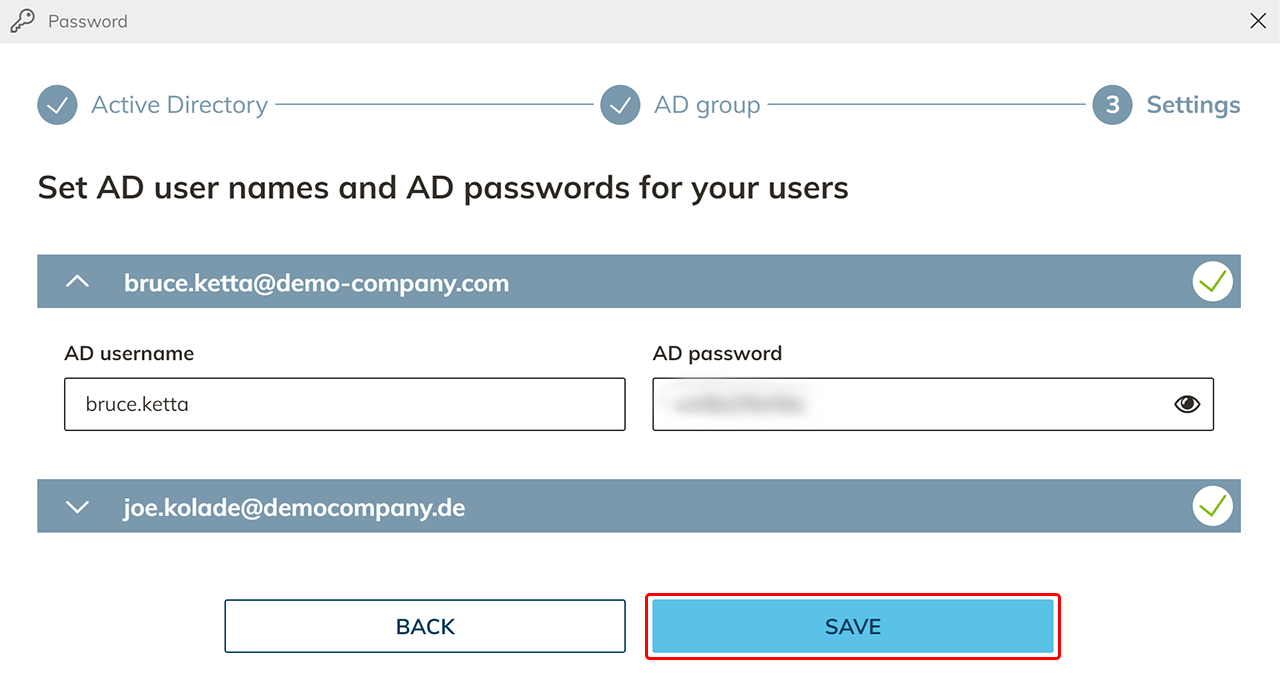 Now your oneclick™ users are in your Active Directory too.