Import users from Entra ID
Connect Active Directory in oneclick™
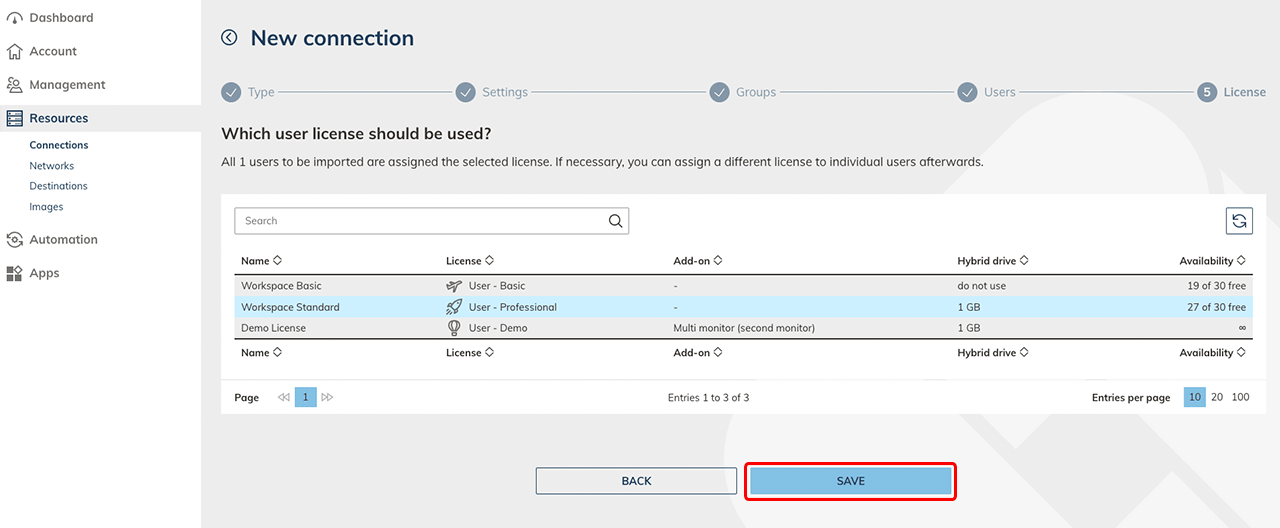
If you need a oneclick™ User license Professional for one part of the users and a oneclick™ User license Basic for the other part, we recommend to put the AD users two different AD groups. Alternatively, you can select the oneclick™ demo license during the AD import (step 8) and assign the correct license to your users afterwards.
-
Now check how many user licenses you need and request them via the "Licenses" tab.
-
Optionally create groups in oneclick™ in which you want to put the users of the AD groups.
By default, you can select the oneclick™ groups "Administrator" and "Demo". -
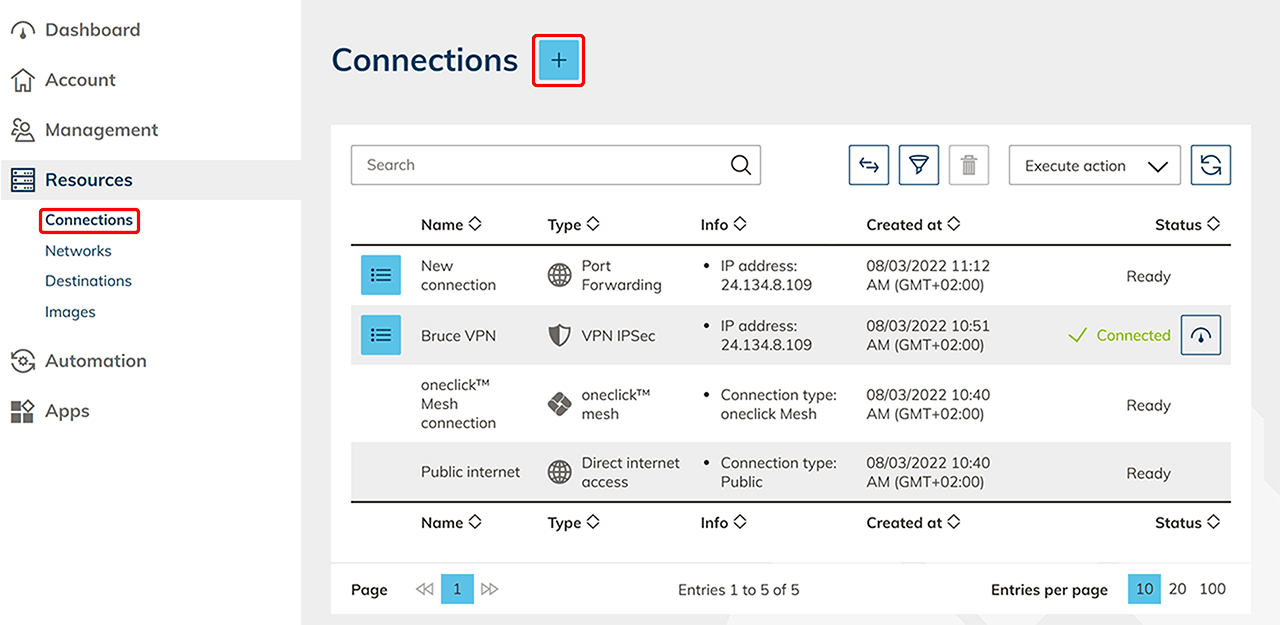
In the menu item "Resources", click on the Connections tab.
-
Click on the + Icon .
-
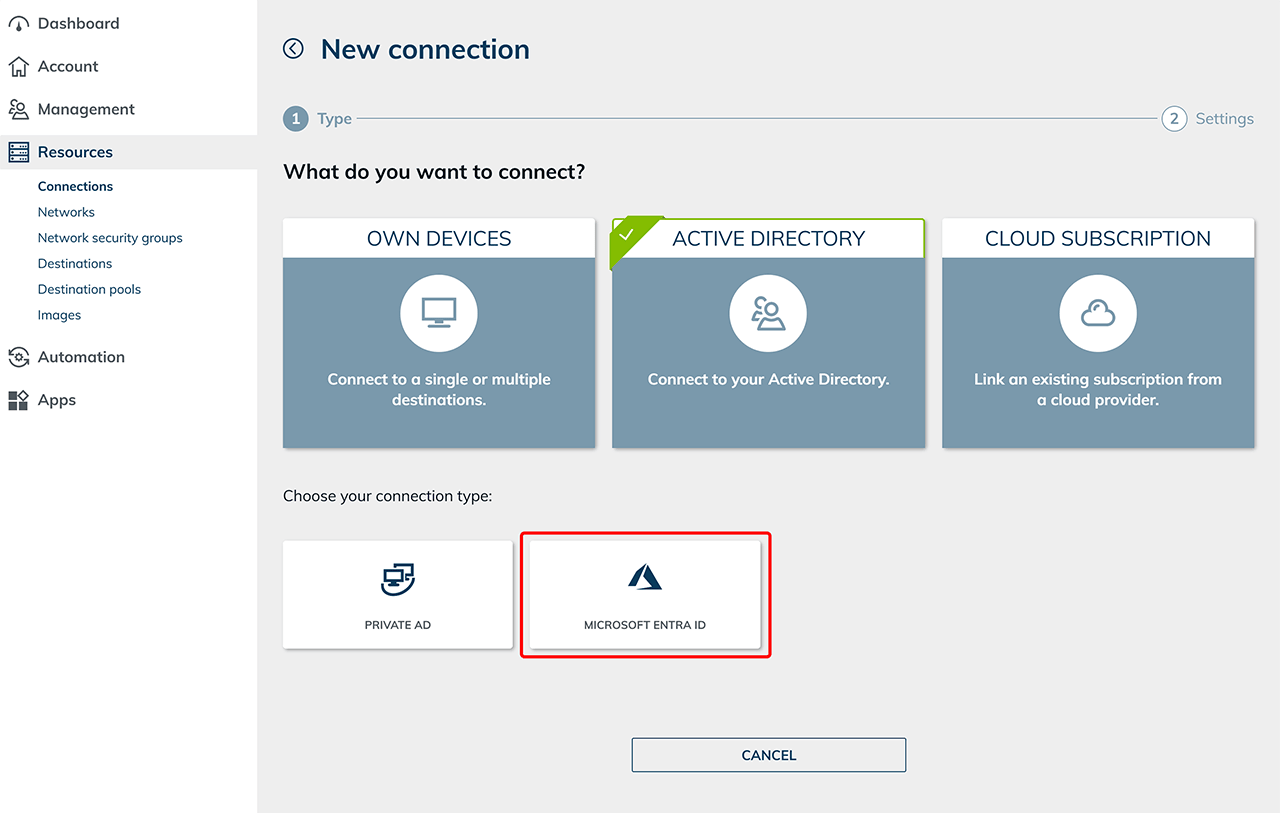
Select "Active Directory" and then "Entra ID".
-
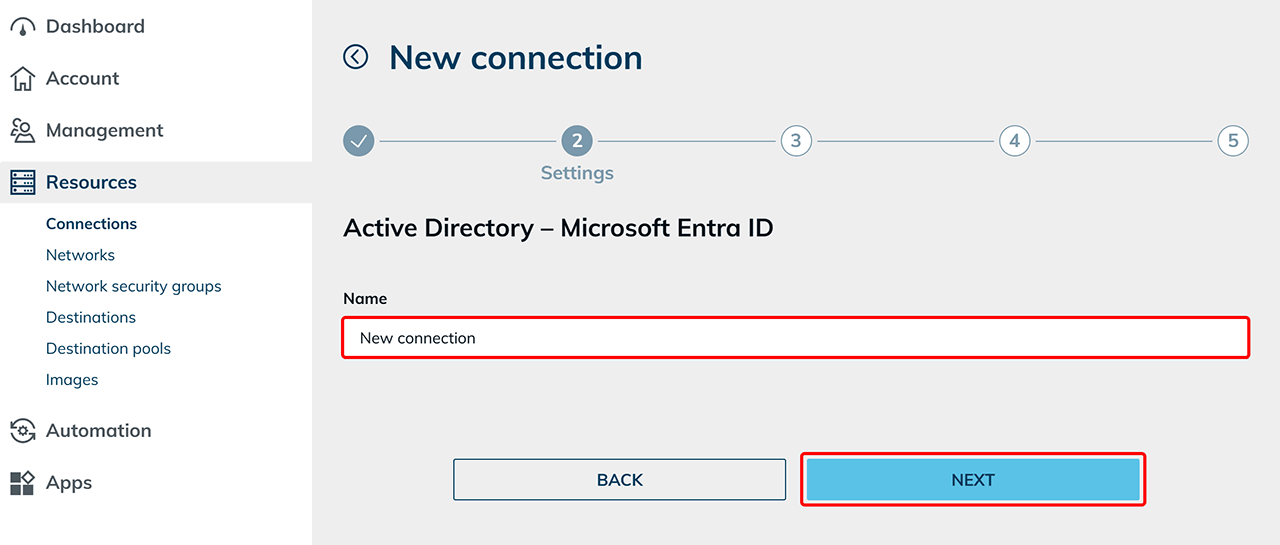
Enter a connection name and click Next.
-
You will be forwarded to Entra ID in a new browser tab. Make sure that you have administrator rights, click on Accept and go back to oneclick™. Here you can have a detailed view of the process. The user executing the import must be logged into oneclick™ with their Administrator Entra ID email address.
-
In the next screen, all found AD groups are displayed. For each AD group you want to import, select a oneclick™ group. All users of your AD group will be imported into this oneclick™ group. Click on Next.
If you connect to the Active Directory because you want to push the oneclick™ users into the AD, just do not select any group here.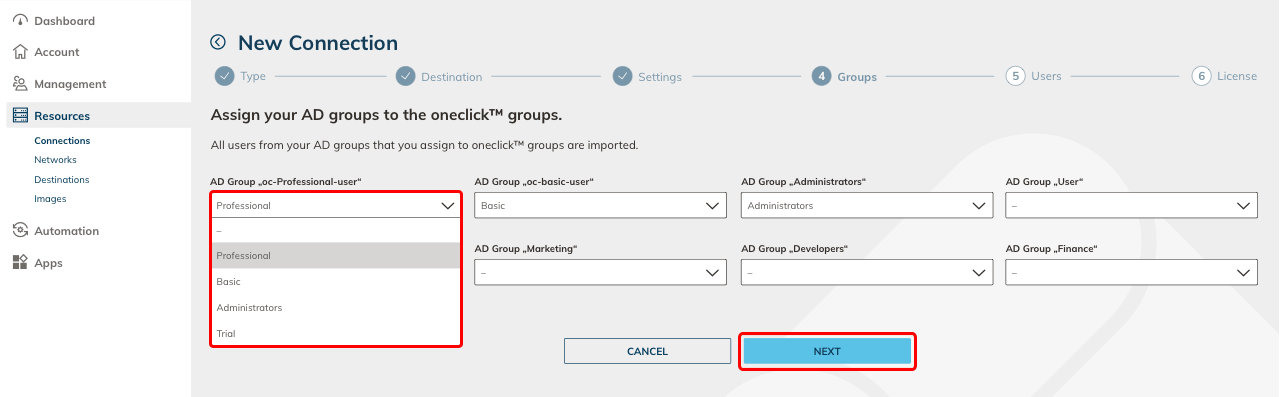
-
Check the group assignment and the data of your users that will be imported into oneclick™. Click on Next.
- Status
 : This user has not been imported before and is being imported for the first time.
 - Status
 : This user has been imported before. The data in oneclick™ will be overwritten with the data from the AD. That user will not be created again.
 - Status
 : This user (his e-mail address) already exists in another division of oneclick™ and cannot be imported.
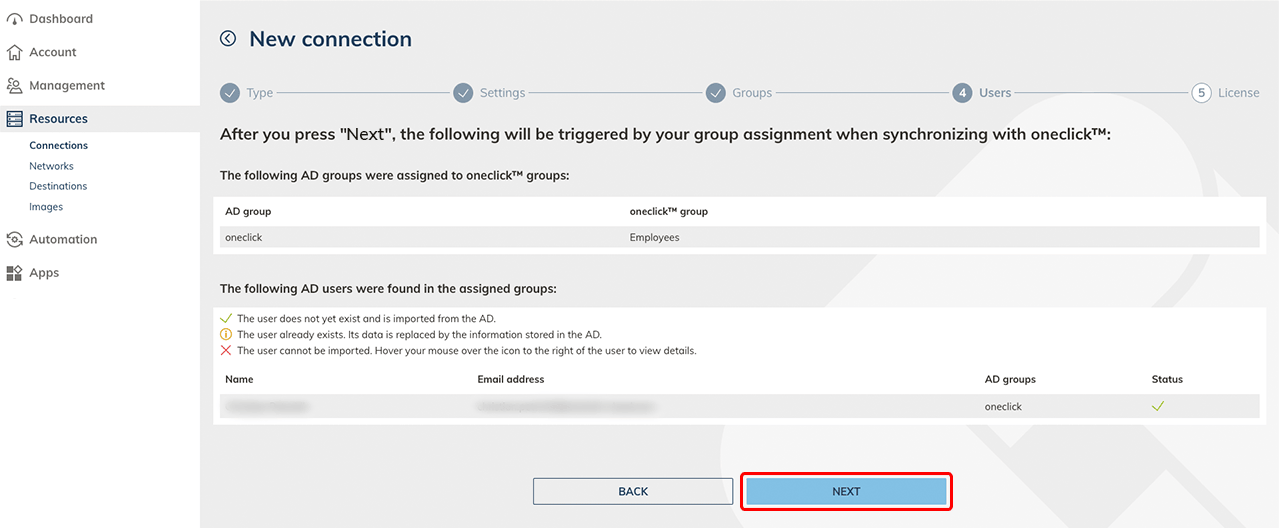
- Status
-
Select a user license that has enough licenses and click Save.
Changes in the Active Directory
If you change any data in your AD, and you want it to take effect in oneclick™ you must synchronize your connected AD. Go to the syncronize article for that.