Activate Entra ID
Activate Entra ID once at oneclick™
If you and your users have not yet logged into oneclick™ via Entra ID, the oneclick™ login screen will appear the first time you open the app.
- Now click on Login with Entra ID.
- The first time you log in, you must give oneclick™ permission to use your login data from Entra ID.
-
As an admin you can accept the use of Entra ID for oneclick™ once for all users by checking the box next to “Consent on behalf of your organization” and then clicking Accept.
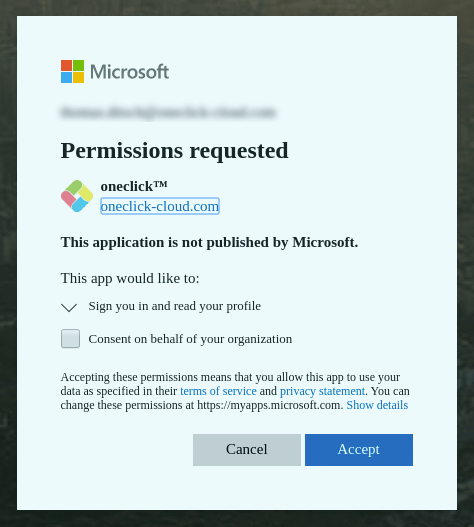
-
If the administrator has not activated this for all users, each user must click Accept once.
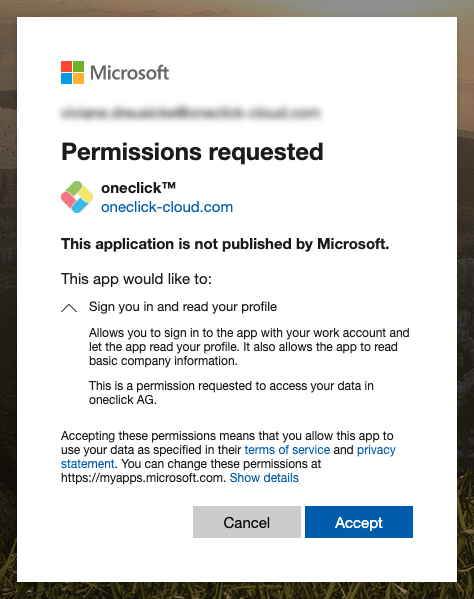
-
Make sure that you are registered in oneclick™ with the e-mail address of your identity provider (e.g. Entra ID). If you are registered in oneclick™ with a different e-mail address, you will have to log in to oneclick™ every time you open the app.