2609.02.112
Version / Release: 2609.02.112
Release date: 30 September 2026
Improvements
Admin stays fast in very large divisions
In divisions with more than 1,000 users or 2,500 app instances, the "Users" and "App instances" tables now load page by page from the server instead of loading the whole list into the browser. Search, filters (including tags and policies), sorting, and "select all" work across all pages, and the footer shows the total count plus how many entries are selected, for example "Entries 1 to 10 of 1202 (1202 selected)". Smaller divisions are unaffected. Several further changes make the admin more responsive in environments with many users, app instances, or networks:
- Large lists load in fewer, larger pages, so the admin stays usable while a list is still loading.
- Tables and filter options are only recalculated when something relevant has changed. This removes the short freezes after menu clicks and when opening the search filter, which now opens immediately.
- After a directory service import, only the changed users are pushed to open admin sessions instead of reloading five complete lists. New, changed, and deleted users appear in the "Users" area without a page reload.
- The "Networks" and "Network security groups" lists load significantly faster.
- The dashboard only requests the records it actually shows and no longer freezes the browser tab in divisions with a very large number of logins.
Refresh button on the dashboard
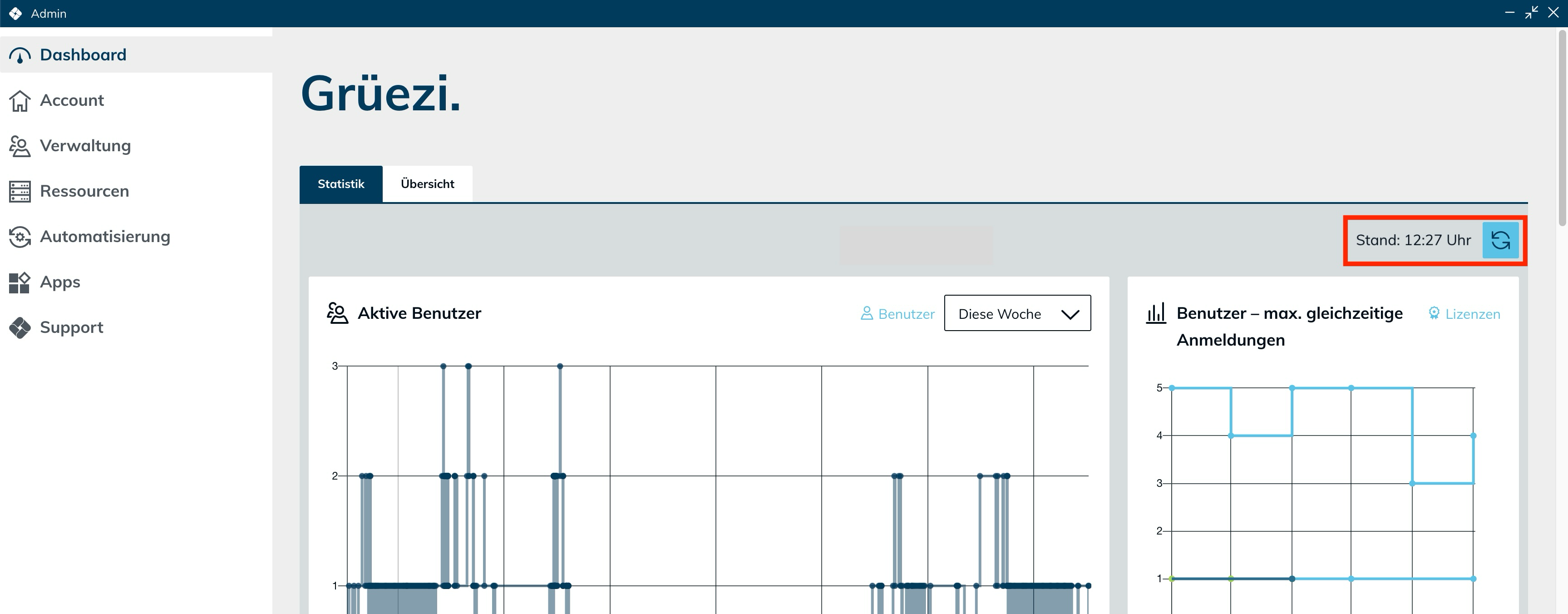
The "Statistics" view of the dashboard now has a refresh button at the top right, with "Updated: HH:MM" next to it so you can see how current the view is. Clicking the button reloads all tiles at once. The logins chart now refreshes every 5 minutes instead of every 20 seconds: its data changes only once a minute, and reloading it that often slowed down the dashboard in large divisions. The other tiles keep their intervals.
Destination and pool changes no longer block the dialog
Adding or removing a port on a destination, deleting a destination, saving an app configuration with a changed destination, or changing the destinations of a pool no longer keeps the dialog spinning for up to a minute in large divisions. The dialog closes at once, and the affected app instances are updated in the background. Saving a pool also no longer waits for the load balancer when its autoscaling configuration has not changed. The destination tile in a destination pool no longer shows an endless loading animation after you save the pool's destination dialog.
Smaller improvements to tables and detail views
- Group details list the members as "Last name, First name", sorted by last name, 20 at a time with "show more".
- The pagination line of a table shows how many entries are selected. The separate counter next to the buttons is gone.
- App instances that were assigned via a group can now be selected by clicking the row.
- The search filter button is fully clickable while the filter is open. Previously only its upper half reacted.
- The group list of a directory service connection no longer skips the first group.
- A deleted user in the dashboard's app start error list no longer shows "A network error has occurred. Please try again."
Clearer preview when importing directory users
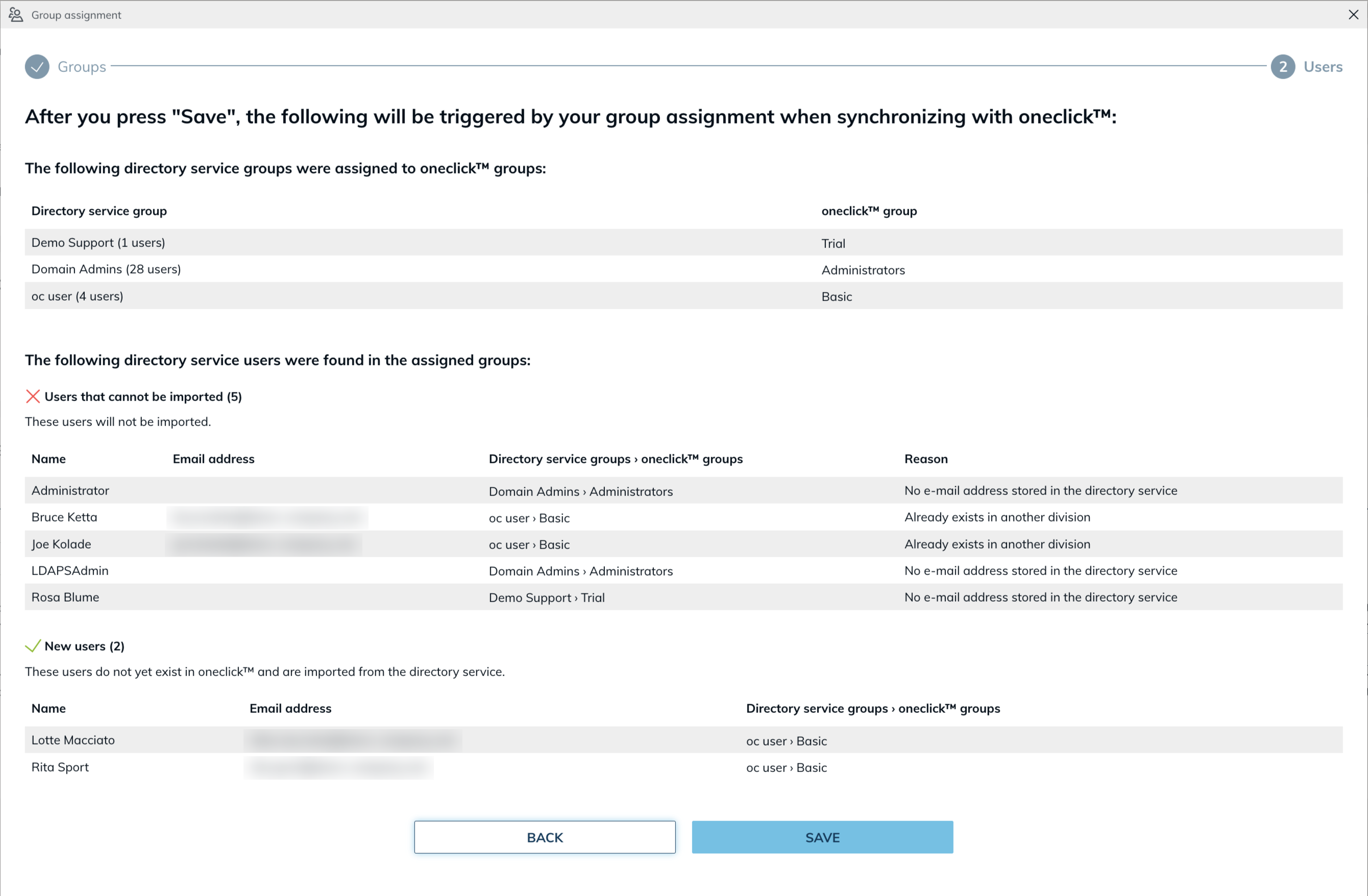
The last step of the directory service wizard now shows directory users in three separate lists instead of one table with status icons: "Users that cannot be imported", "New users", and "Existing users". Each list shows its count in the headline, and empty lists are hidden.
- For users that cannot be imported, the reason is shown in a "Reason" column instead of a tooltip, for example "No e-mail address stored in the directory service".
- For existing users, the matched oneclick™ account is shown directly in the list in the "Matched user account" column, together with how the match was made: by the object ID (objectGUID) or the directory path (DN) in the directory service, by the object ID in Microsoft Entra ID, or by the e-mail address. If saving would change that user's e-mail address, the list warns you and shows the old and the new address. Previously the hint only said that the user already exists, so a production account could be renamed and moved to another license without warning.
- Preview and import now identify users the same way. A user whose e-mail address changed in the directory used to be shown as new, although the import renamed the existing account. The preview now shows this user as existing.
- The lists no longer use tooltips, which makes the preview noticeably faster for large directories.
Directory service connections: choose how existing users are recognized
Until now, one directory object could only ever become one oneclick™ account. If two directories contain the same people, for example a production and a test directory, the second connection re-identified the existing account and overwrote its e-mail address and license. The new setting "Recognize existing users" offers two options:
- "By the object ID of the directory service" (default): the previous behavior. Users are recognized by their directory object first and by e-mail address as fallback, so an e-mail change in the directory renames the existing account.
- "By e-mail address only": users are matched strictly by e-mail address. A directory user whose address does not exist in oneclick™ becomes a new account, even if the same directory object is already linked through another connection. The original account keeps its e-mail address, license, and groups.
You set the option in the settings step when creating a connection and can change it later in the connection's edit dialog. The connection details show the current value. Existing connections keep the previous behavior. The setting is available for private directory services and Microsoft Entra ID.
Directory synchronization is faster and completes reliably
Large directory imports could run for many hours, stop halfway when a worker was restarted, or run twice in parallel. The import now runs in small chunks: a restart costs at most one chunk instead of starting over, duplicate runs are prevented, and users are no longer skipped under load. A directory with 3,700 users now synchronizes in under seven minutes instead of around 20 hours. Unchanged app instances are no longer re-saved during the import, which previously flooded open oneclick™ Desk and admin sessions with updates and slowed them down. You now receive one notification per import, for example about a full license, instead of one per chunk.
If an AD group is mapped to several oneclick™ groups, imported users are now added to all of them. Previously they only landed in the first mapped group and did not receive the app configurations, tags, and policies of the others.
TPM and Secure Boot for your own images on Open Telekom Cloud
When you create a virtual machine (VM) from one of your own images on Open Telekom Cloud, you can now enable TPM and Secure Boot. Until now the two switches were missing for own images, so the VM was always created without them and Windows 11 could complain about missing security hardware. Choose one of your own images and a machine size from the c9, m9, or pi5e families: a "Security" box with the switches "TPM" and "Secure Boot" then appears below the machine settings. The image itself must support these features. The switches are only available when creating a VM, so existing VMs must be recreated to use them. Platform-provided Windows 11 images behave as before, with both switches enabled and greyed out.
Missed updates are applied after a connection loss
If a browser tab lost its real-time connection to oneclick™, for example while the laptop was asleep or the tab was in the background, the admin kept showing outdated data until you reloaded the page. Destination pool details could then miss a new session or show a wrong user. After reconnecting, the admin now catches up on the updates it missed automatically. The same applies to the app tiles in oneclick™ Desk.
Clearer port validation
A trailing or doubled comma in a port list, for example "3389, 636,", is now accepted instead of being rejected. The error message for invalid ports now reads "Enter valid ports from 1 to 65535, separated by commas." This applies to all port fields in the admin.
Bug Fixes
- Policies with IP conditions evaluate the real client IP address: IP ranges in policies were compared against the wrong address, so the option "All except these IP ranges" in two-factor policies never matched and the second factor was always requested. Single IP addresses and ranges now match correctly. Policies restricted to specific IP ranges now take effect as well, so users at the listed addresses may be asked for a second factor for the first time. The first-time 2FA setup now also respects the group and IP rules of the policy. Login rate limiting is now applied per client IP address: previously, 30 failed logins across the platform could temporarily lock out all users.
- SSH app instances show credential fields again: App instances of SSH apps (Shell / Console) again show the fields "Username" and "Password" in the admin. Credentials that were entered before the fields disappeared are visible and editable again; instances created in the meantime need their credentials entered once. Apps that use default credentials or ask for credentials at app start are not affected.
- App instances and users tables finish loading reliably: In some divisions the table showed all rows, but the loading dots below it never stopped and the total count was missing. A failing related request or a record removed in the meantime no longer leaves the table in a loading state.
- Networks and destinations on IPsec connections save reliably: Creating or deleting a network and editing a destination on an IPsec connection no longer fail with an error when one destination has no port mapping. The misleading "overlapping CIDR" message on a retry no longer appears. Destinations created via the API without a configuration now receive mapping ports like destinations created in the admin, and editing the ports of a destination keeps the existing mapping ports instead of reassigning all of them.
- App configurations without a license display correctly: App configurations whose license was deleted are no longer shown as empty rows and can be edited again without an error. Deleting a license now also removes its app configurations in one step. The oneclick™ Desk tile of such an app configuration is disabled instead of appearing usable.
- Saved RDP files keep working in load balancing pools: For apps on a load balancing pool that are opened through the oneclick™ Gateway, a saved .rdp file stopped working as soon as load balancing assigned the user another destination, with the error 0x3000008. All connection files a user has already saved now keep working and connect to the currently assigned destination. The session history reports the destination that was actually used.
- Closing an app no longer stalls during peak hours: Closing an app could take 60 to 200 seconds during the evening peak and end with a timeout, because every stop scanned all load balancing sessions. The stop now only cleans up its own app instance. Sessions that ended without a proper close, for example a killed browser tab, no longer keep a load balancing binding alive: the sticky session period now starts for them as well, and orphaned entries no longer block a destination with a user limit of 1.
- Drive tile appears reliably: If the Drive service was temporarily unreachable while a user's Drive was set up, the user permanently had no Drive tile although the Drive account existed. The tile is now added anyway, and every user change re-checks whether it should exist. Affected users have been repaired.
- "Execute action" dropdown keeps its size and behaves correctly: The dropdown no longer shrinks when it is opened, and under "Connection" the search icon has been replaced by a chevron icon.
- Typing in dropdowns is reliable again: In Safari and other WebKit-based browsers, the first character typed into a dropdown's search could be dropped. Keyboard navigation in dropdowns has also improved.