Processes
You can allow Windows tasks to run automatically on a destination directly through oneclick™ in the Processes menu item. Here you configure the process in order to execute it later. Beforehand, the Rocket-Icon must be clicked once in the Processes menu item to initialize this operation.
1. Create a process
- Open the Processes menu item on the left and add a new process by clicking on the Plus-Icon.

- On the left side you can select all the tasks currently available in oneclick™.
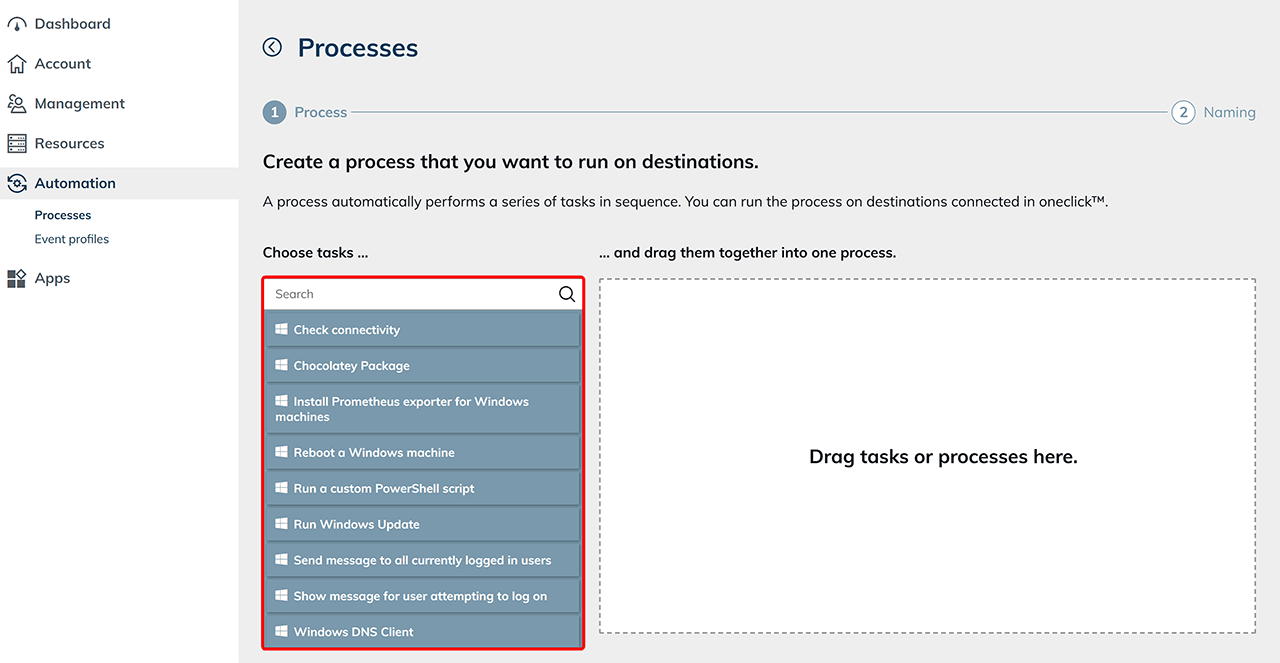
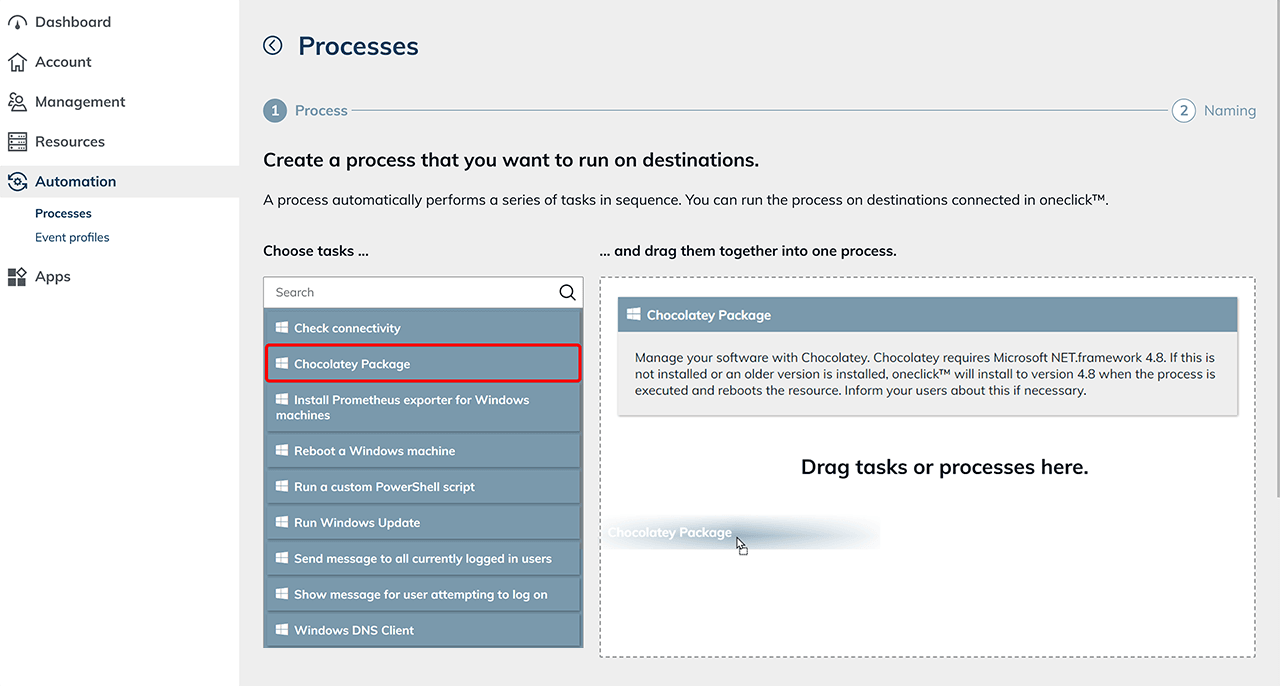
- Drag the desired tasks one by one into the empty field on the right.
- Input fields appear for each task, which you can optionally fill in at this point. You can leave these fields blank, but in this case you have to fill them in during actual execution.
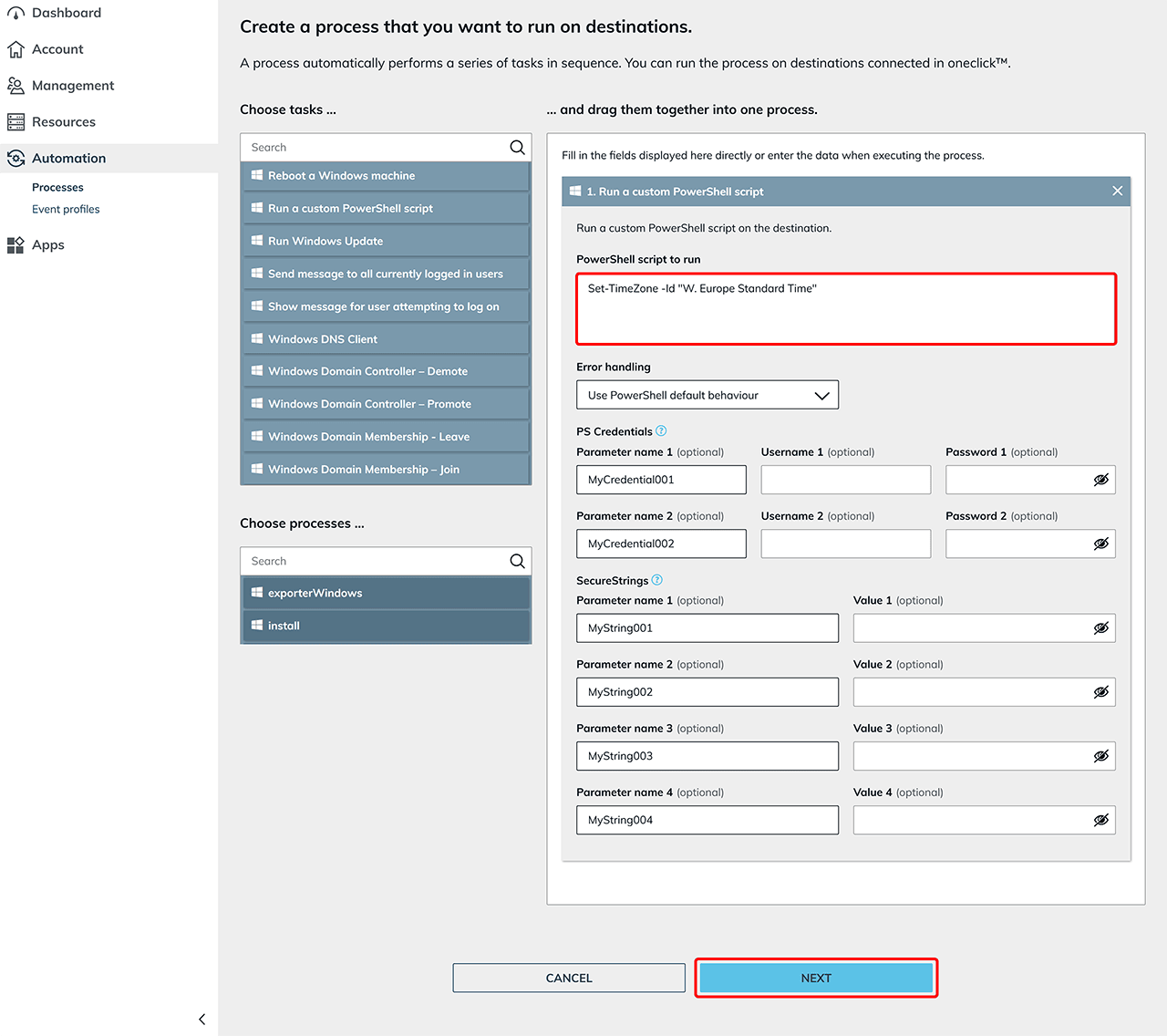
- Once you have set up your process in the desired order, click Next.
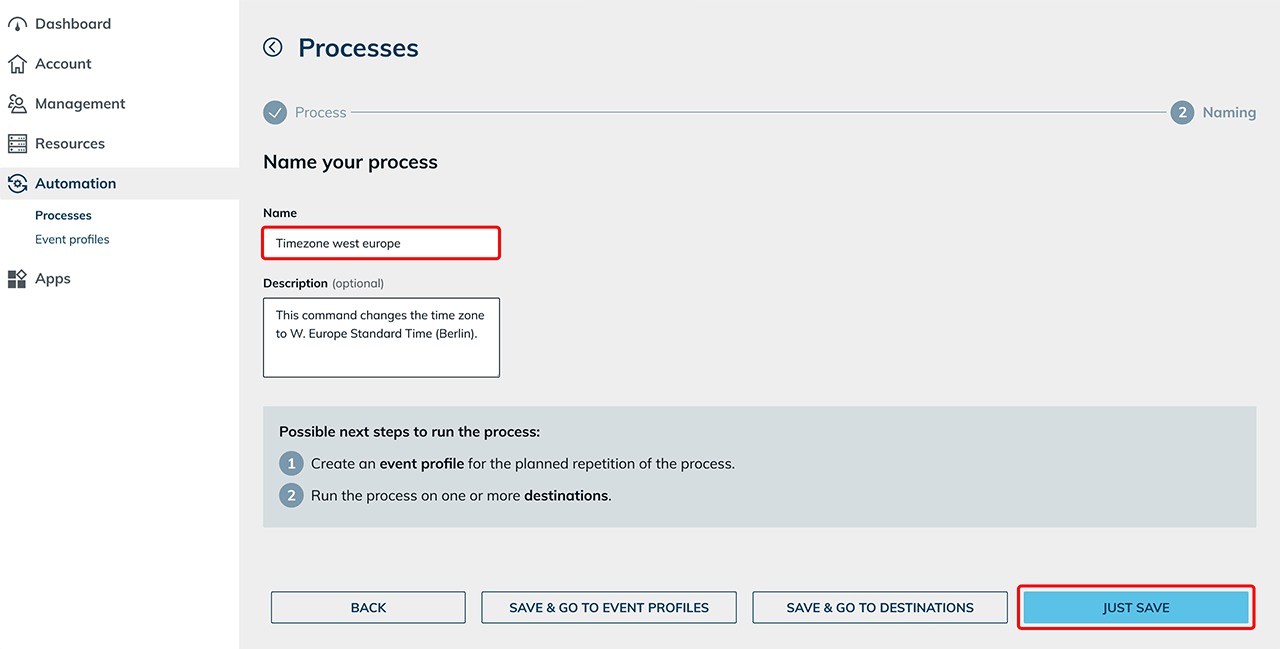
- Name the process and click Save.
2. Prepare resource for process execution
Prepare your resource for process execution by following the corresponding steps in the oneclick™ admin.
3. Run process
You want to execute your process in fixed intervals?
Execute the process directly through an Event profile.
You want to execute the process directly?
- Select your resource in the Destinations list and then click on Execute action on the (now no longer grayed out) action Run process.

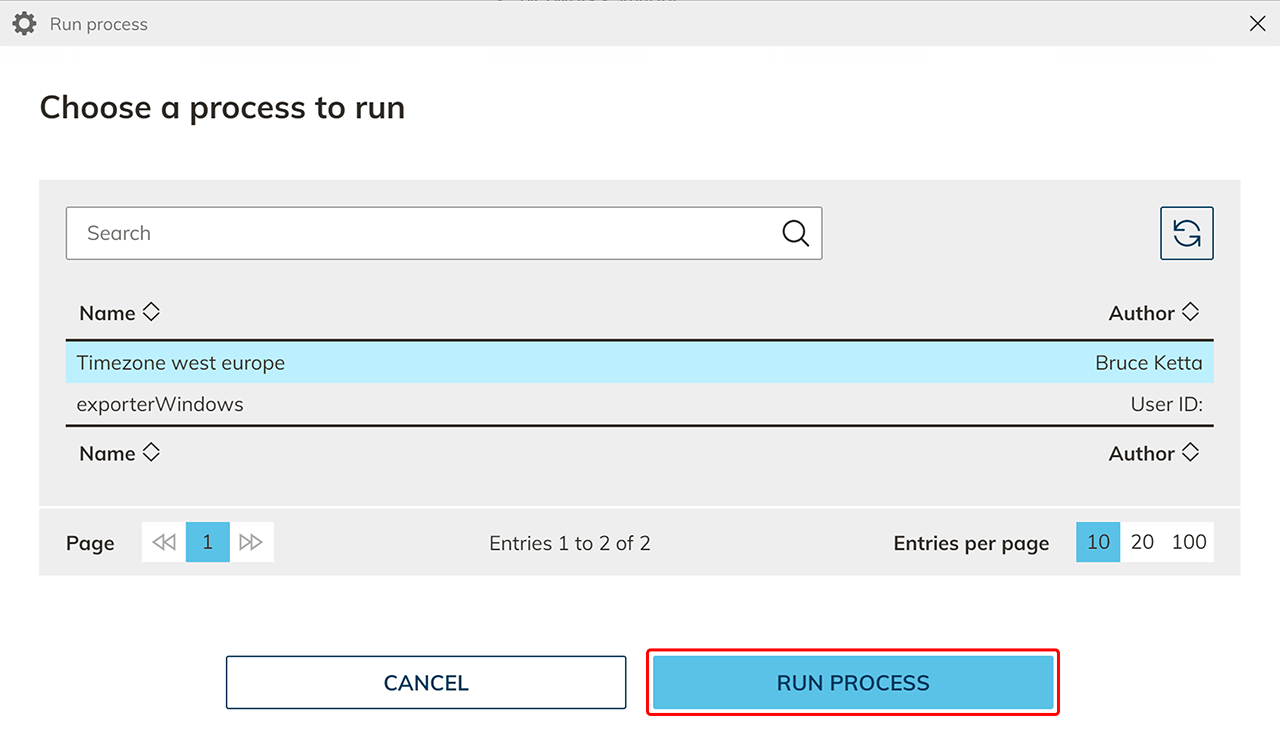
- Select a process.
- Input fields appear that are required for the execution.
- Fill in the appropriate fields and click Run Process. If necessary, additional fields can also be filled in here.
- You can then access your resource again.
4. Checking process execution
In order to check whether the process was executed successfully, the corresponding log file can be displayed in oneclick™ with just a few steps:
- Click on Automation in the menu on the left and then on Processes.
- In the main window, select the respective process and click on the List-Icon in the corresponding line on the left.

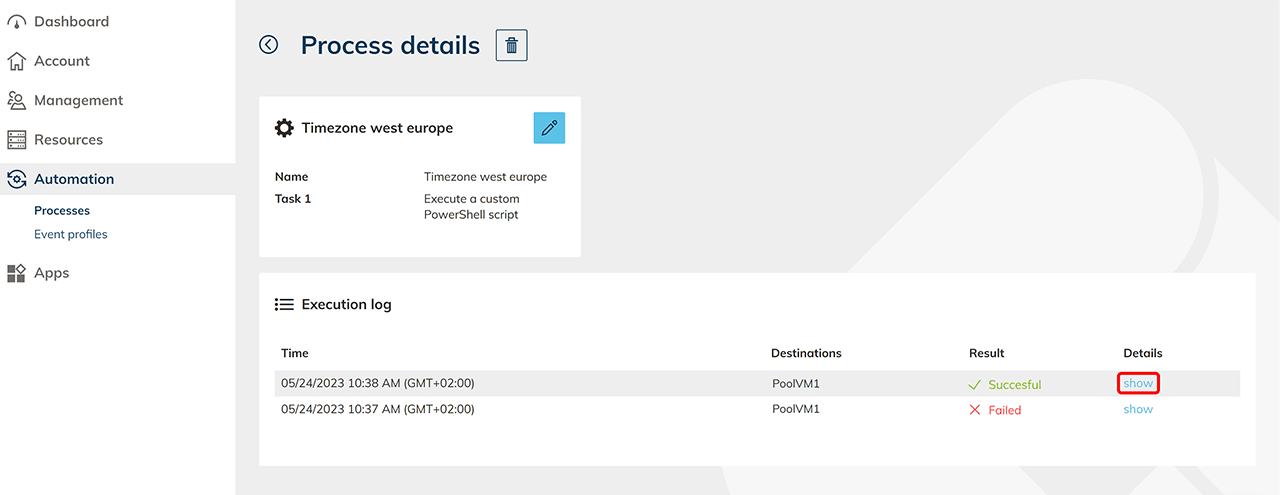
- In the "Execution log" field, you can now view the requested data.