Read out existing cloud resources
Your existing cloud resources are not read out automatically after connecting your cloud subscription?
Then your cloud resources might not have a public/external IP address or hostname. The firewall on the resource must not be blocked.
If you want to access an already created resource without a public IP address in oneclick™, proceed as follows:
1. Prepare resource
- Log in to your cloud provider and give your resource an external IP address. Proceed according to the user manual of the cloud provider. If the virtual machine is created via oneclick™, a public IP address is automatically set and a firewall rule is created that only allows oneclick™ access.
2. Synchronize cloud subscription
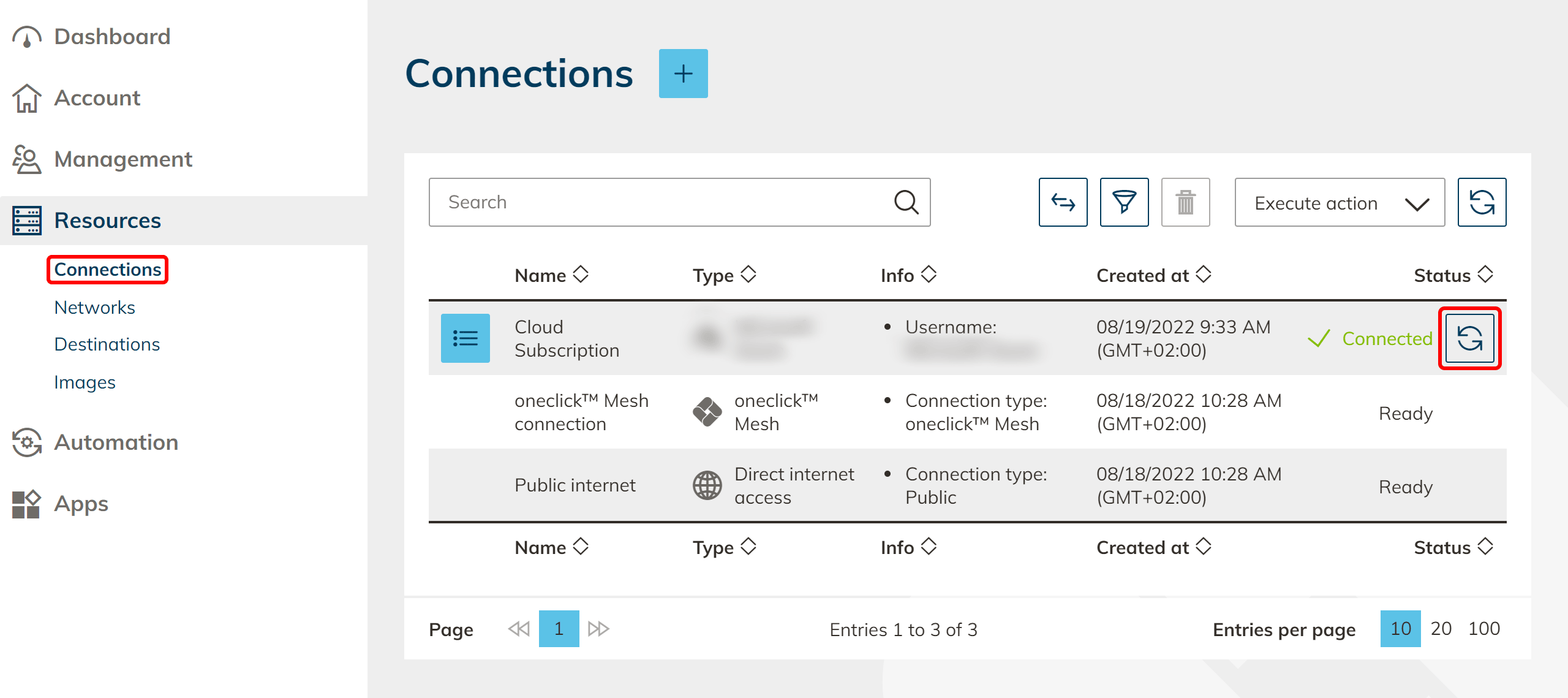
- Go to the oneclick™ Administration and click on Connections in the Resources tab.
- Click on the Synchronization icon in the row of your cloud connection to read out your cloud resources again.
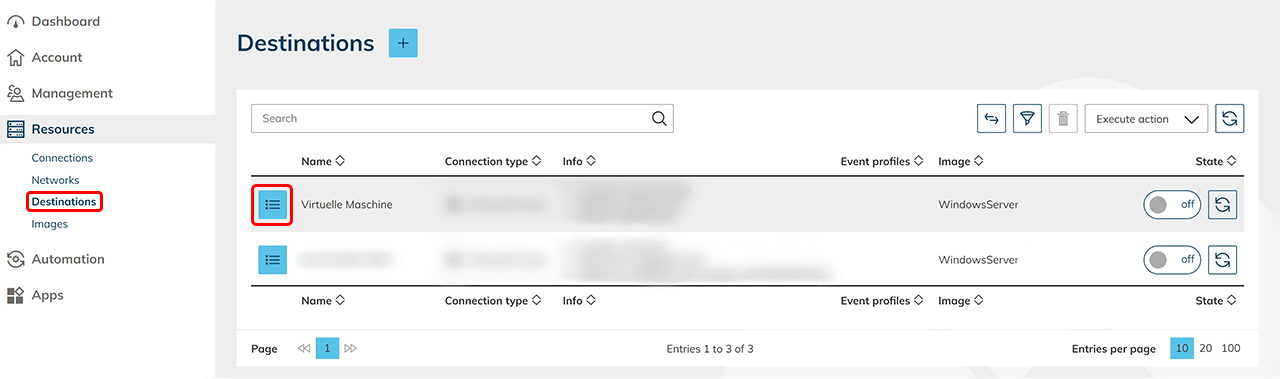
- Now go to the Destinations tab and click on the List icon in the row of your virtual machine to get to the detail page.
3. Set firewall rule
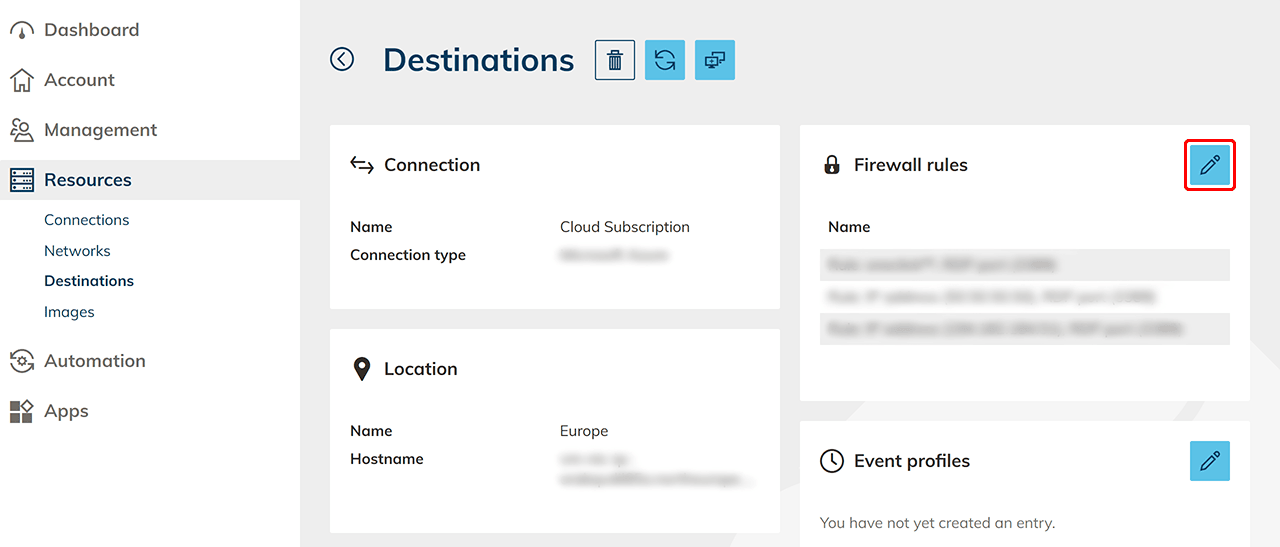
- Click the Pencil icon under "Firewall rules".
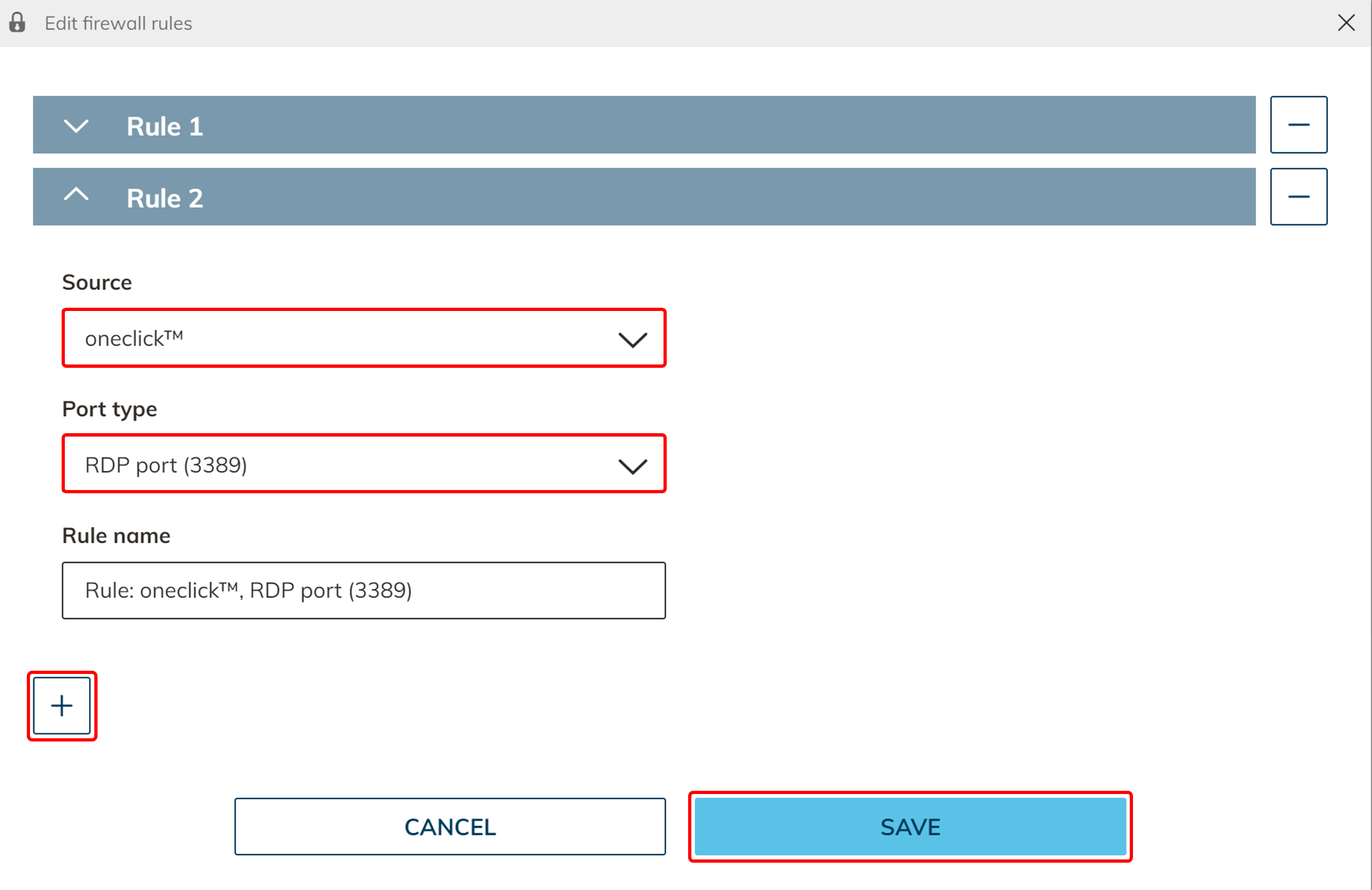
Since the machine was not created via oneclick™, the oneclick™ firewall rule must be added afterwards. - Select the "Source" oneclick™ and select the appropriate "Port Type", such as RDP Port (3389) for a Windows Server. Add a new firewall rule using the Plus icon. Click Save.
Now your imported resource will work like any other.