Cloud resources without public IP address via mesh
If you do not assign a public IP address when you create cloud resources, your VM is only accessible from the internal network. This makes sense for a pure database server, for example.
If you still want to access this VM via oneclick™, you can, for example, use a gateway server or another VM with a public IP address (jumphost) and then optionally install the oneclick™ mesh client for direct access via oneclick™.
Mesh is used to connect a virtual machine (VM) or server to oneclick™ in case of the VM not being reachable via VPN or public IP address (e.g. if the feature of using a static public IP address is disabled).
Mesh makes a connection to the server possible even if it is located behind a FritzBox or any similar router. This enables a connection between VM or server and oneclick™ without the need for direct, public availability.
To access cloud resources using the oneclick™ mesh client, the following has to be configured.
You already did:
- Create a VM.
- Download the Mesh-Client and install it on the VM.
- Go to…
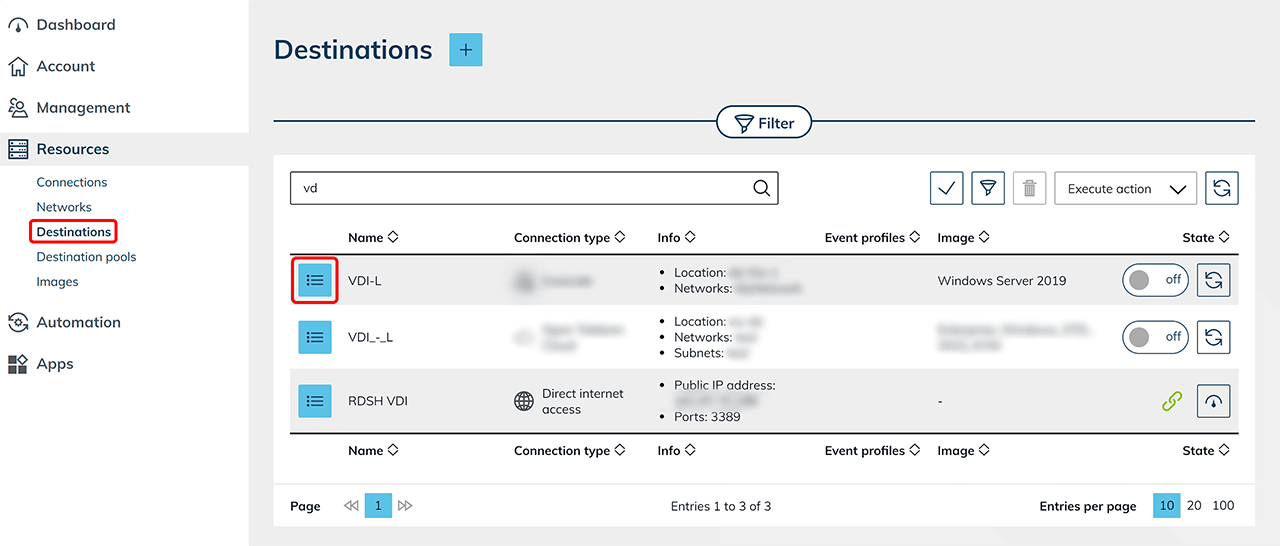
- the Destinations tab and open the details page of your VM by clicking on the List icon in the corresponding row.
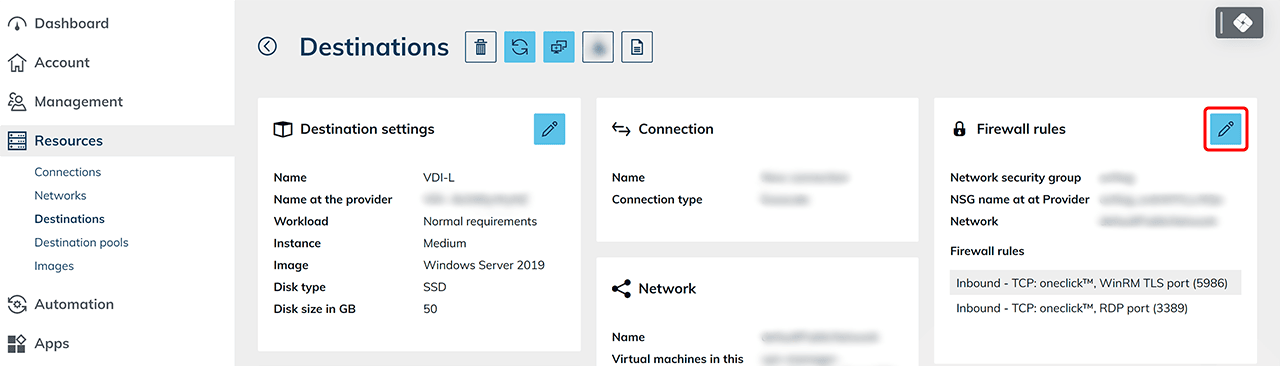
- Click the Pencil icon under „Firewall Rules“.
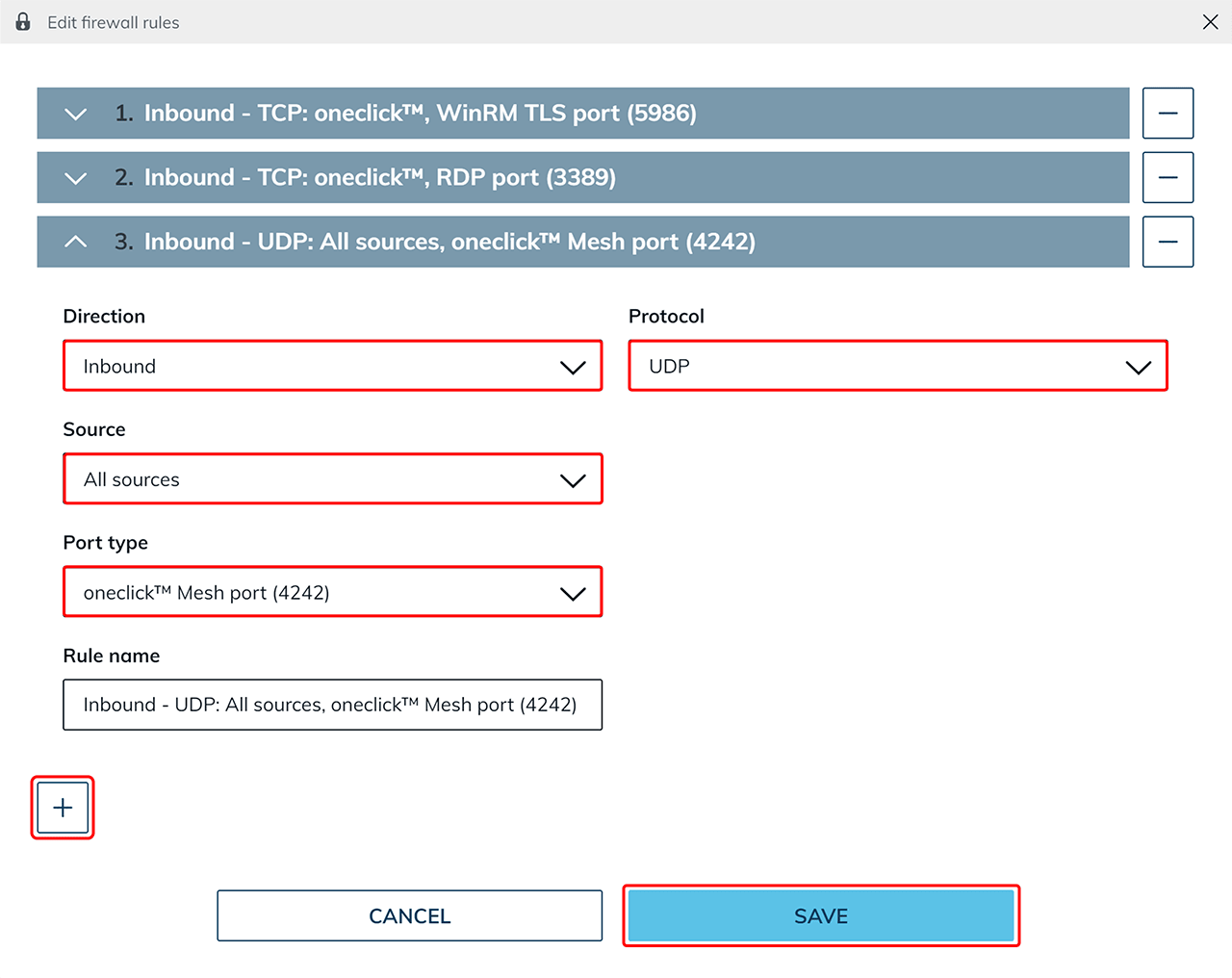
- Add a new firewall rule using the Plus icon.
- Select "Inbound" for the „Direction“ as well as "All sources" for "Source".
- Select "UDP" for "Protocol" and the "oneclick™ mesh port (4242)" as "Port type".
- Then confirm your entries by clicking on Save.
Delete VM "just in oneclick™" (optional)
If you want to access the virtual machine (VM) exclusively via the mesh and the VM is always running, you can optionally delete the VM entry. In this case, remove the VM by selecting "Just delete in oneclick™".
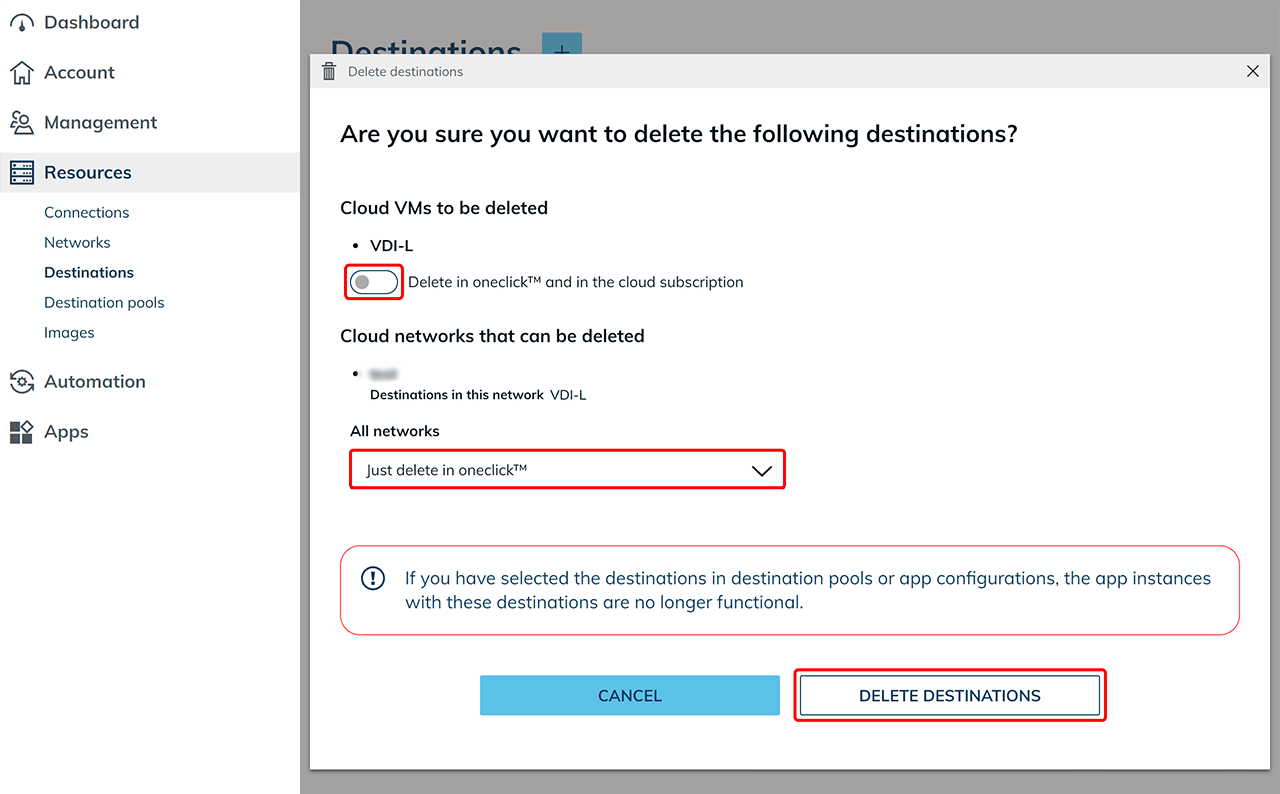
If you want to switch the VM on and off through oneclick™, do not delete the VM entry.
Note that the mesh entry must not be deleted because otherwise the VM will no longer be able to connect to the mesh, as this will invalidate the mesh client for the VM.