Golden image
Golden image function for cloud resources
A golden image, sometimes called a master image, is a template for a virtual machine (VM). In oneclick™ you can create an image of a fully set up VM and then select it as a golden image. Your users can work with the VM and change data or configurations as they wish. When you switch the virtual machine off and on again, the original state of the image is restored. All data is deleted and the configurations are reset. A popular use is virtual machines used for training purposes.
1. Create a custom image
- Set up your virtual machine as you need it.
- Create an image of your VM in the oneclick™ Admin.
2. Defining a golden image
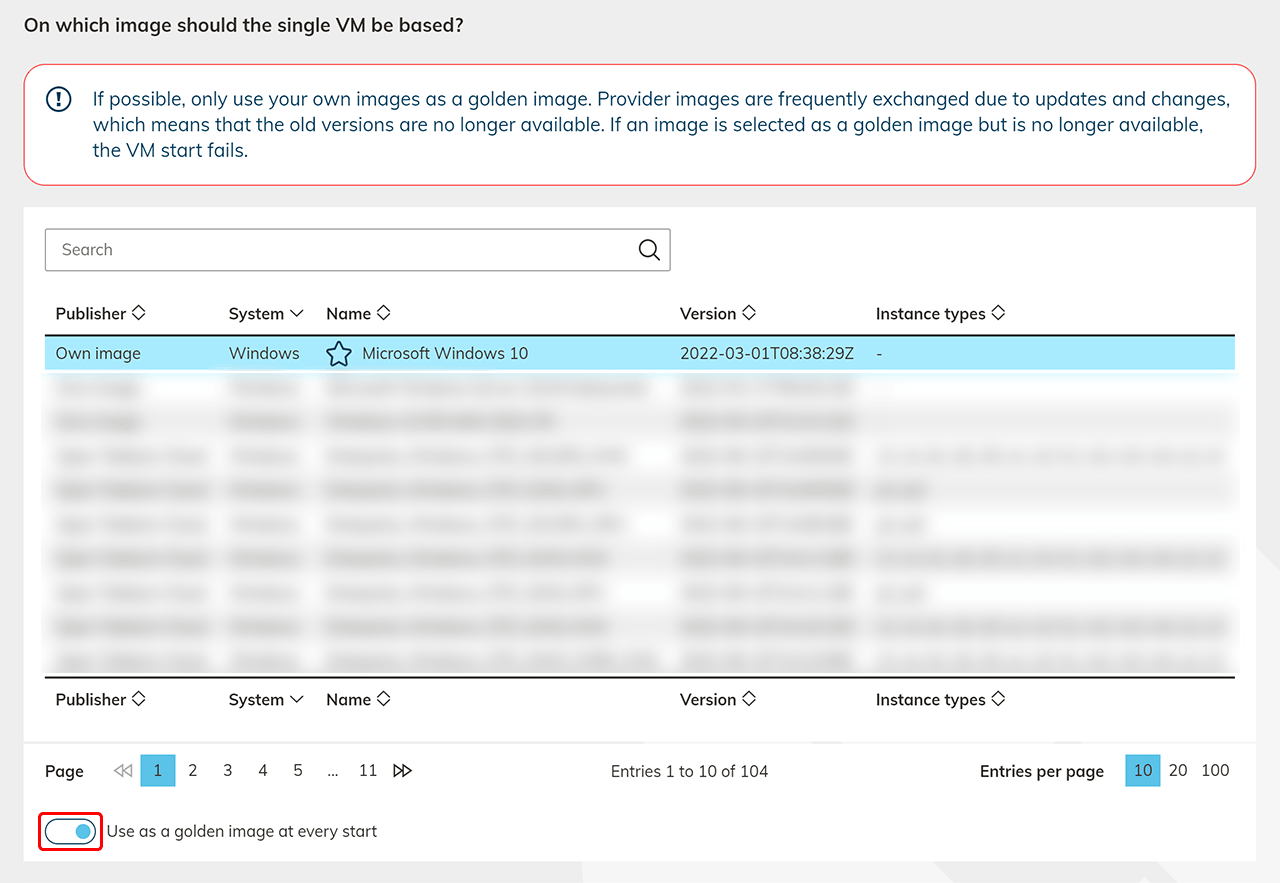
- You can either define your custom image as a golden image in the "Settings" item, when creating a cloud resource.
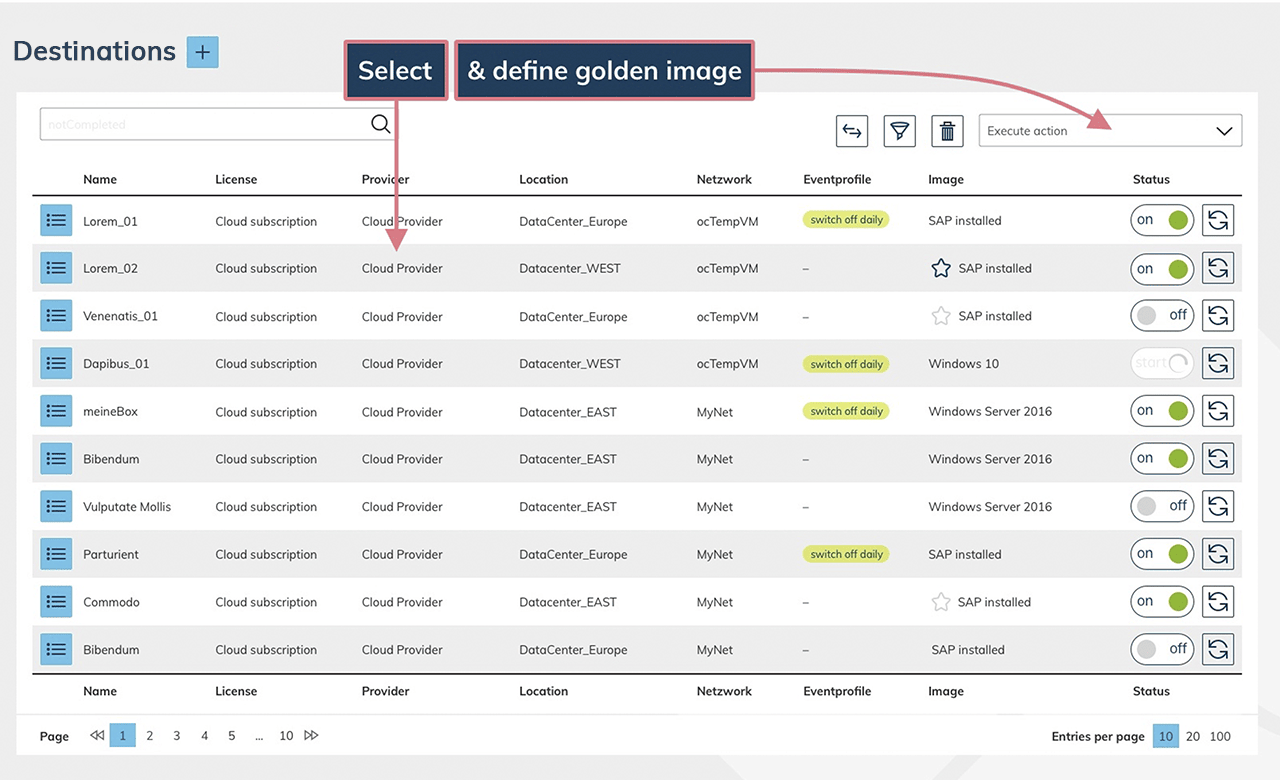
- Or define a golden image afterwards: Click on your virtual machine in the Destination system table and then go to the dropdown "Execute action". Select the action Define golden image.
- Choose your image.
- If possible, use only one of your self-created images. System images can change!
- If the Golden Image feature is not selectable, it is not supported by your cloud provider.
- Simultaneous definition of a golden image for resources from different cloud providers or locations is not possible.
- Optionally, you can make changes in the "Advanced settings".
- You can modify the "admin user data", join an "Active Directory domain" or run a "custom powershell script".
- If you have imported your own resources or selected multiple virtual machines at the same time, you must enter the "admin user data" because the system does not know this data.
Keep in mind that you may have stored the credentials in app instances.
- Choose your image.
- Click on Save.
3. Execute golden image
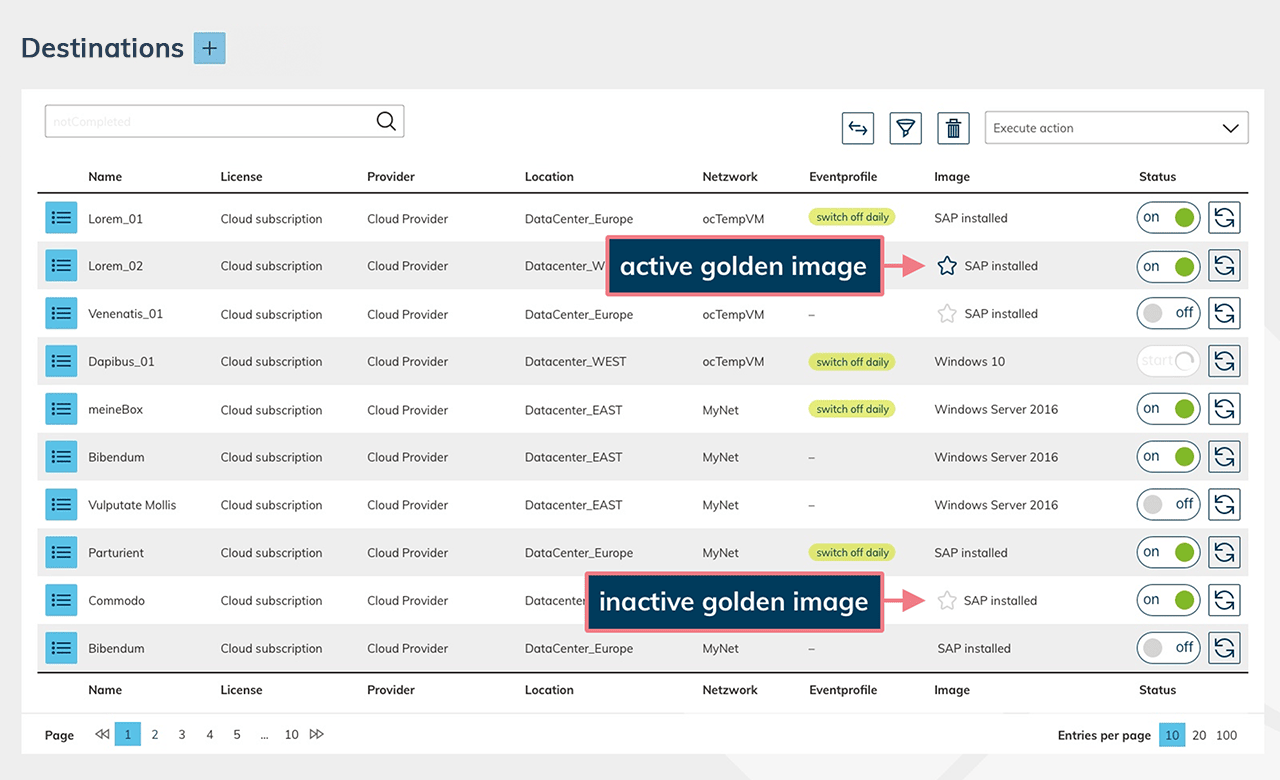
- A dark blue star icon appears in the line under "images" at the VM where you have defined a golden image.
- Switch the virtual machine off.
- Switch the virtual machine on again. Only through this process the state of the image becomes active.
- Wait 10 minutes before accessing the app instance again. It can take this long to load a golden image onto a virtual machine. Access will not work until the process is complete.
4. Power off and on without golden image function
- Click the active star icon to disable the golden image function.
- Now you can switch the virtual machine off and on without resetting the virtual machine.
- Click on the star again to reactivate the function. Good to know: The "Restart" action restarts the cloud resource without restoring the state of the image.