Difference between Streaming, Gateway, and Mesh with Direct RDP
oneclick™ supports different access methods for remote systems. For support requests, it is important that you recognize and correctly name the access method you are using.
You do not need to understand the technology behind it. You only need to identify the access method based on what you see and provide the correct name.
- With oneclick™ Streaming (Browser), you access your application or desktop directly in the web browser.
- With oneclick™ Gateway (RDP Client), you sign in through the web browser but then access your workspace through a program installed on your computer, the RDP client. The connection runs through the oneclick™ Gateway.
- With oneclick™ Mesh with Direct RDP, you also access the remote system through an RDP client. The difference from the Gateway is the use of additional preinstalled software, the oneclick™ Mesh. You can recognize the difference because you do not need a web browser to sign in.
For more information about signing in, see Log in to oneclick™.
Distinguish between access methods
| What you see | Your access method |
|---|---|
| Your application or desktop opens directly in the web browser. You do not need any additional software. | oneclick™ Streaming (Browser) |
| You first sign in through the oneclick™ access window and then start a separate remote desktop program. | oneclick™ Gateway (RDP Client) |
| You start a separate remote desktop program. The Mesh client is also installed on your device. You do not need to sign in through the web browser. | oneclick™ Mesh with Direct RDP |
Streaming, Gateway, and Mesh with Direct RDP in detail
oneclick™ Streaming
With oneclick™ Streaming, oneclick™ opens the application or desktop directly in the web browser. You do not need any additional programs or software on your own device.
The application or desktop is transmitted in real time.
After signing in to oneclick™, you will see one of the following:
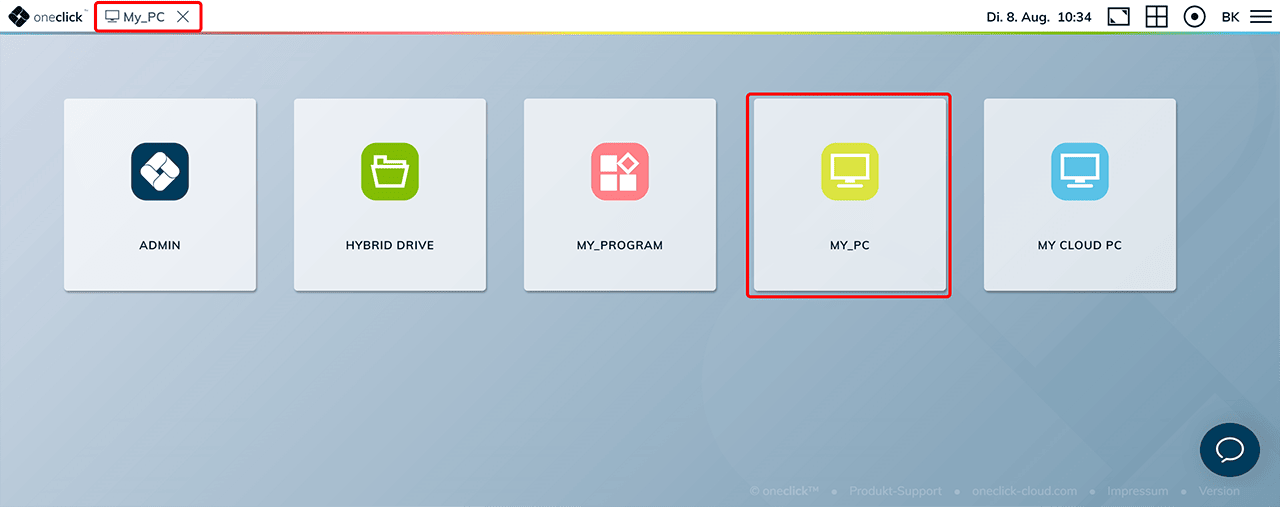
- Unified Workspace After clicking an app, the streaming process starts. The application or desktop appears in a separate window in your web browser.
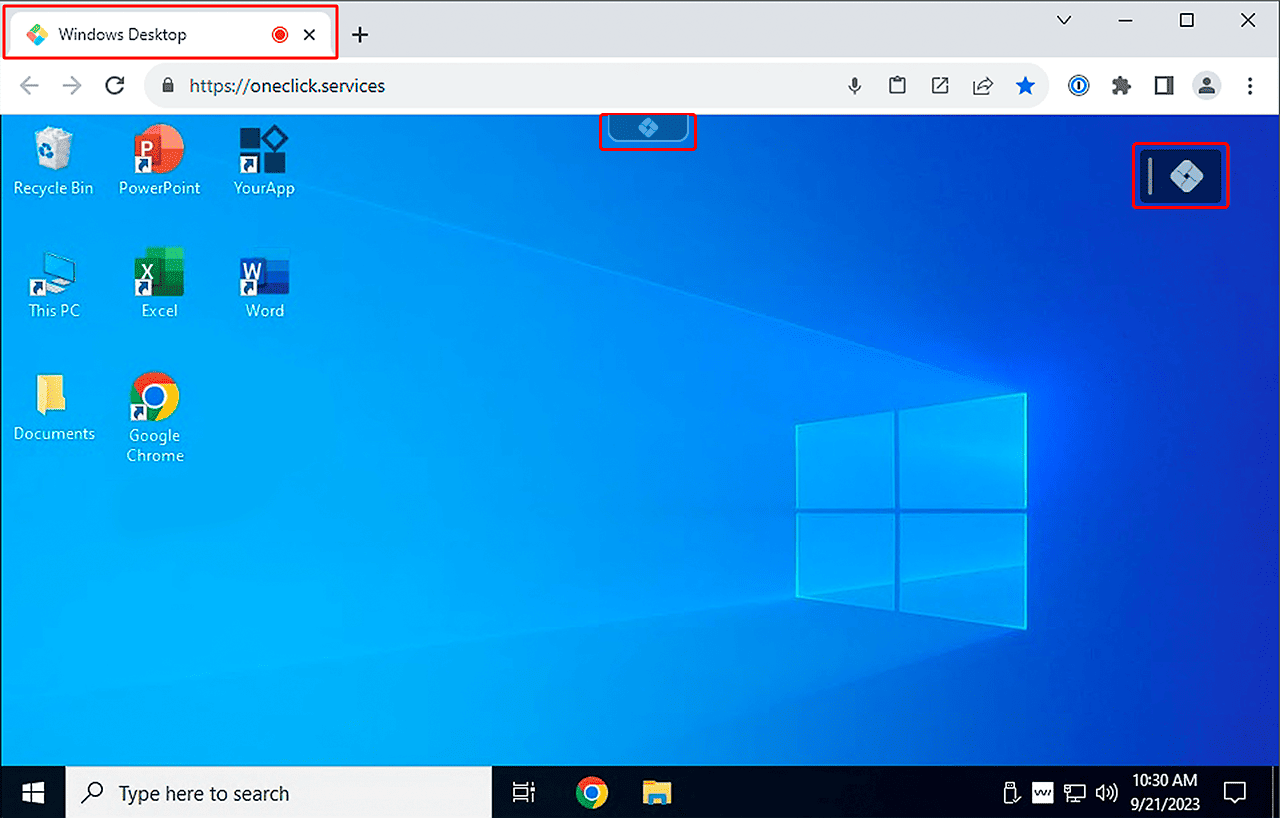
- Open app After signing in and opening an app, the oneclick™ icon appears at the top of the desktop screen. When you click this icon, the oneclick™ menu opens. The oneclick™ icon also appears when an app is detached from a Unified Workspace.
oneclick™ Gateway (RDP Client)
With oneclick™ Gateway, you open the connection through a remote desktop program. On Windows, use Remote Desktop Connection. On macOS or Linux, use Remote Desktop Manager. The connection runs through the oneclick™ Gateway.
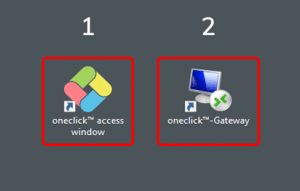
Important: Before each session, first sign in to the oneclick™ platform to open the access window. Only then start the connection through the remote desktop program.

For more information about establishing the connection, see Access remote systems through remote desktop programs.
oneclick™ Mesh with Direct RDP
With oneclick™ Mesh with Direct RDP, you also open the connection through a remote desktop program. In addition, the Mesh client is installed on your own device and on the remote system. The connection runs through the oneclick™ Mesh.
Unlike with the Gateway, you do not need to sign in to the oneclick™ platform separately.
oneclick™ Mesh with Direct RDP refers to a technology in which multiple end devices are connected to share resources.
- If you find the Remote Desktop Connection icon on your desktop, double-click it to start Remote Desktop Connection.
Alternatively, enter Remote Desktop Connection in the taskbar search field, select Remote Desktop Connection, and then click Connect.
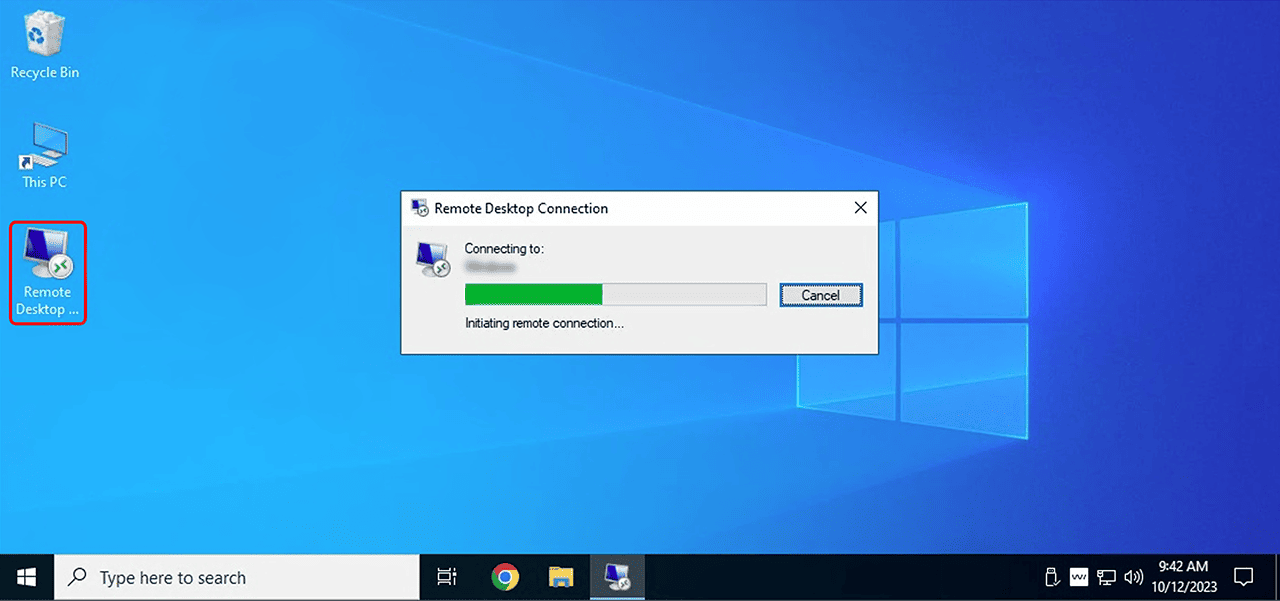
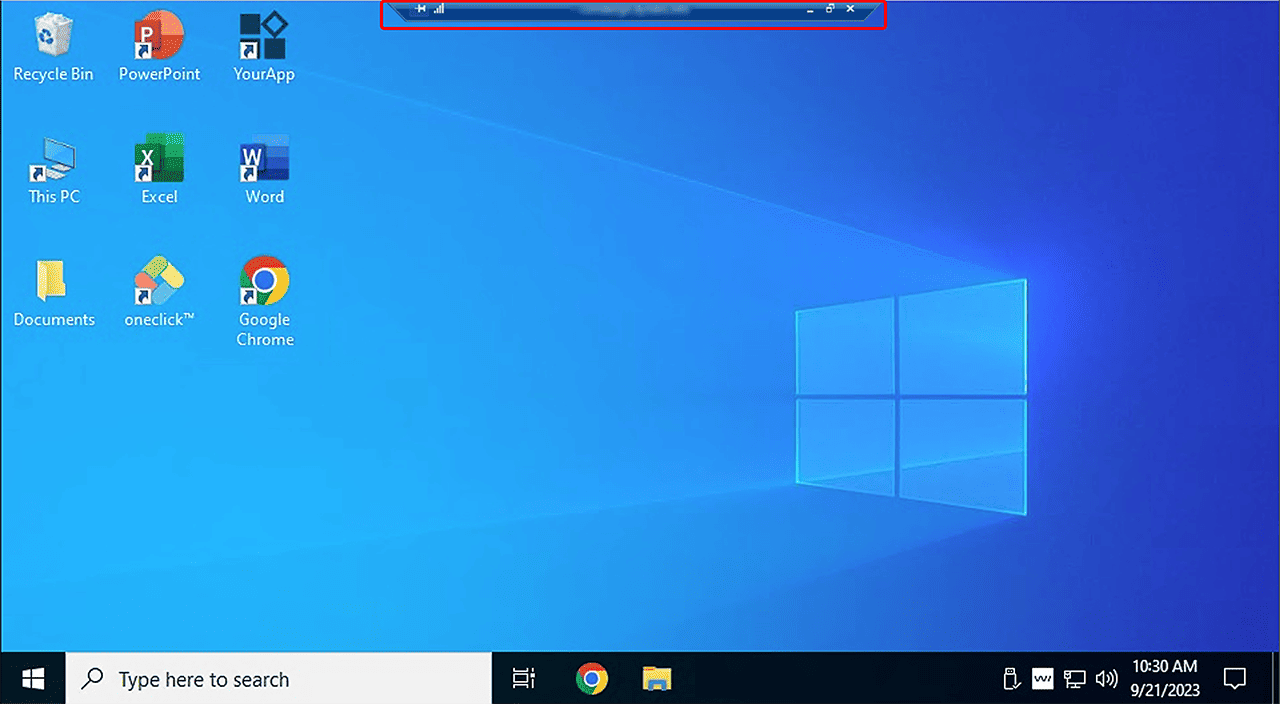
- After you have signed in successfully, the desktop or application of the remote system appears on your own device. The associated connection is displayed at the top of the window.