Restore Acronis Backup
You have booked Acronis through oneclick™ and have access to your Acronis account?
Then you can access backups via Acronis by yourself. It is possible to access files up to 100MB or files larger than 100MB. Below the procedure is described.
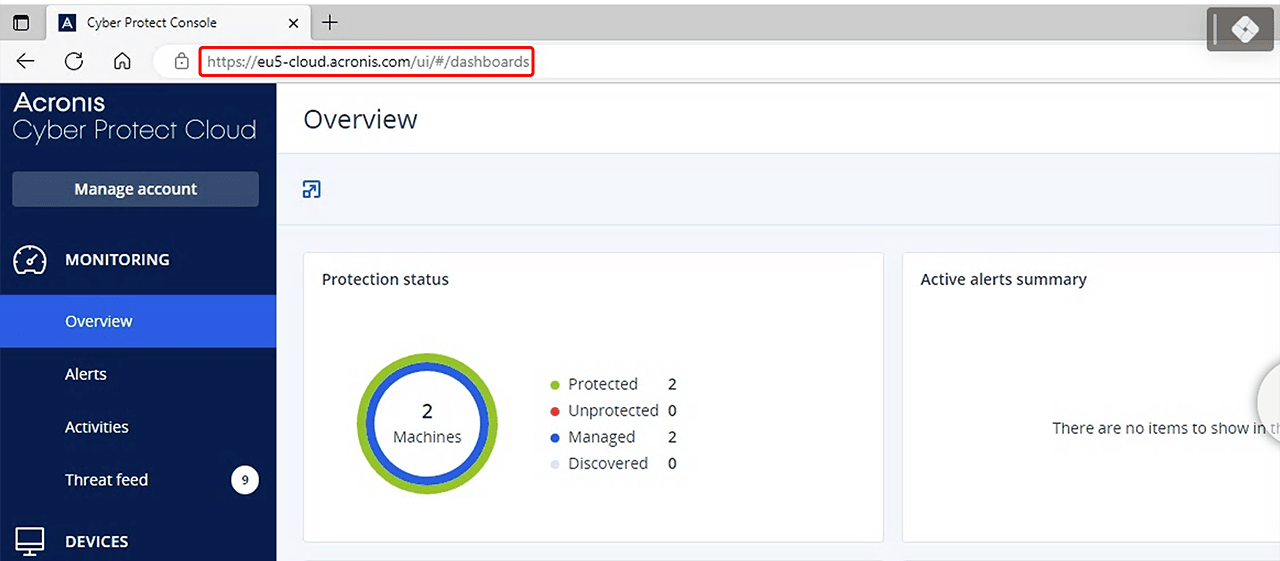
Log on to https://eu5-cloud.Acronis.com/login.
Restore files up to 100 MB
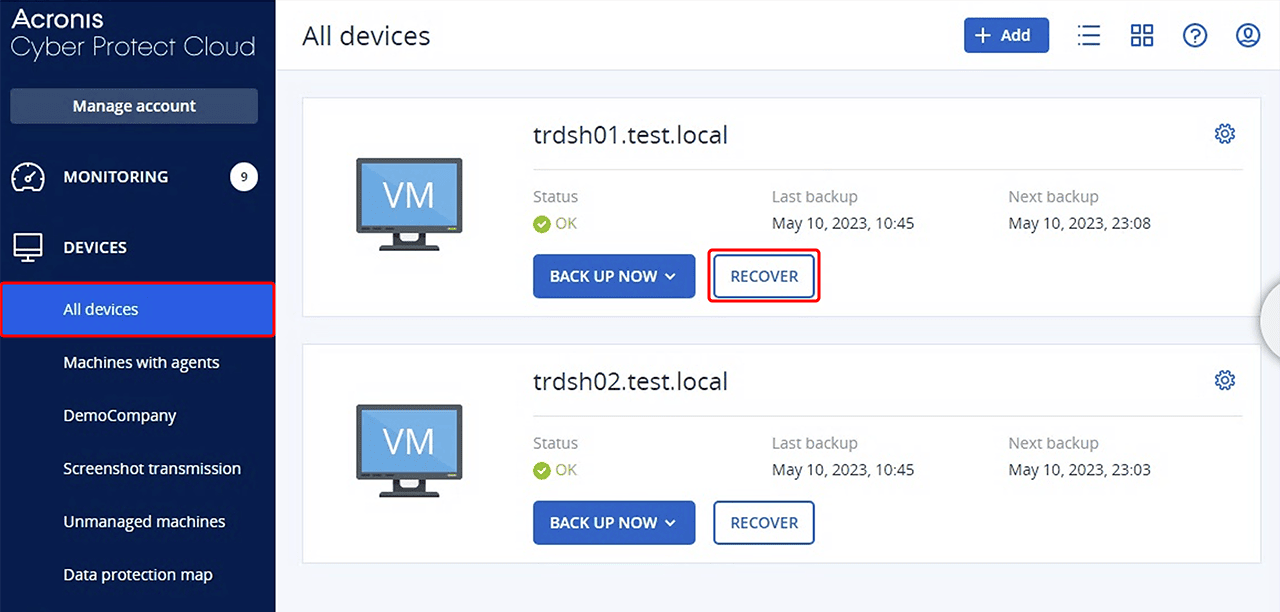
- First click on Devices and then All devices.
- Select the server you want to recover and click Recover.
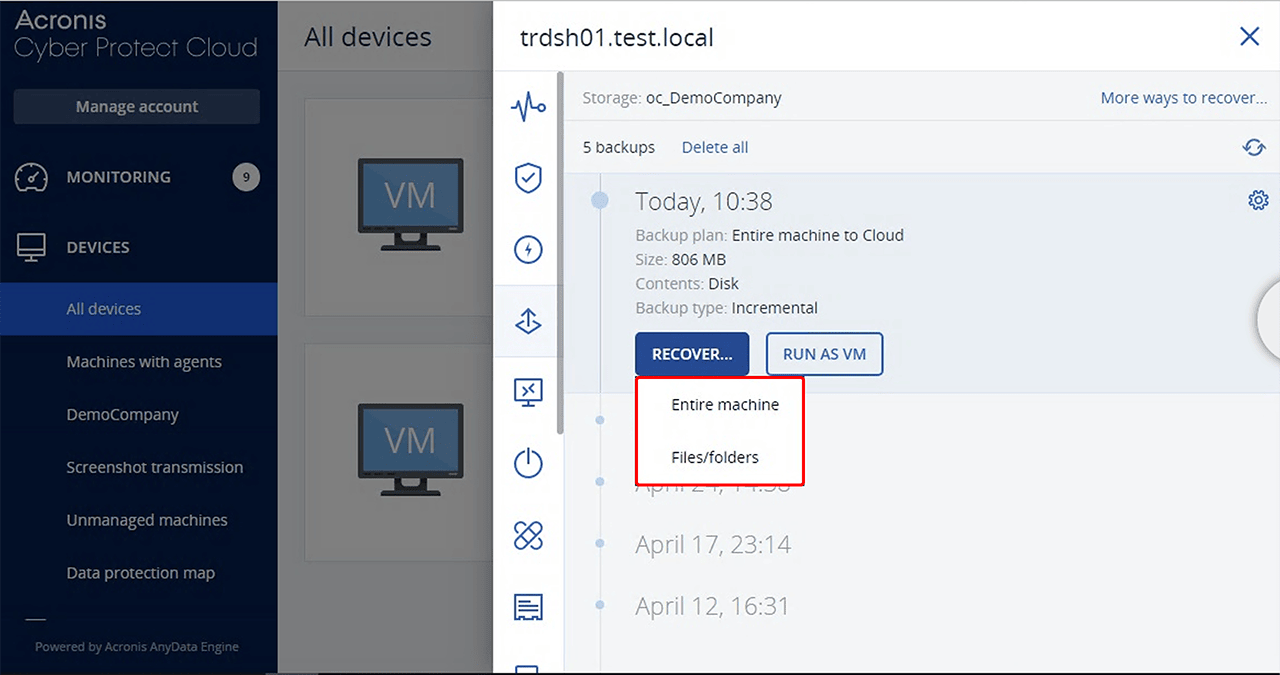
- You will see an overview of all backups of the server created. Select your backup with the correct date and click Recover.
- You can now choose between Entire machine or Files/folders:
Entire machine
- Select the destination or create a new one. Then click Run as VM.
Files/folders
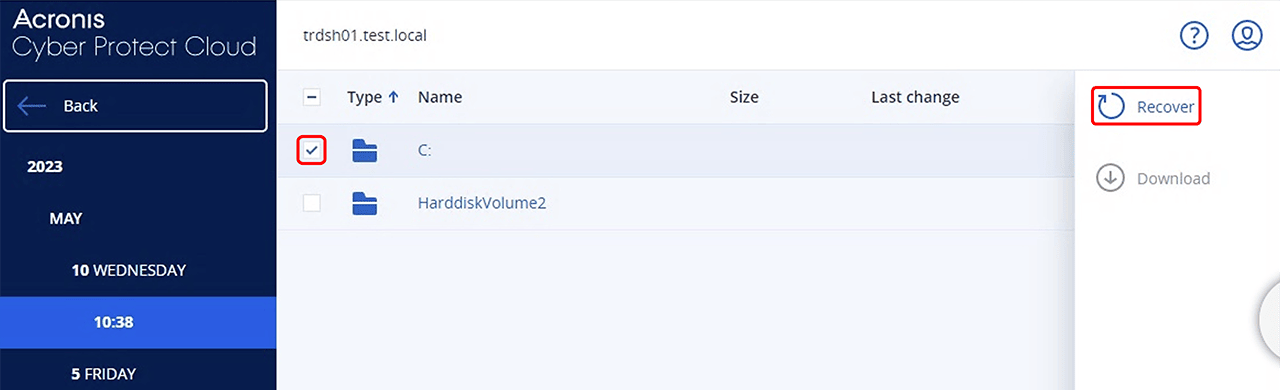
- Check the files you want to recover and click Recover.
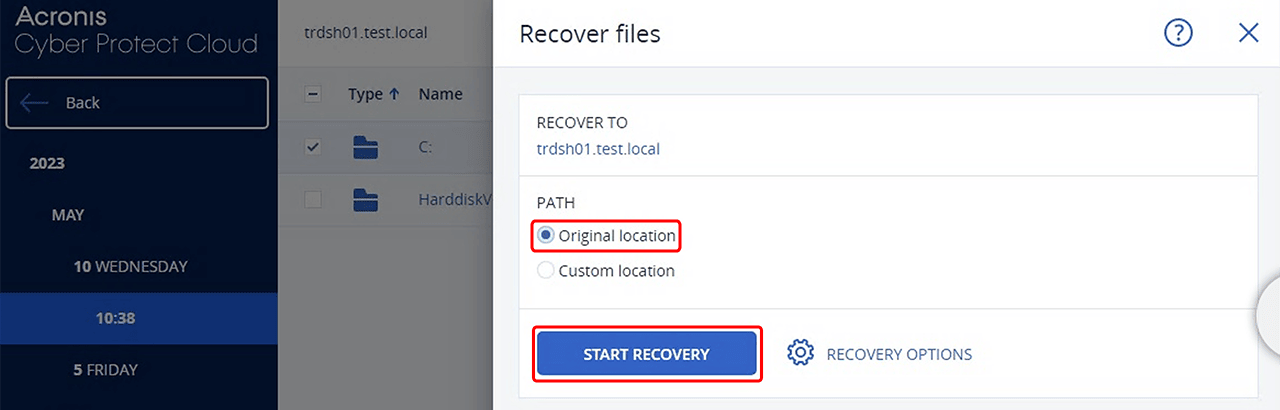
- Click on Original location and then Start Recovery.
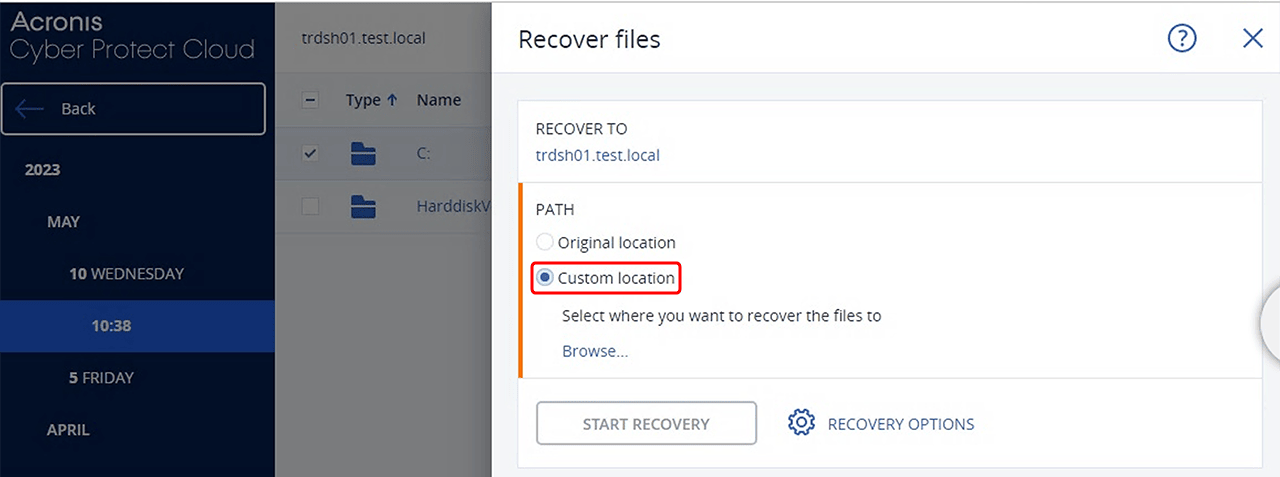
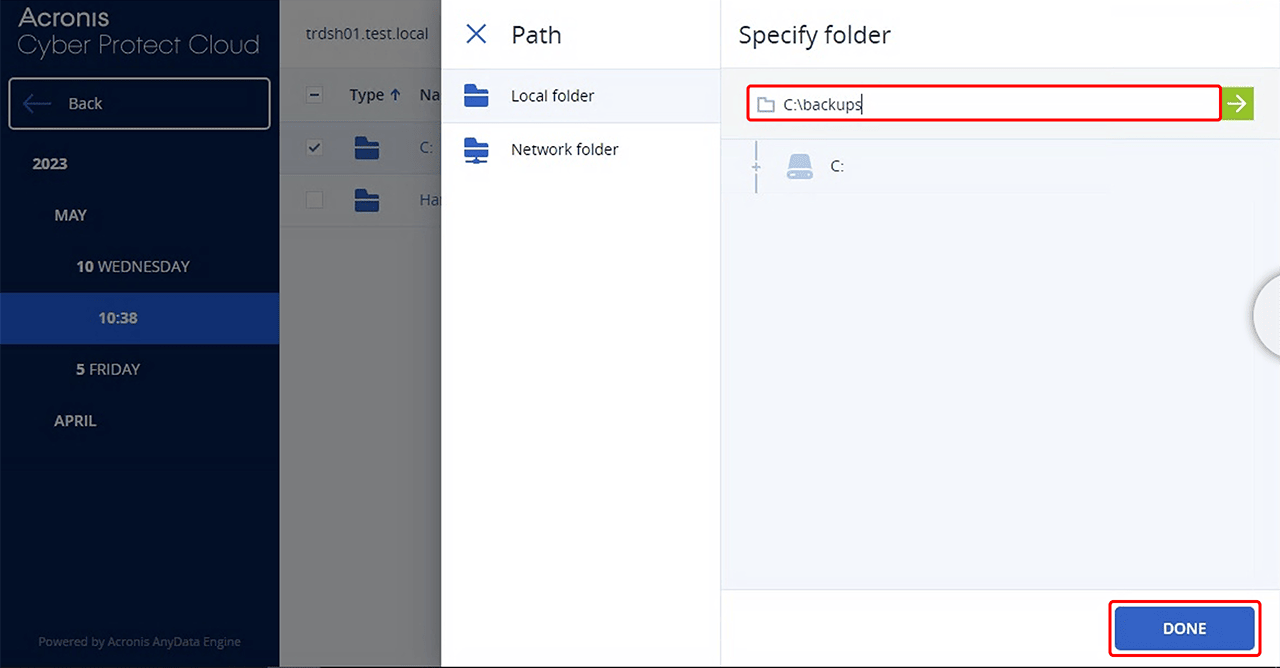
- You can also select Custom location. Click on Browse…, enter the location you want to restore the files, and then click on Done.
Restore files larger than 100 MB
- Click on Devices and then All Devices.
- Select the server you want to recover and click Recover.
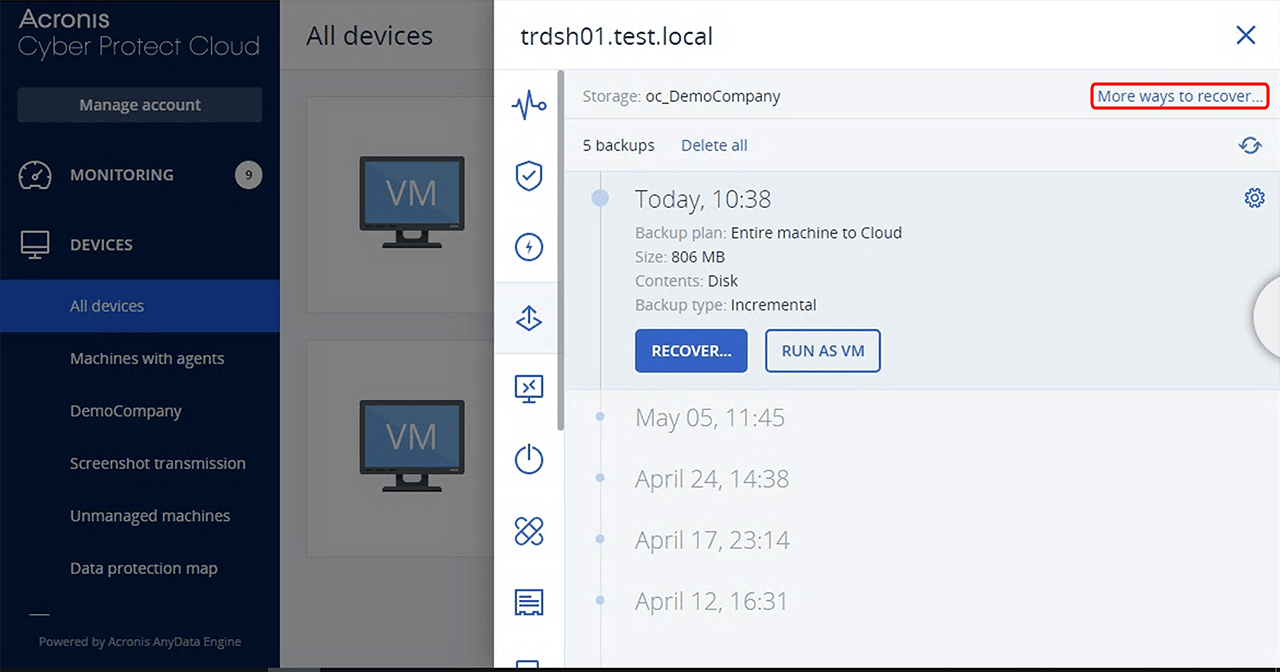
- You will see an overview of all backups of the server created. Select your backup with the correct date and click More ways to recover…
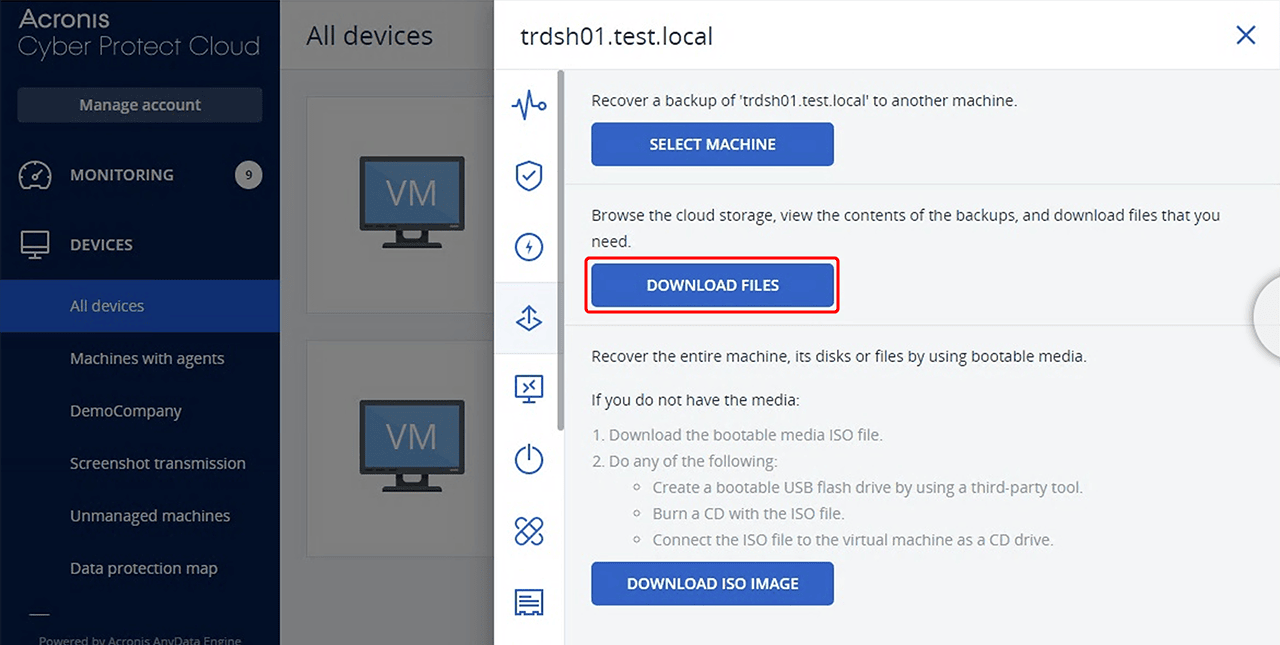
- Click Download Files.
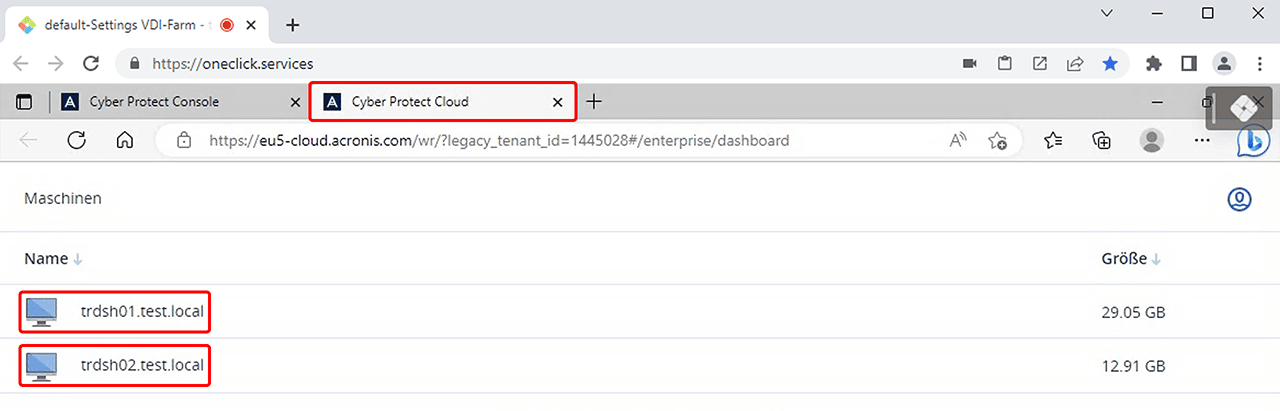
- A new window now opens where you have to select the server and the backup plan again.
- If necessary, enter the encryption password and Download the files.
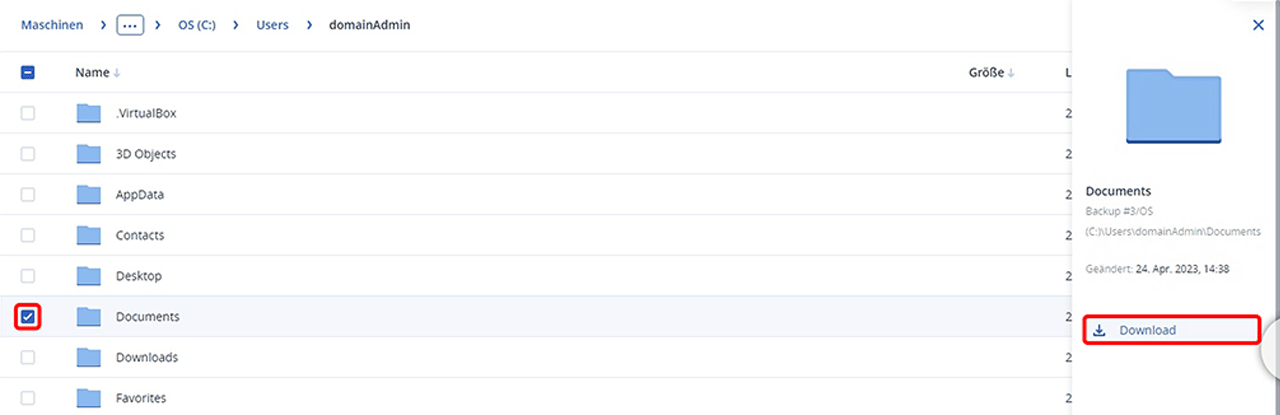
You can find the downloaded backup files in the download folder, by default.