Connect FabulaTech USB devices
You want to connect more complex devices via USB and use them in oneclick™?
In general, we recommend installing the software provided by the manufacturer first. Many devices (e.g. mice, KeyPads) are then already recognized correctly by the system and passed through by the browser in oneclick™. If this is not the case, we recommend using our partner software FabulaTech USB over Network.
The process for using your USB devices in oneclick™ includes the following steps:
- Contact our sales department for a non-binding offer.
- The required software here consists of two components: Client and Server. Our support will execute the setup of the corresponding client in advance and prepare the installation of the server component.
- To complete the setup it is necessary to additionally install FabulaTech USB over Network SERVER on your local end device (to which the USB devices are connected). Download required components from the software manufacturer's site. Make sure you download the appropriate version for your end device.
- Finally, enter the license you will receive from us after the program prompts you to do so.
Connect end device to server
Follow the steps of the installation wizard and then open the program. When prompted, enter the license key you received from us.
Make the following settings:
- Click on Preferences in the Settings tab.
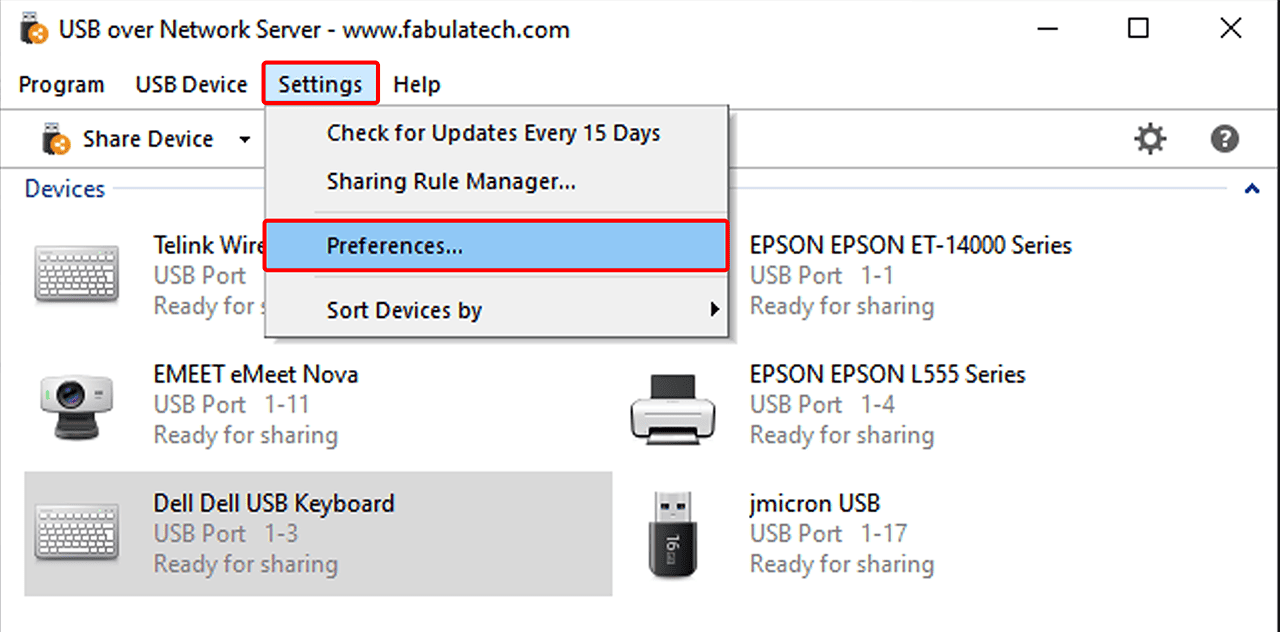
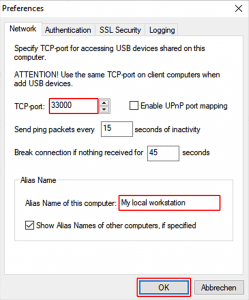
- In the Network tab, enter a name under "Alias Name of this computer" under which you recognize your end device and the value "33000" for "TCP port". Then confirm your entries with OK.
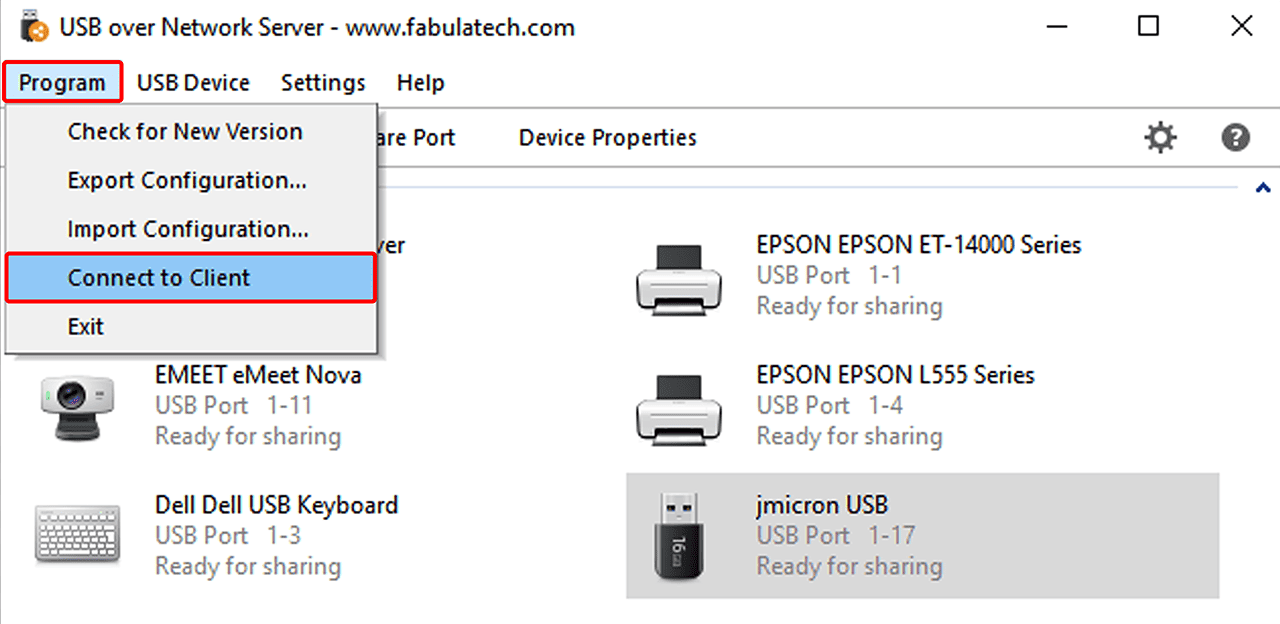
- Now click on Program and then on Connect to Client.
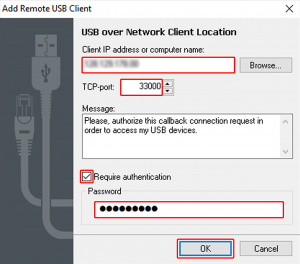
- Enter the IP address, TCP port and password. All this information can be found in the file "readme fabulatech.txt", which will be stored on the desktop in your VDI.
- Check "Require authentication" and confirm with OK to establish the connection to oneclick™.
Share USB-Device
Now enable the USB device you want to use in the VDI in the server component on your end device. To do this, select the device and click Share Device in the menu bar at the top.
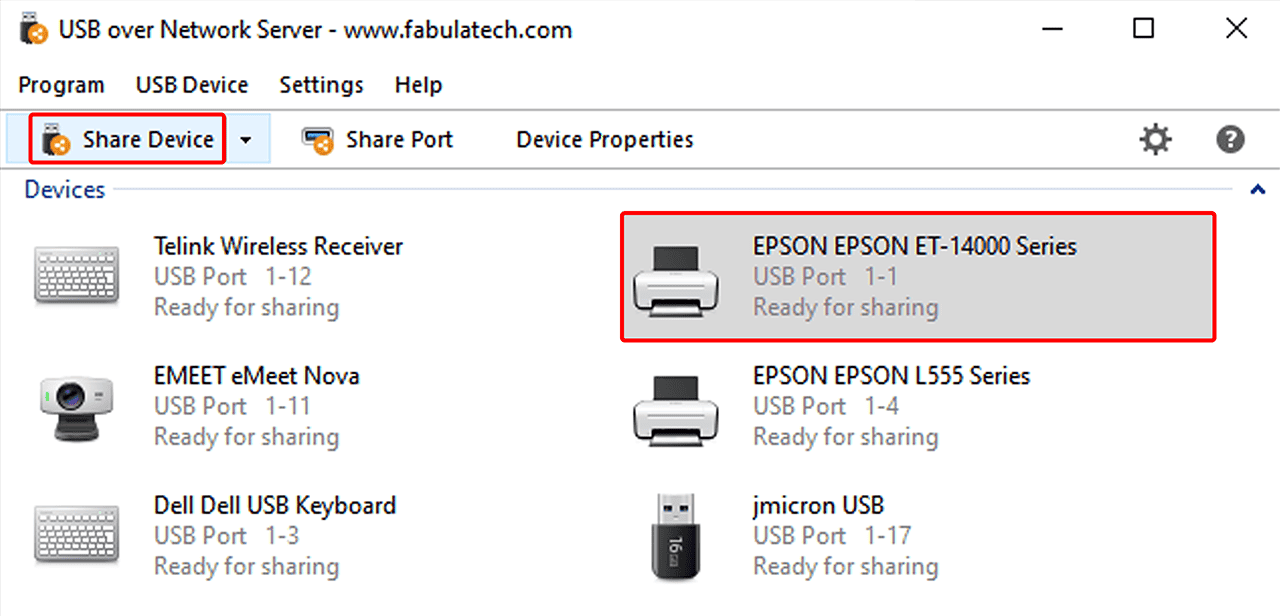
Shared devices will then be included automatically.
If you have any questions or problems, please contact FabulaTech technical support. You can also find more information in their manufacturer's documentation.