Event profile
Event profiles enable the time-controlled execution of defined actions on destinations and destination pools in oneclick™. An event profile is assigned to a resource and can contain multiple events.
Depending on the destination resource, different actions are available.
Destinations
The event profile is applied to a single virtual machine. The following actions are available:
- Start VM once
- Stop VM once
When stopping virtual machines, user profiles may be affected in certain configurations (e.g. FSLogix). See the section “Impact when stopping virtual machines” for details. - Stop VM after user warning (user can select Allow postponement)
- Synchronize VM status
- Execute process
If you select “Execute process”, the processes configured for the destination are available for selection.
Destination pools
The event profile is applied to a destination pool. The following actions are available:
The "Destination pool autoscaling" function is available exclusively for destination pools. A configured base VM in the pool is required.
Create an event profile
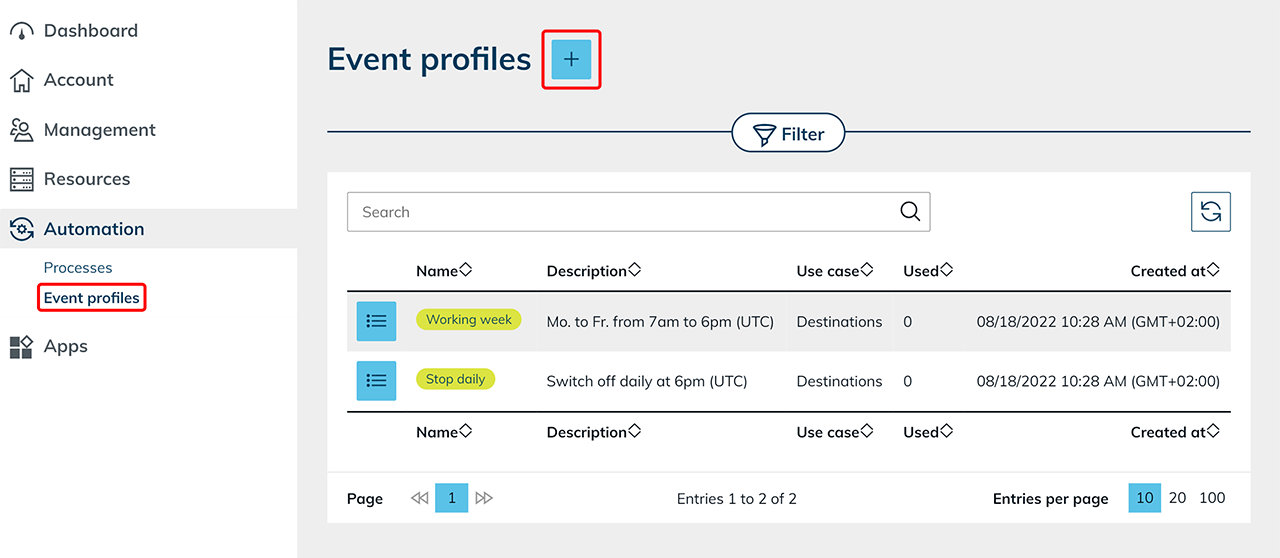
- Open Automation and click Event profiles.
- Click the Plus icon to create a new Event profile.
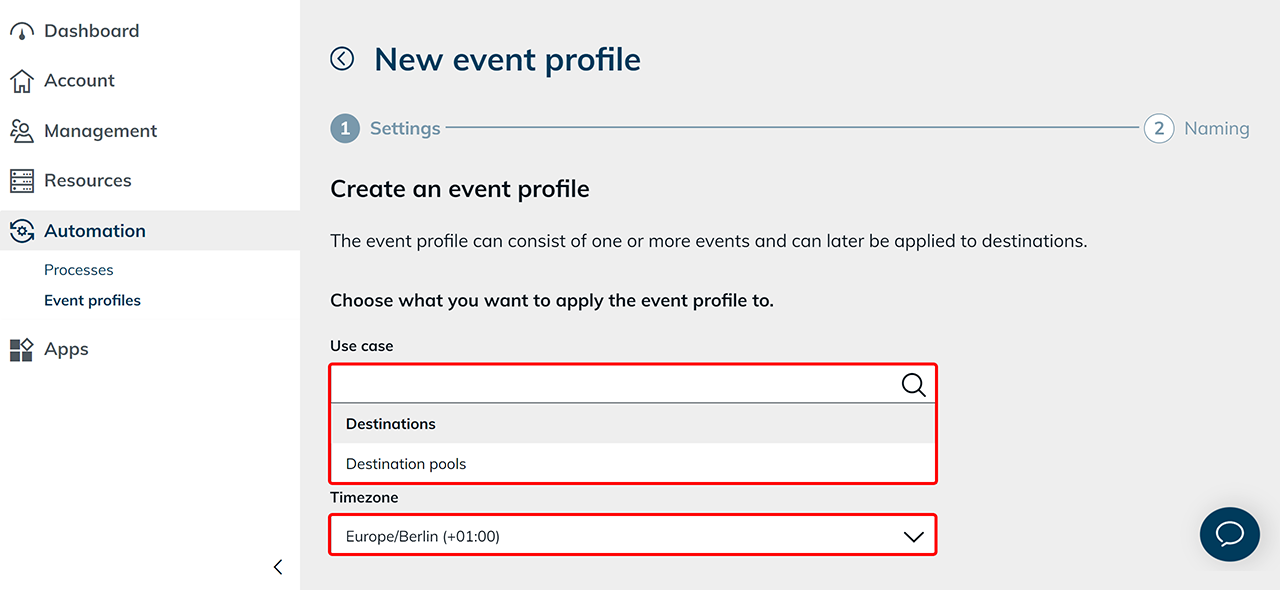
- Select the desired option (Destinations or Destination pools) in the “Use case” field.
In this example, Destinations is selected. - Select the Timezone that should apply to all times defined in the event profile.
- Select the desired Event.
- Click the Plus icon to add additional events.
If multiple events are defined within an event profile (e.g., weekday and weekend), a newly defined event overrides the previously valid settings from the specified start time until another event takes effect.
- Click Next.

To avoid unexpected costs, we recommend always defining a time to stop the virtual machine. This prevents machines from continuing to run unintentionally for longer periods, for example during a vacation.
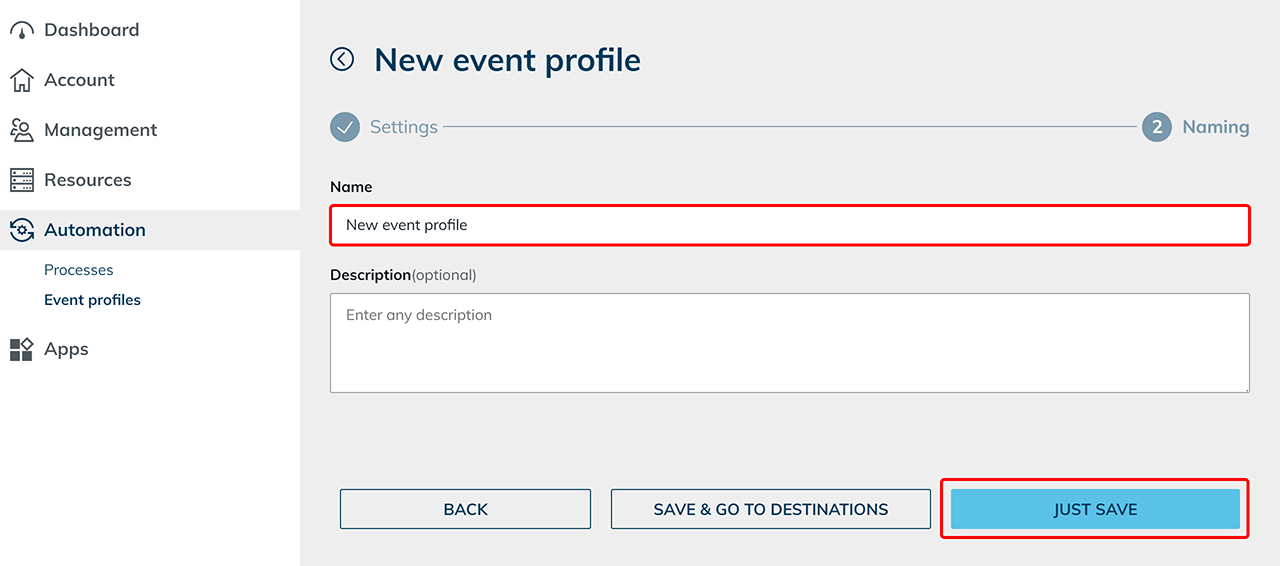
- Enter a unique Name for the event profile and click Save.
Impact when stopping virtual machines
If you are using FSLogix on your virtual machines, ensure that all user sessions are fully logged off before an automatic stop or shutdown is triggered by an event profile.
If a virtual machine is stopped while sessions are still active, the FSLogix profile container may not be properly detached. This can result in corrupted or locked user profiles.
Apply an event profile to a destination or destination pool
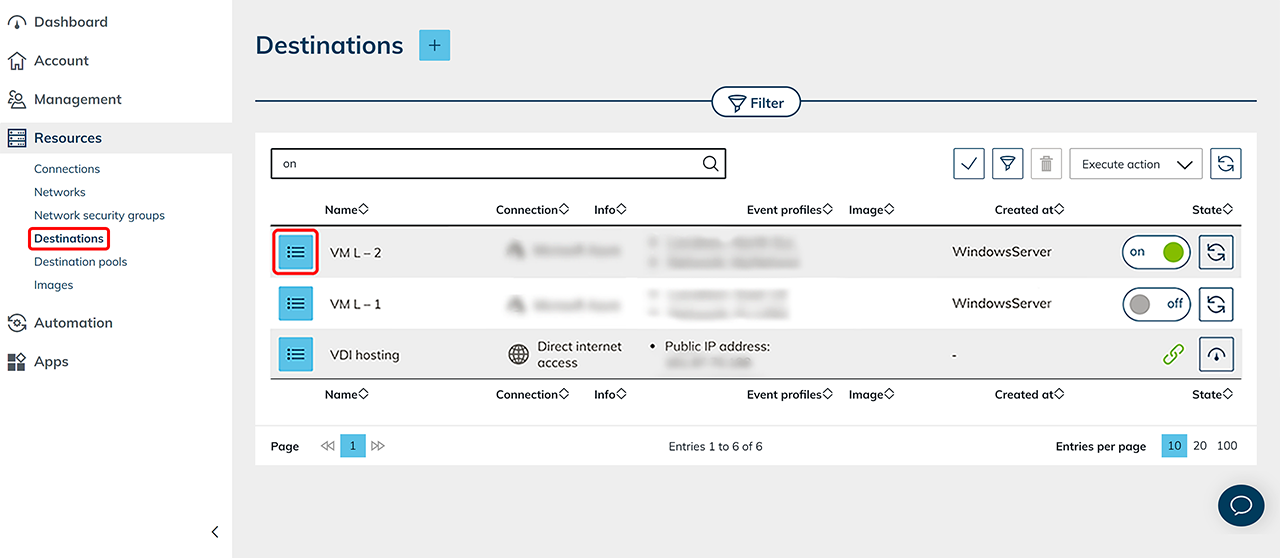
- Open Resources and select Destinations or Destination pools.
In this example, a destination is used. - Click the List icon in the row of the desired resource.
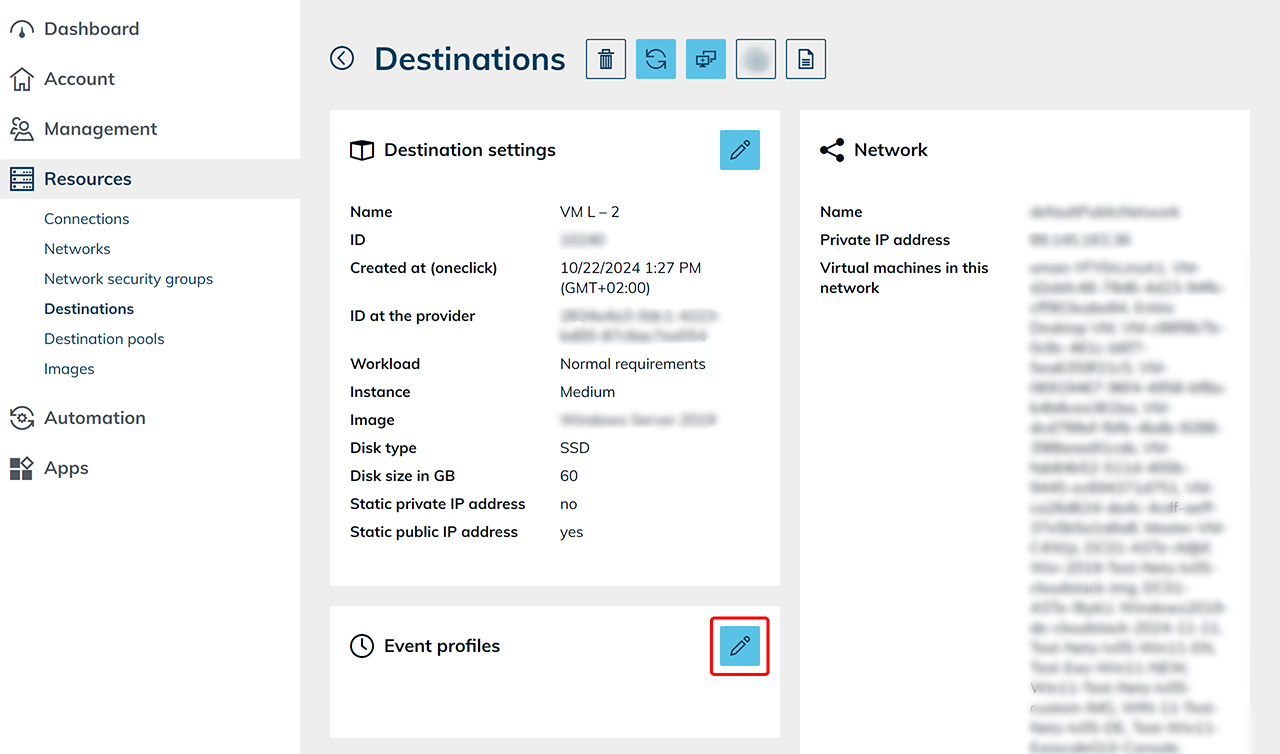
- In the detail view, click the Pencil icon on the “Event profiles” tile.
- Select the Event profiles that should be applied to this resource and click Save.
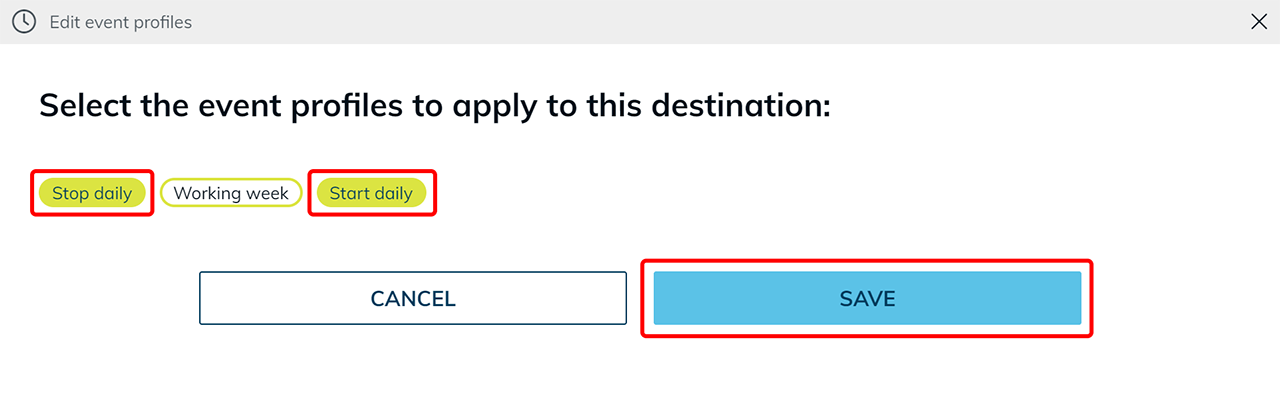
The event profile is applied to the selected resource according to the defined schedule. If an event is not executed as expected, check the configured time zone, the defined times, and the assignment of the event profile to the resource.