Log in with different user accounts
When reopening oneclick™ in a new tab of the same browser, you are automatically logged in again with your account. You can only avoid this behavior by using a different browser or by activating the incognito mode.
1. Use of other browsers
To work with several different user accounts, open another browser that is installed on your device and enter oneclick™ with a different user account. This way you can use different accounts at the same time.
2. Using the incognito mode of your browser
Enable incognito mode in your current browser to start a separate session where you are not logged in with your credentials. You can then log in using another account without having to log out of the main account.
To activate incognito mode, proceed as follows. The exact procedure may vary, depending on your browser.
-
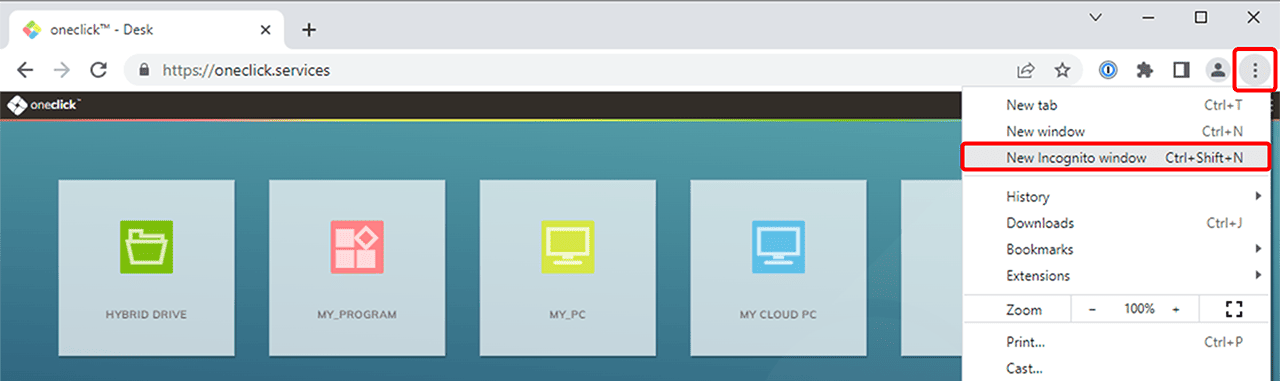
Chrome: Click the Menu icon (three vertical dots) in the upper right corner and select New Incognito window.
-
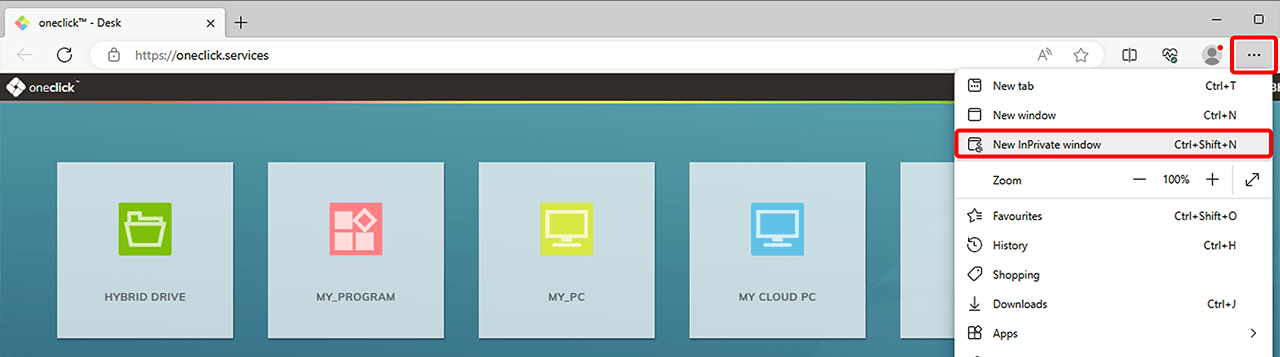
Edge: Click the Menu icon (three horizontal dots) in the upper right corner and select New InPrivate window.
-
Opera: Click the Menu icon (three horizontal dots) in the upper right corner and select New Private window.
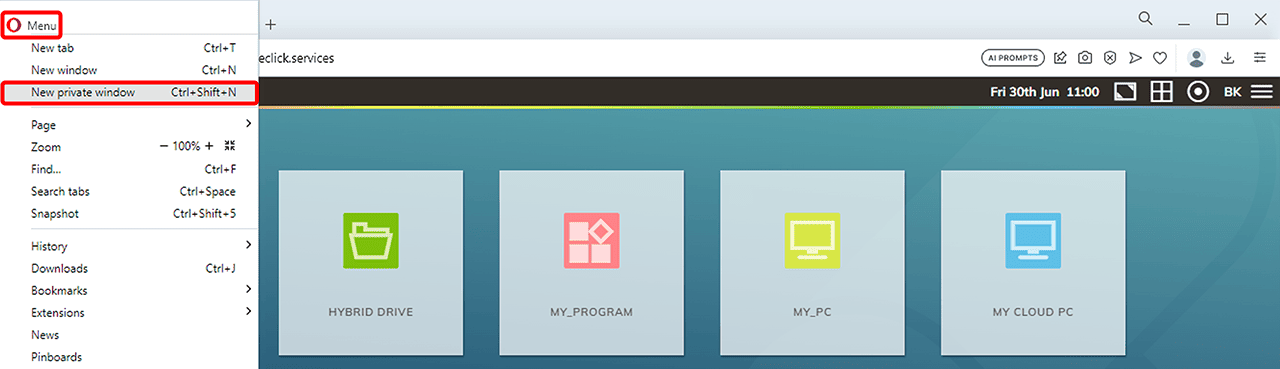
A new browser window opens in incognito mode. Log in with another user account.