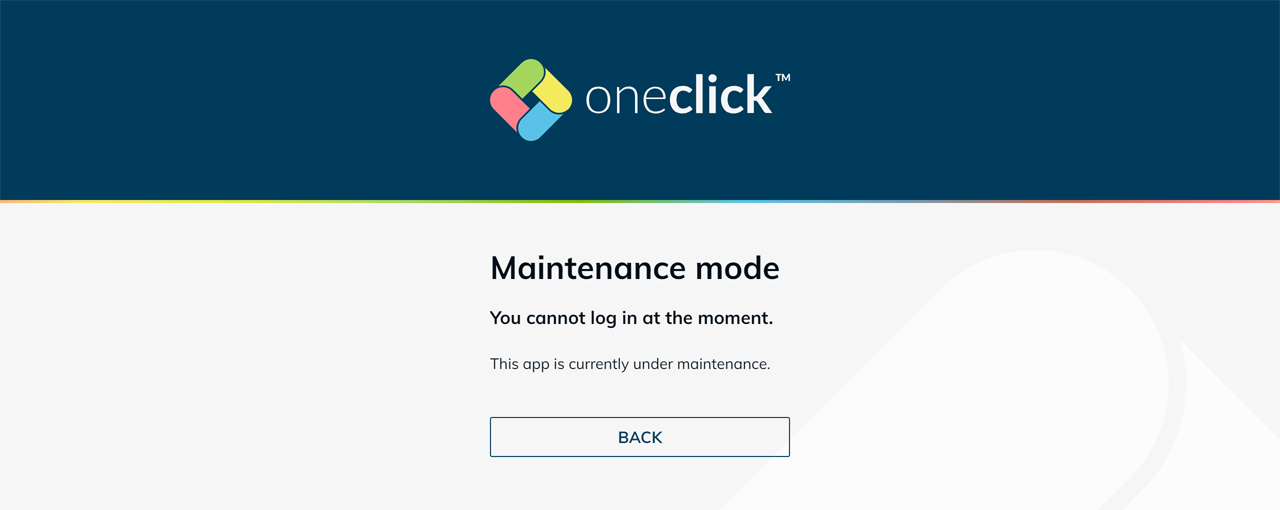
Maintenance mode
Maintenance mode lets you temporarily block one or more destinations for new user connections. The associated app instances remain visible during maintenance.
oneclick™ does not automatically terminate existing sessions.
For app instances with a specific destination or the Default destination of the pool, users retain access if you have selected their group for access during maintenance mode. This also applies to administrators who start the app via Apps > App Instances. Administrators from a higher-level division can access the app if you enable Allow support access during maintenance.
With Best destination of the load balancing pool, selecting a group does not make a destination in maintenance mode available for load balancing again. If a user whose group has been selected for access during maintenance mode already has a binding – a saved assignment to this destination created by Sticky user sessions – the binding remains in place. Without such a binding, oneclick™ assigns the user to another available destination. If all destinations are in maintenance mode and no such binding exists, oneclick™ displays the maintenance notice.
How maintenance mode affects an app instance depends on the selected destination:
| App instance destination | Behavior in maintenance mode |
|---|---|
| Specific destination | The app cannot be started by users without access permission. |
| Default destination of the pool | The app cannot be started by users without access permission. oneclick™ does not switch to another destination in the pool. |
| Best destination of the load balancing pool | oneclick™ checks all destinations in the pool. Without an existing binding, oneclick™ assigns your users to an available destination outside maintenance mode. If a binding to a destination in maintenance mode remains because a session is still running, the user can be connected to that destination again. If all destinations are in maintenance mode and there is no remaining valid binding, oneclick™ blocks the app from starting and displays the maintenance notice. |
You can see the maintenance status of each destination in the "Destinations" tile in the details of the destination pool.
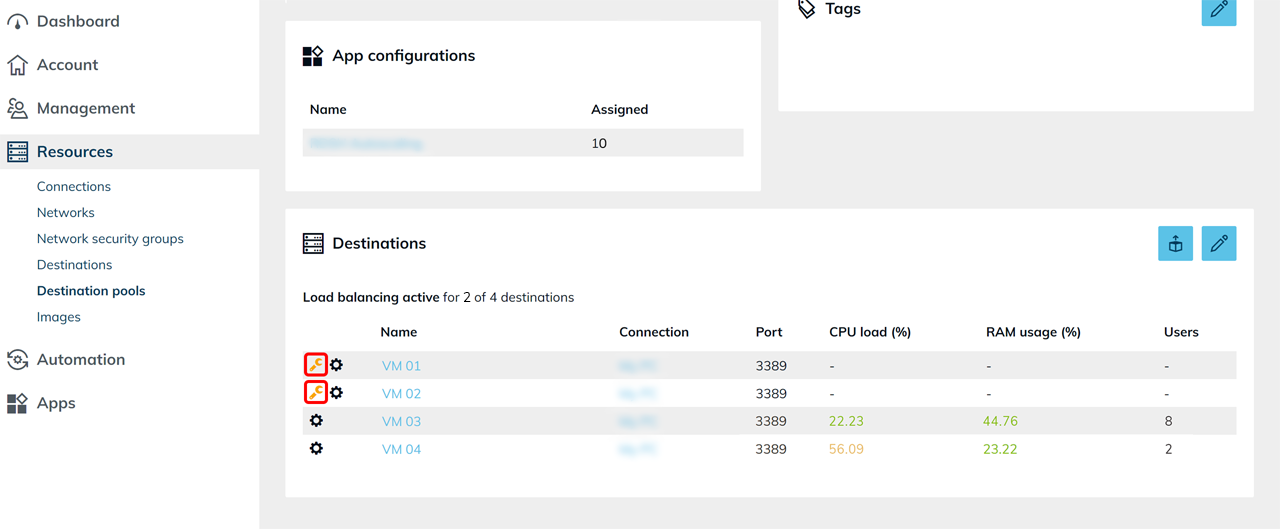
oneclick™ does not perform scaling actions on destinations in maintenance mode. oneclick™ does not start, stop, remove, or replace these destinations. Enabling maintenance mode does not create an additional destination. The pool therefore has less capacity during maintenance. Schedule maintenance outside peak usage times or place only some destinations into maintenance mode at a time.
1. Enable maintenance mode
- Click Resources in the menu, and then click Destinations.
- Select the desired destinations.
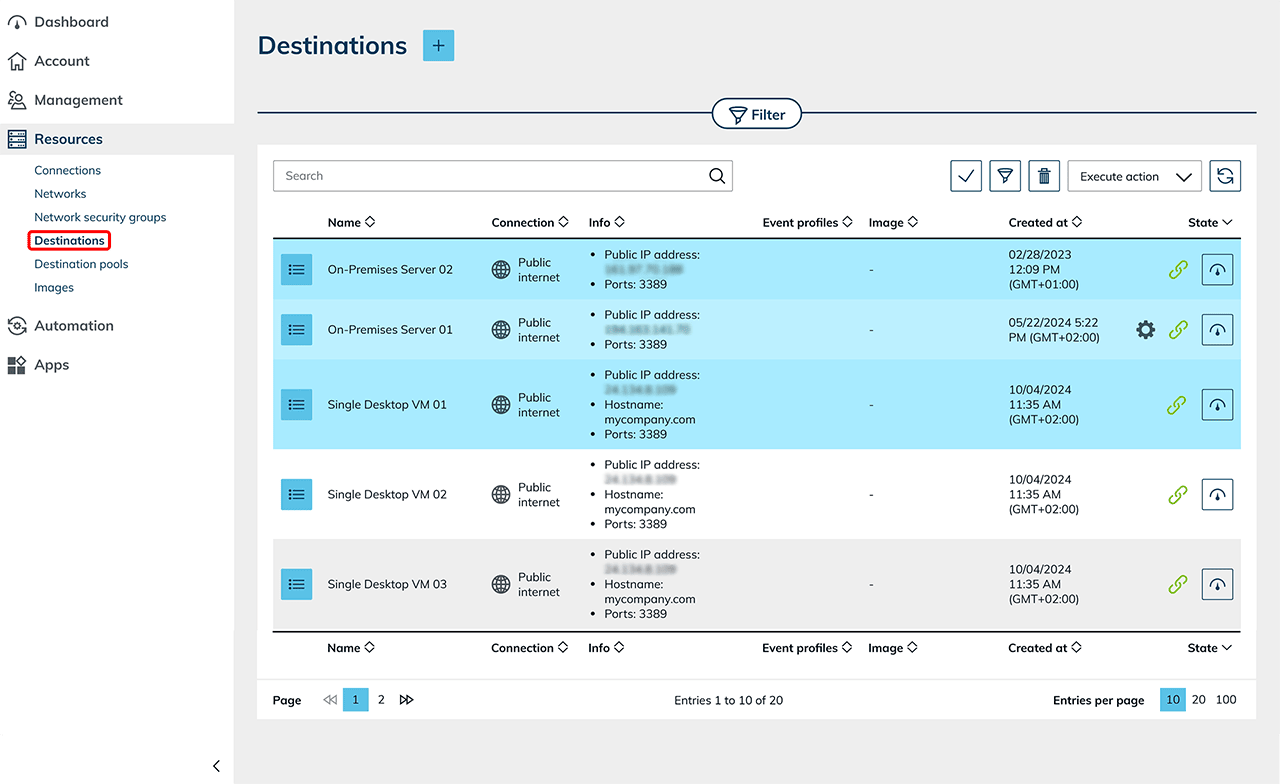
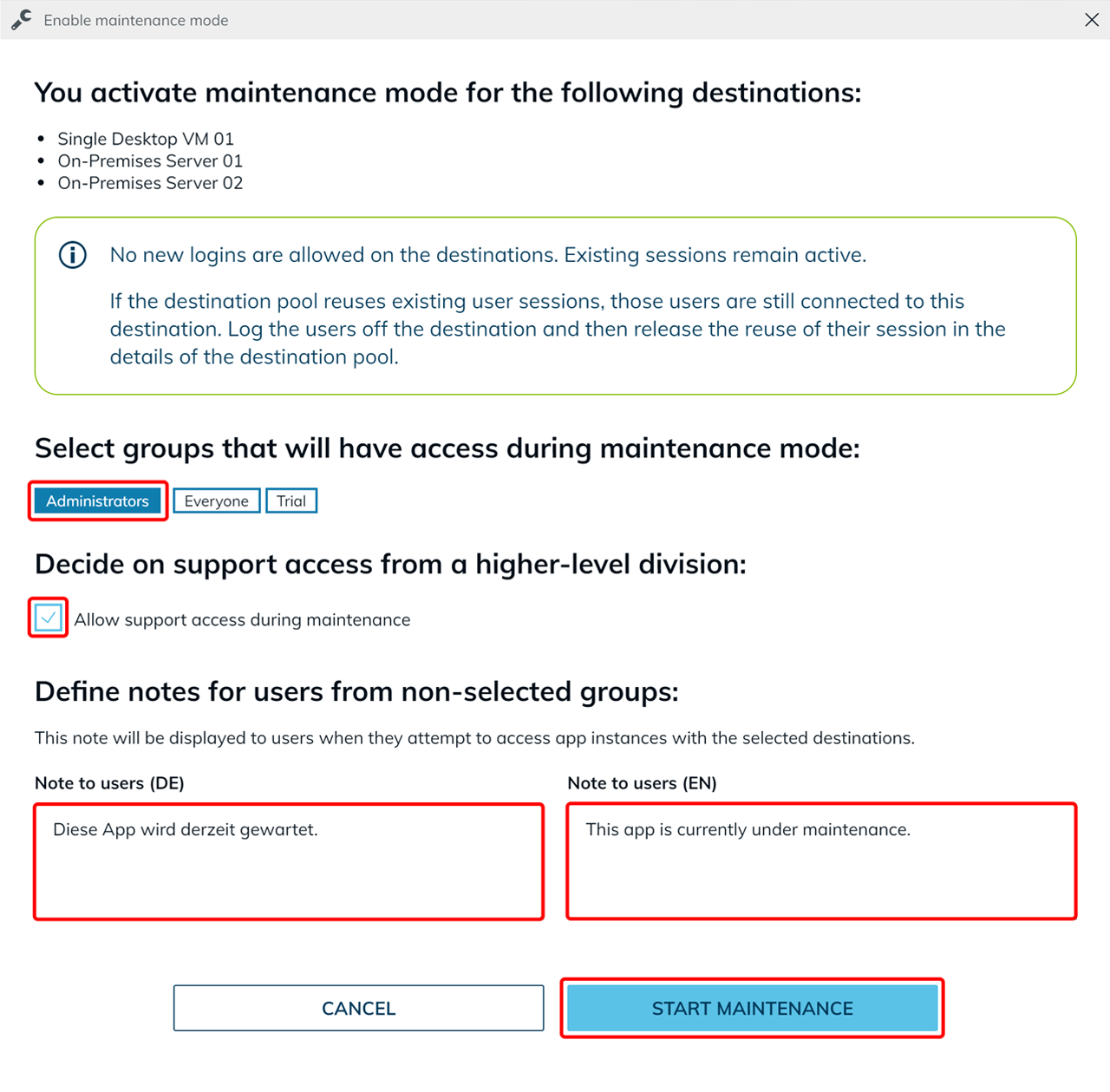
- Open the context menu under "Execute action" and click Enable maintenance mode.
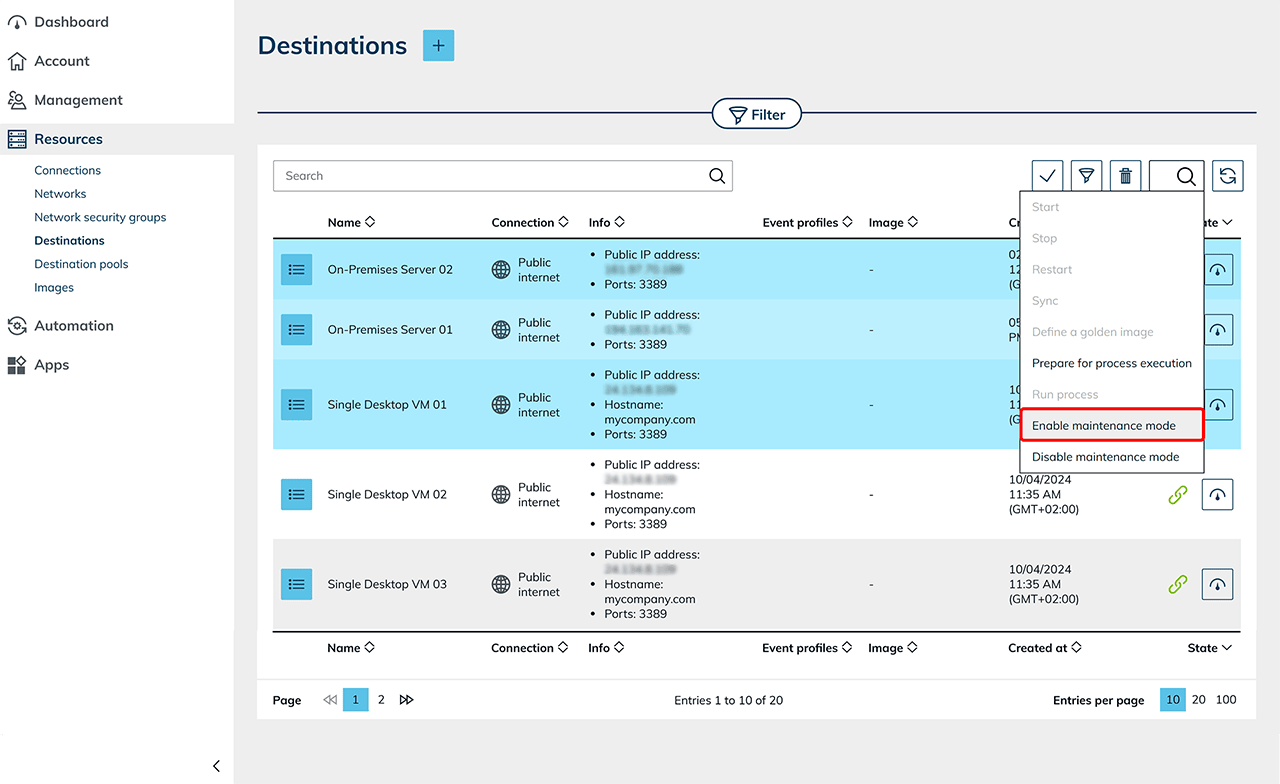
- Under Select groups, select the groups that should retain access during maintenance mode.
- Optional: Enable Allow support access during maintenance so that administrators from a higher-level division can start app instances during maintenance in the role of a user.
If sessions are still running on a destination in maintenance mode, log off the affected users from the destination and then, in the destination pool details under Sticky Session, Delete selected sticky user session. If an affected destination pool uses Sticky user sessions, the dialog also displays the Show sessions section. Click the name of the destination pool there to open its details. - Under "Note to users", enter a maintenance message in German and English. The text "This app is currently under maintenance." is already prefilled as a suggestion; you can keep it or replace it with your own text.
If maintenance mode is already enabled, the previously saved notice remains unchanged. The new suggested text "This app is currently under maintenance" is prefilled only when you enable maintenance mode again.
You can also optionally specify the planned maintenance window so your users know when login will likely be possible again. If you enter only one language, the system automatically uses the same text for the other language to avoid display issues.Maintenance notice for multiple destinationsIf you place all destinations in a pool into maintenance mode, select them together and enter the same maintenance notice. If the configured notices match, oneclick™ displays this text to the users. If different notices are configured or no notice is configured on any destination, oneclick™ displays a neutral maintenance notice.
- Click Start maintenance.
2. Plan maintenance
Enable maintenance mode before planned maintenance work begins. Existing sessions remain active until your users log off the destination or you end the sessions. Therefore, allow enough time for users to log off before maintenance work begins.
If Best destination of the load balancing pool is selected as the destination for the app instance, oneclick™ connects your users without an existing binding to another available destination outside maintenance mode.
If the pool uses Sticky user sessions, oneclick™ automatically removes existing bindings to destinations in maintenance mode. Exceptions are bindings for users whose group has been selected for access during maintenance mode, as well as bindings to destinations where a session is still running.
If a session is still running on the destination, the user can start additional apps on the same destination. To end this binding early, log off the affected users from the destination and then, in the destination pool details under Sticky Session, Delete selected sticky user session.
If the pool uses Sticky user sessions, click the name of the destination pool under Show sessions in the Enable maintenance mode dialog to open its details.
Shortly before maintenance work begins, check whether users are still logged in to the affected destinations, and log them off if necessary.
If you want to completely remove a destination from the pool for maintenance work, follow the article Remove a destination from a pool for maintenance.
3. Log off users
oneclick™ does not automatically display active users on the destination. Therefore, check directly on the destination whether any users are still logged in.
Windows Server
Open Task Manager and check under Users whether any users are still logged in. Alternatively, open the command prompt (cmd) and enter the following command:
query user
Linux Server
Check logged-in users with:
who
Check RDP connections with:
ps aux | grep rdp
Log off all users from the destination or shut down the destination before you click Delete selected sticky user session under Sticky Session in the destination pool details and begin the maintenance work.
4. Perform maintenance
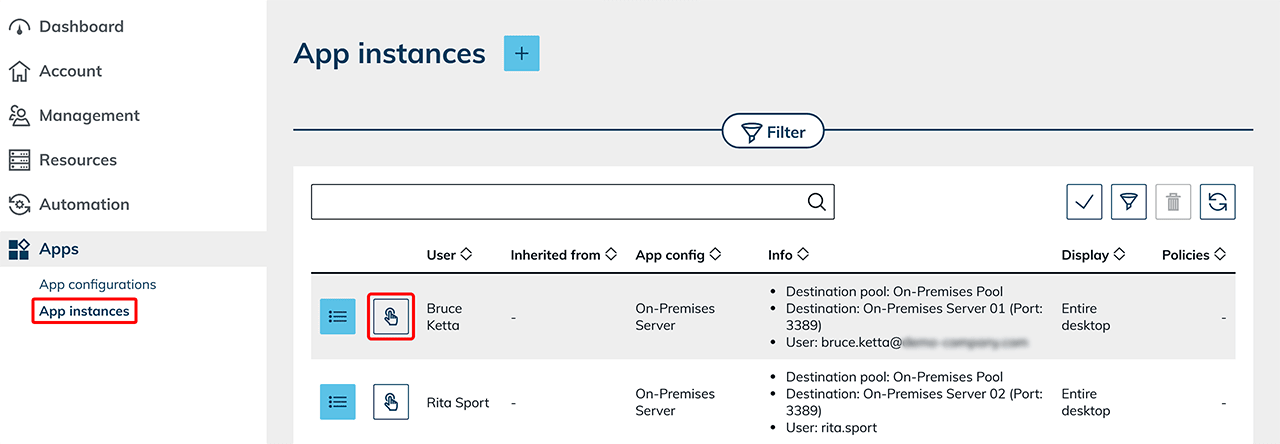
To access the destination while maintenance mode is active, start an app instance that is assigned directly to this destination.
- Click Apps in the menu, and then click App Instances.
- Click the Pointing Finger icon to start the app.
Then perform the required maintenance tasks on the destination.
Unable to start the app instance?
Check whether your group is selected under step 1.4 for access during maintenance. Without this permission, oneclick™ blocks the app from starting.
For administrators from a higher-level division, Allow support access during maintenance must be enabled under step 1.5.
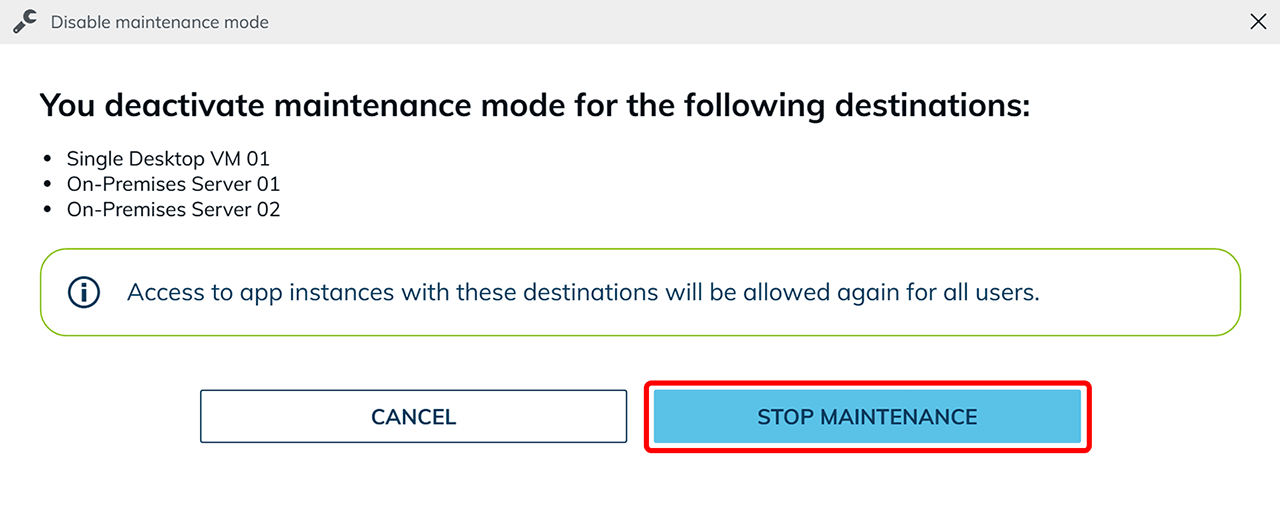
5. Disable maintenance mode
- Click Resources in the menu, and then click Destinations.
You can identify destinations in maintenance mode by the Wrench icon.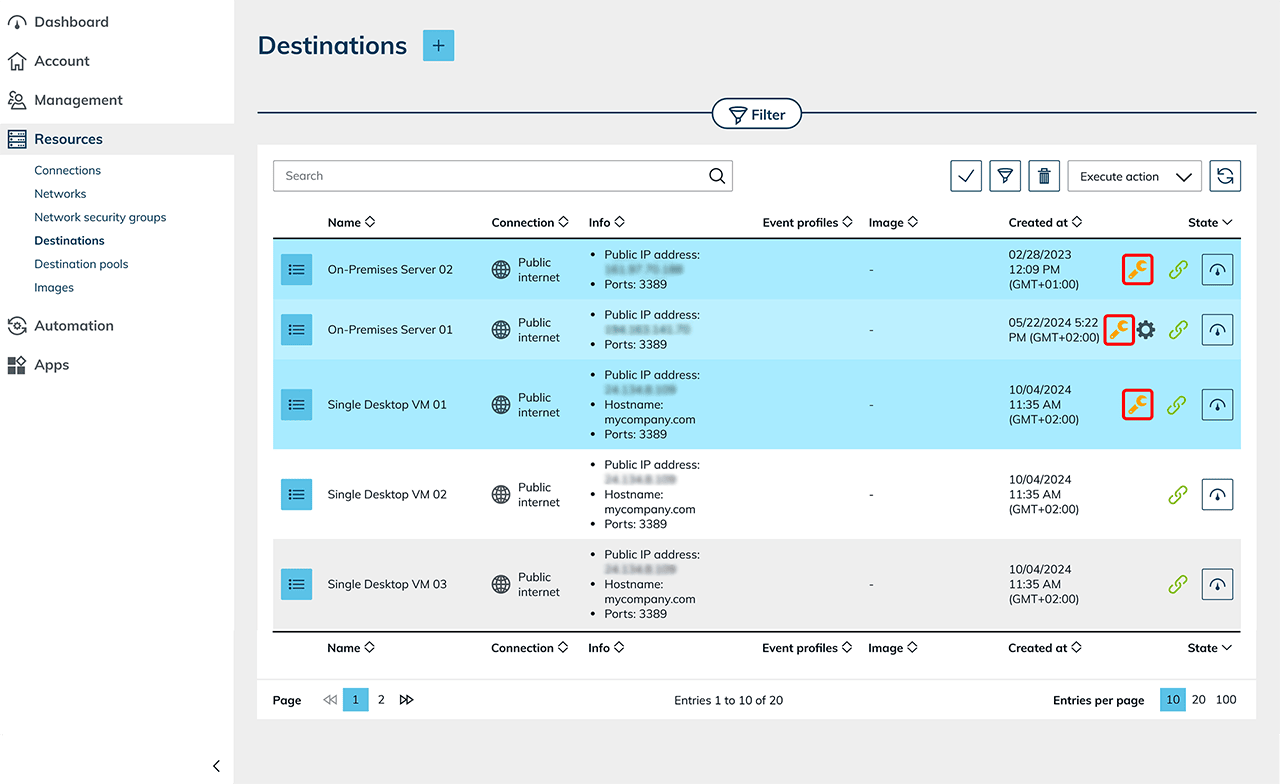
- Open the context menu under Execute action and click Disable maintenance mode.
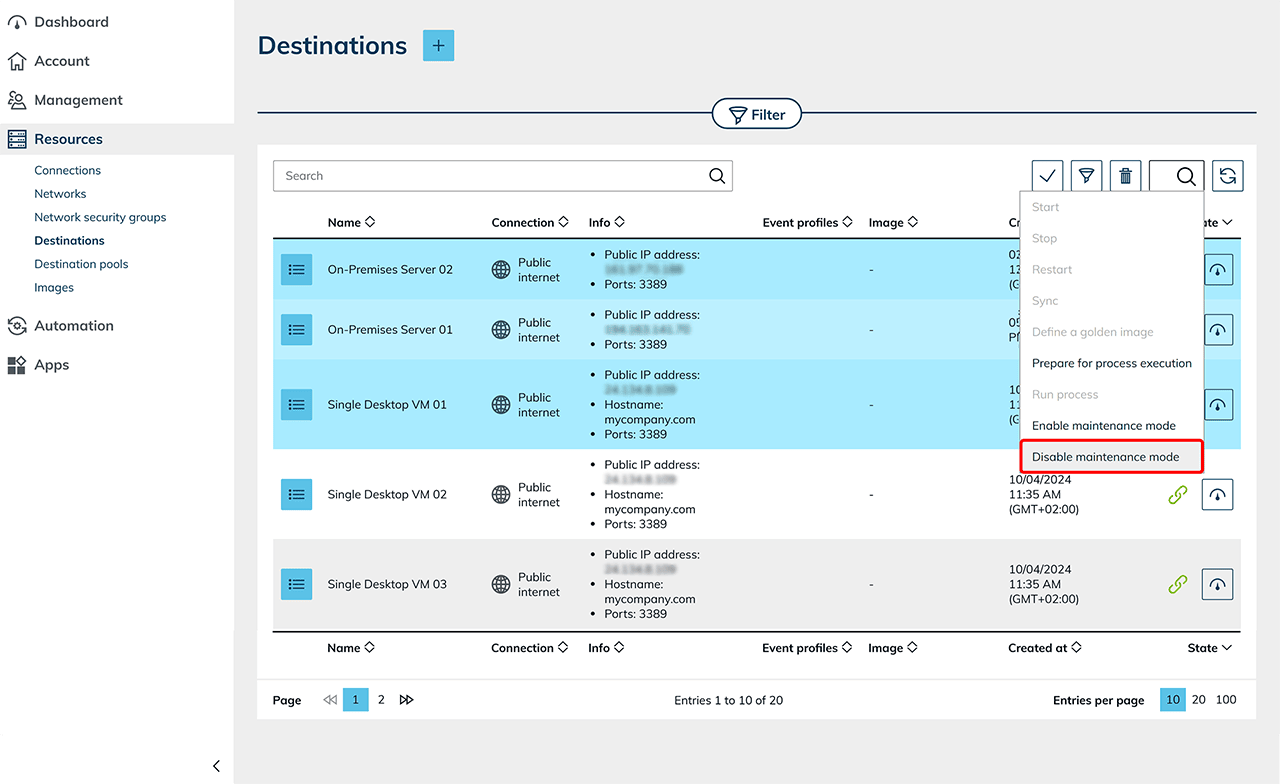
- Click Stop maintenance.
Visibility in the user area
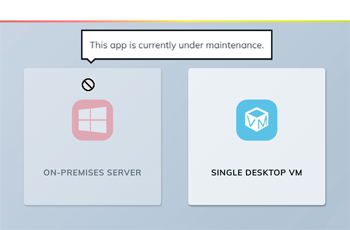
If maintenance mode blocks the app from starting, oneclick™ displays the app tile grayed out. Hover over the tile to see the maintenance notice.
Specific destination or default destination of the pool
If the app instance is assigned to a specific destination or the Default destination of the pool, maintenance mode blocks the app from starting for your users unless an access permission applies during maintenance.
Best destination of the load balancing pool
If only some of the destinations are in maintenance mode, the app tile remains available to start. Without an existing binding, oneclick™ assigns your users to an available destination outside maintenance mode. Which maintenance notice your users see then depends on the notice text configured on the destinations (see step 1.6).
If a user with a running session starts an app and is therefore still directed to a destination in maintenance mode, oneclick™ displays the Planned maintenance notification. It prompts users to save their documents and log off the system. After logging off, they work on a different destination the next time they start the app. A notice makes clear that closing the app or restarting the browser does not replace logging off.
If you have enabled maintenance mode for all destinations in the pool and your users cannot access any of these destinations, oneclick™ displays the app tile grayed out, blocks the app from starting, and shows the maintenance notice.
Users with a Basic license see the maintenance notice if maintenance mode blocks the app from starting.