Delete Apps
Single Apps
You can simply delete apps with single license
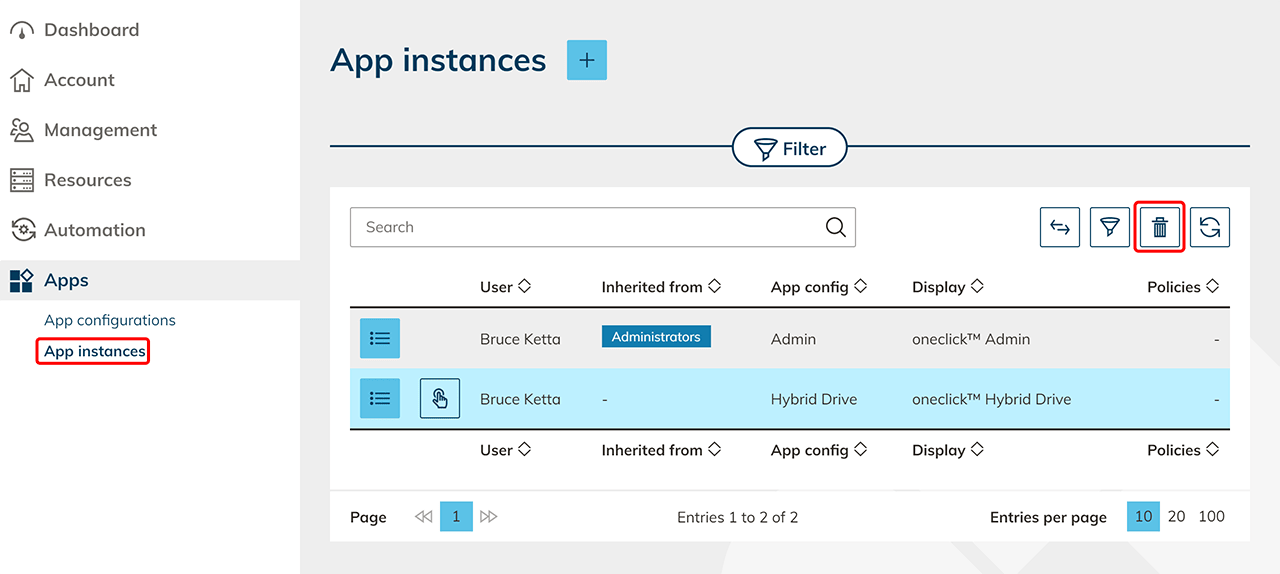
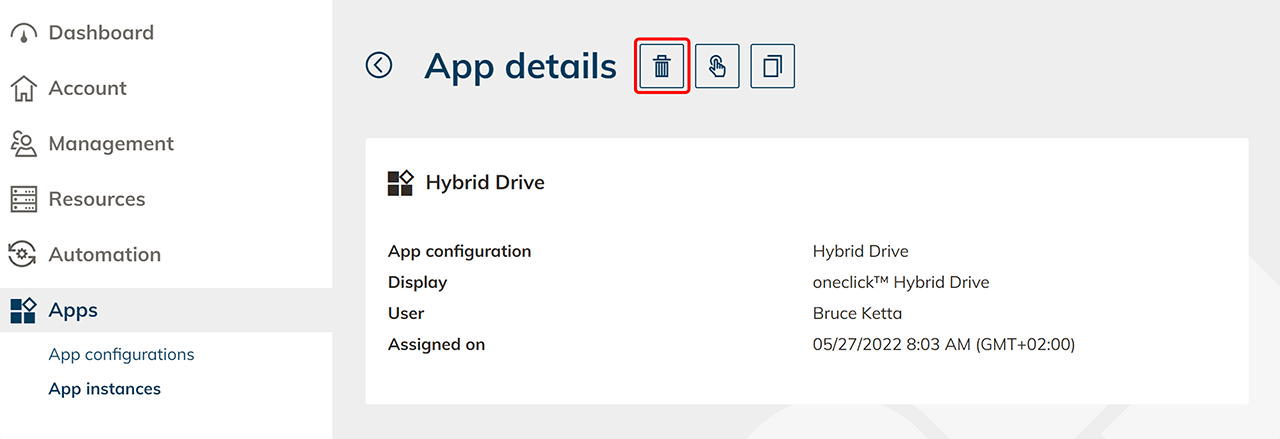
- By clicking on "Apps" in the menu and then on the App instances tab you can see all the assigned apps.
- If you want to delete more than one app instance at once, you can select multiple rows and then click on the Delete icon next to the search bar.
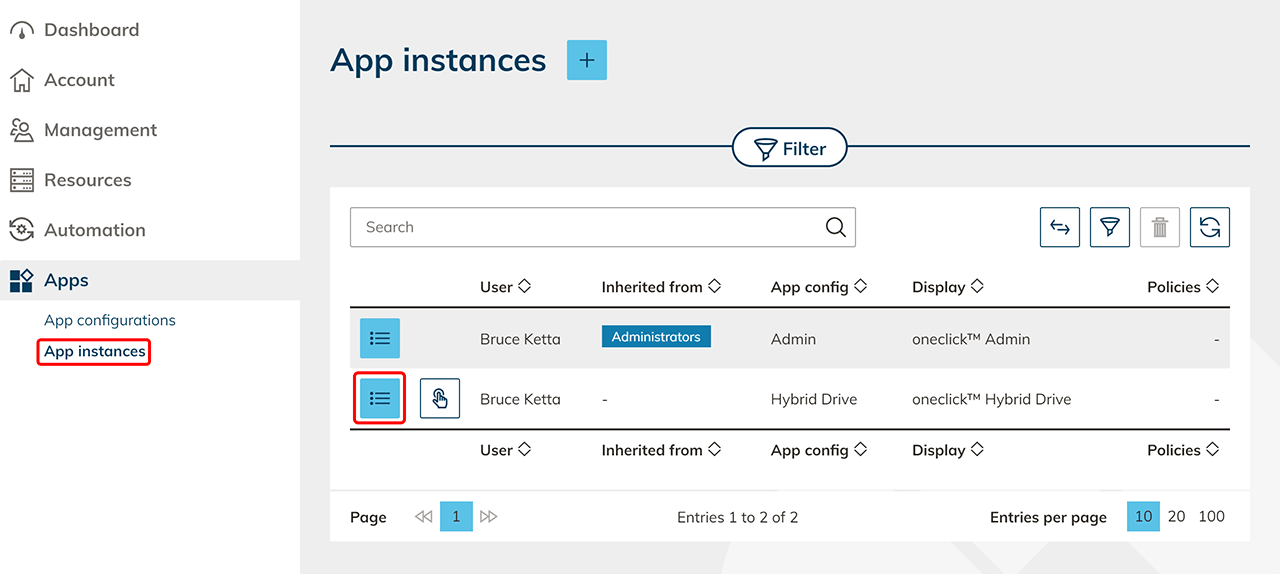
Alternatively, you can go on the detail page of an app instance by clicking Edit and you can also delete the app there.
Please notice that all the access data of the user will be deleted.
By deleting the app, your infrastructure will remain untouched. You can reassign your destinations as you wish.
Group Apps
To be able to delete for an user the app with a group license, first you have to delete the user from the group to which the app is assigned.
You can recognize group apps in the app list by the group displayed under " inherited from"
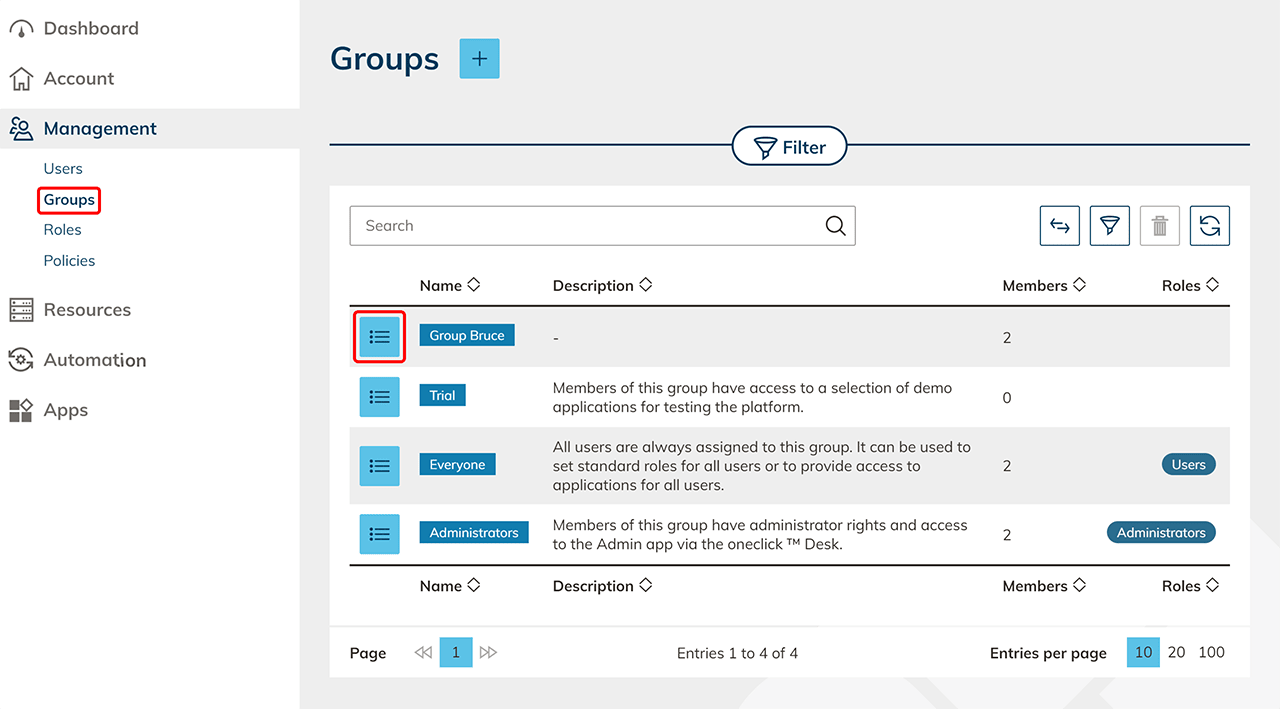
- Click on "Management" in the menu and then on Groups
- To access the detail page, click on the List icon in the row of the group where the app must be deleted.
- Click in the tile "User" on the Pencil icon and click on the user who should no have access to the app anymore. Click on Save.
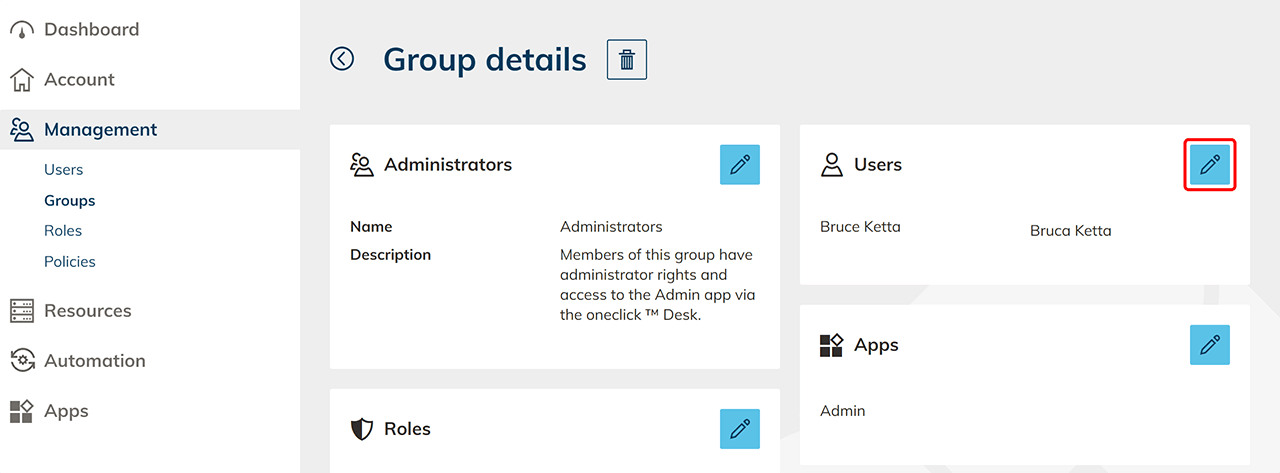
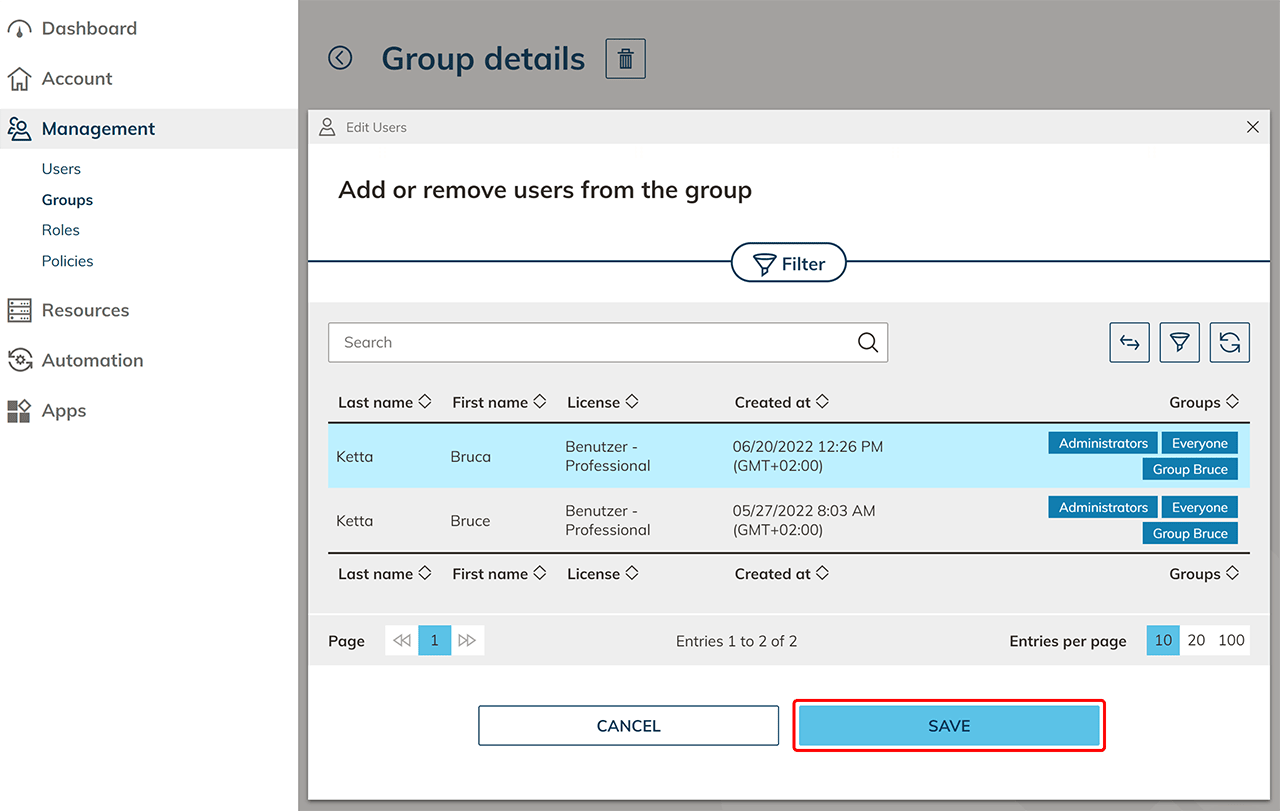
In the tile "User" you can see which user was withdrawn from the group. Please notice that the access data for the deleted app will also be deleted.
Alternative:
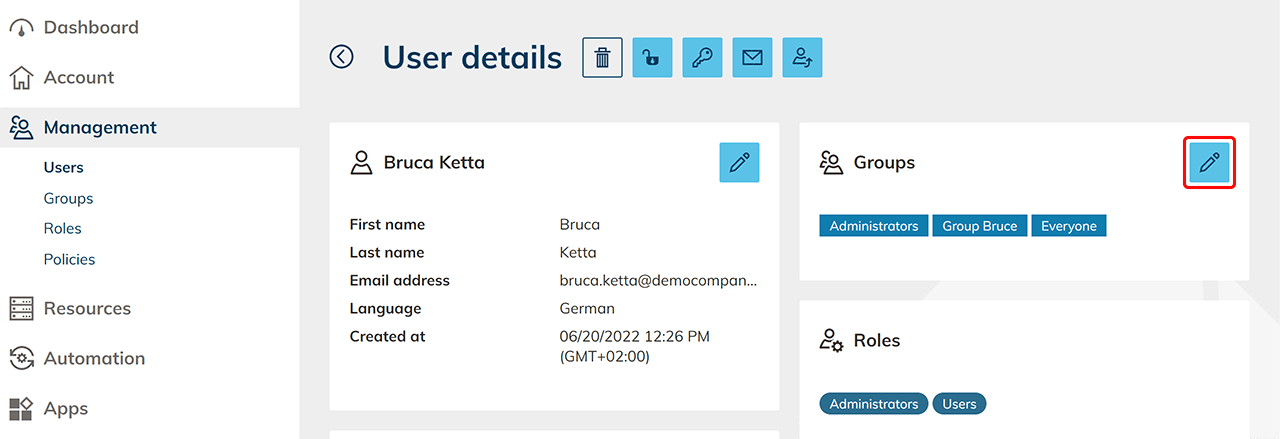
- Click on "Management" in the menu and then on User.
- Click on the List icon in order to access the detail page.
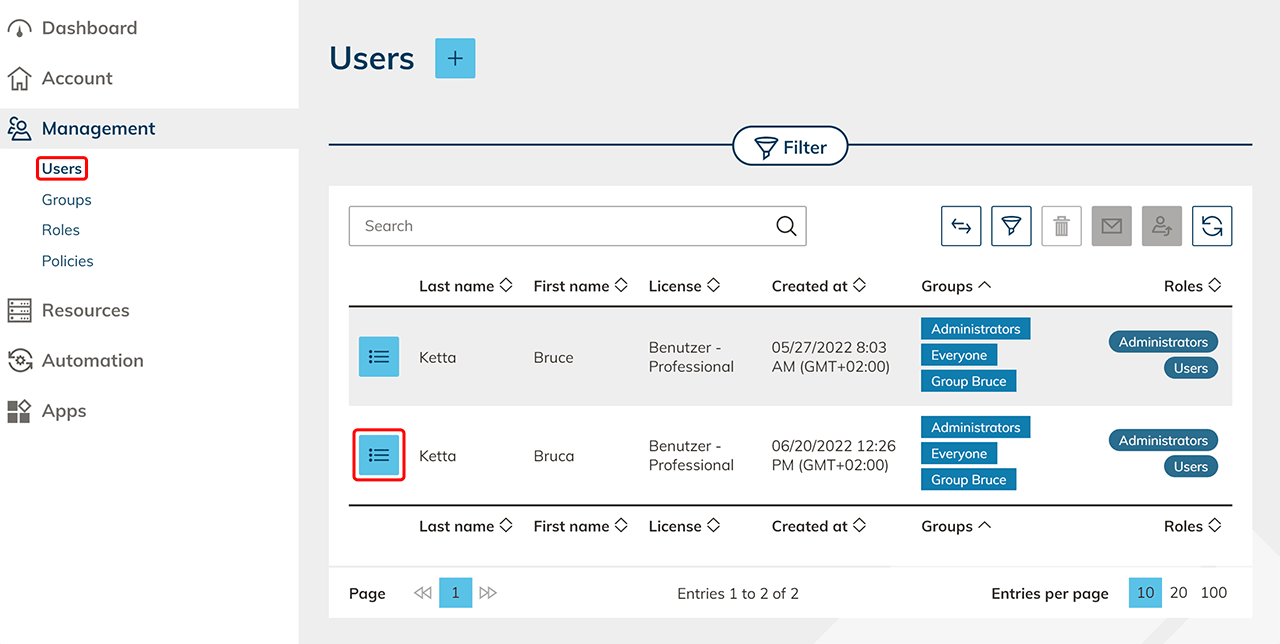
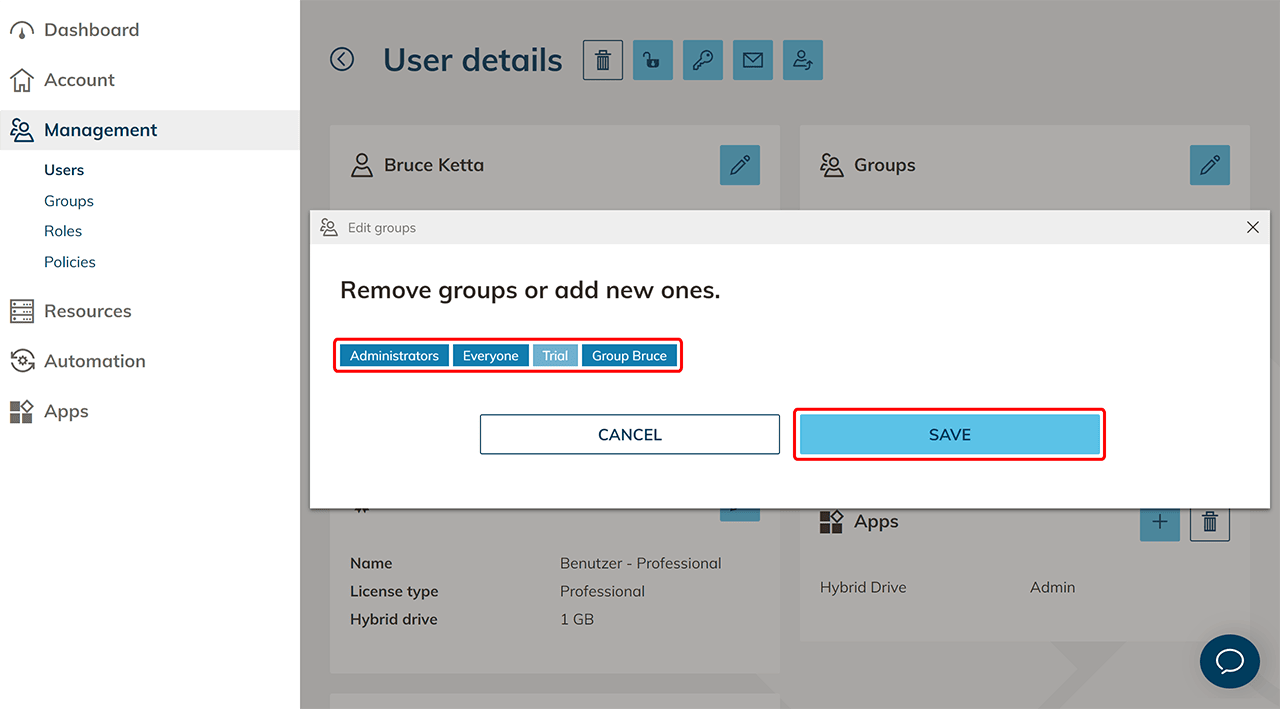
- Click in the tile "Groups" on the Pencil icon and select the group with the app on which the user should have no access anymore. Click on Save. In the tile "Apps" you can now see what app was withdrawn from the user.
Please notice that the access data for the deleted app will also be deleted.