Systemdata in case of support
For efficient processing in case of a support request, you can forward your system data to the oneclick™ Support team. The system data contains technical information about your current session, your device, and your connection.
Menu in the App
- Open the oneclick™ menu in an application or on a Windows desktop by clicking the oneclick™ icon at the top of the screen.
- In the menu bar, click the Info icon and select the System Data tab.
- Click Copy System Data.
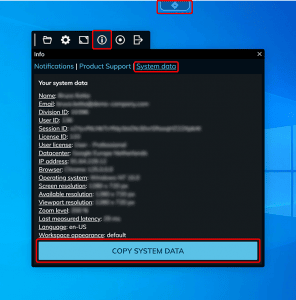
The values are automatically copied to the clipboard and can be forwarded to the oneclick™ Support team.
Menu in the Unified Workspace
If you have opened your Unified Workspace with multiple tiles, proceed as follows:
- Click the Burger icon in the upper right corner.

- Select System data from the opened menu.
- Click the Copy System Data button to copy the values to the clipboard.
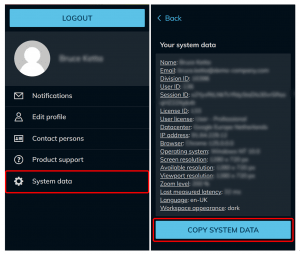
You can then paste this data into your support request so the support team can analyze your system more quickly.
Overview of System Data
Name / Email Username and email address used to log in to oneclick™.
Division ID Corresponds to your oneclick™ customer number. You can only view this ID when logged in. A detailed guide can be found in the article oneclick™ Customer Number.
User / Session / License ID Unique internal identifiers for your user account, current session, and license. These details are especially important for support requests as they allow quick identification.
User license Displays the current user license type, e.g. Basic License or Professional License.
Datacenter Location of the datacenter where your environment is hosted.
The location may affect latency and performance.
IP address Current public IP address of your connection.
This may change with a new session or after a connection switch.
Browser Web browser used, e.g. Google Chrome or Microsoft Edge.
Operating system Operating system of your device, e.g. Windows 11 or macOS.
Screen resolution
Physical resolution of the monitor in pixels (e.g. 1920 × 1080).
Available resolution
Effectively usable area in the browser, depending on zoom level, window size, and visible browser bars.
Viewport resolution
Actually visible area within the current window. This value includes only the usable content area and may be reduced by window borders, title bars, and internal menu bars.
Zoom level Current browser zoom factor in percent. A high zoom level reduces the usable display area and may affect layout or scaling.
Last measured latency Network delay in milliseconds – important for assessing connection quality. Lower values enable faster responsiveness, especially for streaming or real-time applications. The value may vary depending on network load.
Language Currently selected language of your oneclick™ environment.
Workspace appearance Displays the design of your oneclick™ interface. The “default” setting corresponds to the light theme; alternatively, the dark theme can be enabled.