Send screen recording to oneclick™ Support
If a problem occurs repeatedly, please do not hesitate to contact our support. Many problems do not have their origin in the transmission with oneclick™, but can be solved directly on the respective end device. A possible source of error would be e.g. the use of the multi-monitor feature with the Microsoft Edge- or Opera browser.
Send us a video recording of the incident using the internal oneclick™ function. This will help us to understand your concern and to be able to search for a solution.
With this function, your browser and all actions you perform in it are recorded and therefore also visible to our support team.
If you would like to send a screen recording to oneclick™ Support, please proceed as follows:
- Either click directly on the screen recording icon:

- or click on the oneclick™ menu and then on the screen recording icon:

- Select the screen on which the recording should take place. Decide whether you want to share the system audio or not. Confirm your entry by clicking on Share.
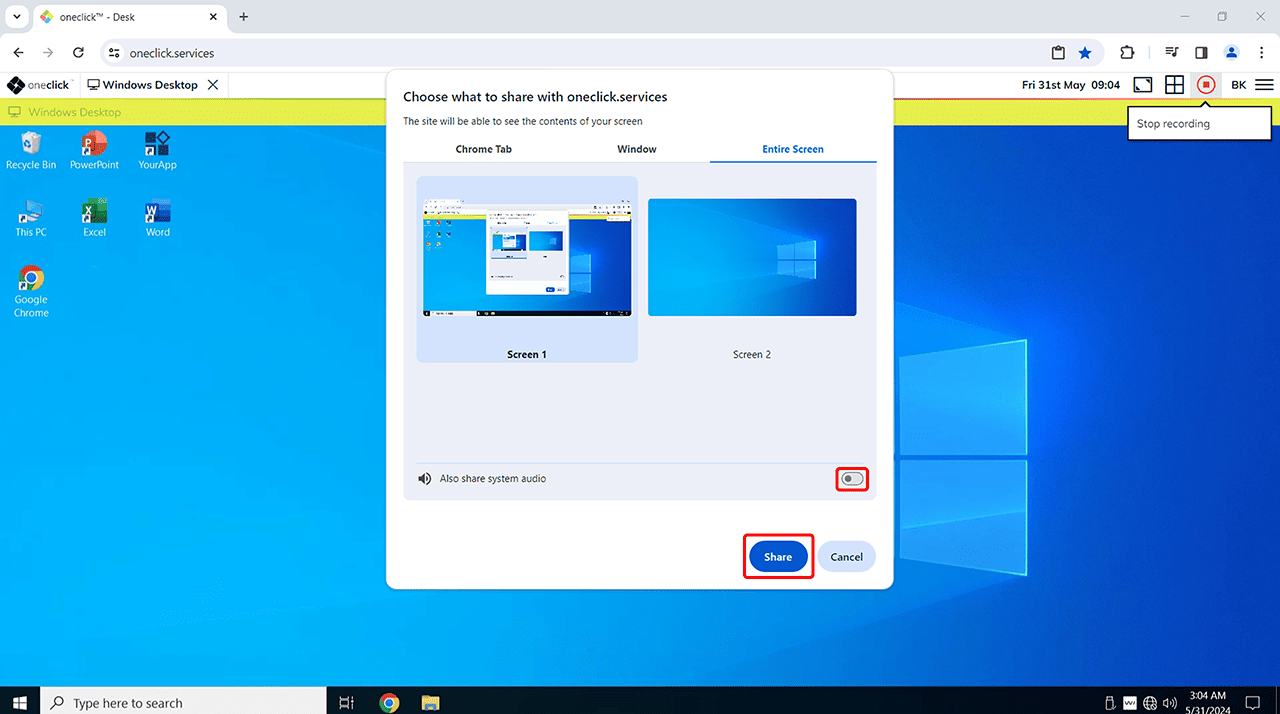
- The screen recording, which can be a maximum of 2 minutes long, starts. You can stop the recording
- by clicking on the red symbol

- or by clicking on Stop sharing.

- by clicking on the red symbol
- Send the recording to oneclick™ Support by accepting the privacy policy and clicking Send to Support. Optionally, add a description about it.
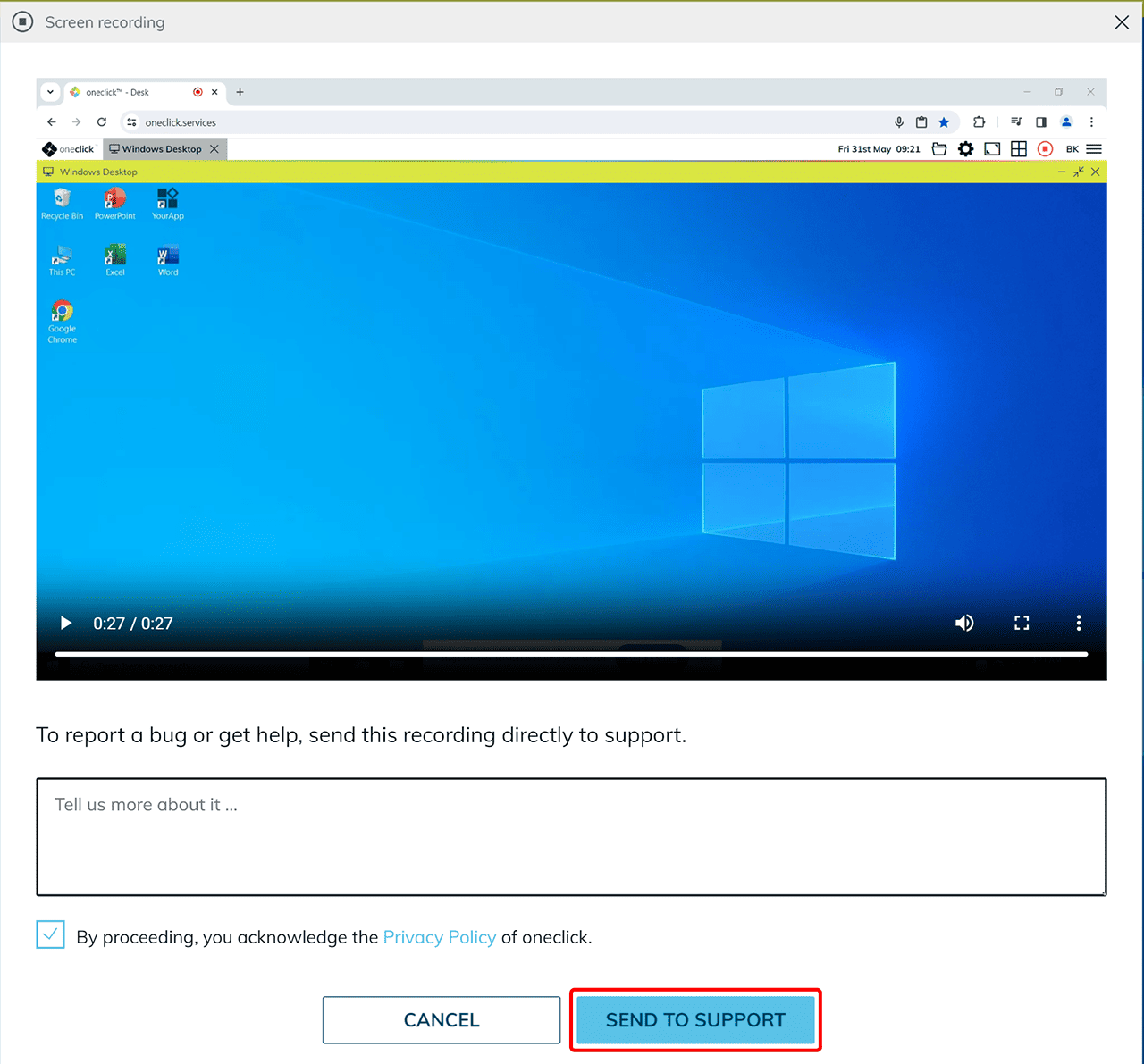
Thank you for contributing to our quality management by sending us your video!
As soon as our support got your video file, you will receive a confirmation of receipt. If the error can be fixed directly on your device, we will get in touch with you as soon as possible. However, if the issue is more complex, we will forward the file to our development department. In any case, you will receive a regular status update from us.