oneclick™ user menu
The oneclick™ user menu gives you access to important options and settings.
Open the oneclick™ user menu
Click the Menu icon in the top right corner to open the oneclick™ user menu.
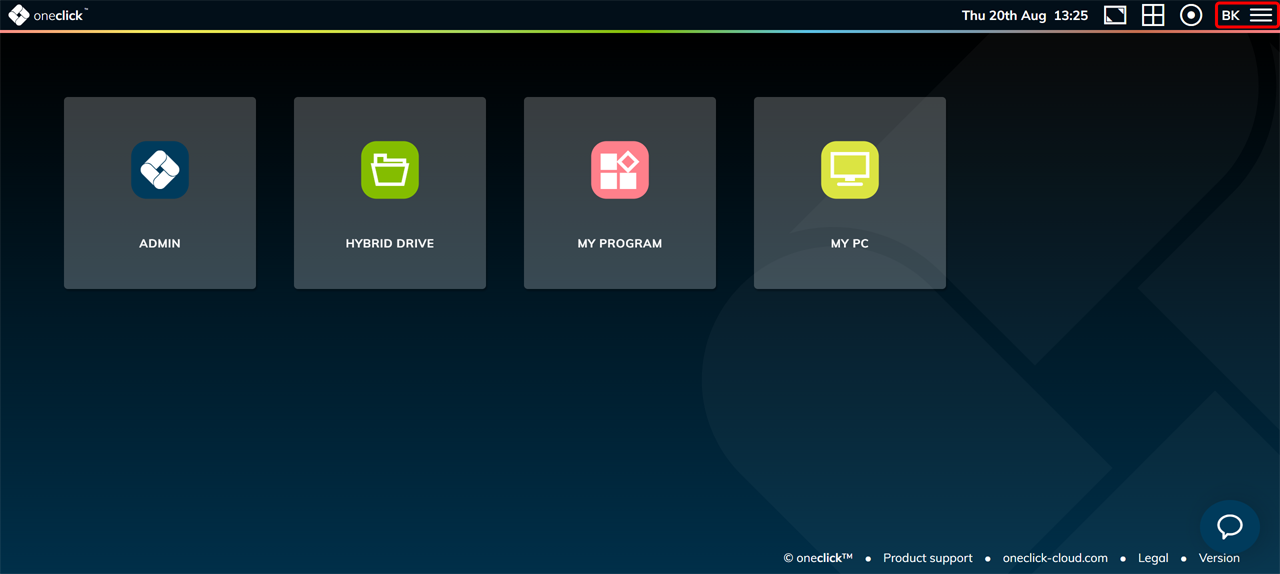
Options in the oneclick™ user menu
The open oneclick™ user menu offers you the following options:
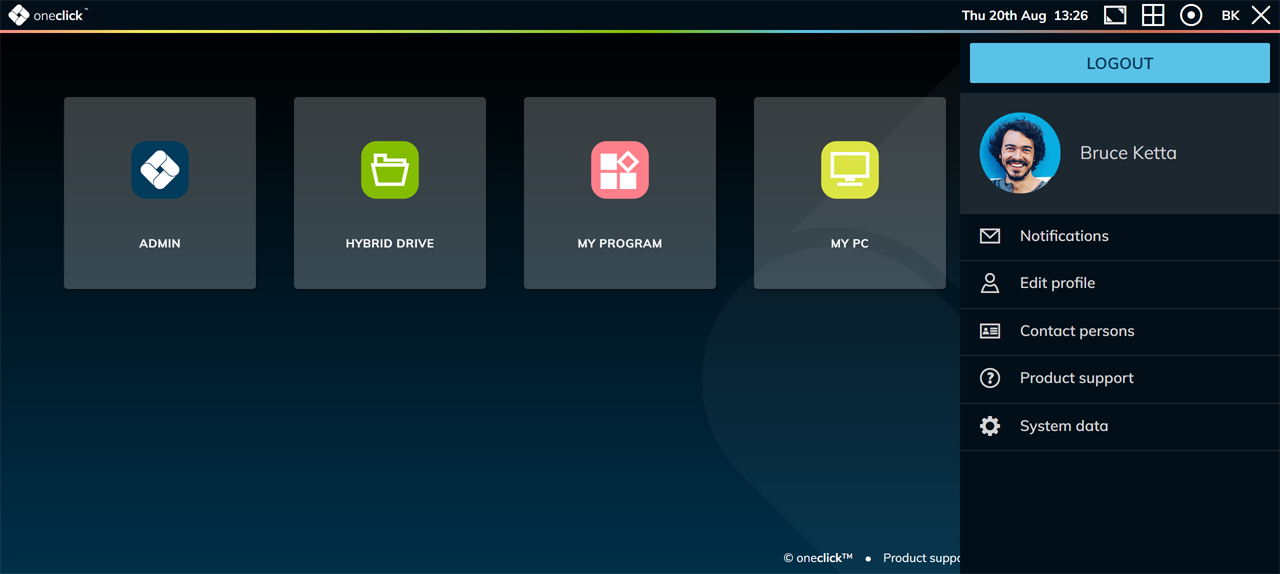
Logout
Click Logout to log out of oneclick™. You are then taken to the login page.
Profile picture
oneclick™ automatically synchronizes your profile picture with the one stored in Gravatar. Make sure that the email address you use for oneclick™ is also stored as the primary email address in Gravatar. If your email address in oneclick™ changes, update it in Gravatar as well — otherwise oneclick™ can no longer display your profile picture.
Notifications
oneclick™ collects and displays all status messages of your current session here. These messages inform you, for example, when a virtual machine starts up or shuts down, or when oneclick™ saves settings within your session.
Edit profile
Click Edit profile.
oneclick™ then shows you your profile settings.
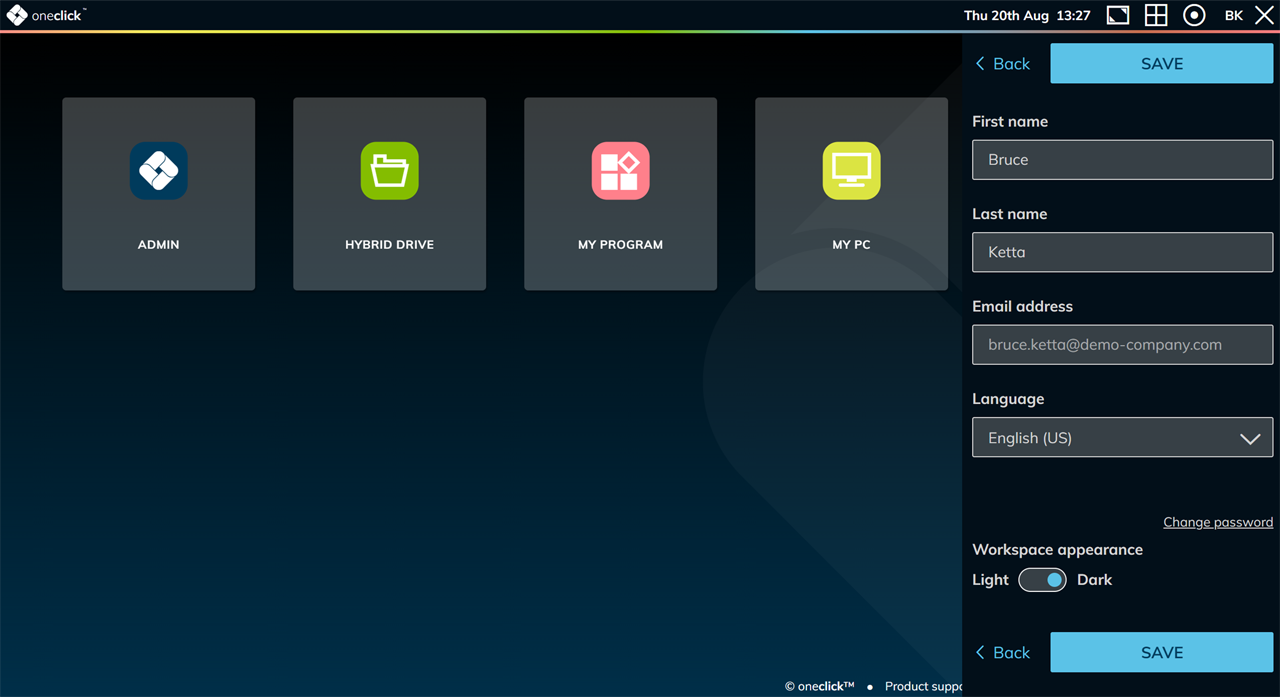
What you can change yourself
| Field | Can you change it yourself? | More information |
|---|---|---|
| First name | Yes | — |
| Last name | Yes | — |
| Email address | No | Contact your administrator |
| Mobile number | No | Contact your administrator |
| Language | Yes | Change language |
| Password | Yes, via Change password | Change oneclick™ password |
| Workspace appearance | Yes | Workspace appearance |
Email address and mobile number
Your email address and mobile number are bound to your user account. Both fields are shown in your profile but remain inactive — you can read them but not edit them.
Your email address is the address you use to log in to oneclick™. You use your mobile number for two-factor authentication via SMS.
To change your email address or mobile number, contact your administrator. Administrators with user management permissions can update this information for you.
An email address usually stays the same. It only changes in special cases, for example when your name changes. Once your administrator has changed your email address, log in to oneclick™ with the new address.
Change language
The login page uses the language set in your browser. If needed, change your browser language in your browser's language settings.
To change the language of the oneclick™ menu:
- Under Language, select the language you want.
- Click Save.
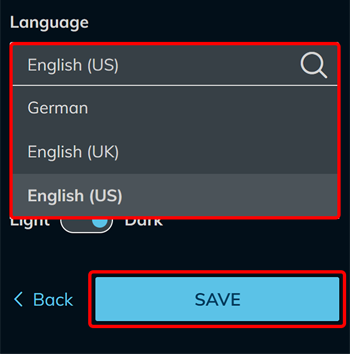
You now changed the language of your menu navigation.
Language in Windows and applications
This does not change the language of the Windows desktop or of an application you access via oneclick™. To change that language, contact your administrator.
Change the language in the Hybrid Drive app
You can change the language in the Hybrid Drive app directly in the settings of the Hybrid Drive app.
Change oneclick™ password
Change your oneclick™ password here. If you log in with Microsoft Entra ID, Google, or your company credentials, changing this password does not affect those login credentials.
- Click Change password.
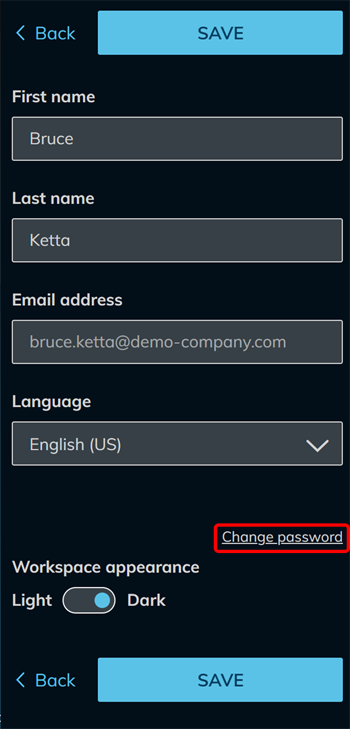
- Enter your Current password.
- Enter and confirm your New password.
- Click Save.
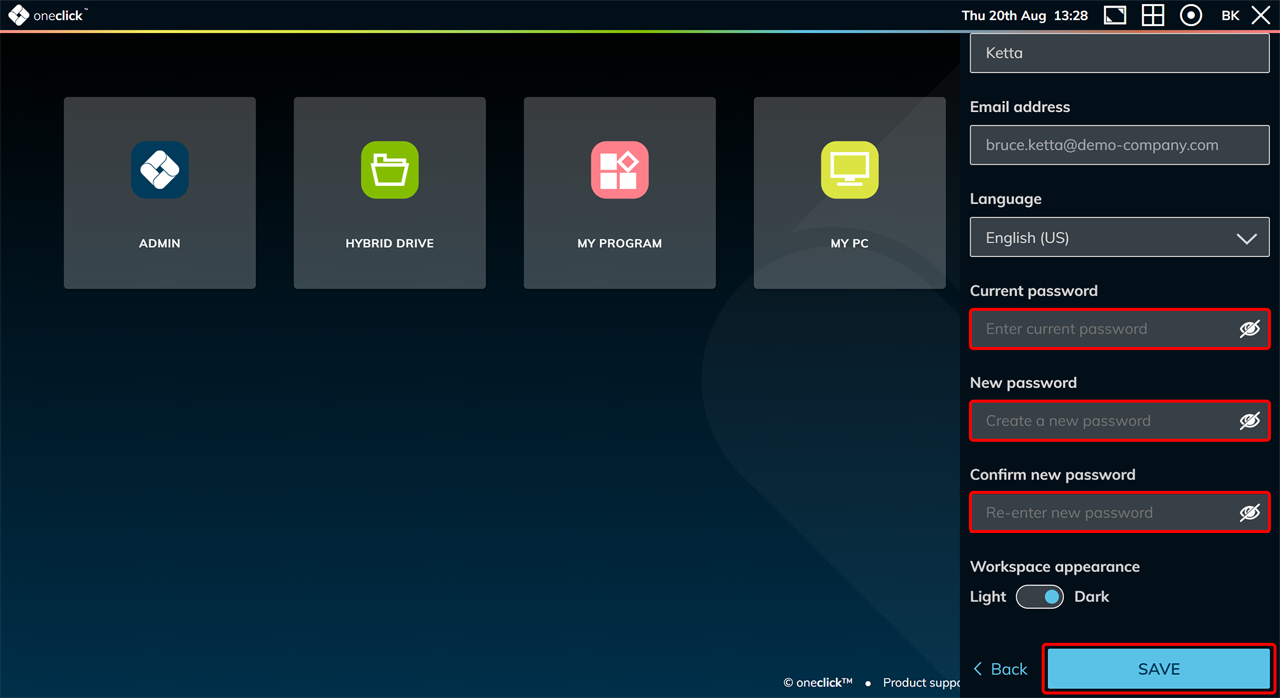
For more information, see Set your oneclick™ password.
Appearance
Under Workspace appearance, choose between light and dark mode. Adjust the Workspace appearance to suit your needs.
Contact persons
Under Contact persons, you find the contacts your administrator has set up for your administrative unit. Reach out to these contacts if you have questions or concerns.
Product support
Click Product support to open oneclick™ Help. There you find guides and further information on using oneclick™.
System data
Under System data, you find technical information about your current session, your device, and your connection, which you need for support requests. For an overview of the displayed values, see Overview of System Data.