Edit RDP File
Do you regularly use a remote desktop connection and want to tailor it to your personal needs?
Whether it's using multiple monitors, enabling the clipboard, or sharing your printer, drives and other resources – the settings can be adjusted directly in the “Remote Desktop Connection” app, without any technical knowledge.
1. Use multiple monitors
If you want to use multiple monitors, activate the option “Use all my monitors for the remote session” in the “Remote Desktop Connection” app before establishing the connection.
- Type “Remote Desktop Connection” into the taskbar search field and open the Remote Desktop Connection app.
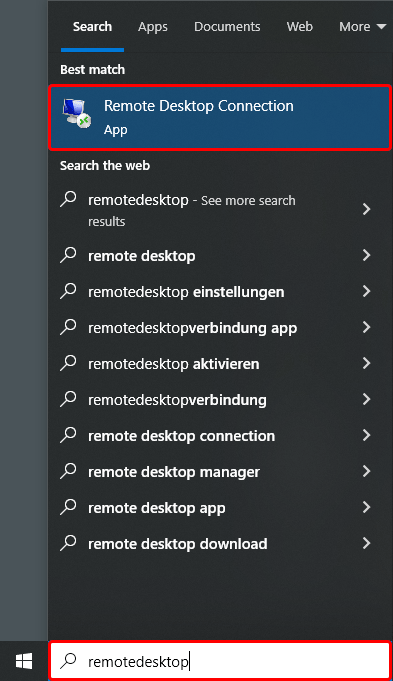
- The “Remote Desktop Connection” window will open. Click on Show Options.

- Go to the “Display” tab and enable the option “Use all my monitors for the remote session”.
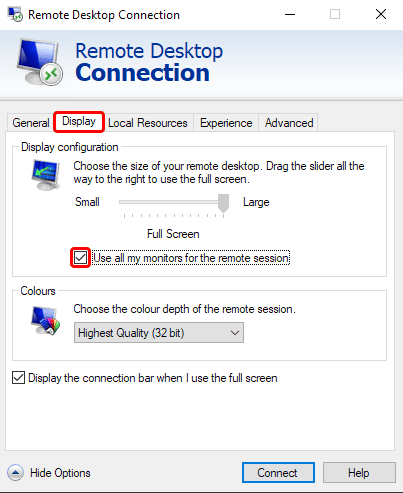
If you disable this option, make sure the display slider is all the way to the right on “Full Screen”.
Otherwise, the session will start in a small window only. - Then switch to the “General” tab and click Save to permanently apply the changes.
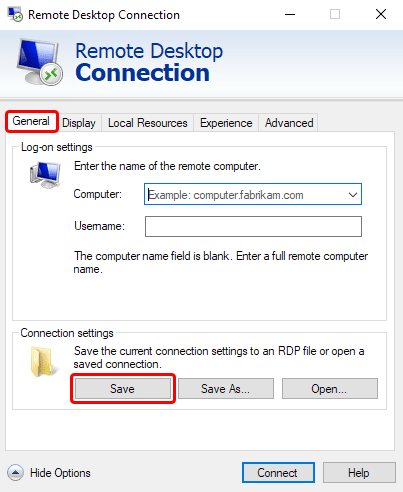
From now on, your remote desktop connections will automatically start with the “Use all my monitors for the remote session” option enabled
Administrators can define that only specific monitors are used during a remote desktop session. This setting is not intended for end users.
2. Enable clipboard
If you want to conveniently copy and paste text or files between your device and the remote session, the clipboard must be enabled.
- Open the “Remote Desktop Connection” app and click on “Show Options”. (see steps 1.1 to 1.2)
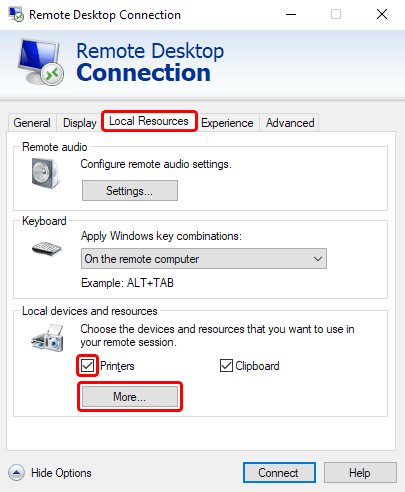
- Go to the “Local Resources” tab and enable the “Clipboard” option.
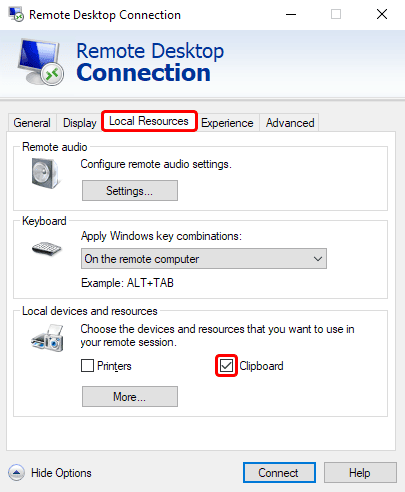
- Then switch to the “General” tab and click Save to apply the changes permanently.
3. Enable local devices and drives
If you want to use your own printer(s) or access files from your local device during the remote session, you need to share these resources in advance.
- Open the “Remote Desktop Connection” app and click on “Show Options”. (see steps 1.1 to 1.2)
- Switch to the “Local Resources” tab.
- Check the box for “Printers” if you want to use them during the remote session.
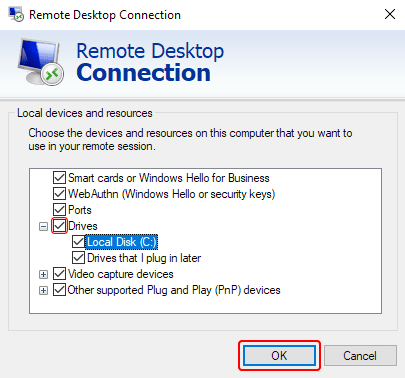
- Click on More… to share additional devices such as drives, video capture devices or USB sticks
- Select the devices and drives you want to use and confirm with OK.
- Then switch to the “General” tab and click Save to ensure your settings are retained