RDP access error
Are you receiving an error message when using the RDP connection? First, make sure you are logged in to oneclick™ and that the connection to your remote system is still active – especially that the session time has not expired. If this is the case, click on Renew connection time. 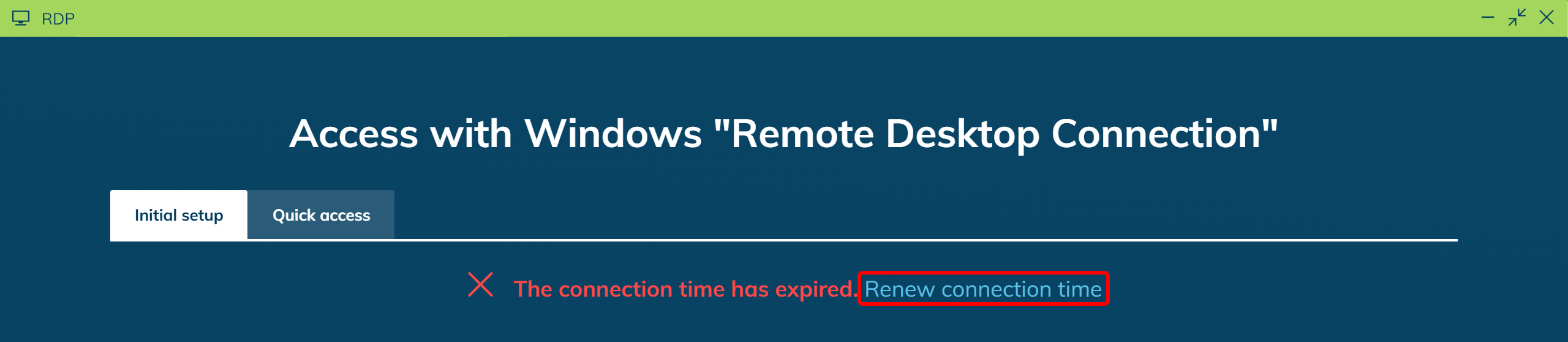
If an error still occurs when launching the RDP file, this may be due to outdated login credentials or a cached history in the Remote Desktop Client.
Follow these steps to reset the connection settings:
1. Delete saved credentials
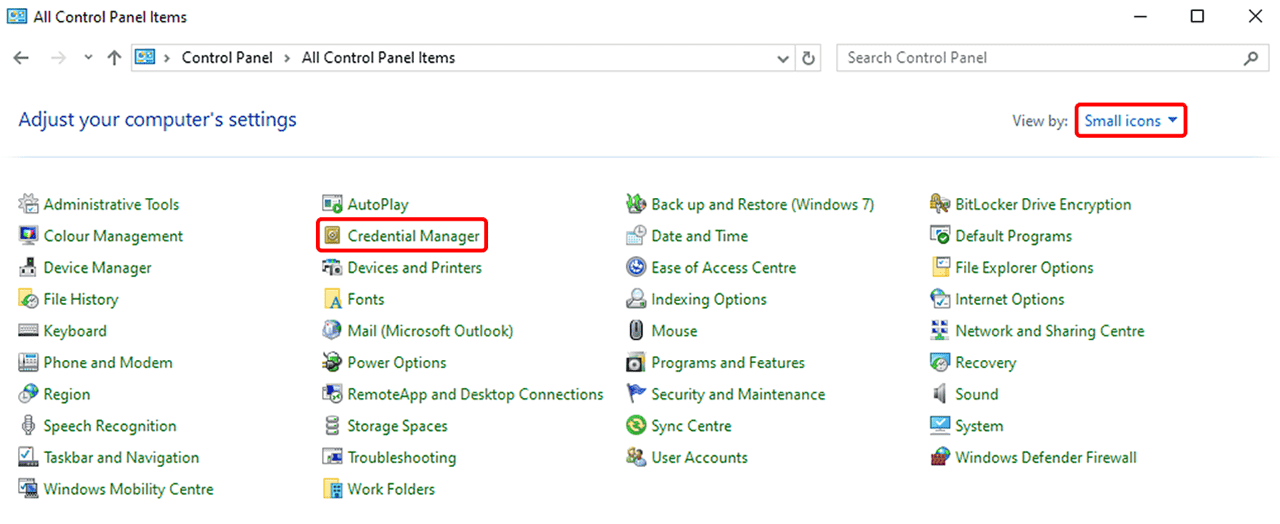
- Open the Control Panel (e.g. via the Start menu).
- Select Large icons or Small icons from the View by option in the top right corner. By default, this setting is often set to “Category”, in which case the following option is not visible.
- Now click on Credential Manager.
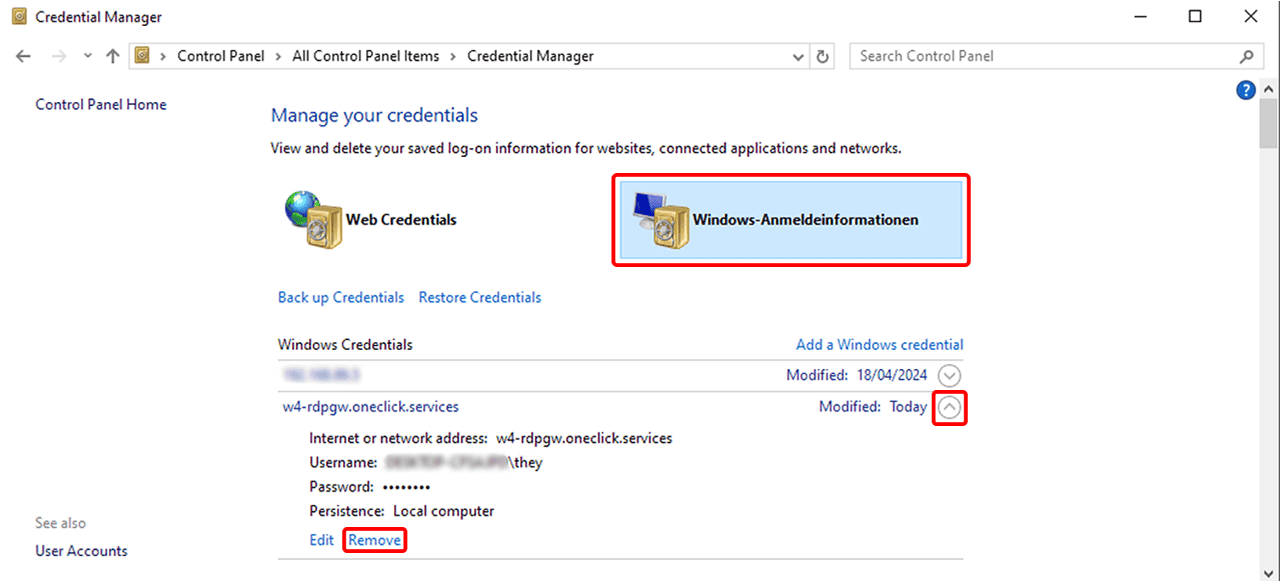
- Select Windows Credentials.
- Find the entry related to the RDP connection (e.g. IP address or server name).
- Click Remove and then test the connection
2. Delete the history of recently used RDP connections
If the error still occurs, delete the history as follows:
- Press Windows key + R, enter
regeditand press Enter.

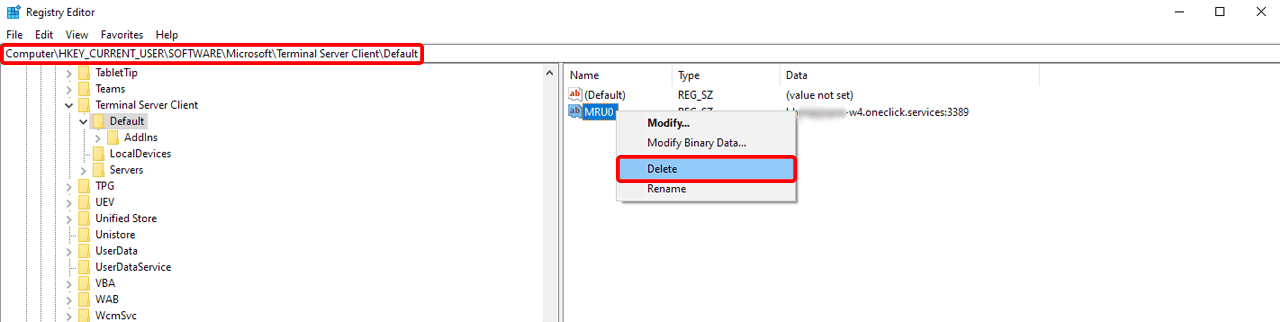
- Navigate to the following path:
HKEY_CURRENT_USER\Software\Microsoft\Terminal Server Client\Default
You can copy & paste this path directly into the address bar of the Registry Editor. - There you will find entries like MRU0, MRU1, etc.
- Right-click on each of these entries and select Delete.
Then restart the Remote Desktop Client. If login still fails, please contact your administrator.