Roles
A role combines several individual rights. You can define the rights for "read", "create", "edit" and "delete" for the different areas of the oneclick™ administrator. You can assign a role to a group, which makes the rights of this role effective for all users of the group.
The licenses principle works in oneclick™ according to the addition method. Initially, a user only has license to access the apps assigned to him. Only rights can be added.
To create new roles:
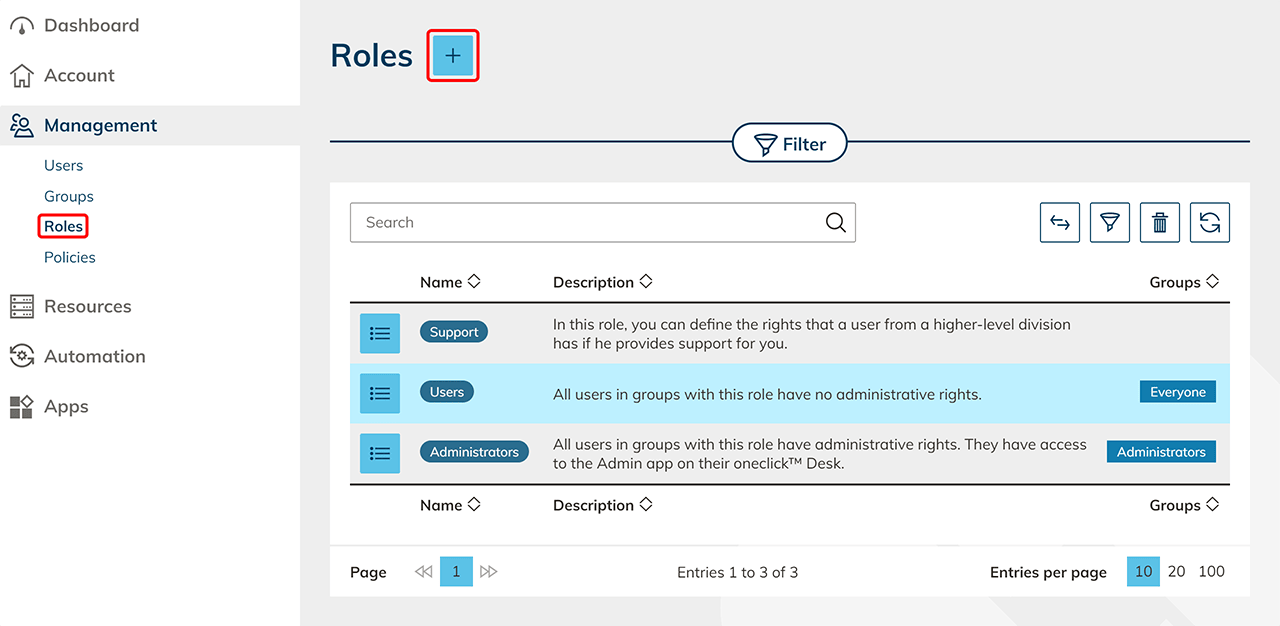
- Click on Roles in the "Management" tab.
- Here you can create a new role by clicking on the Plus icon.
- Give the role a name of your choice and select the appropriate rights by clicking on the checkboxes. Click on Save.

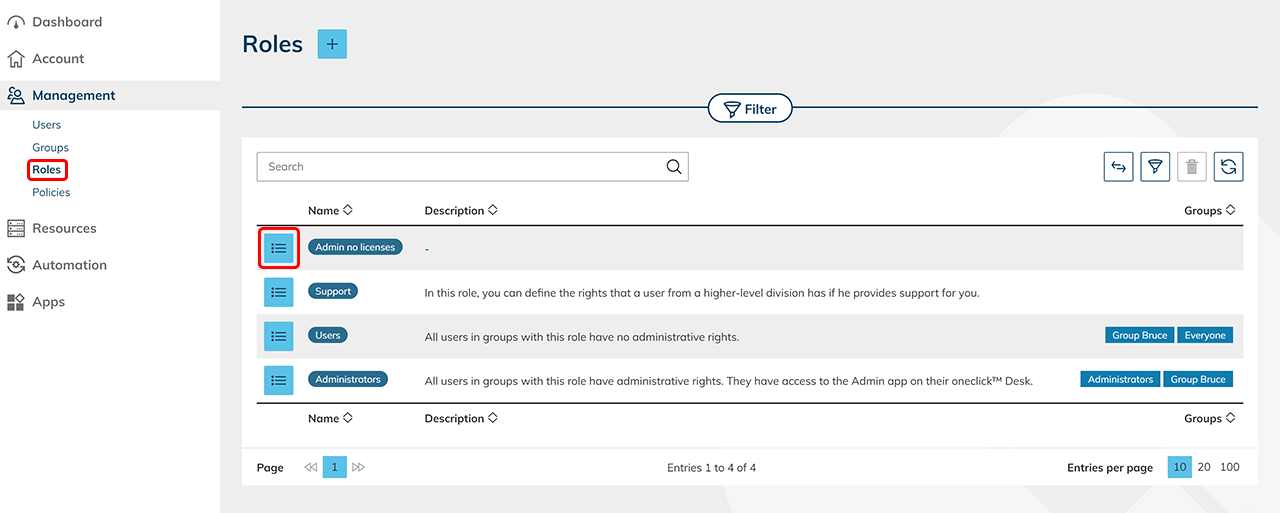
- To add a role to a group, click Roles in the "Management" tab. In the row of roles to which you want to add groups, click on the List icon.
- Click the Pencil icon in the Groups field.

- Select the group you want to add and click Save.

User role
The user role is stored in the "All Users" group. Users with this role have no rights in the oneclick™ administration. However, they can access all apps assigned to them and edit their profile if they have a Professional license.
Administrator role
The Administrators role is stored in the Administrators group. Users with this role have all rights available in the oneclick™ administration.