White Label
Possibilities to white label oneclick™
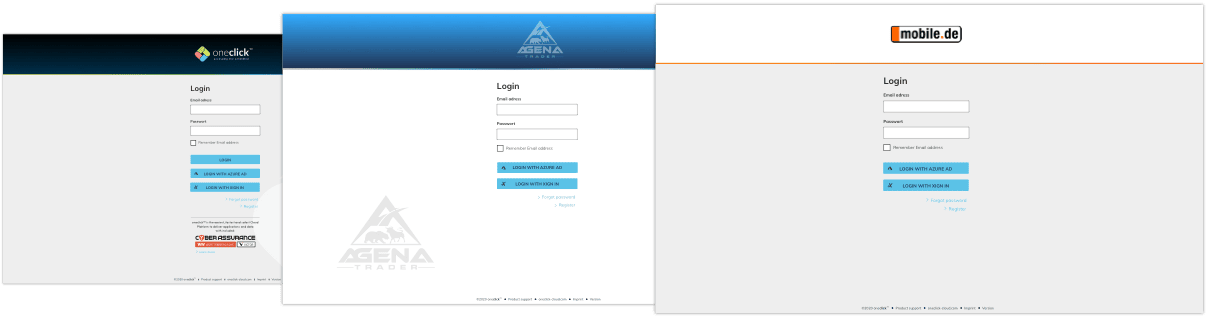
- The Login The logo, the background color of the logo, the colorful stripe, the complete background and the watermark in the corner can be changed. The buttons cannot be customized.
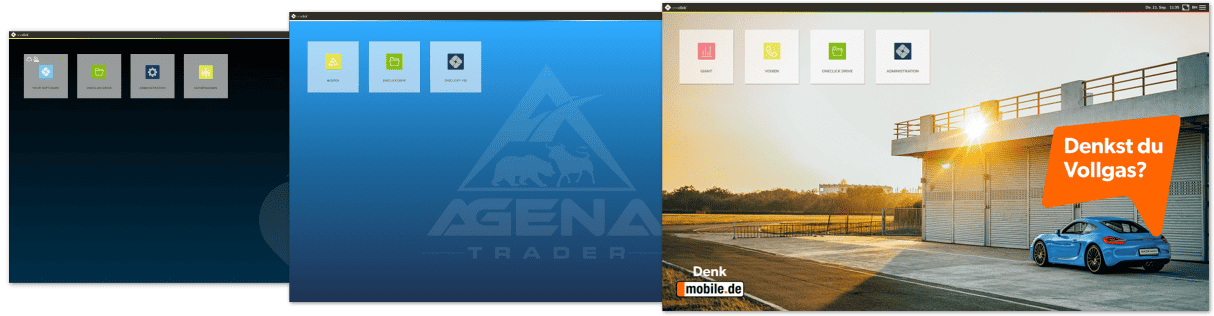
- The oneclick™ Desk (for your professional users) The background, the colorful stripe and the watermark in the corner are changeable. Also, the icons on the tiles can be changed. If you provide your own software via oneclick™, we can include your logo in our icon collection. The tiles can be designed independently via the administration, where you can select the new icon and change the color.
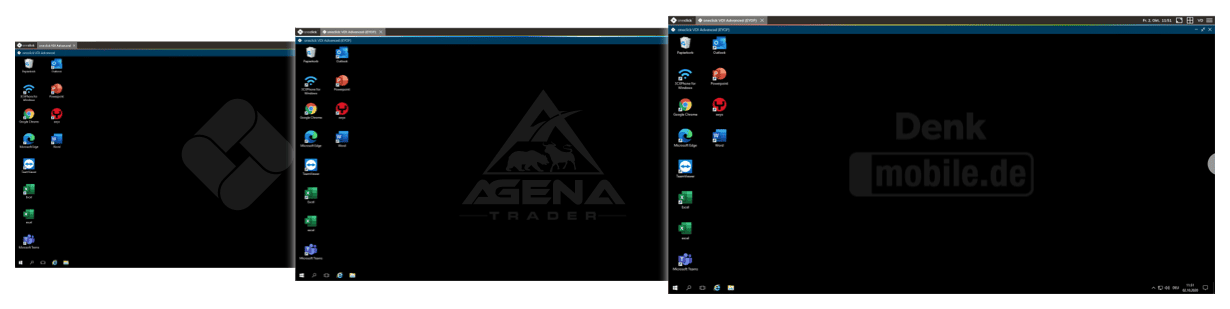
- Background image on your oneclick™ VDI We recommend to use only a logo and to leave the background black to avoid straining the streaming performance.
Requirements
Step 1
- We need your logo in high image quality (SVG) for the design draft.
Step 2
- You will receive a draft of the white label. If necessary, we can make changes once.
- After your approval of the draft, we will implement the white label technically.
Step 3
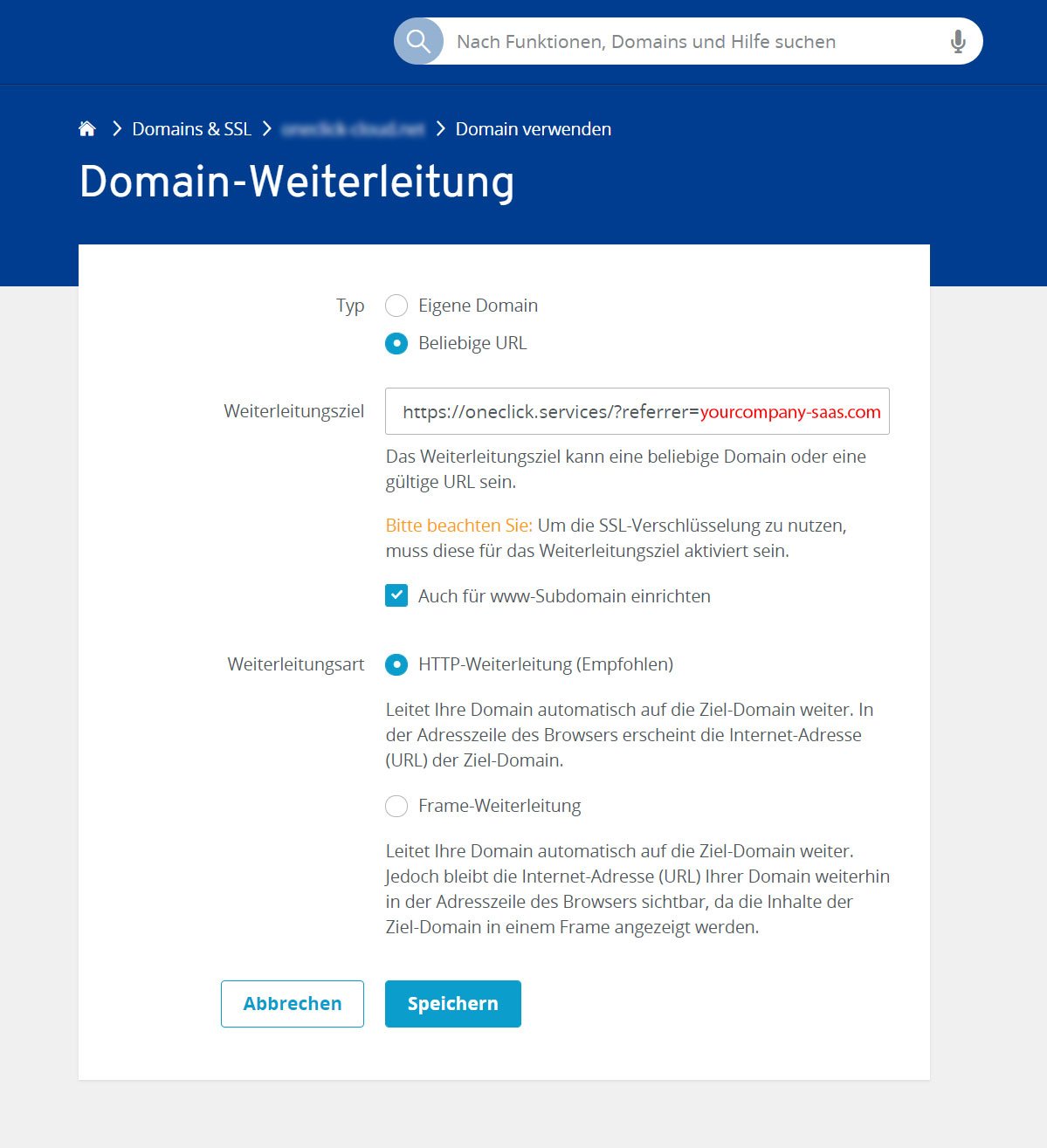
- You will receive a URL from us which you can use to call up the white label. This will always be formed with your company page, unless you wish otherwise, and will look something like this: oneclick.services?referrer=yourcompany.com.
The so-called "referrer" is that of your company website. If at some point you want to link to the oneclick™ login with your white label from your website, oneclick™ will recognize your website and call up your white label. - If you want to send your employees a link to log in and do not want to go via your website, you should create a new domain or subdomain, e.g. vdi.companyname.com.
- Redirect your domain to the oneclick URL with your "referrer". Important: Choose the HTTP forwarding. More information can be found here. The settings could look like this or similar: