Login errors
Connection error when starting the app at step 1
The error message "Your app is already open" appears if the app has possibly already been opened in another browser tab. This message comes from oneclick™, as the app license is already in use and reopening is not possible. oneclick™ deliberately prevents the new session from being accepted, as settings may have been made on the Windows server that could affect the current status of the work when the session is resumed.

Correct handling of the license
To avoid this error message and to release the license properly, you should end the session as follows:
- Log out of the oneclick™ account properly. This is done by clicking on the logout icon.
- In the open app, you will see the oneclick™ icon at the top of the screen on the desktop. If you click on this icon, the oneclick™ menu opens.
- Click on the oneclick™ menu to open it.
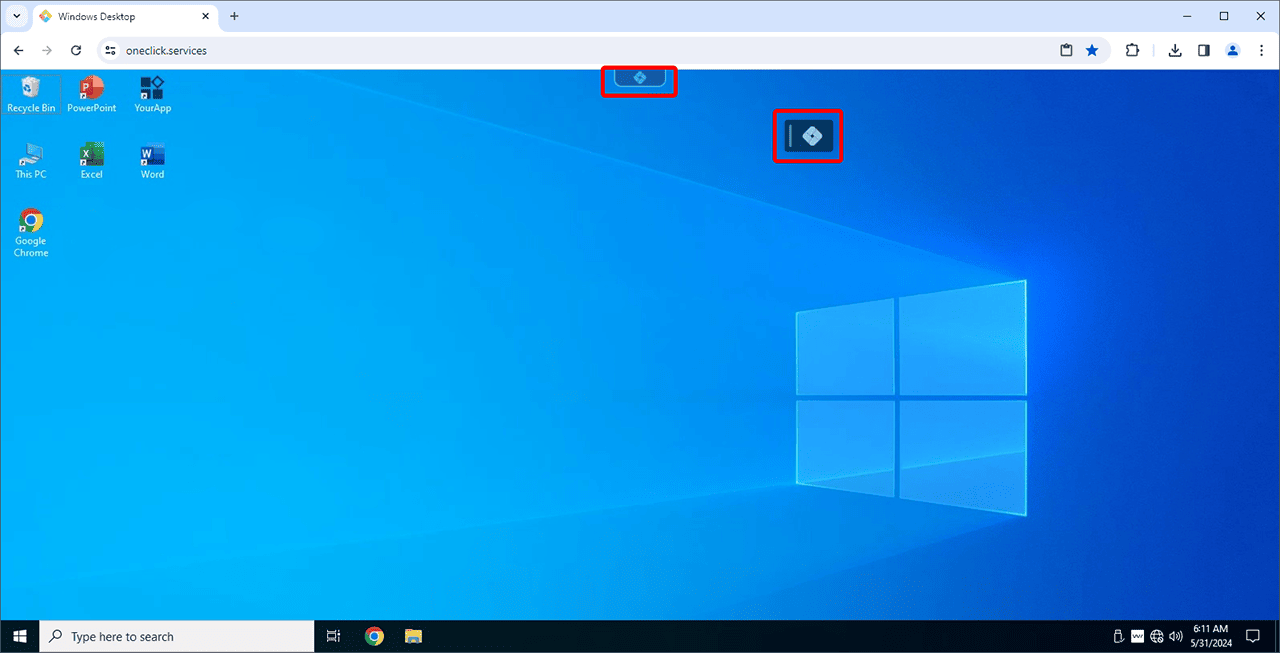
- Click on the logout icon. This terminates the connection to the application and the license. The window will close automatically after logging out.

You also have the option of shutting down Windows or closing the oneclick™ app or browser window. Make sure that all browser windows in which oneclick™ is running are closed. By properly logging out, the license will be released and therefore be available for other users or administrators to access. If the error message still appears even though you have logged out and closed all tabs, please contact oneclick™ support directly.
Connection error when starting the app at step 2
The error message "Loading application translations" could have various causes, such as connection issues, missing translation files, software bugs, or errors in local settings. Check the potential causes and then restart the application.
Connection error when starting the app at step 3
An error message saying "Connection to communication server" indicates that the application is unable to establish a connection to the server. Possible causes could include issues with the network, server, or a blocking firewall or security software. Check these points and then restart the application.
Connection error when starting the app at step 4
If the error message "Loading application interface" appears, this could indicate a slow interface loading, missing or corrupted files, reduced performance, or software errors. Check for potential causes and then restart the application.
Step 5, 6 or 7 is frozen & connection error at step 9
If you receive an error message occasionally or permanently when logging in at start step 9 and the steps 5, 6 or 7 are frozen, proceed as follows:
- Whitelist oneclick™ IP addresses in your firewall.
- If antivirus software is installed on your connected resource, whitelist oneclick™ IP addresses in your antivirus software as well. This is important especially when using antivirus software from Kaspersky, McAfee, ESET, Trend Micro.
Connection error when starting the app at step 9
If you receive the following error when starting an app at step 9 and all other steps have been completed, proceed as follows:
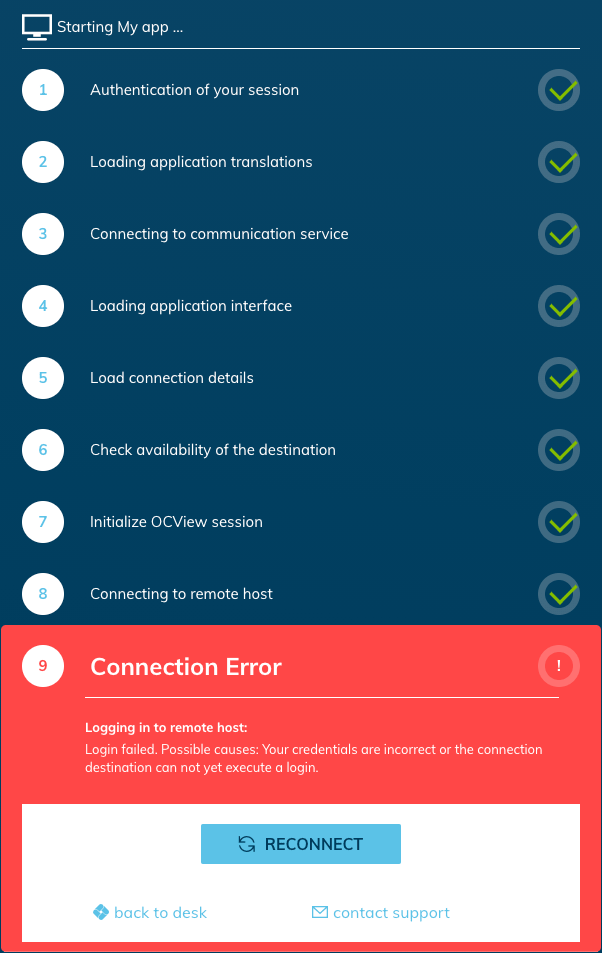
At point 9 of the app start, login data is transmitted from oneclick™ to the target system. This is usually the login data of the Windows user on the target system.
- One possible cause is that your login data was entered incorrectly in oneclick™ when the app was started or is stored incorrectly in your app. Check whether your Windows login data is stored correctly in oneclick™ and try again.
- If the login still does not work despite the correct Windows login data, wait a few minutes and try again.
Please note that certain services are not available for a while when Windows updates are installed. It usually only takes a few minutes before logging in is possible again. - Make sure that login via Remote Desktop Service (RDS) is possible on the target server: the RDS service is functional, RDS licensing service without errors, Windows firewall configured, Windows user is authorized for RDS login.
- If this error persists, please contact the system administrator responsible for the target system.