Access via Remote Desktop Connection on Windows
When accessing the remote system with the pre-installed “Remote Desktop Connection” app, a few setup steps are required.
The exact procedure depends on whether your device has already been prepared by your administrator or if you are able to install the required application yourself.
As an administrator, you can perform the initial setup centrally for all users using the provided PowerShell script. This file is not intended to be executed by end users.
- Has your device already been set up by your administrator? In this case, start directly at step 2: Connect using RDP.
- Are you configuring the settings on your system yourself? Start here at step 1:
1. Download and run setup file (optional)
- Download the required Download setup file.
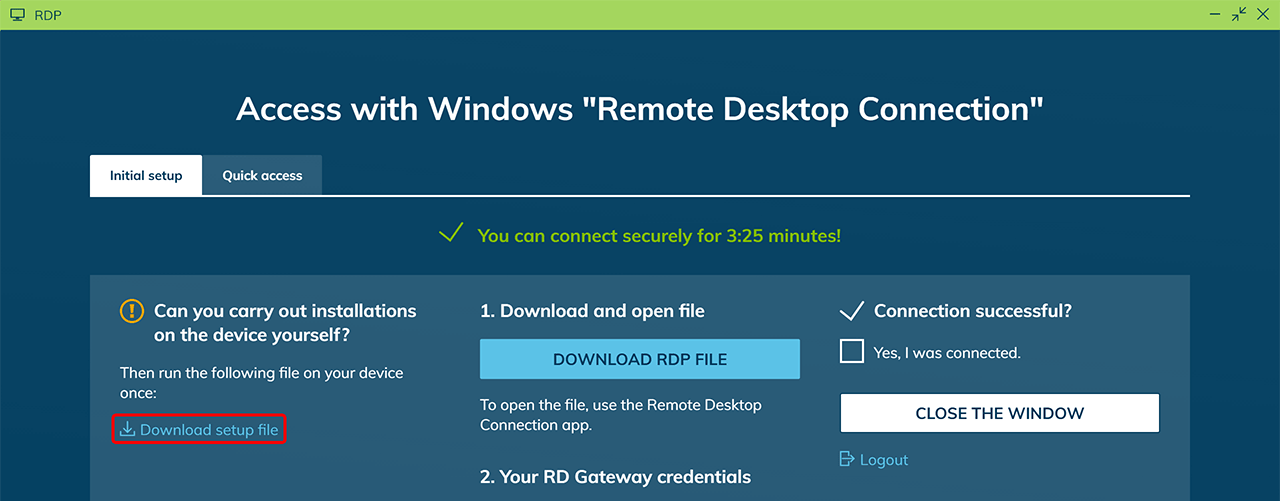
- Open the "Downloads" folder and double-click the file "oneclickGateway.exe" to start the installation.
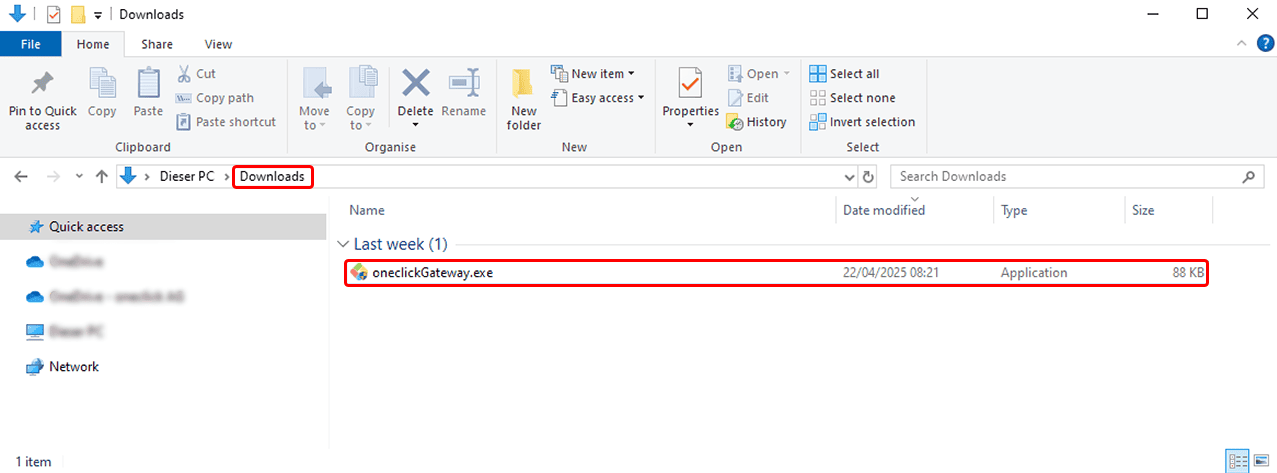
- Confirm the execution policy prompt with Yes and all further prompts with OK.
This configures the system to allow NTLM connections
Your device is now prepared for access.
2. Connect using RDP file
- In the access window, click the button Download RDP File.
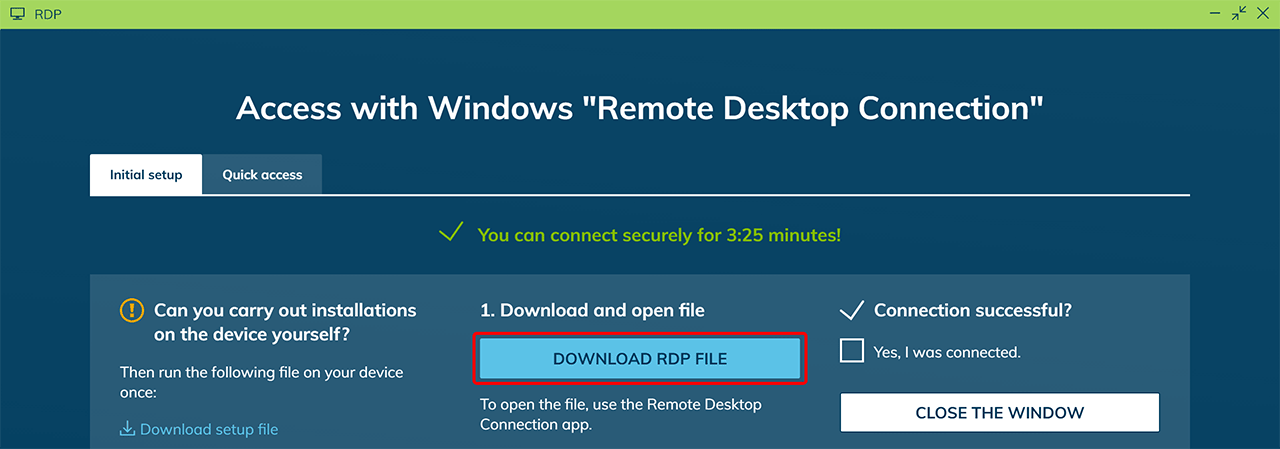
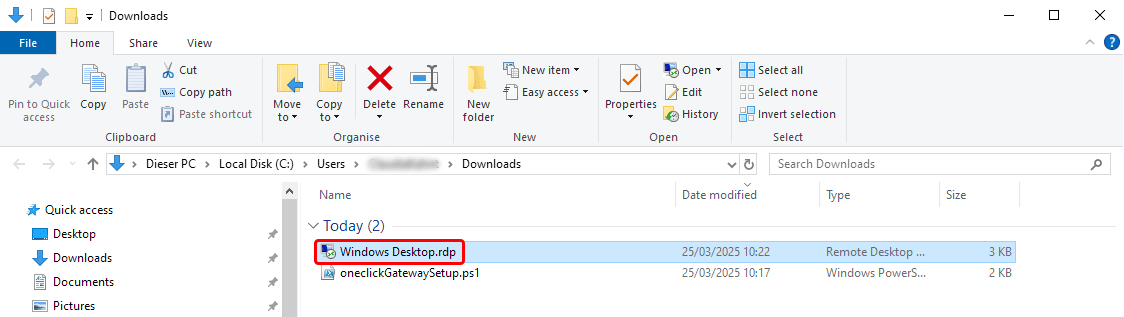
- Once the file has been downloaded, open it with a Double-click. It will automatically launch with the “Remote Desktop Connection” app. This app establishes the connection to the remote system.
3. Enter login credentials
-
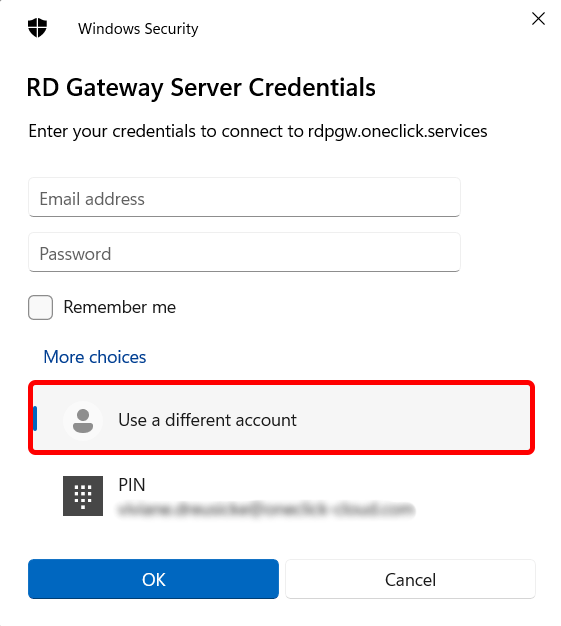
When the first Windows security prompt appears asking for credentials, click on More choices and then select Use a different account.
-
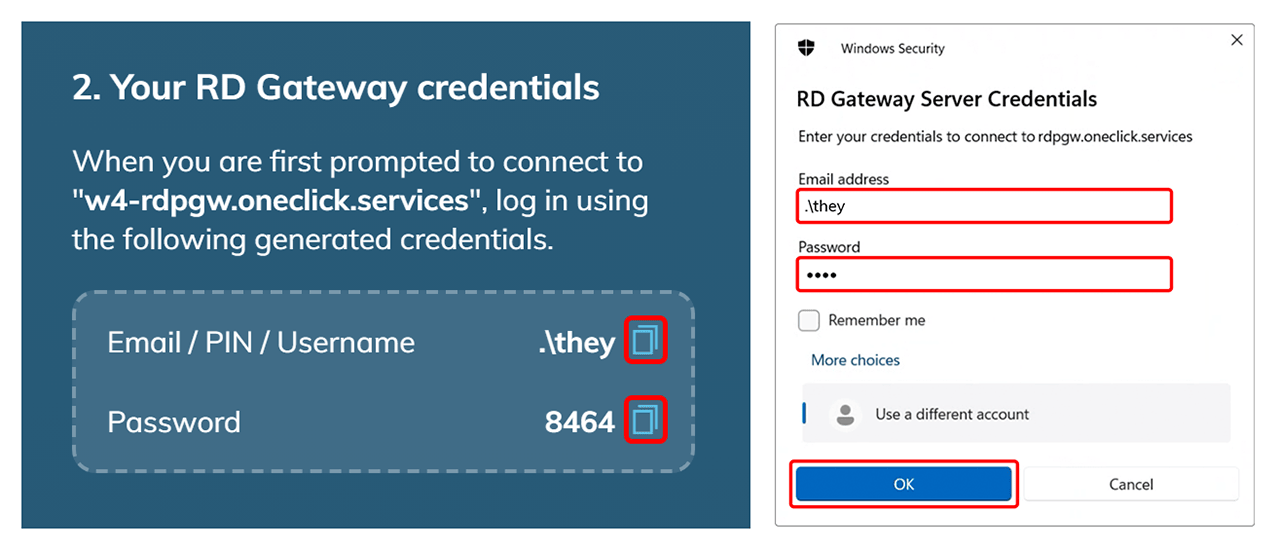
Copy the login credentials, Username and Password, from the access window and paste them into the corresponding fields. Then confirm your input by clicking OK.
-
In the second Windows security prompt, you will be asked to enter your credentials for the remote system. You can optionally choose to save them.
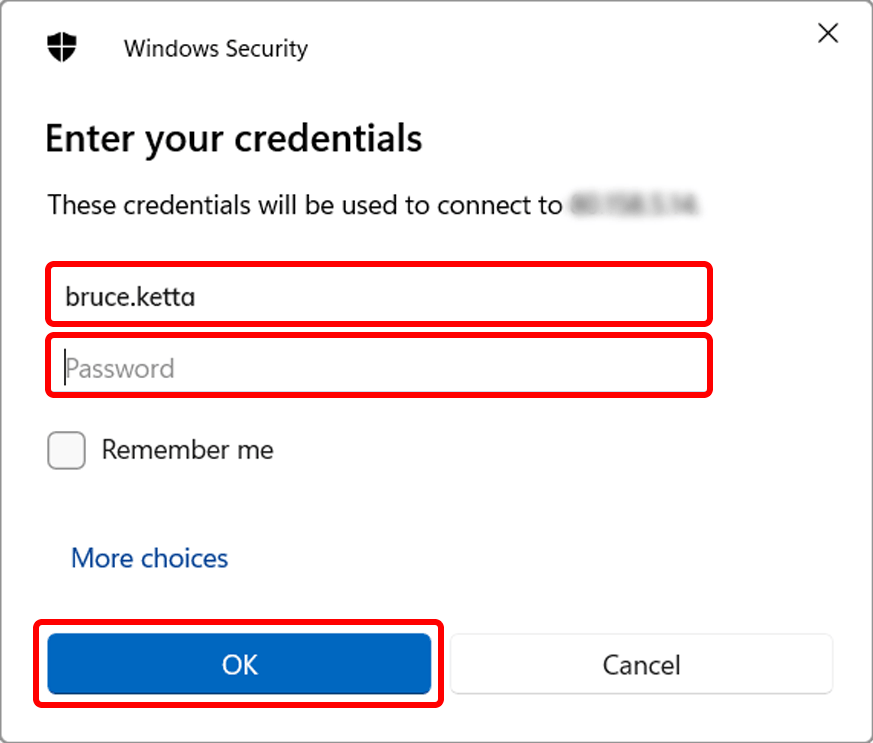
Note for domain environments: If the destination system is part of a domain, enter the username in the format
DOMAIN\username(e.g. company\john.doe).
4. Were you successfully connected?
If you have connected successfully, you can Check a box in the access window. This ensures that the "Quick Access" tab is displayed instead of "Initial Setup" the next time you start.
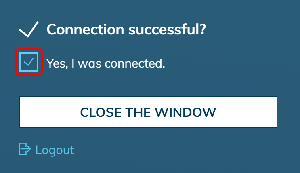
Once the connection is established, you can close the access window.
Login failed?
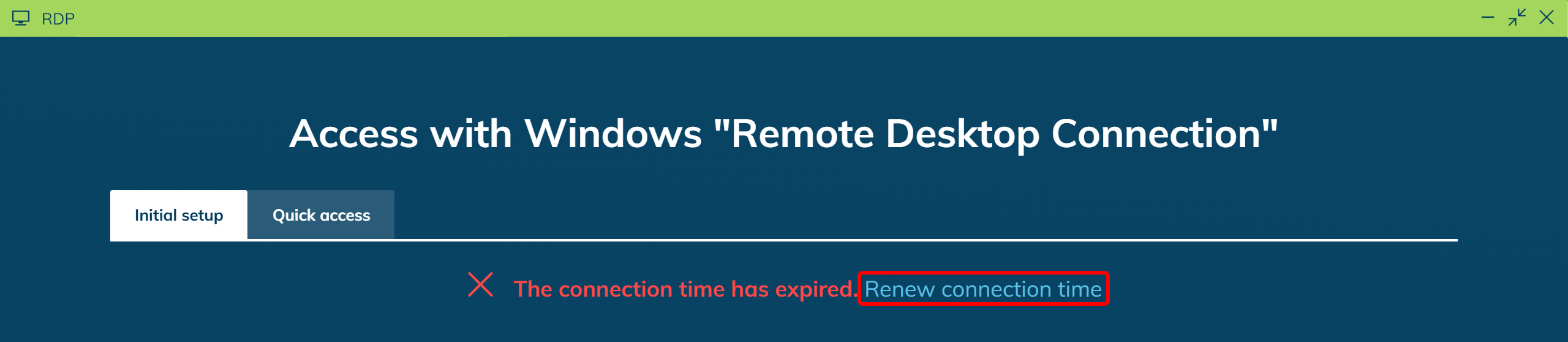
If your login fails, this may be because your credentials have expired. They are only valid for 5 minutes.
- Click on Renew connection time to generate new access credentials.
- Repeat the login from step 3.
If the login still fails, your antivirus software may be blocking the connection. Check the settings and contact your administrator if necessary.