Connect StackIT subscription to oneclick™
If you want to use an existing StackIT subscription in oneclick™, oneclick™ must be able to access this project via the StackIT APIs.
Access is provided through a StackIT Service Account with appropriate IAM permissions and a Service Account Key in JSON format.
1. Create and open a StackIT project
- Sign in to your StackIT account.
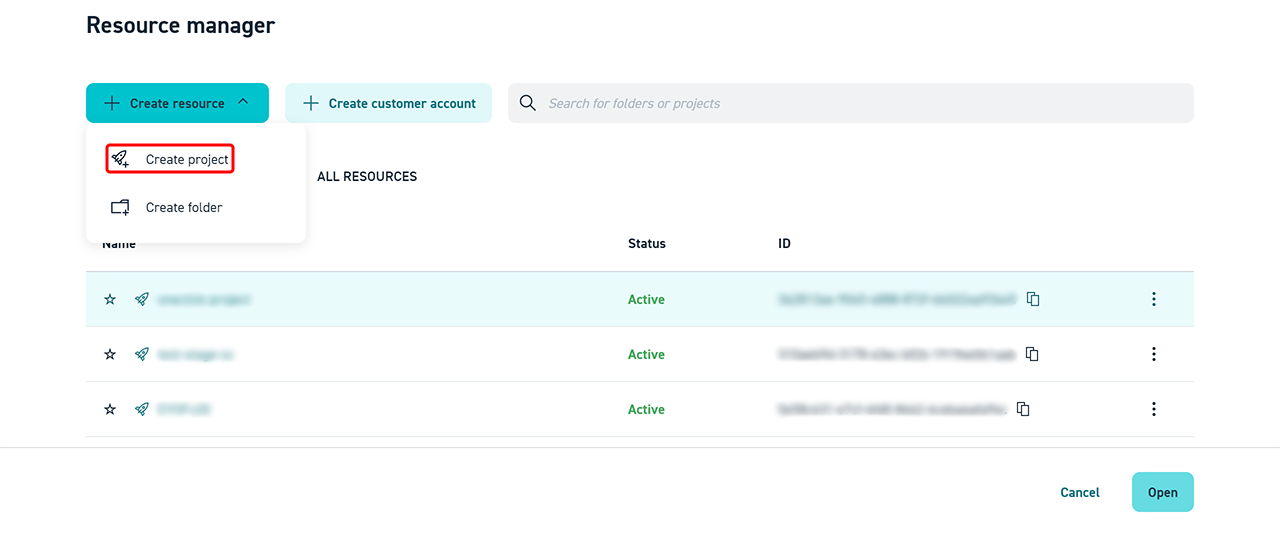
- Click Create resource and then Create project.
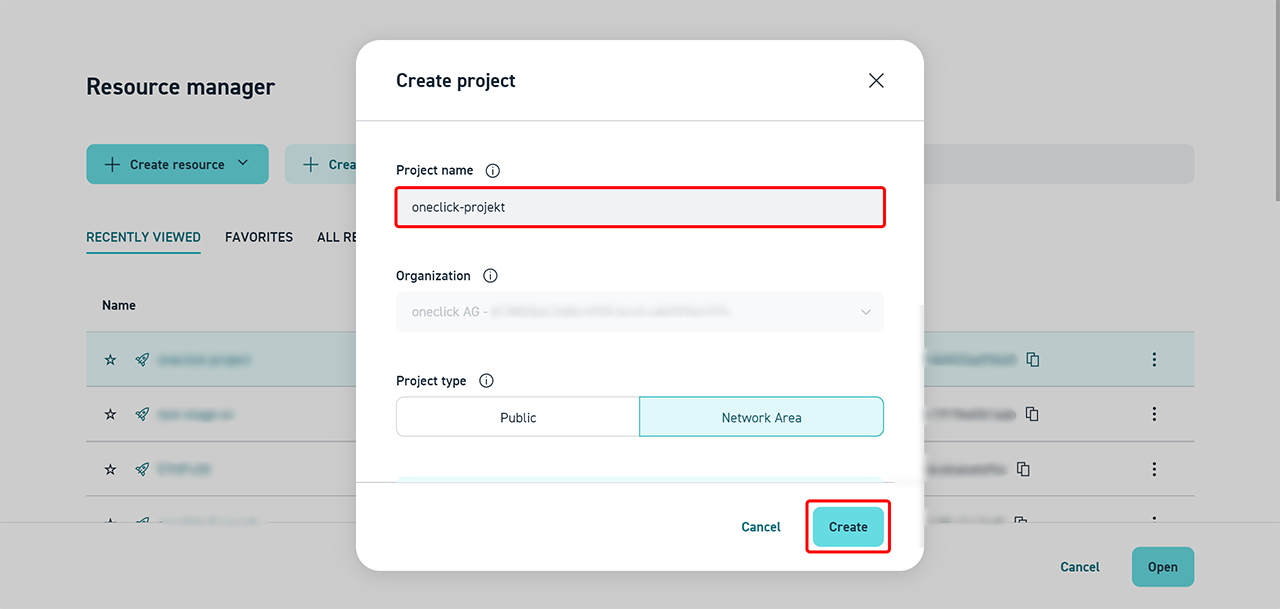
- Enter a Project name, assign the project to the desired organization, select a project type, and click Create.
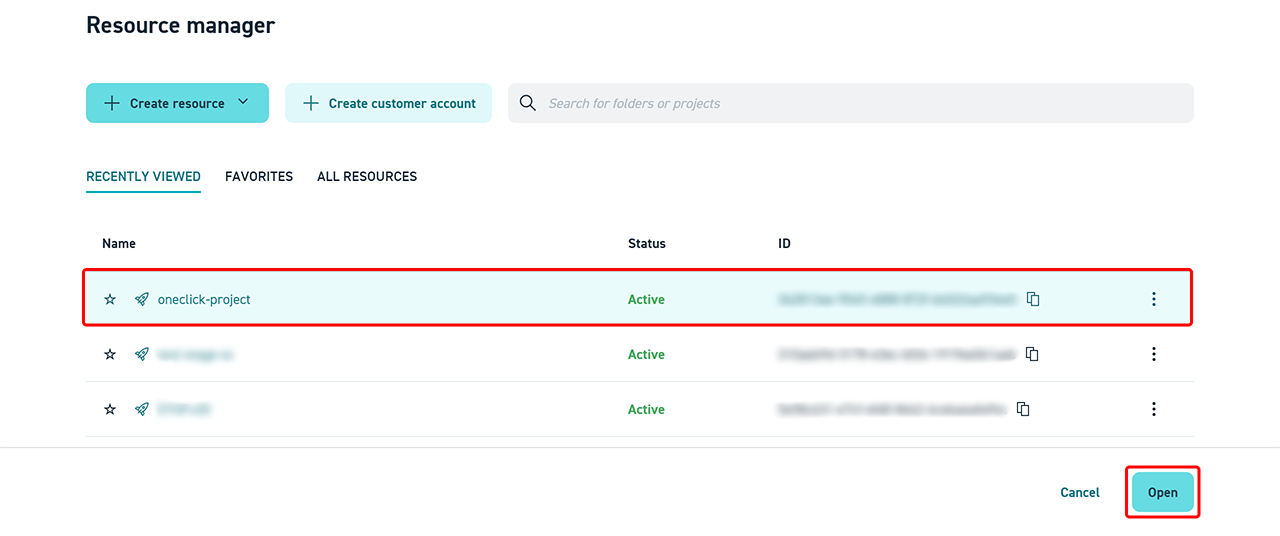
- Click the newly created Project and then click Open.
The project is now displayed in the StackIT portal and is ready for further configuration.
2. StackIT Service Account – Roles and Permissions
To ensure that oneclick™ can read and manage all required cloud resources, the service account used must have sufficient IAM permissions at the project level. Below you will find the minimum required IAM permissions (scopes) for the StackIT service account to be able to access all API endpoints of the stackit_cloud provider:
Recommended Role
project.editor – This role includes all of the permissions listed below and is the simplest solution for productive environments. Details on how to assign this role are described in the section Applying permissions.
Alternative: Granular Permissions
If more fine-grained control over permissions is required, the following specific permissions can be assigned:
-
Detailed permissions by service
Show detailed permissions by service
1. Virtual Machines (Servers)
Used API endpoints:
GET /v1/projects/{projectId}/servers- List serversGET /v1/projects/{projectId}/servers/{serverId}- Retrieve server detailsPOST /v1/projects/{projectId}/servers- Create serverPATCH /v1/projects/{projectId}/servers/{serverId}- Update serverDELETE /v1/projects/{projectId}/servers/{serverId}- Delete serverGET /v1/projects/{projectId}/servers/{serverId}/console- Retrieve consoleGET /v1/projects/{projectId}/servers/{serverId}/log- Retrieve server logPOST /v1/projects/{projectId}/servers/{serverId}/start- Start serverPOST /v1/projects/{projectId}/servers/{serverId}/stop- Stop serverPOST /v1/projects/{projectId}/servers/{serverId}/reboot- Reboot serverPOST /v1/projects/{projectId}/servers/{serverId}/deallocate- Deallocate serverPOST /v1/projects/{projectId}/servers/{serverId}/rescue- Put server into rescue modePOST /v1/projects/{projectId}/servers/{serverId}/unrescue- Exit rescue modePOST /v1/projects/{projectId}/servers/{serverId}/resize- Resize server
Required permissions:
iaas.server.list
iaas.server.get
iaas.server.create
iaas.server.update
iaas.server.delete
iaas.server.console-url.get
iaas.server.console-log.get
iaas.server.start
iaas.server.stop
iaas.server.reboot
iaas.server.deallocate
iaas.server.rescue
iaas.server.unrescue
iaas.server.resize
2. Volumes (Disks/Storage)
Used API endpoints:
GET /v1/projects/{projectId}/volumes- List volumesGET /v1/projects/{projectId}/volumes/{volumeId}- Retrieve volume detailsPOST /v1/projects/{projectId}/volumes- Create volumePATCH /v1/projects/{projectId}/volumes/{volumeId}- Update volumeDELETE /v1/projects/{projectId}/volumes/{volumeId}- Delete volumePOST /v1/projects/{projectId}/volumes/{volumeId}/resize- Resize volume
Required permissions:
iaas.volume.list
iaas.volume.get
iaas.volume.create
iaas.volume.update
iaas.volume.delete
iaas.volume.resize
3. Volume Attachments (Server–Volume Mapping)
API endpoints used:
GET /v1/projects/{projectId}/servers/{serverId}/volume-attachments- List attachmentsGET /v1/projects/{projectId}/servers/{serverId}/volume-attachments/{volumeId}- Attachment-DetailsPUT /v1/projects/{projectId}/servers/{serverId}/volume-attachments/{volumeId}- Attach volumePATCH /v1/projects/{projectId}/servers/{serverId}/volume-attachments/{volumeId}- Update attachmentDELETE /v1/projects/{projectId}/servers/{serverId}/volume-attachments/{volumeId}- Detach volume
Required permissions:
iaas.server.volume.list
iaas.server.volume.get
iaas.server.volume.add
iaas.server.volume.update
iaas.server.volume.remove
4. Networks
API endpoints used:
GET /v1/projects/{projectId}/networks- List networksGET /v1/projects/{projectId}/networks/{networkId}- Retrieve network detailsPOST /v1/projects/{projectId}/networks- Create networkDELETE /v1/projects/{projectId}/networks/{networkId}- Delete networkPOST /v1/projects/{projectId}/servers/{serverId}/networks/{networkId}- Attach network to serverDELETE /v1/projects/{projectId}/servers/{serverId}/networks/{networkId}- Detach network from server
Required permissions:
iaas.network.list
iaas.network.get
iaas.network.create
iaas.network.delete
iaas.server.network.add
iaas.server.network.remove
5. Network Interfaces (NICs)
Used API endpoints:
GET /v1/projects/{projectId}/nics- List all NICs in the projectGET /v1/projects/{projectId}/nics/{nicId}- Retrieve NIC detailsGET /v1/projects/{projectId}/networks/{networkId}/nics- List NICs of a networkPOST /v1/projects/{projectId}/networks/{networkId}/nics- Create NICPATCH /v1/projects/{projectId}/networks/{networkId}/nics/{nicId}- Update NICDELETE /v1/projects/{projectId}/networks/{networkId}/nics/{nicId}- Delete NICGET /v1/projects/{projectId}/servers/{serverId}/nics- List NICs of a serverPUT /v1/projects/{projectId}/servers/{serverId}/nics/{nicId}- Attach NIC to serverDELETE /v1/projects/{projectId}/servers/{serverId}/nics/{nicId}- Detach NIC from server
Required permissions:
iaas.nic.list
iaas.nic.get
iaas.nic.create
iaas.nic.update
iaas.nic.delete
iaas.server.nic.list
iaas.server.nic.add
iaas.server.nic.remove
6. Public IPs
Used API endpoints:
-
GET /v1/projects/{projectId}/public-ips- List public IPs -
GET /v1/projects/{projectId}/public-ips/{publicIpId}- Retrieve public IP details -
POST /v1/projects/{projectId}/public-ips- Create public IP -
PATCH /v1/projects/{projectId}/public-ips/{publicIpId}- Update public IP -
DELETE /v1/projects/{projectId}/public-ips/{publicIpId}- Delete public IP -
PUT /v1/projects/{projectId}/servers/{serverId}/public-ips/{publicIpId}- Attach IP to server -
DELETE /v1/projects/{projectId}/servers/{serverId}/public-ips/{publicIpId}- Detach IP from server
Required permissions:
iaas.public-ip.list
iaas.public-ip.get
iaas.public-ip.create
iaas.public-ip.update
iaas.public-ip.delete
iaas.server.public-ip.add
iaas.server.public-ip.remove
7. Network Security Groups (NSGs/Firewalls)
Used API endpoints:
GET /v1/projects/{projectId}/security-groups- List security groupsGET /v1/projects/{projectId}/security-groups/{securityGroupId}- Retrieve security group detailsPOST /v1/projects/{projectId}/security-groups- Security Group erstellenPATCH /v1/projects/{projectId}/security-groups/{securityGroupId}- Create security groupDELETE /v1/projects/{projectId}/security-groups/{securityGroupId}- Delete security groupGET /v1/projects/{projectId}/security-groups/{securityGroupId}/rules- List rulesGET /v1/projects/{projectId}/security-groups/{securityGroupId}/rules/{ruleId}- Retrieve rule detailsPOST /v1/projects/{projectId}/security-groups/{securityGroupId}/rules- Create ruleDELETE /v1/projects/{projectId}/security-groups/{securityGroupId}/rules/{ruleId}- Delete rulePUT /v1/projects/{projectId}/servers/{serverId}/security-groups/{securityGroupId}- Attach security group to serverDELETE /v1/projects/{projectId}/servers/{serverId}/security-groups/{securityGroupId}- Detach security group from server
Required permissions:
iaas.security-group.list
iaas.security-group.get
iaas.security-group.create
iaas.security-group.update
iaas.security-group.delete
iaas.security-group.rule.list
iaas.security-group.rule.get
iaas.security-group.rule.create
iaas.security-group.rule.delete
iaas.server.security-group.add
iaas.server.security-group.remove
8. Images
Used API endpoints:
GET /v1/projects/{projectId}/images- List imagesGET /v1/projects/{projectId}/images/{imageId}- Retrieve image detailsPOST /v2/projects/{projectId}/regions/{region}/volumes/{volumeId}/upload- Create / upload imagePATCH /v2/projects/{projectId}/regions/{region}/images/{imageId}- Update imageDELETE /v1/projects/{projectId}/images/{imageId}- Delete image
Required permissions:
iaas.image.list
iaas.image.get
iaas.image.create
iaas.image.update
iaas.image.delete
9. Snapshots
Used API endpoints:
GET /v1/projects/{projectId}/snapshots- List snapshotsGET /v1/projects/{projectId}/snapshots/{snapshotId}- Retrieve snapshot detailsPOST /v2/projects/{projectId}/regions/{region}/snapshots- Create snapshotDELETE /v1/projects/{projectId}/snapshots/{snapshotId}- Delete snapshot
Required permissions:
iaas.snapshot.list
iaas.snapshot.get
iaas.snapshot.create
iaas.snapshot.delete
10. Flavors/Machine Types
Used API endpoints:
GET /v1/projects/{projectId}/machine-types- List machine typesGET /v1/projects/{projectId}/volume-performance-classes- List volume performance classes
Required permissions:
iaas.machine-type.list
iaas.machine-type.get
iaas.volume-performance-class.list
iaas.volume-performance-class.get
11. Service accounts (server-related)
Used API endpoints:
GET /v1/projects/{projectId}/servers/{serverId}/service-accounts- List service accountsPUT /v1/projects/{projectId}/servers/{serverId}/service-accounts/{serviceAccountMail}- Attach saDELETE /v1/projects/{projectId}/servers/{serverId}/service-accounts/{serviceAccountMail}- Detach sa
Required permissions:
iaas.server.service-account.list
iaas.server.service-account.add
iaas.server.service-account.remove
12. Quotas
Used API endpoints:
GET /v1/projects/{projectId}/quotas- Retrieve project quotas
Required permissions:
iaas.quota.get
13. SKUs (Pricing Information Management)
Used API endpoints:
GET /v1/skus- List SKUs (PIM API)
Required permissions:
No specific permission documented – the PIM API is publicly accessible
14. Availability Zones
Used API endpoints:
- (Implicit - Used by other services)
Required permissions:
No additional permissions required
-
Summary: Complete list of all permissions
Show complete list of all IAM permissions
# Server Management
iaas.server.list
iaas.server.get
iaas.server.create
iaas.server.update
iaas.server.delete
iaas.server.console-url.get
iaas.server.console-log.get
iaas.server.start
iaas.server.stop
iaas.server.reboot
iaas.server.deallocate
iaas.server.rescue
iaas.server.unrescue
iaas.server.resize

# Volume Management
iaas.volume.list
iaas.volume.get
iaas.volume.create
iaas.volume.update
iaas.volume.delete
iaas.volume.resize

# Volume Attachments
iaas.server.volume.list
iaas.server.volume.get
iaas.server.volume.add
iaas.server.volume.update
iaas.server.volume.remove

# Network Management
iaas.network.list
iaas.network.get
iaas.network.create
iaas.network.delete
iaas.server.network.add
iaas.server.network.remove

# NIC Management
iaas.nic.list
iaas.nic.get
iaas.nic.create
iaas.nic.update
iaas.nic.delete
iaas.server.nic.list
iaas.server.nic.add
iaas.server.nic.remove

# Public IP Management
iaas.public-ip.list
iaas.public-ip.get
iaas.public-ip.create
iaas.public-ip.update
iaas.public-ip.delete
iaas.server.public-ip.add
iaas.server.public-ip.remove

# Security Group Management
iaas.security-group.list
iaas.security-group.get
iaas.security-group.create
iaas.security-group.update
iaas.security-group.delete
iaas.security-group.rule.list
iaas.security-group.rule.get
iaas.security-group.rule.create
iaas.security-group.rule.delete
iaas.server.security-group.add
iaas.server.security-group.remove

# Image Management
iaas.image.list
iaas.image.get
iaas.image.create
iaas.image.update
iaas.image.delete

# Snapshot Management
iaas.snapshot.list
iaas.snapshot.get
iaas.snapshot.create
iaas.snapshot.delete

# Flavors/Machine Types
iaas.machine-type.list
iaas.machine-type.get
iaas.volume-performance-class.list
iaas.volume-performance-class.get

# Service Account Attachments
iaas.server.service-account.list
iaas.server.service-account.add
iaas.server.service-account.remove

# Quotas
iaas.quota.get
-
Applying permissions using the STACKIT CLI
Show permission assignment
Option 1: Predefined role (Recommended)
The simplest method is to assign the project.editor role to the service account:
# Create service account (in the STACKIT portal)
# Assign role
stackit project member add \
  --project-id <PROJECT_ID> \
  --email <SERVICE_ACCOUNT_EMAIL> \
  --role project.editor
Option 2: Custom role with minimal permissions
If you want to create a custom role with only the permissions listed above instead of using the recommended standard role, refer to the STACKIT Custom Roles documentation.
Security notes
- Principle of least privilege: Use only the permissions that are actually required
- Prefer key flow: Use the key flow instead of the token flow for increased security
- Regular reviews: Regularly review whether all permissions are still required
- Service account scope: Assign the service account only to the specific projects where it is needed
- Rotation: Rotate service account keys regularly
Further information
3. Create a service account and grant project access
In the following step, you create a STACKIT service account and assign it the IAM permissions for your project described in section 2.
3.1 Create a service account
- Scroll to IAM and Administration in the left navigation and click Service Accounts.
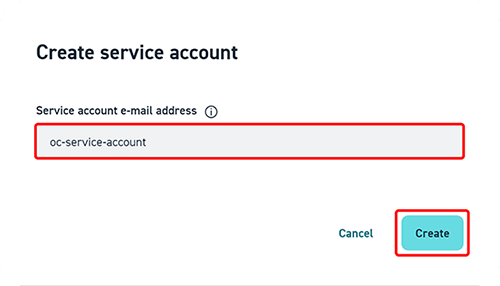
- Click Create service account.
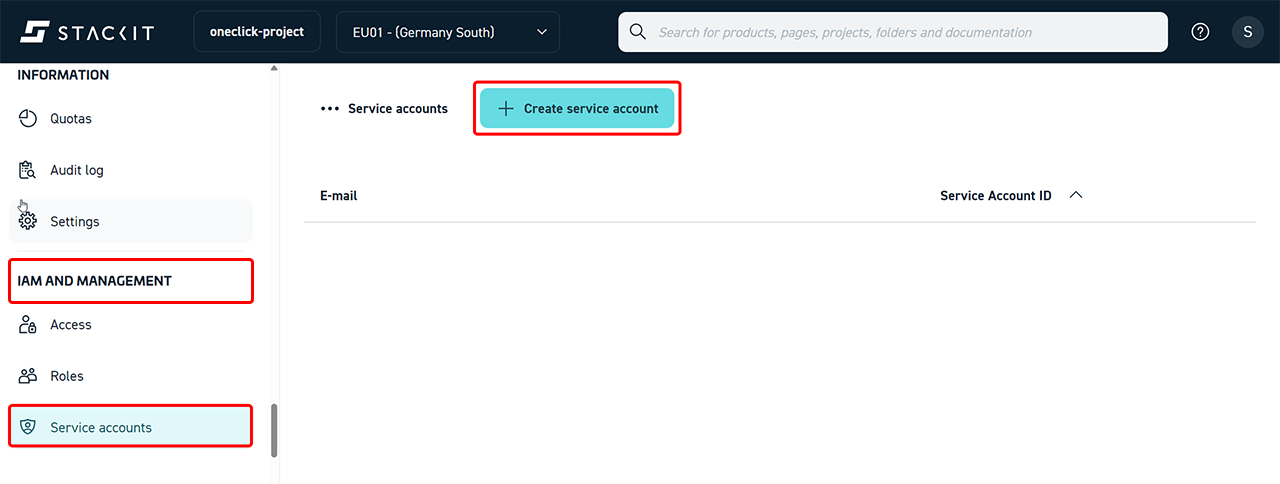
- Assign a unique name, for example “oc-service-account”. Only the name (prefix) needs to be specified. The full service account email address is automatically generated by StackIT and assigned to the service account.
- Click Create.
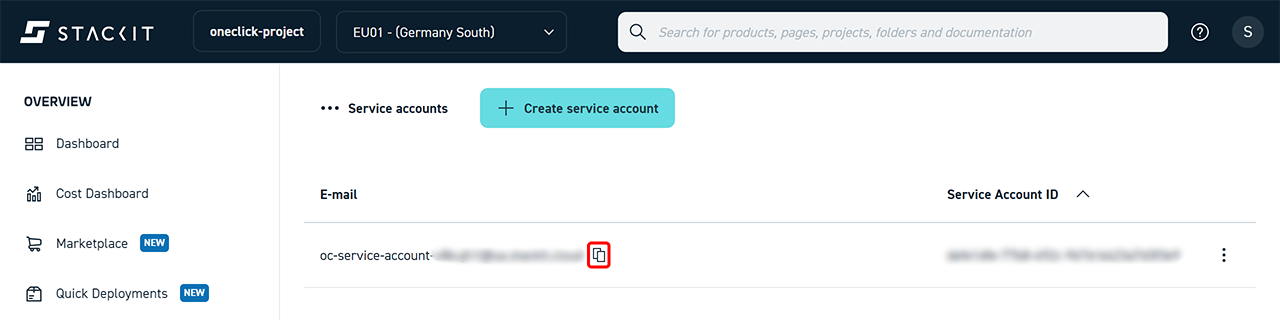
- The service account is then displayed in the list.
Copy the email address, as you will need it in the next step.
3.2 Grant access to the project (IAM Access)
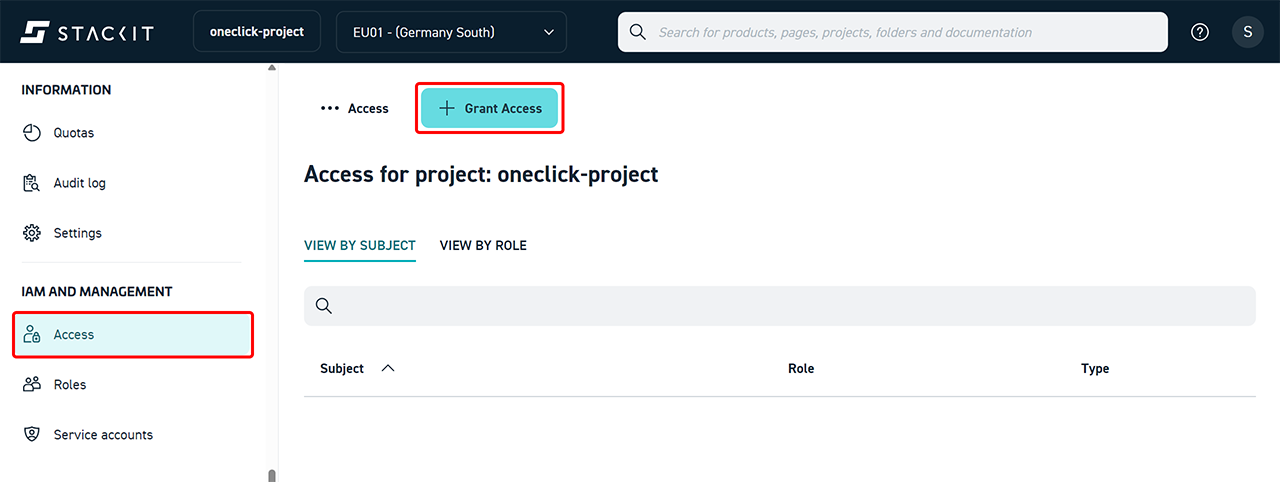
- Open the Access menu item in the project.
- Click Grant Access.
- Under Subject, select the previously created service account.
To do this, paste the copied email address from step 3.1. - Assign the Editor role to the service account.
- Click Save.
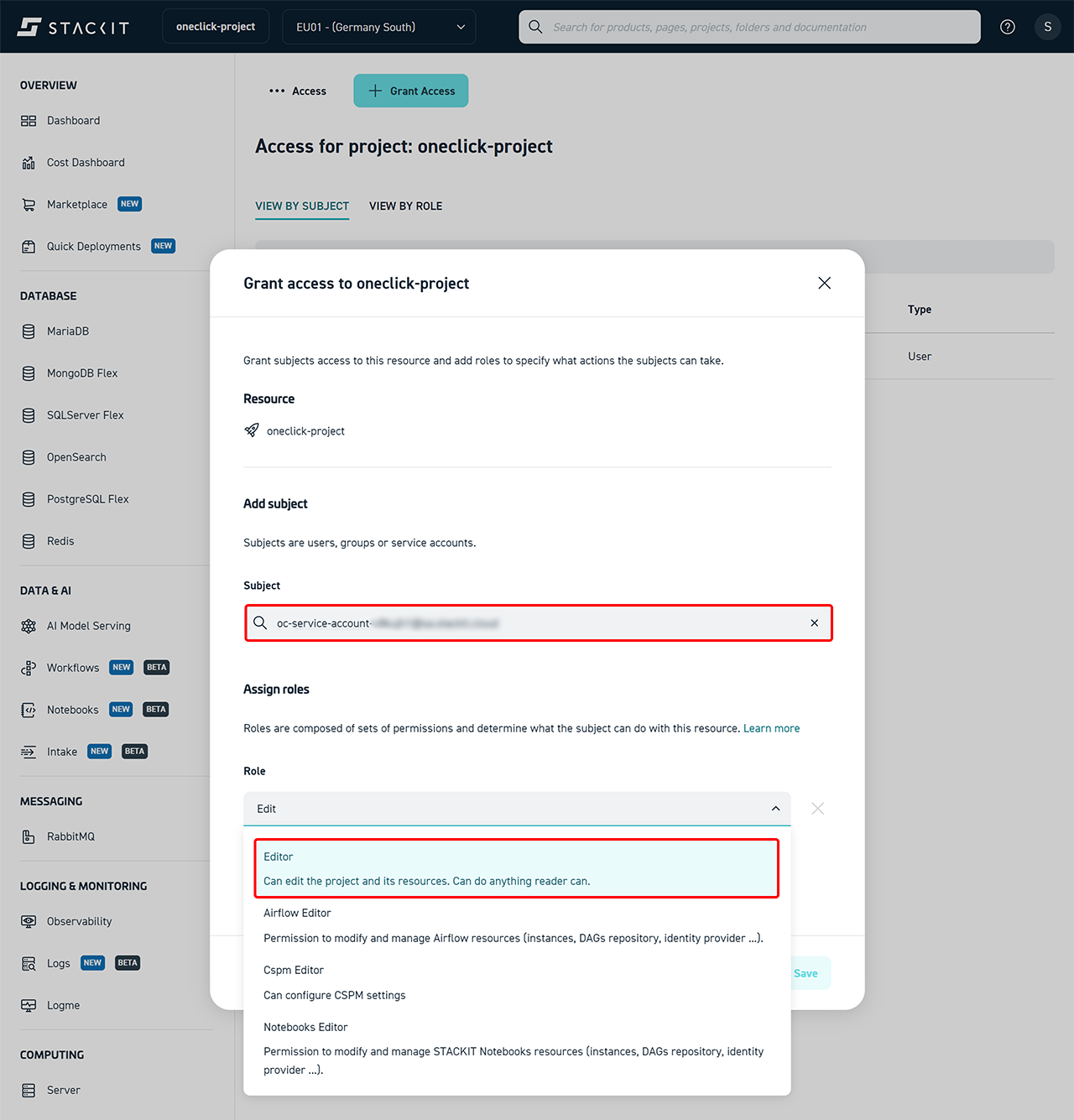
The service account now has access to the project and its resources.
4. Create a service account key (JSON)
To allow oneclick™ to authenticate with STACKIT, you must generate credentials for the service account.
- Open IAM and Administration and click Service accounts.
- Select the previously created service account.
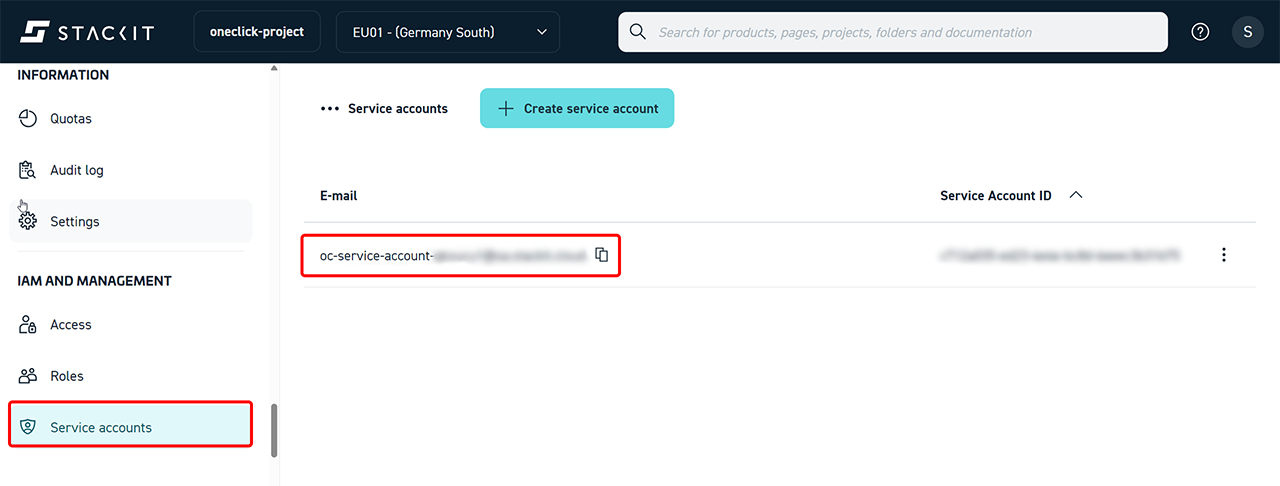
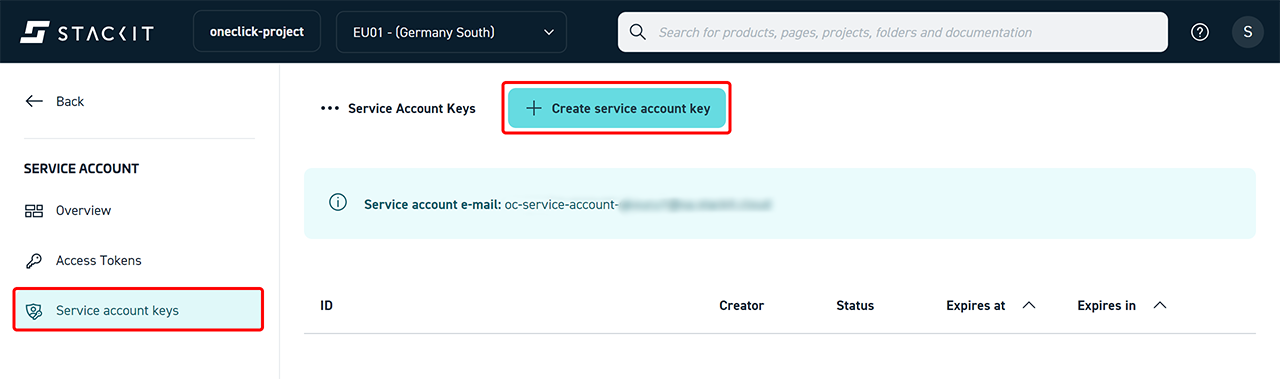
- Click Service Account Keys.
- Click Create service account key.
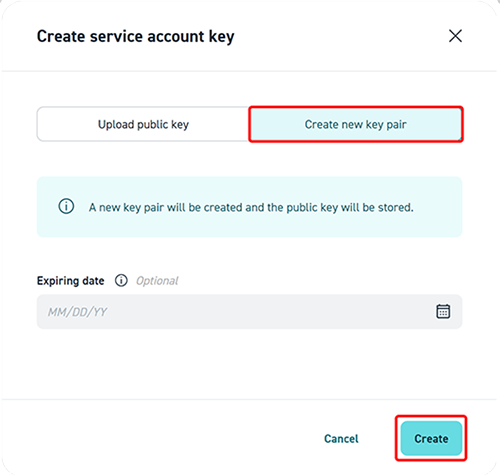
- Select Create new key pair.
- Optionally set an expiration date.
- Click Create.
- Download the generated JSON file and store it securely.
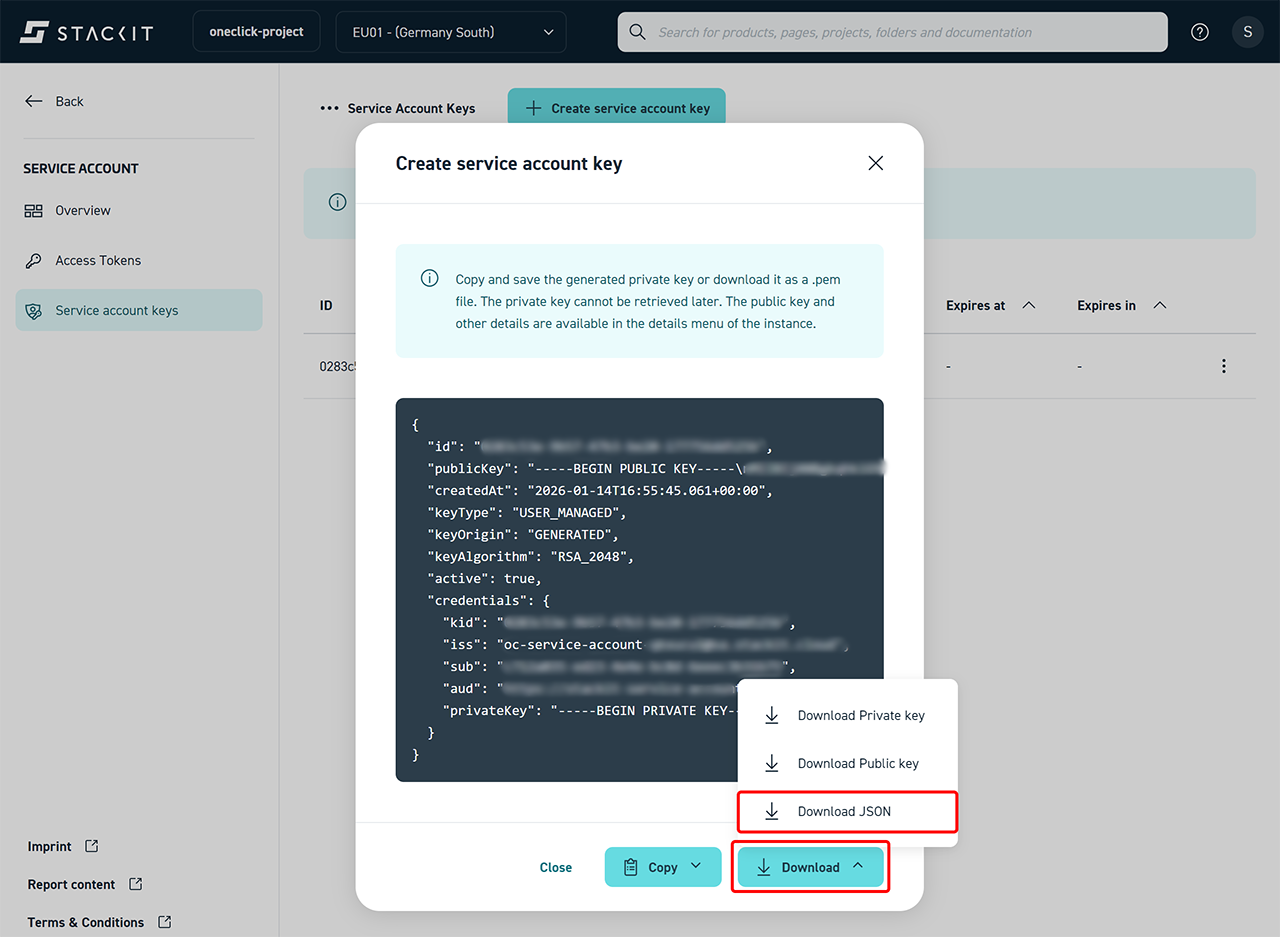
The JSON file cannot be displayed or downloaded again.
The JSON file will be required later in oneclick™.
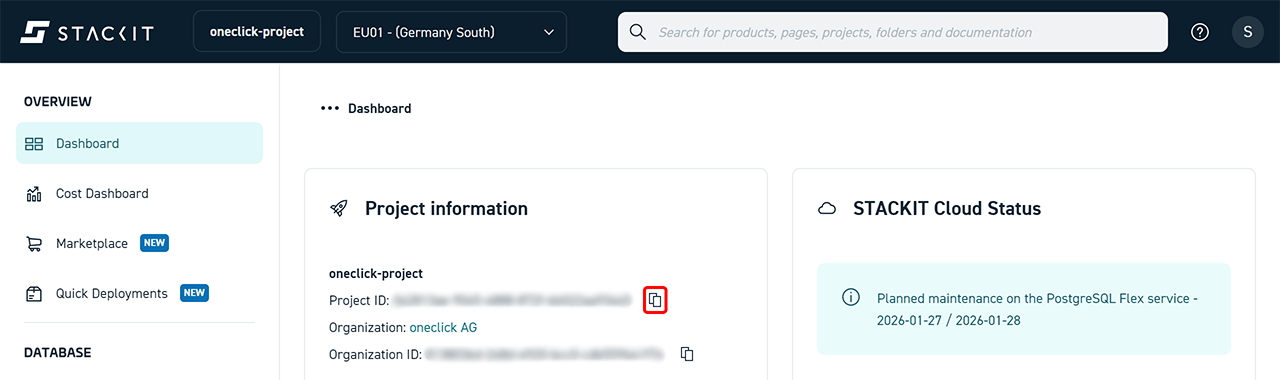
5. Determine the project ID
- Open the project in the STACKIT Portal.
- The project ID is displayed in the top section or in the URL.
- Copy the Project ID.
6. Connect the STACKIT subscription in the oneclick™ Admin
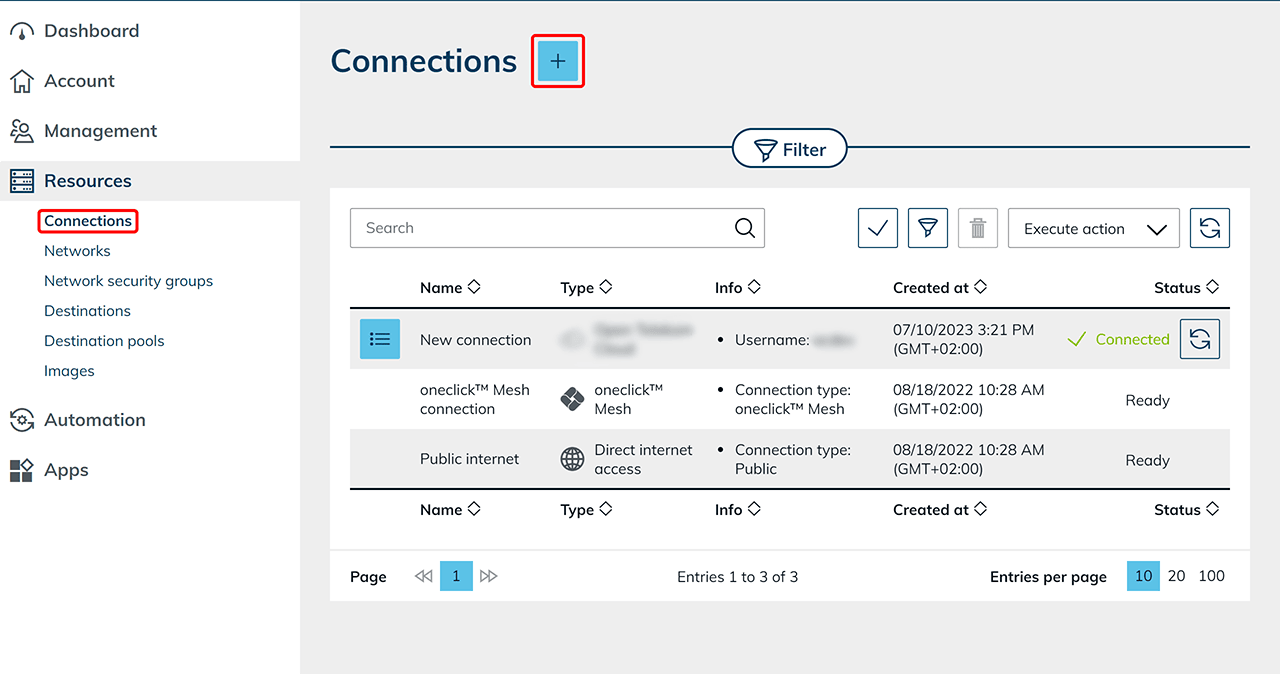
- Open the oneclick™ admin area.
- In the Resources tab, click Connections.
- Click the Plus icon to connect a cloud subscription.
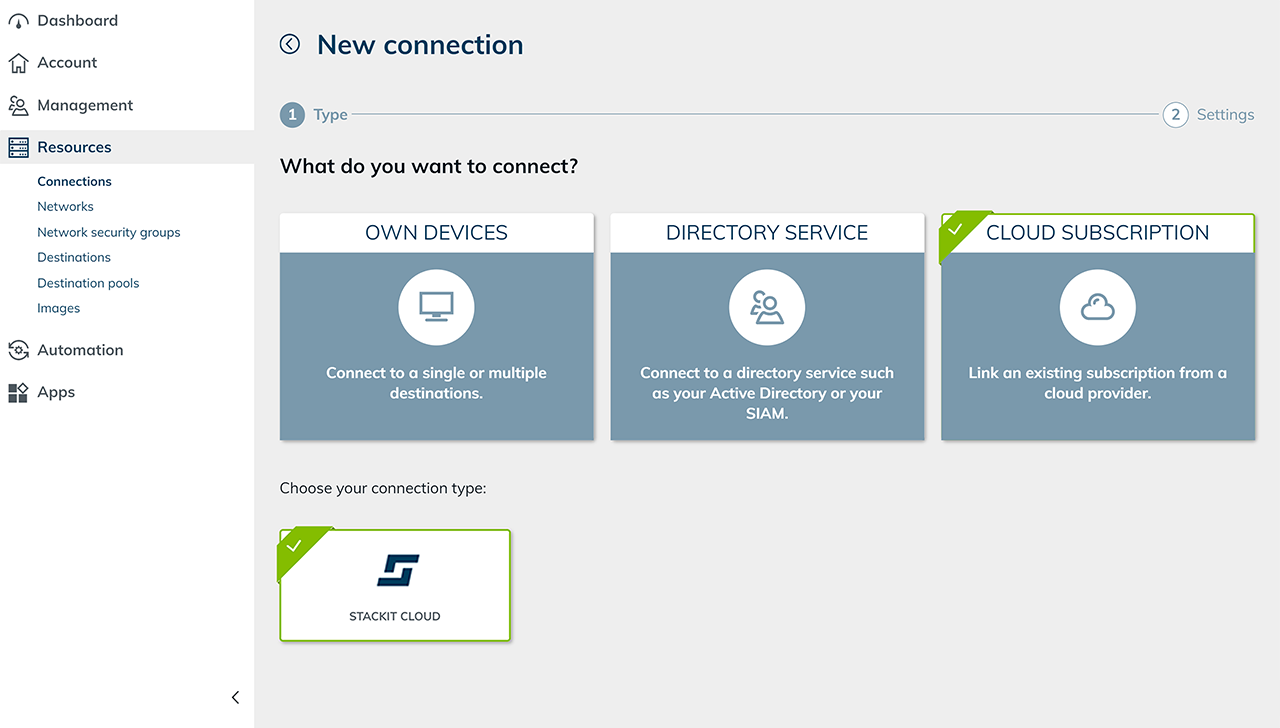
- Select the Cloud Subscription tile and then STACKIT Cloud.
- Enter a Name for the connection and add the Project ID from step 5.
- In the Service Account Key field, paste the complete contents of the previously downloaded service account key JSON file.
- Click Save.
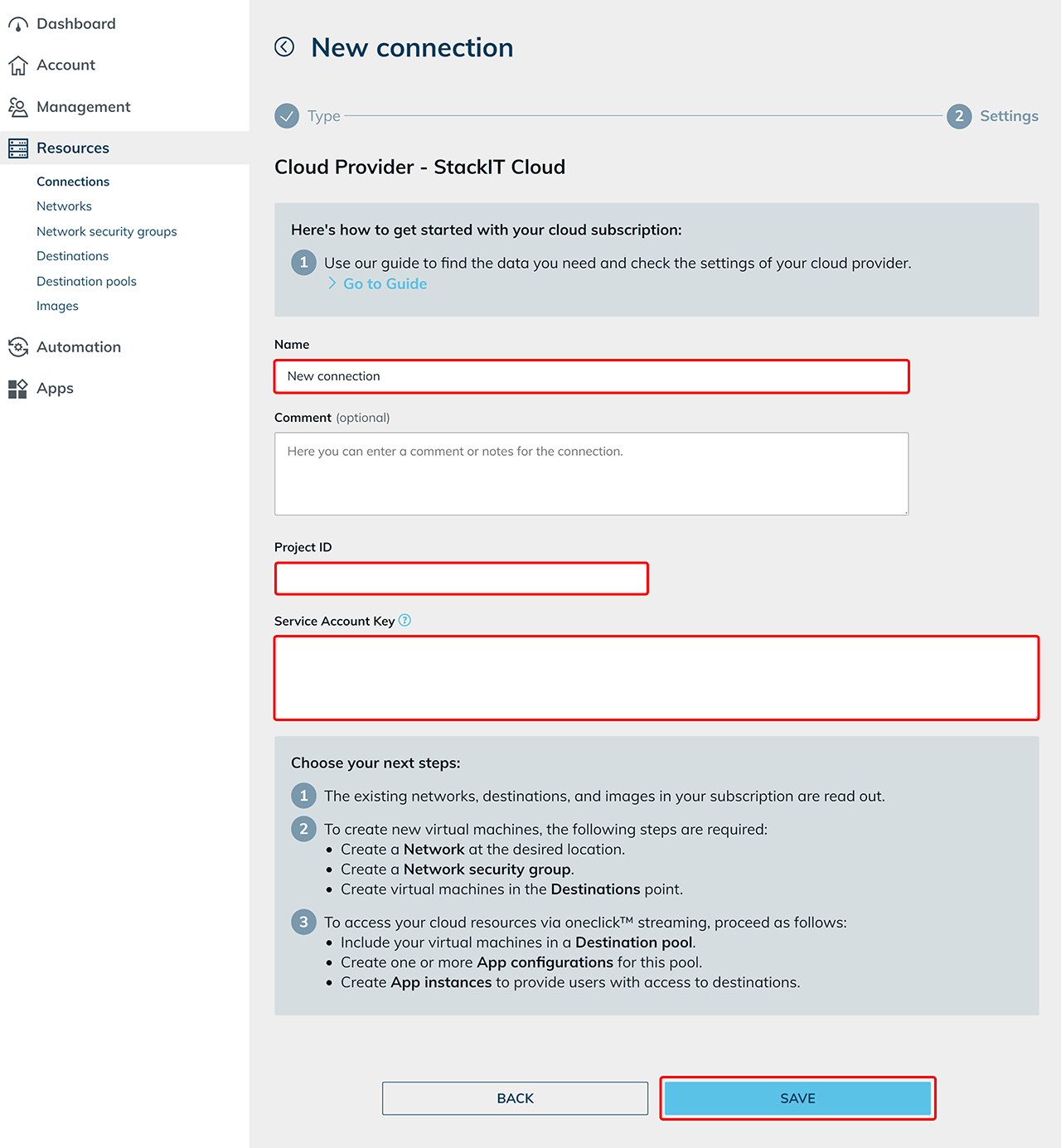 The STACKIT subscription is now connected and existing resources are read. Costs are only incurred when virtual machines are used.
 - You can now create new virtual machines.
7. Notes on edited Default Network Security Groups
You already created VMs via StackIT portal and read them out in oneclick™?
Then you probably also added a firewall rule to this cloud resource in oneclick™ in order to gain access to the resource via oneclick™.
When adding a firewall rule in oneclick™, a new Network Security Group is created per cloud resource in StackIT. The Default Security Group is always attached to virtual machines and is technically required.
If you made settings in the default security group you still need, add them again using one of the following two methods:
- Create new firewall rules oneclick™. You can set these in the settings of each cloud resource. The firewall rules you are defining here will be added to the oneclick™ Network Security Group in StackIT.
- Create a new Network Security Group via the StackIT portal and reset your previously created rules. Afterwards you can add them to your cloud resource.
Support Notice
We do not assume any liability for the implementation of the described steps. If anything is unclear or if technical deviations occur, we recommend contacting the cloud provider’s support team directly.
Contact Information
STACKIT GmbH & Co. KG
Stiftsbergstraße 1
74172 Neckarsulm
Germany
Hotline:
+49 7132 30-474747
Support Portal:
STACKIT Help Center